

Importing Mind Maps
You can bring your work from other tools into Mindomo, from a file on your computer or by pasting plain text.
How to import a mind map
Section titled “How to import a mind map”On the Dashboard, click the Import button (1) at the top of the page. The Import panel opens, with a tile for each of the most common formats. Click a tile to choose a file of that type. You can also drag and drop a file onto the area at the bottom of the panel (2), or click Browse.
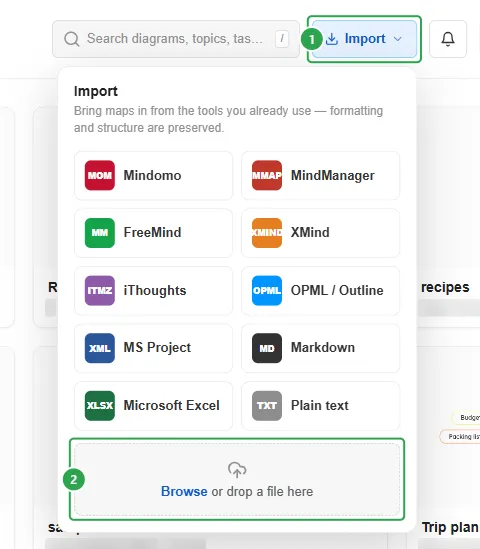
Once you choose a file, Mindomo creates the map and opens it in the editor. The new map is named after the file.
Import several files at once
Section titled “Import several files at once”To import more than one file, select them on your computer and drag them together onto the Browse or drop a file here area. The files can be in different formats.
Mindomo creates a separate map for each file. You stay on the Dashboard, and the new maps appear at the top of My diagrams.
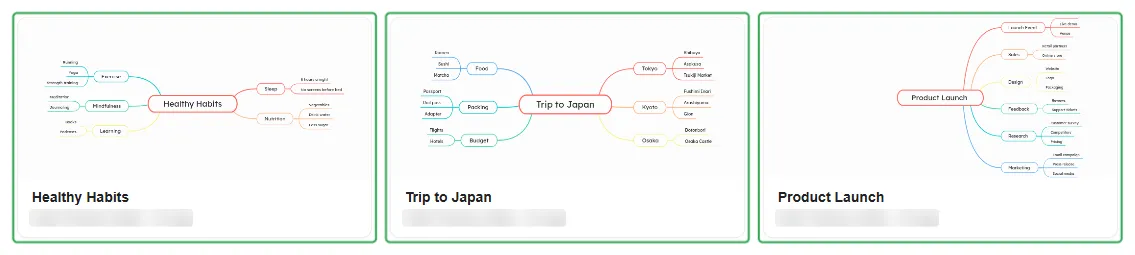
In the example below, three files in different formats were dropped together:
- Healthy Habits - a text file (.txt)
- Trip to Japan - an OPML file (.opml)
- Product Launch - a Markdown file (.md)
Supported formats
Section titled “Supported formats”The Import panel shows tiles for 10 formats, but Mindomo can import 14. Formats without a tile (Text, MindMeister, Bubbl.us and SimpleMind files) are imported the same way as any other file: click Browse or drop the file onto the area at the bottom of the panel.
| Format | File type |
|---|---|
| Mindomo | .mom, .pmom |
| MindManager | .mmap |
| FreeMind | .mm |
| XMind | .xmind |
| iThoughts | .itmz |
| OPML | .opml |
| Microsoft Project | .xml |
| Markdown | .md, .markdown |
| Excel | .xls, .xlsx |
| Plain text | pasted text |
| Text | .txt |
| MindMeister | .mind |
| Bubbl.us | .xml |
| SimpleMind | .smmx |
With a free Mindomo account, you can use every import format, but only within the 3-diagram limit.
Import from plain text
Section titled “Import from plain text”You can paste plain text and turn it into a mind map.
-
On the Dashboard, click Import, then click the Plain text tile.
-
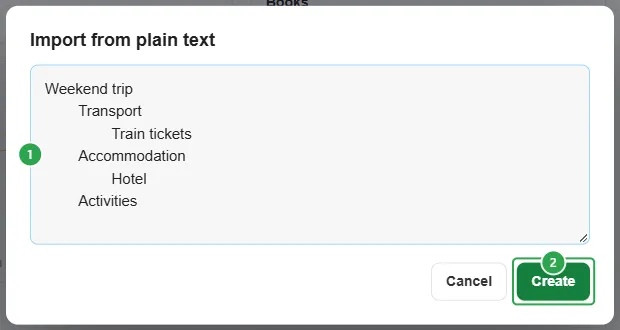
In the Import from plain text dialog, paste or type your content (1). Each line becomes a topic: the first line is the central topic, and every tab of indentation places a line one level deeper.
-
Click Create (2).
The new map opens in the editor:

Import from OPML
Section titled “Import from OPML”Mindomo builds the map structure from the hierarchy in the OPML file: the first outline becomes the central topic, and each nested outline becomes a topic one level deeper.
For example, take this OPML file:
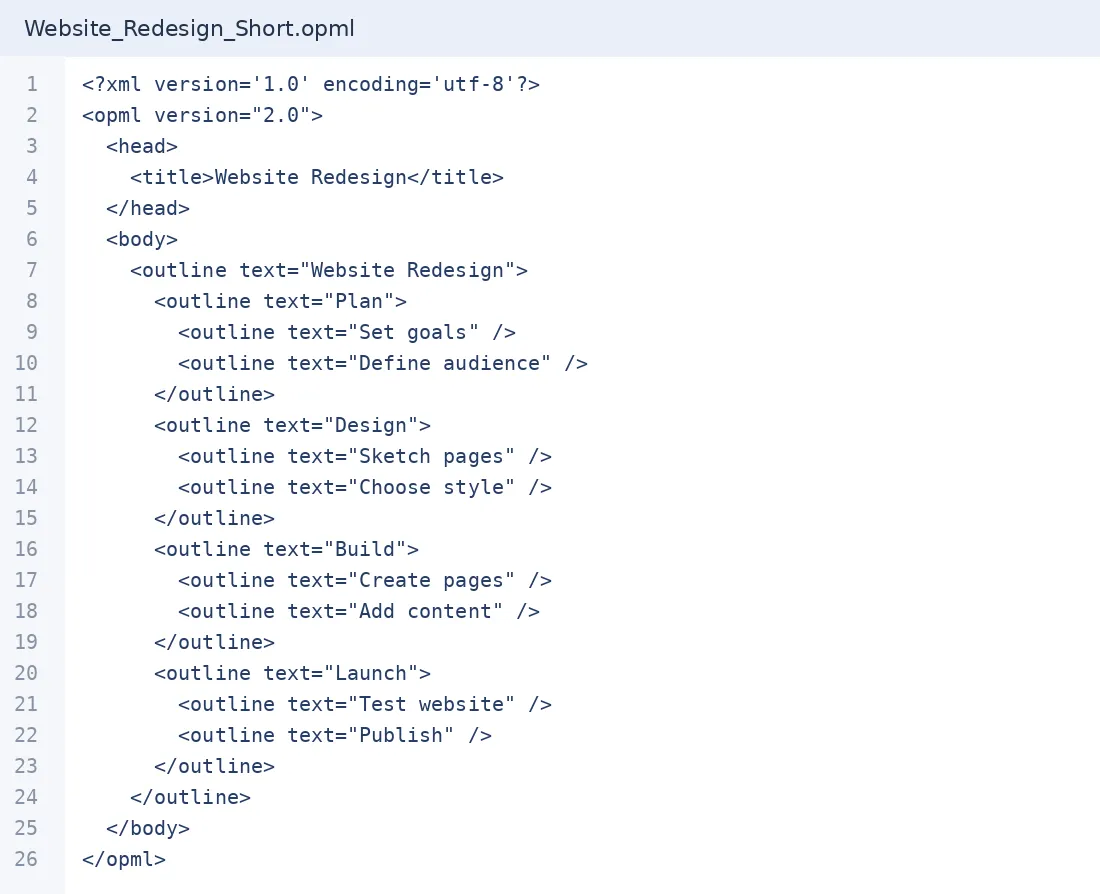
When you import it, Website Redesign becomes the central topic, the four phases become main topics, and the tasks in each phase become their subtopics:

Import a Markdown file
Section titled “Import a Markdown file”Mindomo turns the structure of your Markdown file into topics, and also imports links, task details, notes, emojis and tasks.
Topic levels
Section titled “Topic levels”The first two topic levels are defined by hash symbols (#), and deeper levels can be created with more hash symbols or with list markers:
- One hash symbol (
#) creates the central topic. - Two hash symbols (
##) create main topics. - Three hash symbols (
###), or a dash (-), asterisk (*) or plus (+), create subtopics.
When using list markers, indentation sets the level: level three starts with no tab before the symbol, level four starts with one tab, level five with two tabs, and so on.
Markdown hyperlinks are imported in three ways:
- Links formatted as
[text](url)are added directly to the link text within the topic. - Links placed inside angle brackets
<url>are imported as plain text. - Links preceded by the word
Hyperlink:are added to the topic’s Hyperlink panel. In Markdown, the link should appear on its own line after a heading or list item, with the URL in angle brackets.
Priority, progress and notes
Section titled “Priority, progress and notes”Task details written as Priority:, Progress:, Start: and Due: are imported into the task’s Priority, Progress, Start date and End date. In Markdown, they must appear after the related topic, separated from it by a blank line.
Any other text separated from a topic or its task details by a blank line is imported as a note.
The example below uses topic levels, all three kinds of links, task details and a note.
Your original Markdown view:
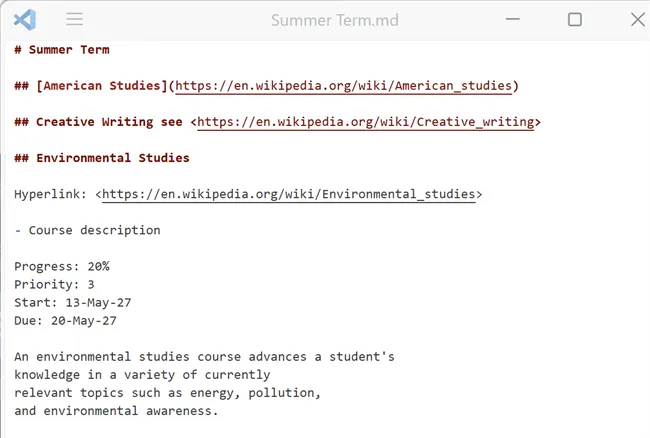
View of your Markdown file when imported as a mind map:

Emojis
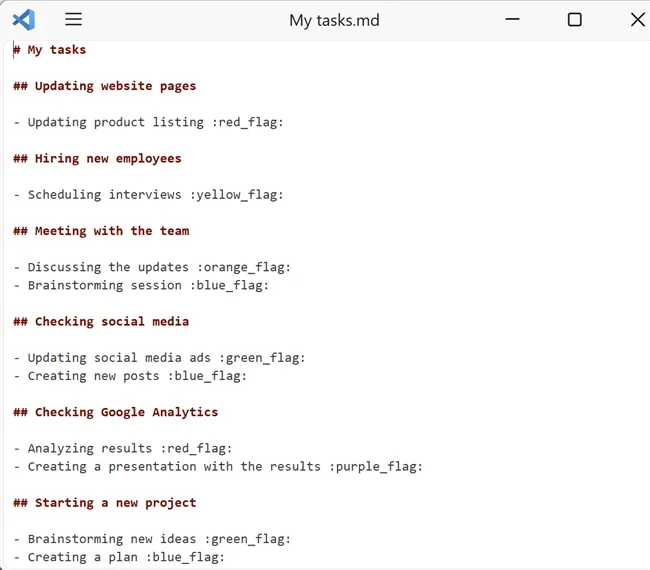
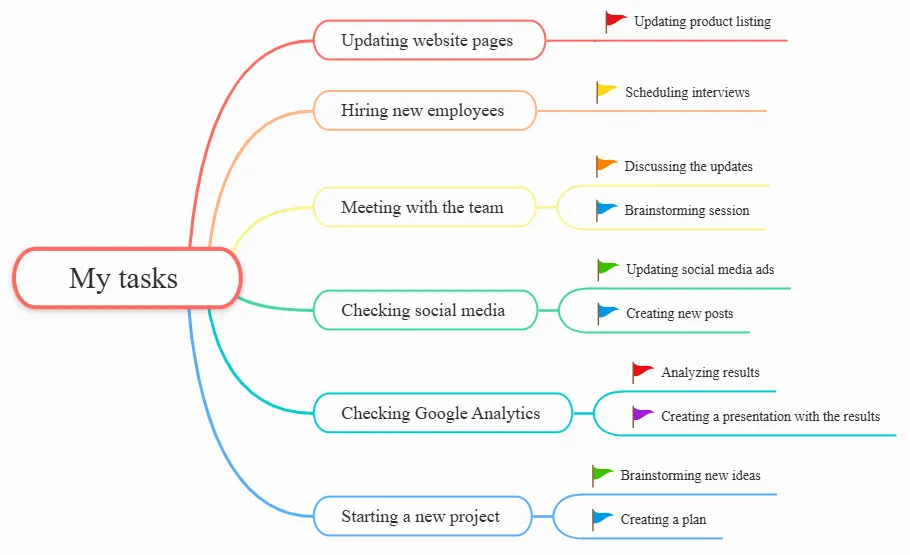
Section titled “Emojis”If you add emojis to your Markdown file, they are imported into Mindomo. All standard Markdown emojis are supported, and Mindomo can also import its own emoji set, including emojis that are not in the official Markdown list. For example, when adding flag emojis, you can use both the official Markdown flags and the additional colored flags available in the Mindomo gallery.
Write an emoji as its name between colons, for example :red_flag:. You can place several emojis next to each other without spaces: :red_flag::green_flag:.
| Flags | Codes |
|---|---|
| Official Markdown flags | :black_flag: :white_flag: |
| Mindomo colored flags (not in official Markdown) | :green_flag: :blue_flag: :red_flag: :yellow_flag: :orange_flag: :purple_flag: |
Your original Markdown view:
View of your Markdown file when imported as a mind map:
Checkboxes
Section titled “Checkboxes”To include tasks in your Markdown file, use the following symbols:
- [ ] - when the task is not complete
- [x] - when the task is complete
These work only on list items that start with a hyphen. Titles (the central topic) and subtitles (main topics) still use the # symbol.
Your original Markdown view:
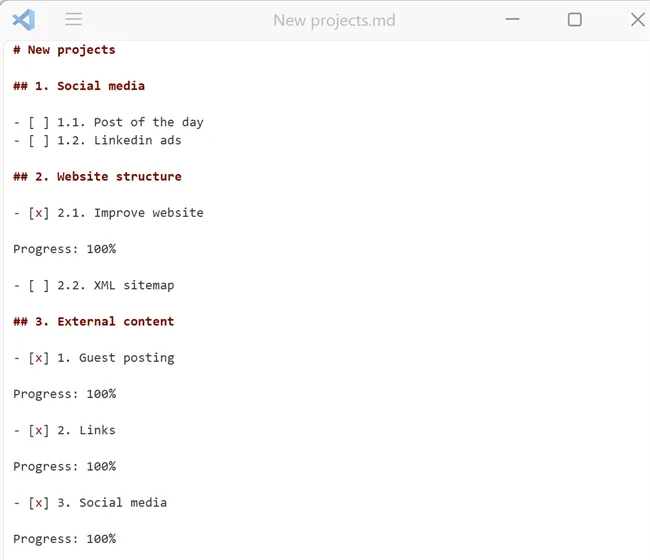
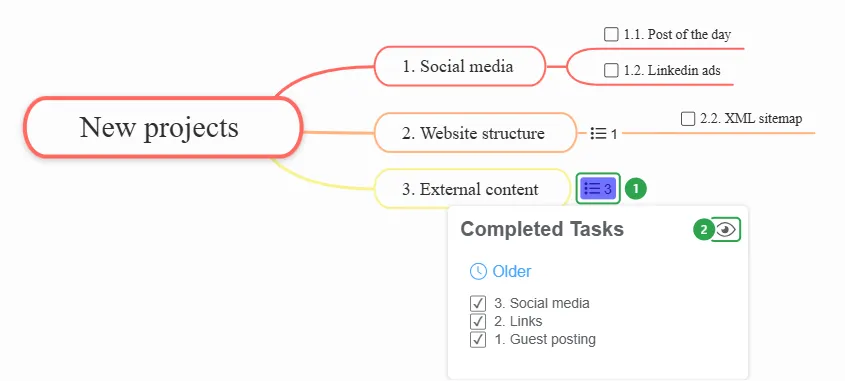
Completed tasks are hidden after import. The View completed tasks icon (1) next to their parent topic shows how many there are. Hover over it, then click the eye icon, Show closed tasks (2), to display them on the map:
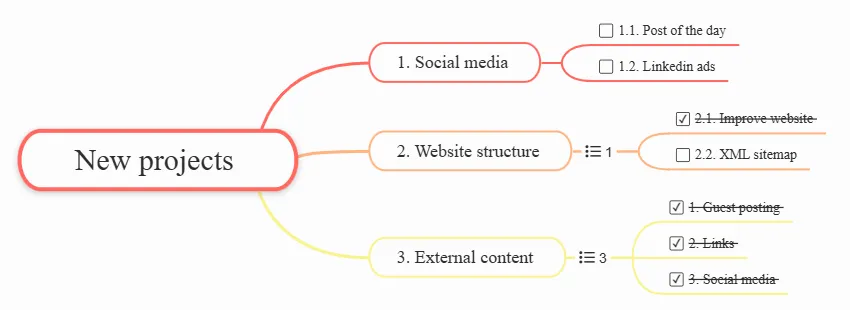
With the completed tasks shown, your Markdown file looks like this as a mind map:
Import from Excel
Section titled “Import from Excel”You can import Excel files (.xlsx, .xls) with the Microsoft Excel tile, or by dragging the file onto the Browse or drop a file here area.
When you import an Excel file, Mindomo asks you to choose how to build the hierarchy from your spreadsheet: horizontally or vertically. Each option reads your cells differently, as described below.
Horizontal hierarchy
Section titled “Horizontal hierarchy”The main topics are read from the first row:
| Cells | Become |
|---|---|
| A1 (first cell) | The central topic |
| Row 1, from column B | Main topics |
| Column A, from row 2 | Subtopics, added under every main topic |
| All other cells | Values, one level below their subtopic |
For example, take this spreadsheet:

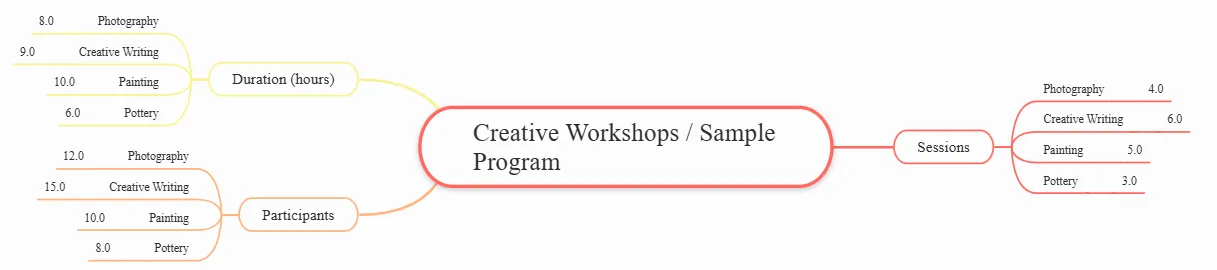
When you import it, Creative Workshops / Sample Program (A1) becomes the central topic, and Sessions, Duration (hours) and Participants become main topics. Each workshop in column A is added under every main topic, together with its value from that column:
Vertical hierarchy
Section titled “Vertical hierarchy”The main topics are read from the first column:
| Cells | Become |
|---|---|
| A1 (first cell) | The central topic |
| Column A, from row 2 | Main topics |
| Row 1, from column B | Subtopics, added under every main topic |
| All other cells | Values, one level below their subtopic |
For example, take this spreadsheet:

When you import it with a vertical hierarchy, Animal Profiles (A1) becomes the central topic, and the animals in column A become main topics. Typical habitat, Adult diet and Animal group are added under every animal, together with its value from that row:
