

Activating Desktop Premium
Activating your Mindomo Lifetime license is quick and easy — just download the desktop app, enter the license details you received by email exactly as provided, and start enjoying full access, updates, and support. Follow the steps below to get started.
Activate Mindomo Lifetime License
Section titled “Activate Mindomo Lifetime License”To activate your Mindomo Lifetime license:
-
Download and install the desktop application from here.
-
Copy the license information you received by email. Make sure to copy all the license details exactly as they appear (including name, key, and date). Do not add or remove spaces or characters, otherwise the activation will fail.
-
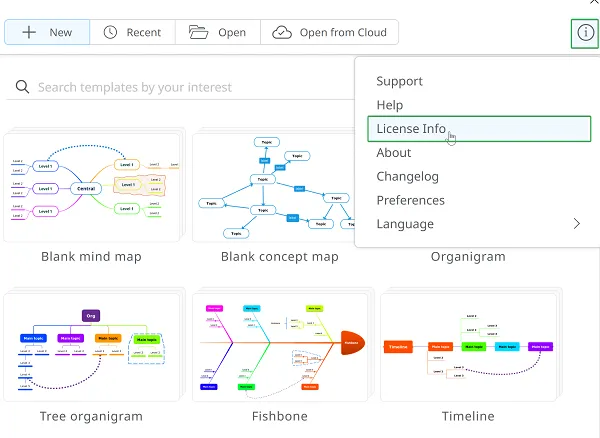
Open the application and go to the “i” icon >> License Info.
-
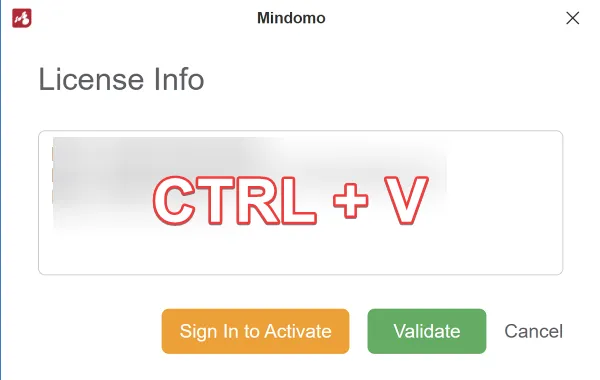
Paste the license into the panel using CTRL + V.
-
Click Validate.
-
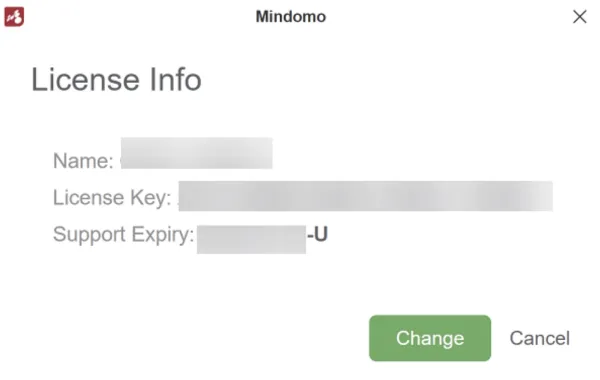
Support Expiry shows the availability of updates, support, and web image and video search for 1 year from the purchase date.
Renew Updates & Support
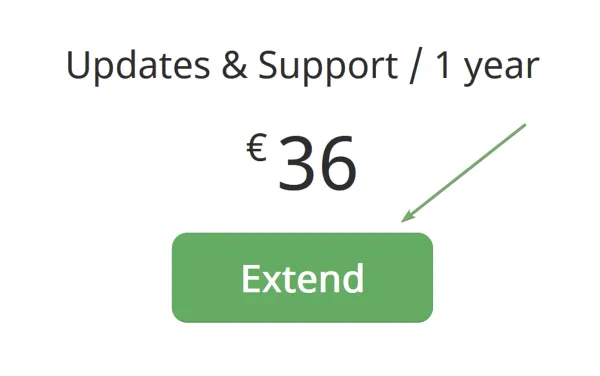
Section titled “Renew Updates & Support”You can renew your updates and support services at any time from the Pricing page.
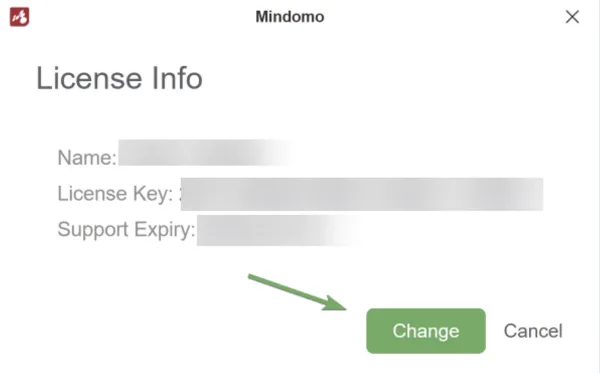
At any point, you can add new licensing information.
Activate a Subscription-Based License
Section titled “Activate a Subscription-Based License”With each online subscription, you get premium access to the desktop application for the entire subscription period.
Online licenses are automatically activated on your online account at the time of purchase, and you will not receive a subscription-based license key by email.
To activate your Mindomo Subscription-based license:
-
Download and install the desktop application from here.
-
Open the application and go to the “i” icon >> License Info.
-
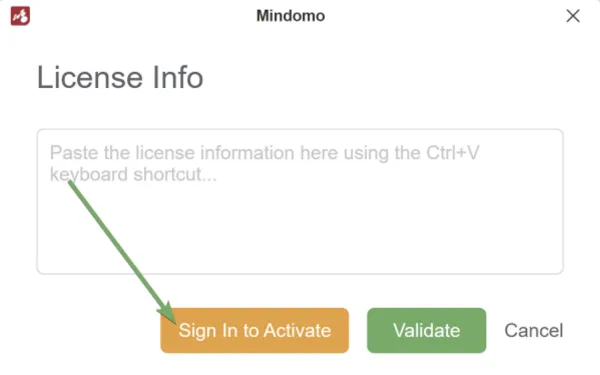
Click Sign In to Activate.
-
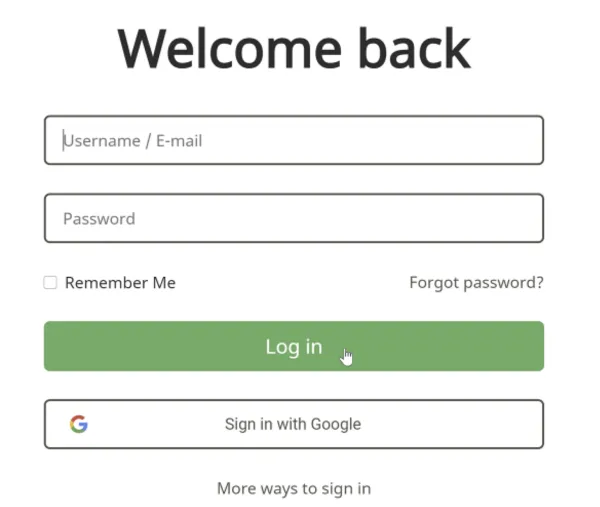
You will be redirected to the login page. Enter your online credentials and click Log In.
-
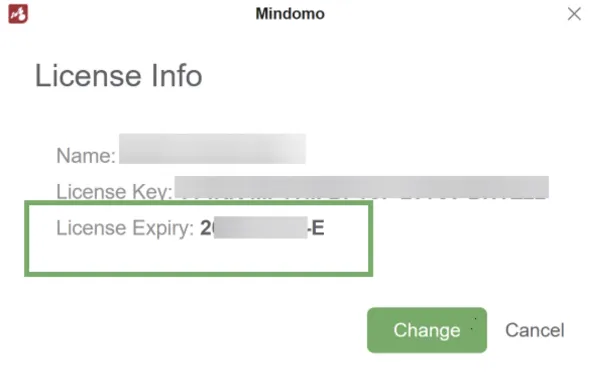
Your Subscription-based license will be automatically activated, and you will see its expiry date. The license remains valid as long as your online subscription is active.
Alternatively, you can manually copy the subscription-based license key and paste it into the License Info panel. You can find your license key by logging in to your online account and visiting this link.
Switch Between Versions
Section titled “Switch Between Versions”If you are already using a Lifetime license and decide to connect to your online subscription, you will be notified that you are switching to a Subscription-based license, and you will no longer have access to your local license.
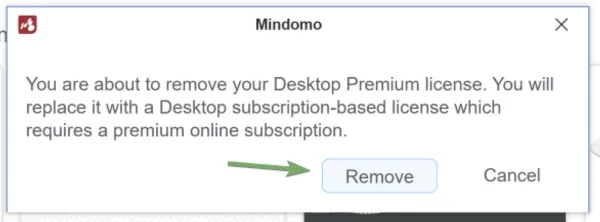
After you click Remove and enter your online credentials, your license will be updated and will remain active as long as your online subscription is valid.