

Two-factor authentication
Two-factor authentication adds an extra layer of security to your Mindomo account. Instead of logging in with just your password, you’ll also need to enter a verification code or use a secret key. This additional step helps keep your account more secure.
Enable Two-Factor Authentication
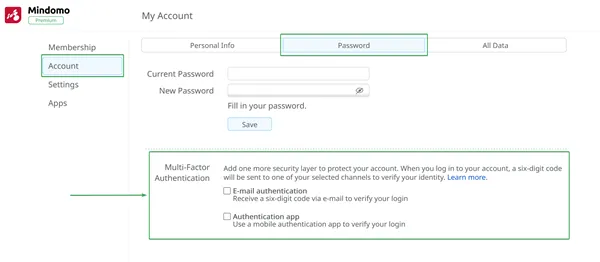
Section titled “Enable Two-Factor Authentication”To enable Multi-Factor Authentication, open the My Account panel by clicking your initials or profile picture on the Dashboard. Then select the Account section on the left-hand side and go to the Password tab.
You can choose one of the following options:
-
Email authentication
-
Authentication app
Email authentication
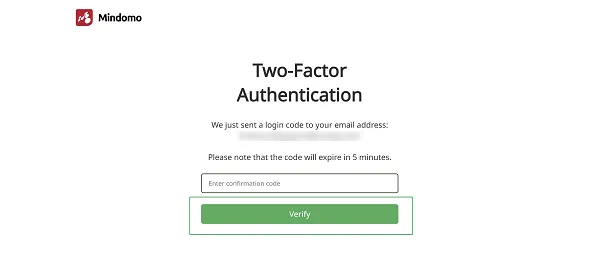
Section titled “Email authentication”If you choose Email authentication, you’ll receive a six-digit code by email. The code expires after 5 minutes. Enter the confirmation code, then click Verify.
Authentication app
Section titled “Authentication app”If you choose an Authentication app, you will first need to download and install an authenticator app on your device. We have tested the following apps from the Apple App Store and Google Play Store, but others may also work:
-
Google Authenticator
-
Microsoft Authenticator
-
2FAS Auth
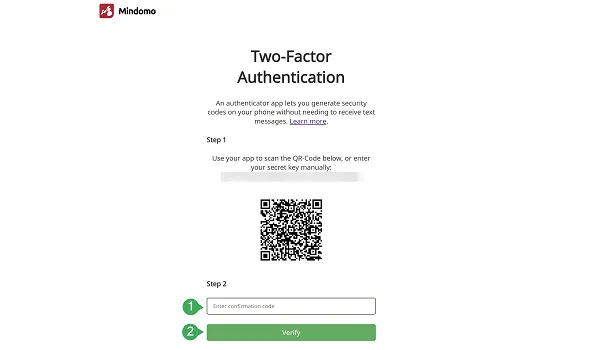
You can either scan the provided QR code with your app or manually enter the secret key. After doing so, the authenticator will generate a six-digit code, which you should enter in the Enter confirmation code field (1). Then click Verify (2).
Disable Two-Factor Authentication
Section titled “Disable Two-Factor Authentication”To disable Two-Factor Authentication, click the Email authentication or Authentication app option, depending on which one you want to turn off.
If you are disabling Email authentication, you will receive a six-digit code by email (valid for 5 minutes) that you must enter in the Enter confirmation code field.
If you are disabling the Authentication app option, open your authenticator app on your device and use the six-digit code generated when you enabled it.