

Synchronizing
This section explains how to sync Mindomo mind maps seamlessly across different devices and platforms, including Android, iOS, PC, and the Cloud. Follow the step-by-step instructions below to ensure your mind maps stay up to date and accessible on any device.
Android to iOS
Section titled “Android to iOS”To sync your mind maps from an Android device to an iOS device, follow these steps:
-
Open the Mindomo application on your Android device
-
Long tap on a diagram
-
Tap Copy to Cloud

-
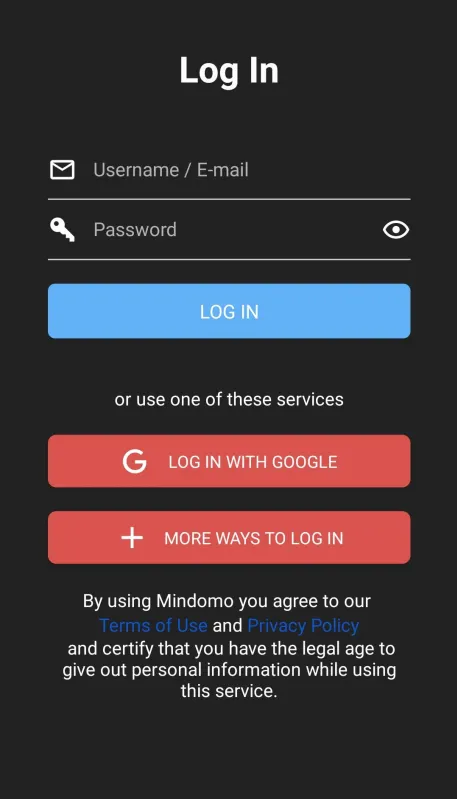
You will be redirected to the login page. You can log in using Google or your Mindomo credentials.
-
On your iOS device, install the app from the App Store, then go to the Cloud section and log in to your online account.
When you copy a mind map to the Cloud section, a version of the map will remain in the Device section.
To keep the mind map synced, continue working on the Cloud version.
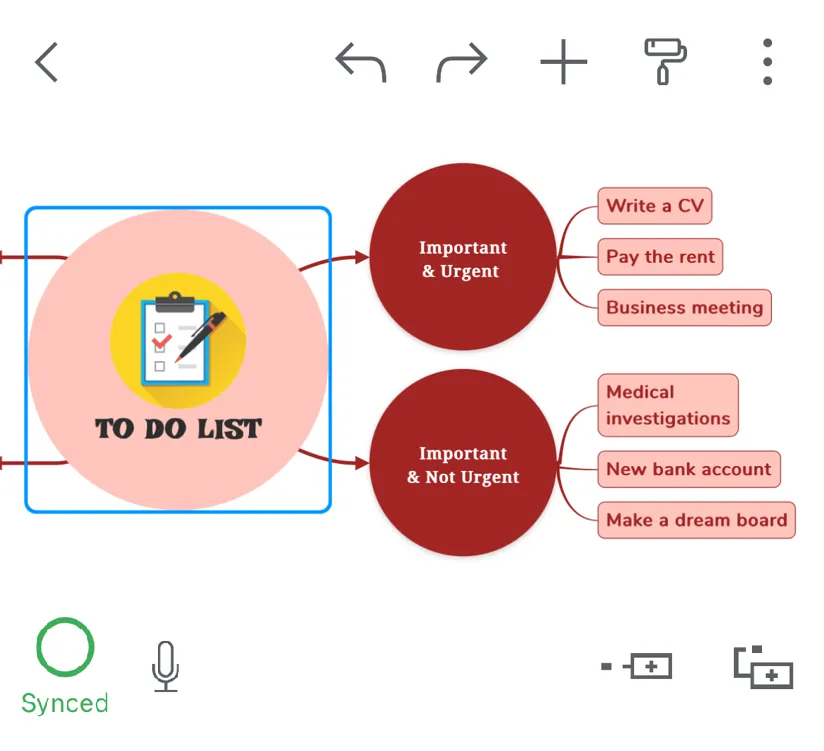
Syncing from mobile to Cloud happens automatically when you have an internet connection. A green dot in the lower-left corner indicates that everything is up to date:
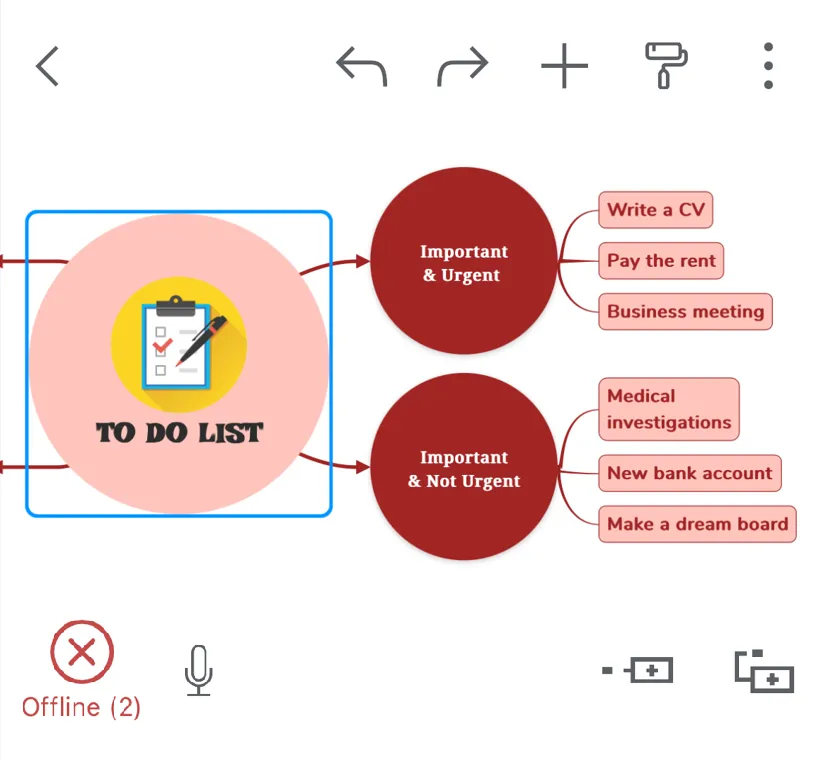
If your internet connection is lost, your changes are saved locally. A red dot appears in the lower-right corner, showing that you are offline and how many changes were made:
If the mind map is open when the internet connection is restored, changes will sync automatically.
If it is closed, open the map to sync the local changes to the Cloud.
iOS to Android
Section titled “iOS to Android”To sync your mind maps from an iOS device to an Android device, follow these steps:
-
Open the Mindomo application on your iOS device
-
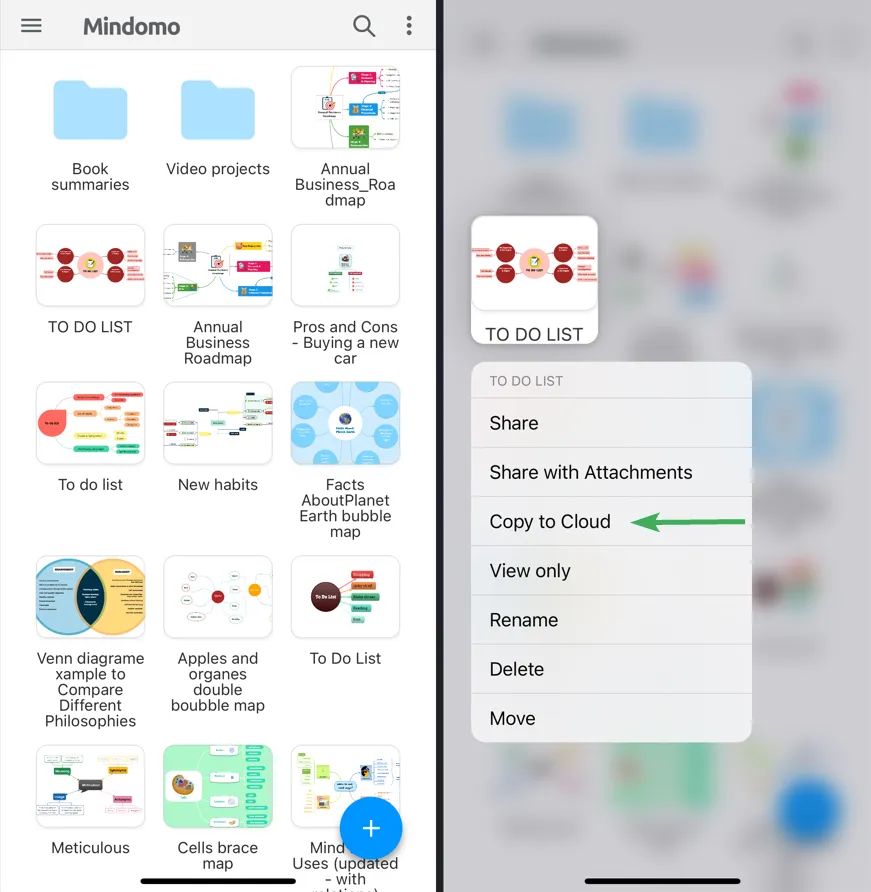
Long tap on a diagram
-
Tap Copy to Cloud
-
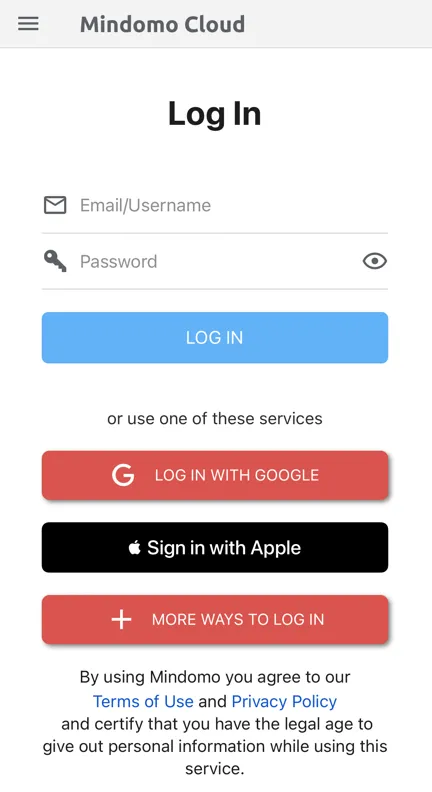
You will be redirected to the login page. You can log in using Google, Apple, or your credentials.
-
On your Android device, install the app from the Play Store, then go to the Cloud section and log in to your online account.
When you copy a mind map to the Cloud section, a version of the map will remain in the Device section.
To keep the mind map synced, continue working on the Cloud version.
Sync behavior (online/offline indicators and automatic updates) works the same as described above.
iOS to PC
Section titled “iOS to PC”To sync your mind maps from your iOS device to your PC:
-
Open the Mindomo application on your iOS device
-
Tap the More options icon (three dots)
-
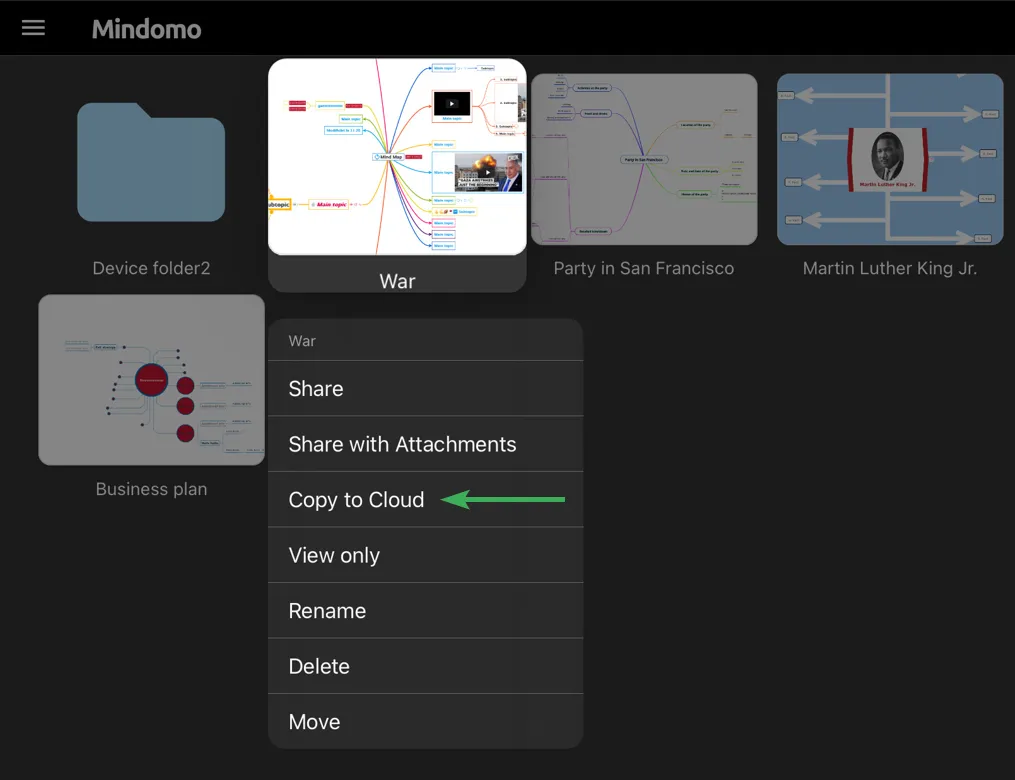
Tap Copy to Cloud
-
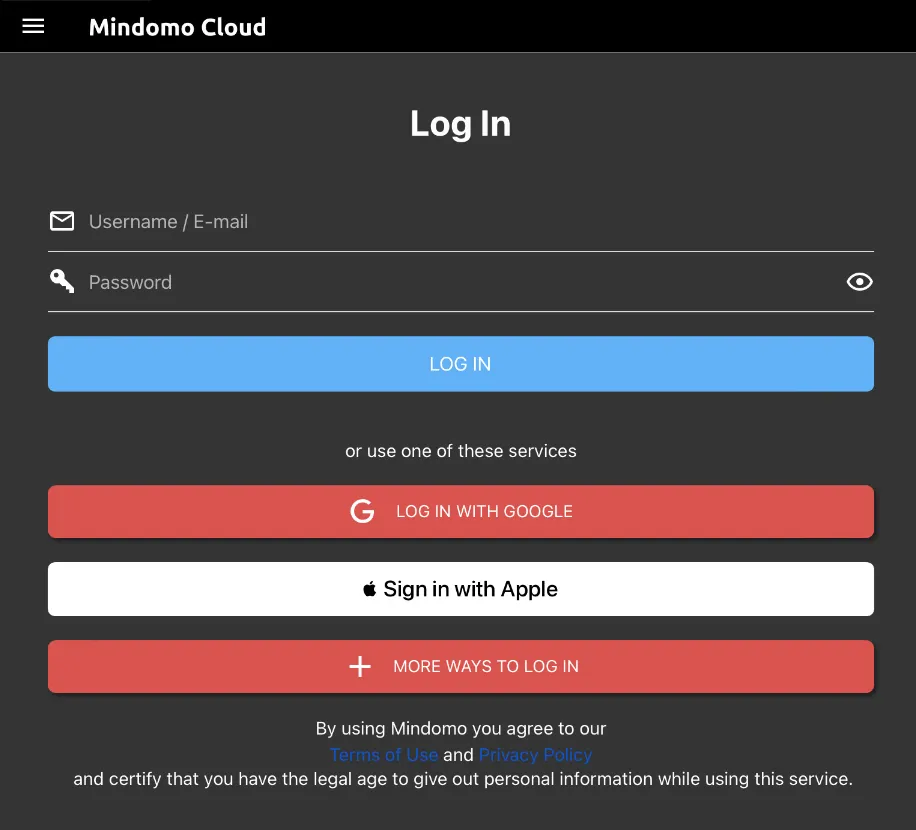
Log in using Google or your credentials
-
On your computer, download and install the Mindomo desktop app for Windows/macOS/Linux
-
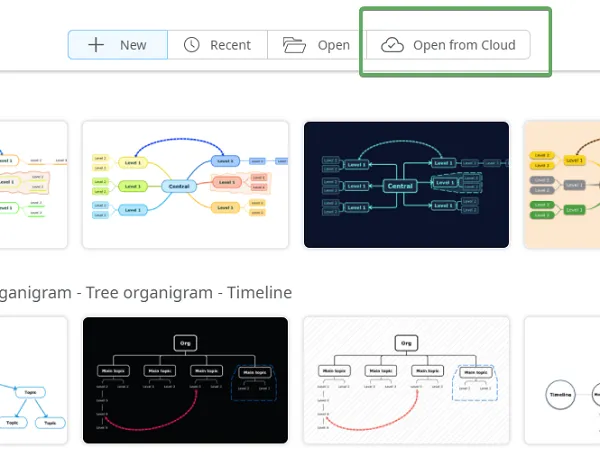
From the upper toolbar, select Open from Cloud and log in
When you copy a mind map to the Cloud, a local copy remains on the device.
To keep the map synced, continue editing the Cloud version.
PC to iOS
Section titled “PC to iOS”To sync your mind maps from your PC to an iOS device:
-
Open the mind map using the Mindomo desktop app for Windows/macOS/Linux
-
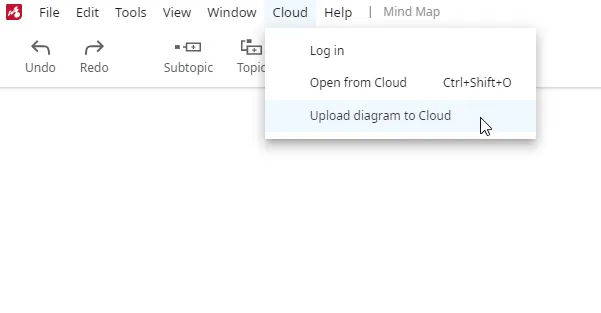
From the upper toolbar, go to Cloud → Upload diagram to Cloud
-
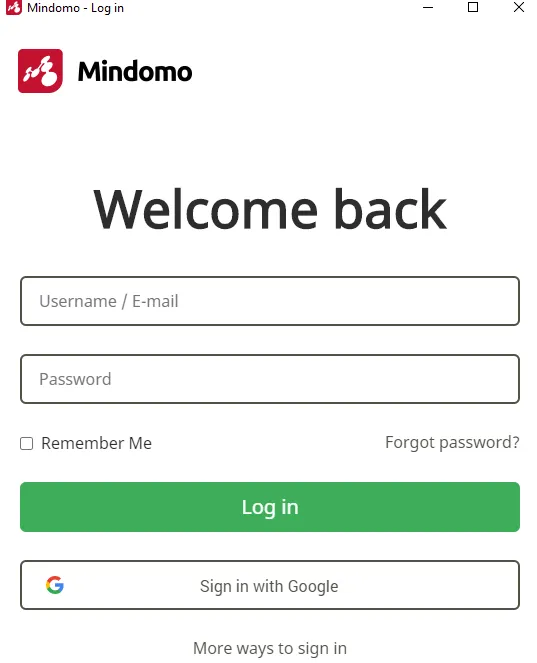
Log in to your online account
-
On your iOS device, install the app from the App Store, then go to the Cloud section and log in
Android to PC
Section titled “Android to PC”To sync your mind maps from an Android device to your PC:
-
Open the Mindomo app on your Android device
-
Long tap on a diagram
-
Tap Copy to Cloud
-
Log in using Google or your credentials
-
On your computer, download and install the Mindomo desktop app
-
From the upper toolbar, choose Open from Cloud and log in
Sync behavior is the same as described in the Android to iOS section.
PC to Android
Section titled “PC to Android”To sync your mind maps from your PC to an Android device:
-
Open the mind map using the Mindomo desktop app for Windows/macOS/Linux
-
From the upper toolbar, go to Cloud → Upload diagram to Cloud
-
Log in to your online account
-
On your Android device, install the app from the Play Store, then go to the Cloud section and log in
PC to Cloud
Section titled “PC to Cloud”To upload a mind map from your PC to the Cloud:
-
From the upper toolbar, go to Cloud
-
Click Upload diagram to Cloud
Cloud to PC
Section titled “Cloud to PC”To download and open mind maps from the Cloud on your PC:
-
Open the Mindomo desktop application
-
From the upper toolbar, select Open from Cloud
-
Log in using your credentials or a third-party account