

Brightspace/Desire2Learn Integration
This guide explains how to integrate Mindomo with Brightspace/Desire2Learn as an external learning tool, enabling seamless access to interactive mind mapping within your courses. By adding Mindomo, instructors and students can create, share, and collaborate on mind maps directly from the Brightspace platform without extra logins.
Add Mindomo as an external tool
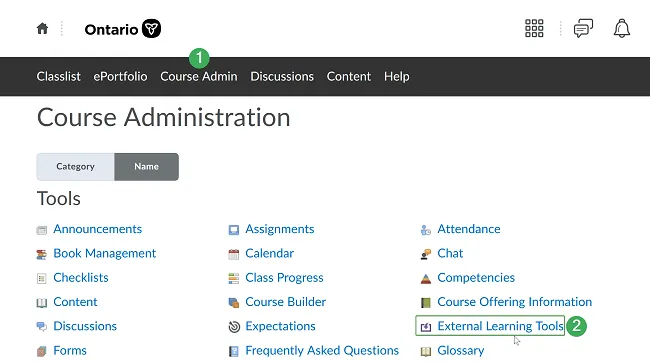
Section titled “Add Mindomo as an external tool”Step 1. Go to the Course Administration section.
Step 2. Choose the option “External Learning Tools”.
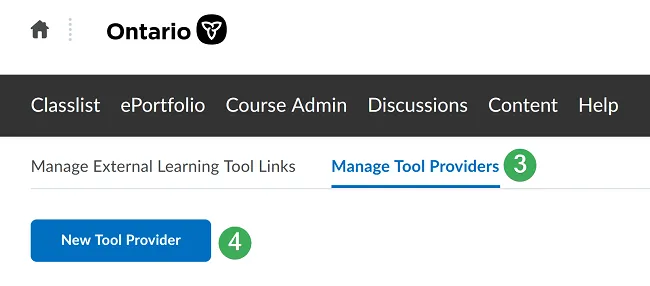
Step 3. Go to “Manage Tool Providers” (3) and select “New Tool Provider” (4).
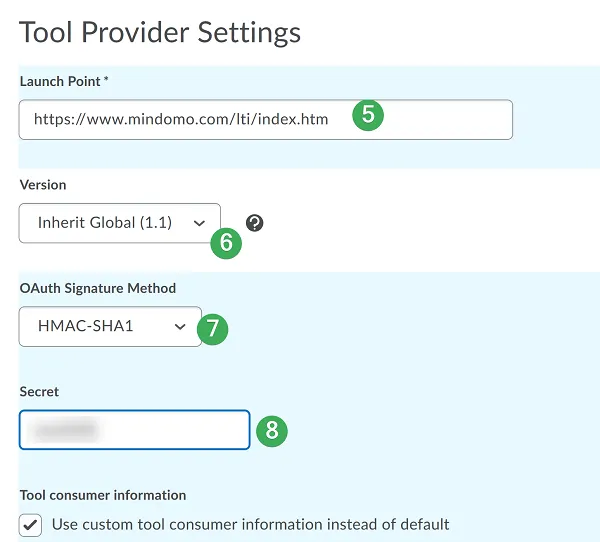
Step 4. Add the https://www.mindomo.com/lti/index URL (5), make sure to select “Inherit Global (1.1)” under Version (6), choose the HMAC-SHA1 option (7), and type in your Secret (8), which can be found in the School Admin Panel.
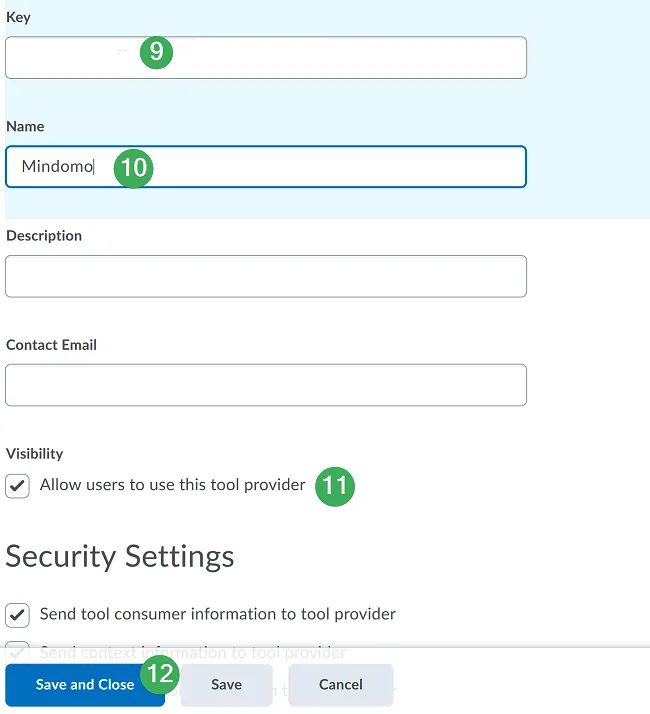
Step 5. Add your Key (9), type in a name for the external tool (10), and check “Allow users to use this tool provider” (11). Ensure all options under Security Settings are also selected. Click “Save and Close” (12). You should now be able to add Mindomo to your course.
Working with Mindomo
Section titled “Working with Mindomo”Working with Mindomo explains how teachers and students use Mindomo directly inside Brightspace, including accessing the tool without separate logins, attaching mind maps to activities, and collaborating or submitting maps as part of coursework.
Direct Access from Brightspace
Section titled “Direct Access from Brightspace”When teachers and students access Mindomo from Brightspace / Desire2Learn, their Mindomo accounts will be automatically created, allowing them to start mind mapping without additional login.
Step 1. Go to the Course Administration section.
Step 2. Choose the option “External Learning Tools” (2), then select ‘New Link’ (3).
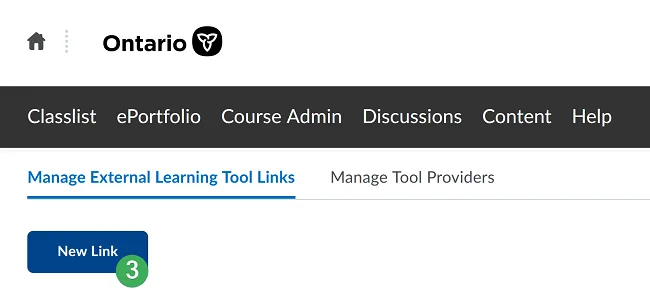
Step 3.
- Add “Mindomo Dashboard” in the “Title” section (4).
- Add
https://www.mindomo.com/lti/indexin the URL section (5).
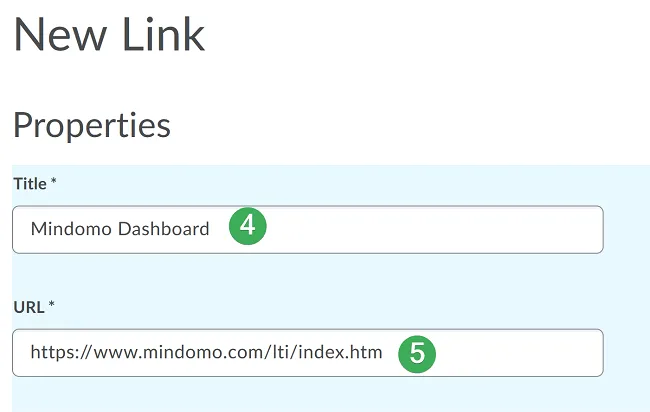
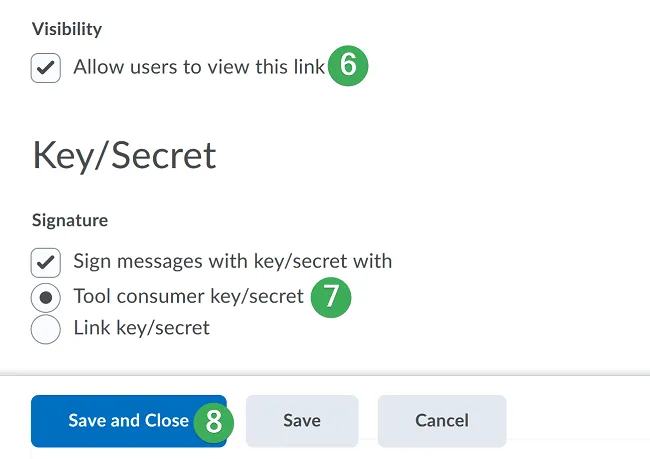
- Check “Allow users to view this link” in the Visibility section (6).
- Check the signature option with “Tool consumer key/secret” (7).
- Make sure all Security Settings are selected, then click “Save and Close” (8).
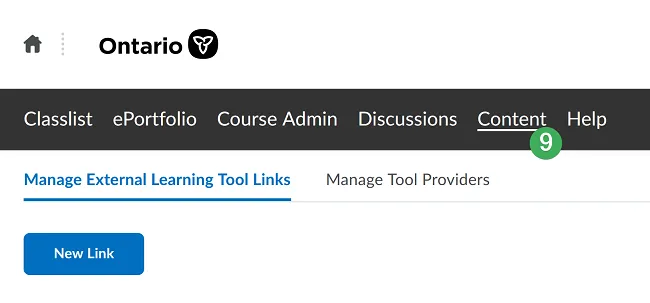
Step 4. Bring the Mindomo Dashboard link into the course section:
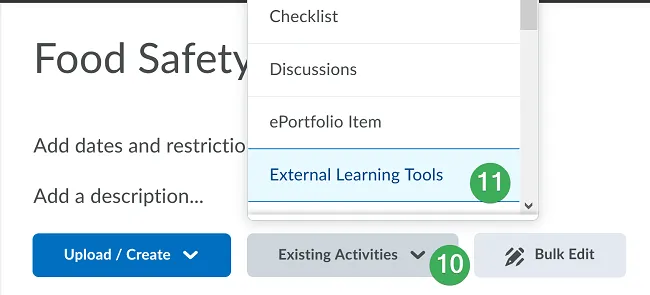
- Go to “Content” (9).
- Choose “Add Existing Activities” (10) and “External Learning Tools” (11).
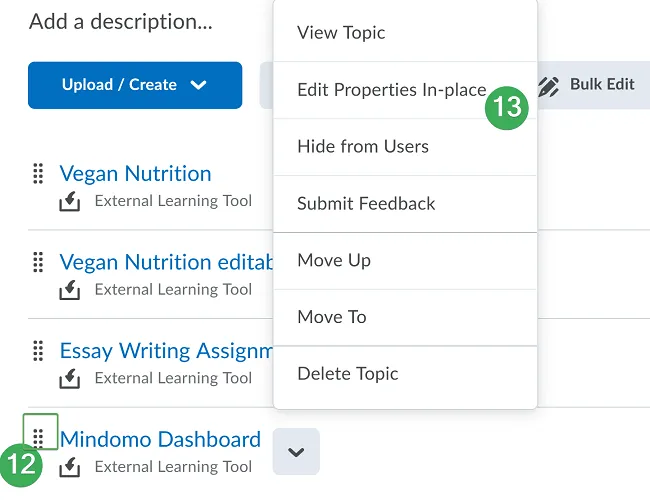
- Select “Mindomo Dashboard”. The link will appear in the course section (12). You can view and edit the link whenever necessary (13).
When students access the Mindomo Dashboard from their Brightspace / Desire2Learn course, Mindomo will open in a new tab, enabling them to create and share mind maps. If a user doesn’t have a Mindomo account, it will be automatically created upon accessing the link.
Attaching mind maps to courses
Section titled “Attaching mind maps to courses”You can add mind maps to your Brightspace / Desire2Learn courses so students can view and edit them without creating separate Mindomo accounts.
This method is different from simply embedding the map:
-
Embedding:
- The map must be public (accessible to anyone with the embed link).
- The map can only be viewed, not edited.
-
Attaching via LTI:
- The map remains private, and students/teachers with access to your Brightspace / Desire2Learn course can view or edit it without explicit sharing.
- If users don’t have Mindomo accounts, accounts are automatically created when they access the attached map.
How to add a viewable mind map?
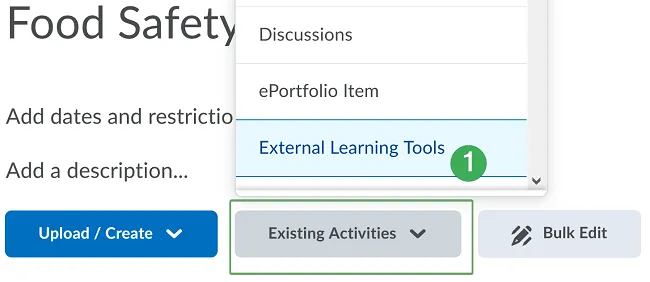
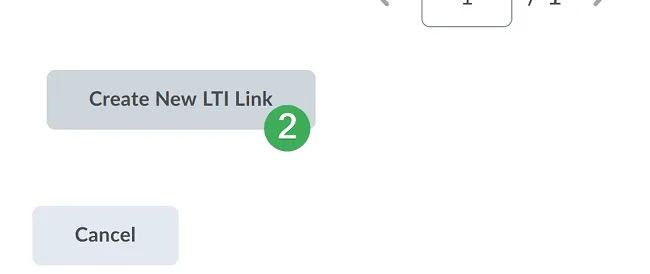
Step 1. Go to “Existing Activities” → “External Learning Tools” (1), then click “Create New LTI Link” (2).
Step 2.
- Add the map’s title in the “Title” section (3).
- Add
https://www.mindomo.com/lti/view/mapIDin the URL section (4). The map ID is the last sequence of letters and numbers in the mind map’s URL, after the last ”/” sign. - Click “Create and Insert” (5).
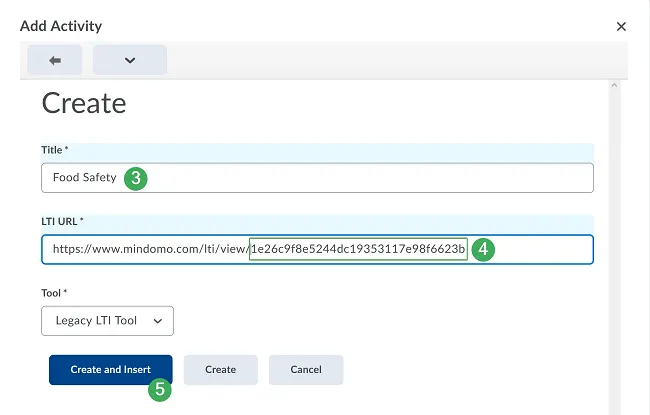
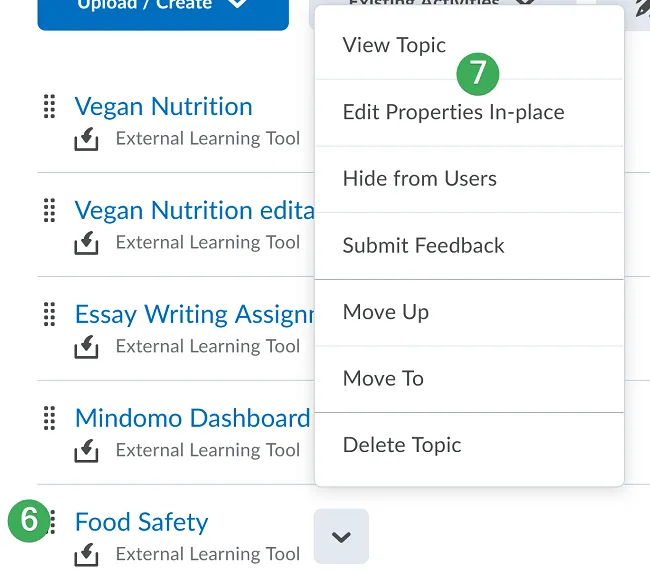
Step 3. The map’s link will appear in the course section (6). You can view and edit the link whenever necessary (7).
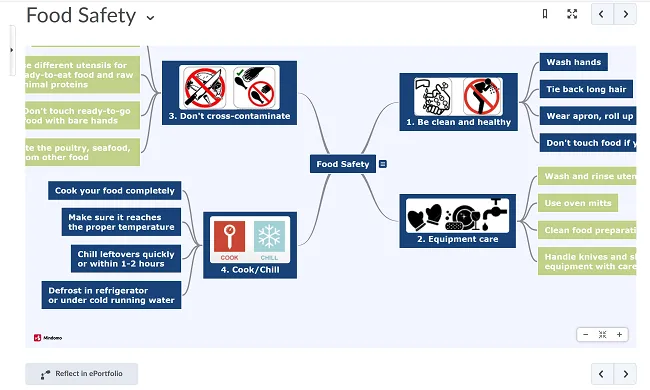
This is how users will view the map when accessing the link from the course section:
How to add an editable mind map?
Follow the same steps as above, except in Step 2:
- Type in the name of the map.
- Add
https://www.mindomo.com/lti/edit/mapIDin the URL section (8).
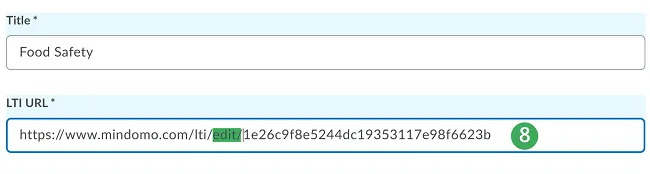
Users will now be able to edit the map directly from Brightspace / Desire2Learn.

Mindomo Assignments
Section titled “Mindomo Assignments”Students can work individually or in groups to create mind maps on course topics. They can do this directly from Brightspace / Desire2Learn without creating or logging into Mindomo accounts. Teachers can access students’ maps directly for grading.
Step 1. Go to “Existing Activities” → “External Learning Tools” (1), then click “Create New LTI Link” (2).
Step 2.
- Add the assignment’s title in the “Title” section (3).
- Add
https://www.mindomo.com/lti/assignmentin the URL section (4). - Click “Create and Insert” (5).
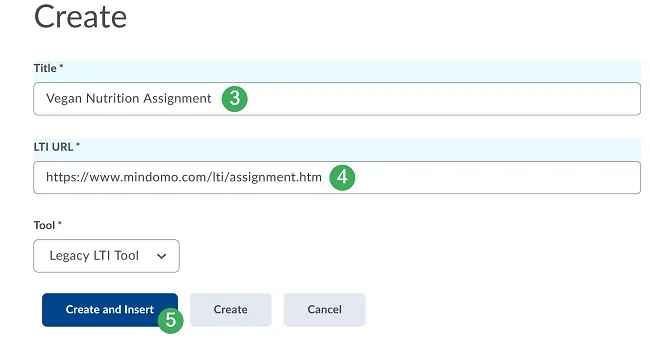
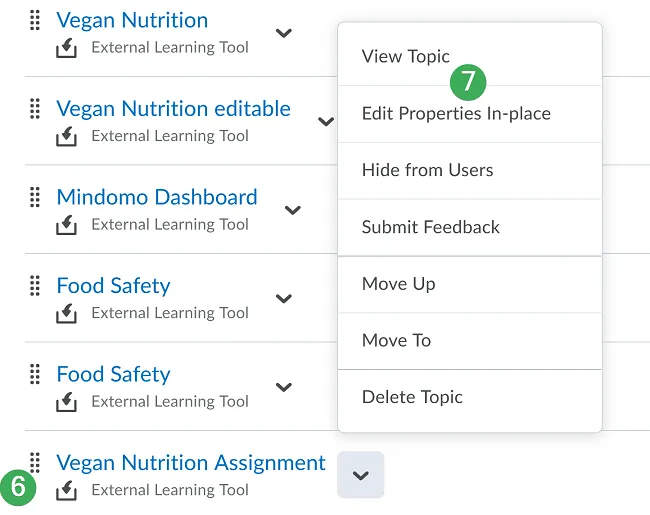
Step 3. The assignment link will appear in the course section (6). You can view and edit it whenever necessary (7).
How to create and work on a mind map assignment?
As a course owner, once you access the assignment link, you can set up and share a mind map assignment with students and other teachers. The assignment opens in the “Settings” section.
Step 1. Choose one of the assignment types:
- Each student submits an individual mind map (1).
- Students submit individual maps using a mind map shared by you as a starting point (2). Click “Choose” to select your map.
- All students collaborate to create or edit a shared map (3).
- You can attach resources to the assignment anytime (4). Click “Update Assignment” (5) when done.
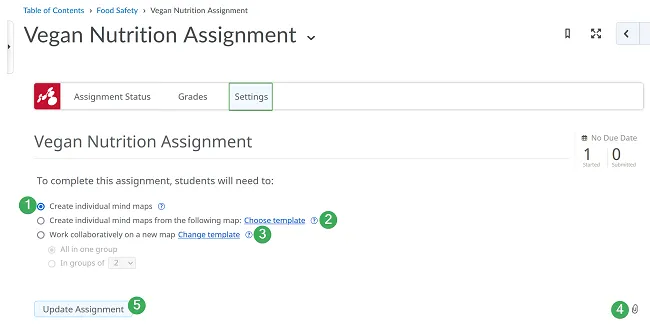
After clicking “Update Assignment”, it will be created in both Brightspace / Desire2Learn and Mindomo.
In the “Assignment Status” section, you can track who started the assignment (6) and their progress (7).
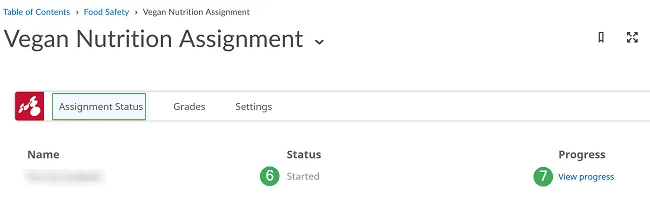
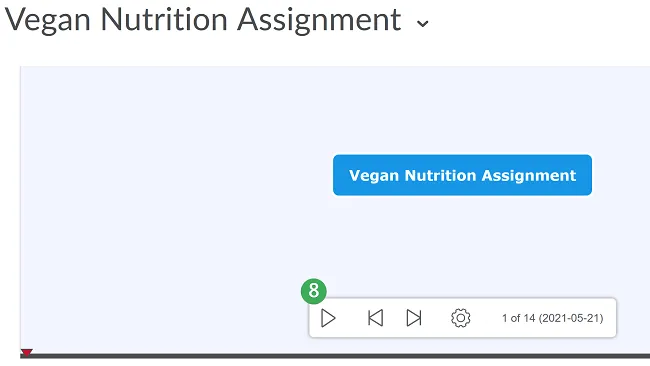
Click “Open Mind Map” to access the map directly. Click the Play button to view the map creation process (8). Rewind and Forward buttons navigate to the start and end.

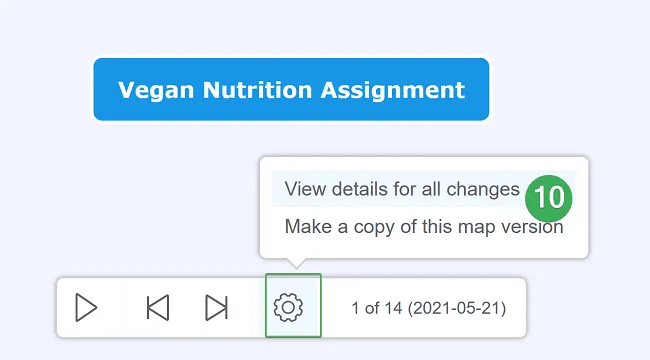
For a detailed view, click “Options” → “View details for all changes” (10). This shows all map changes chronologically with exact dates. You can filter by student to see individual edits.
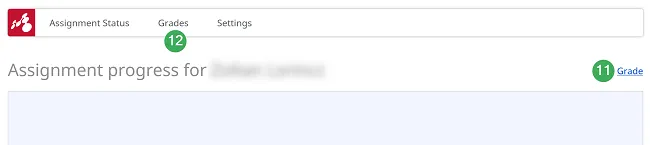
You can grade each student (11) and view all grades (12).
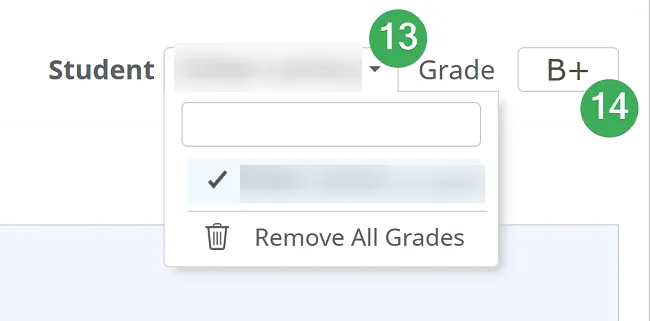
Select a student (13) and enter the grade (14). Graded students are highlighted with a checkmark.
Selecting a student shows all activity details and allows private discussion.
How will students work on their mind map assignments?
When students first click the assignment link:
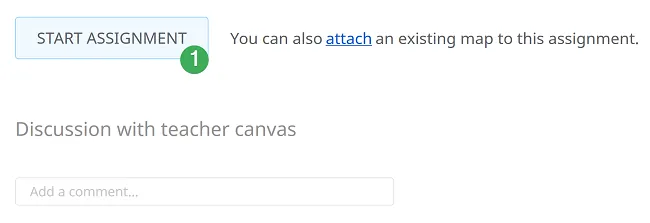
- Start the assignment (1).
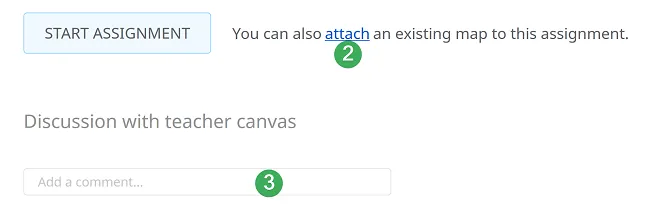
- Attach another mind map (2).
- Engage in an individual discussion with the teacher (3).
- When returning, click “Continue Assignment” (4).
- Submit the assignment when ready (5).
- Students can restart the assignment at any time, but previous work will be lost with a notification (6).
