Collaborating on mind maps
Mindomo allows multiple users to collaborate on the same mind map in real time, from anywhere in the world. You can work with your team or external partners seamlessly, using features like live user tracking, guest editing, shared folders, and in-app chat to stay synchronized and productive.
Real-time collaboration
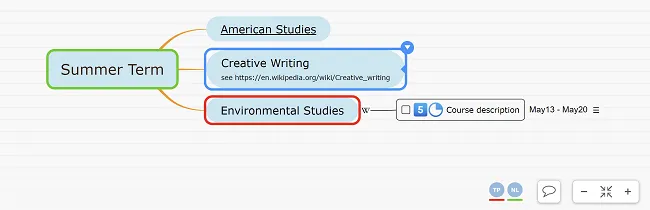
Section titled “Real-time collaboration”Mindomo enables real-time collaboration, which means that users can work together at the same time on the same mind map, no matter their location—as long as they have a stable internet connection. Users working simultaneously are highlighted in different colors in the bottom-right corner of the map.
Working with external collaborators
Section titled “Working with external collaborators”You can share your mind map with external collaborators and turn them into guest users with premium editing rights (modify maps, attach personal files, upload web images, download as PDF, print, etc.). Guest users may have free Mindomo accounts or they can remain unregistered.
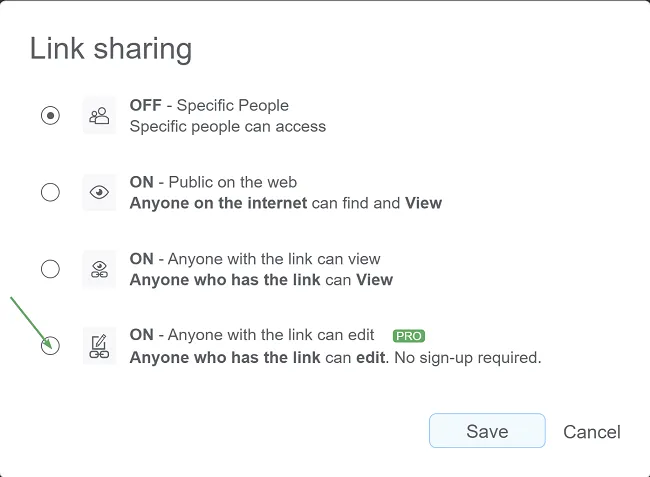
To enable guest editing, simply check the option “Anyone with a link can edit” and share the link.
Collaborating within a team
Section titled “Collaborating within a team”If you are part of a team and want all members to contribute to the same mind map, use the Shared Team folder, where the entire group has instant access. All mind maps created or moved into this folder become available and editable for the whole team, with no individual sharing required.
Team collaboration versus External collaboration
Section titled “Team collaboration versus External collaboration”Depending on your workflow, you can choose between a Professional subscription or a Team subscription:
Professional subscription — Best for collaborating with external partners. Your collaborators can use premium features on the maps you share with them, even if they have free accounts. They can also use the guest-editing link without needing an account.
Team subscription — Ideal for internal teamwork. All team members gain access to all premium features, can create unlimited maps, and can fully use and edit the Shared Team folder. Any map created or moved into this folder becomes accessible and editable for everyone on the team.
Working on the go (online & offline)
Section titled “Working on the go (online & offline)”Effective teamwork requires the ability to work both online and offline.
Mindomo allows you to create a mind map locally and upload it online using the Cloud sync feature. Once synced, you can make the map public or keep it private and share it only with selected collaborators.
You can also work offline on a local copy using the Desktop version of Mindomo. Whenever you regain internet access, you can sync your changes online and merge them with your colleagues’ updates.
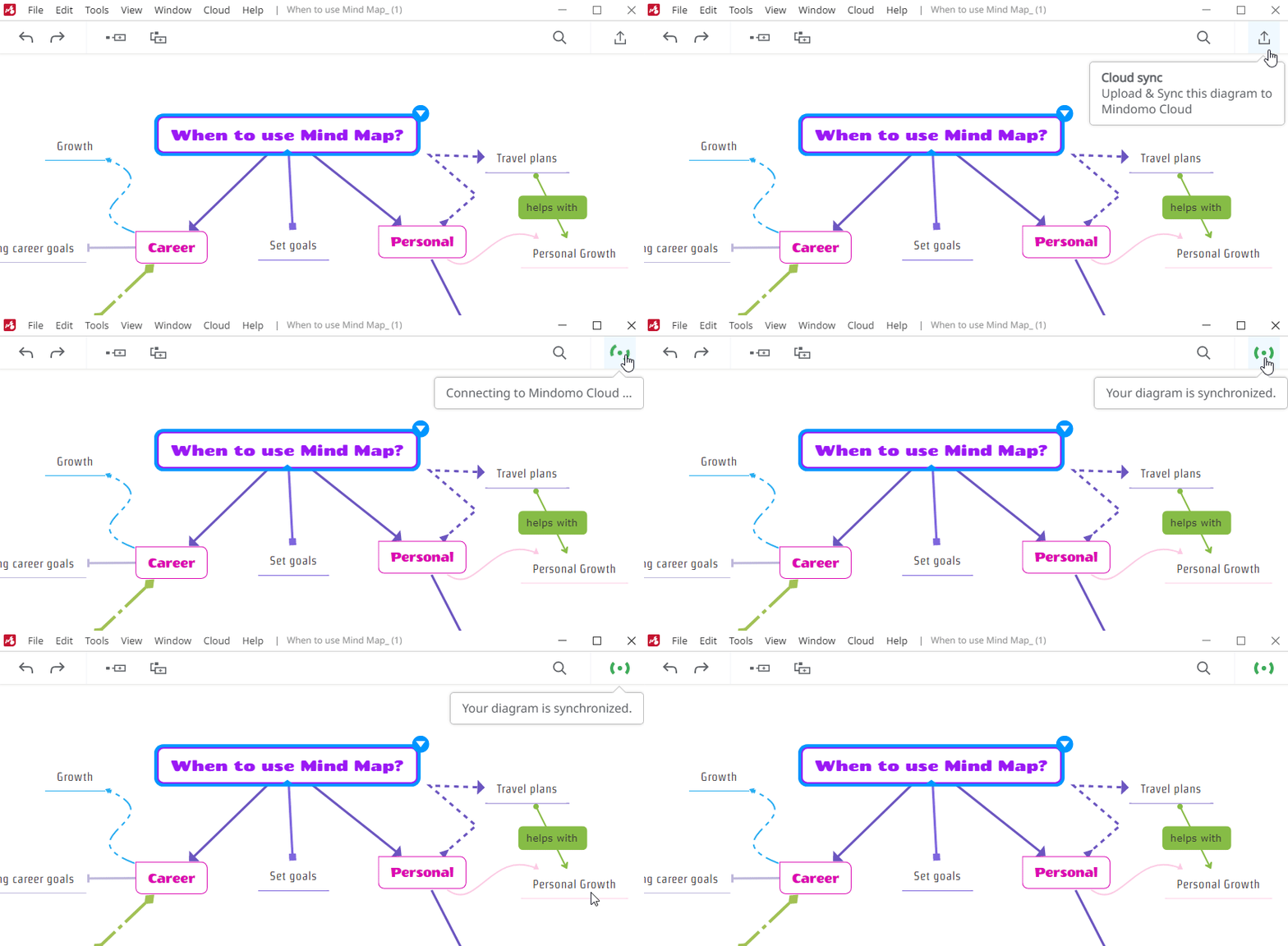
Add your registration email and password, then click Log in. If you don’t have a Mindomo account yet, you can create one from the Sign Up page.
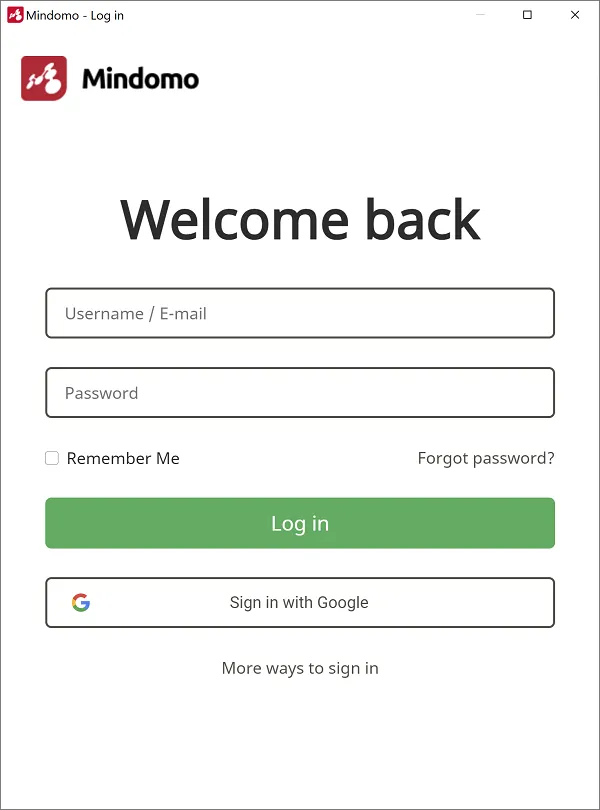
With Cloud sync, you can upload your local map and all its attached files to the Cloud. If your map is already synced, use Cloud sync to pull the most recent online changes.
During syncing, your local files are uploaded to the Mindomo server, while files attached online are downloaded and saved locally.
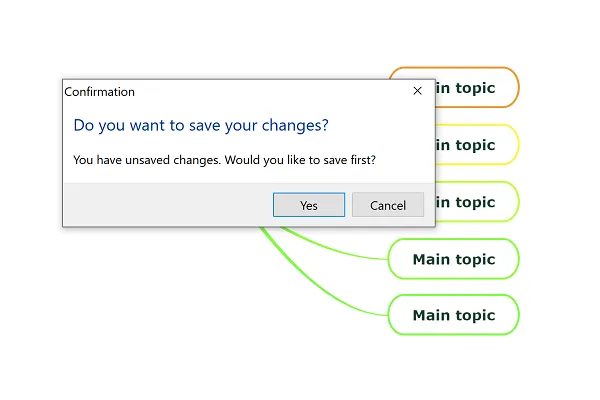
Pack Map functionality
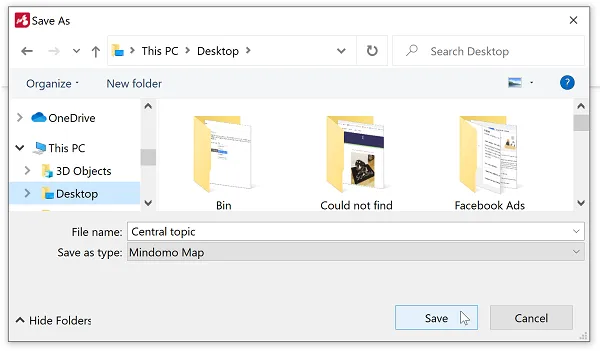
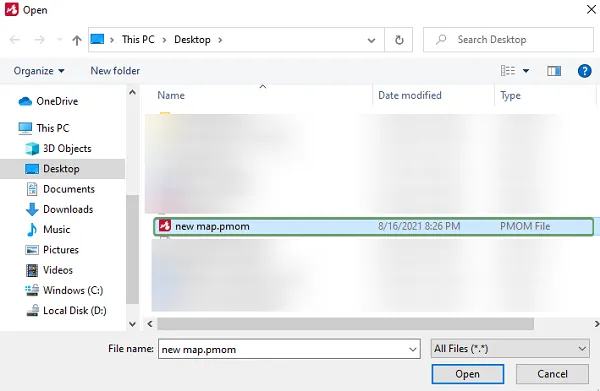
Section titled “Pack Map functionality”To share your mind map with Mindomo Desktop collaborators, use the Pack Diagram feature. This compresses your mind map and all attached files into a single .pmom file saved locally.
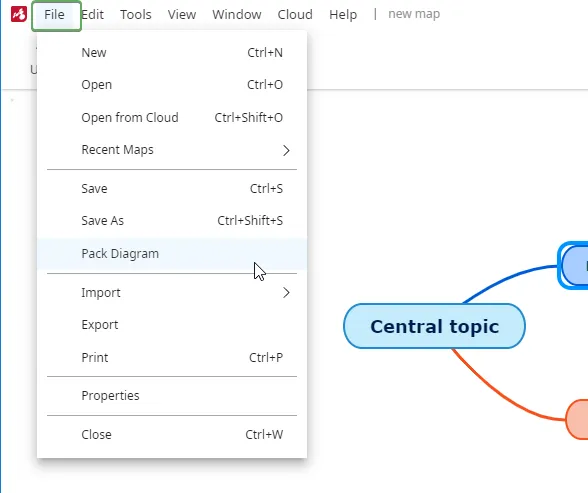
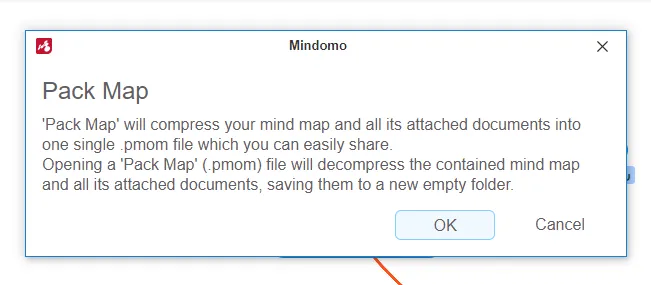
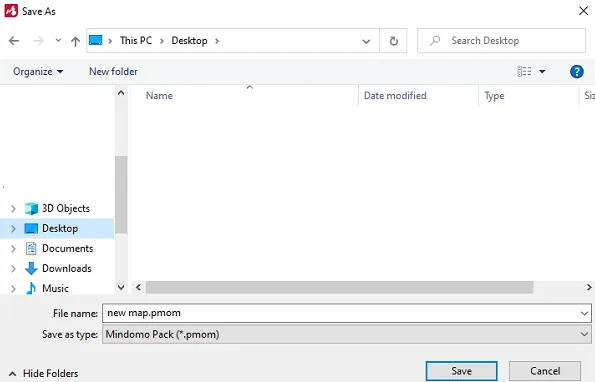
Share the .pmom file with your collaborators so they can open your mind map along with all attached files on their own computers.
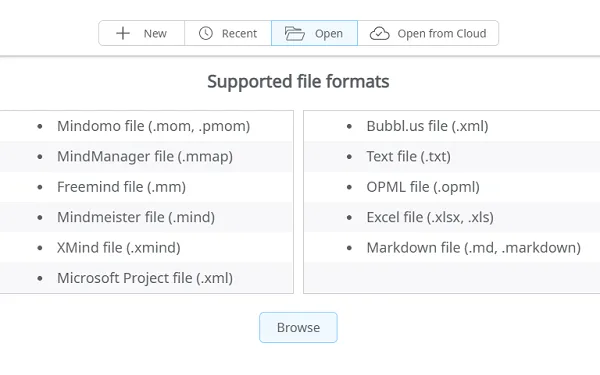
Overview of all mind map changes
Section titled “Overview of all mind map changes”To keep track of all changes to your mind map and get a clear overview of the work process, use Playback History from the Changes section in the File List Menu. The mind map will open in a new tab in Playback mode.
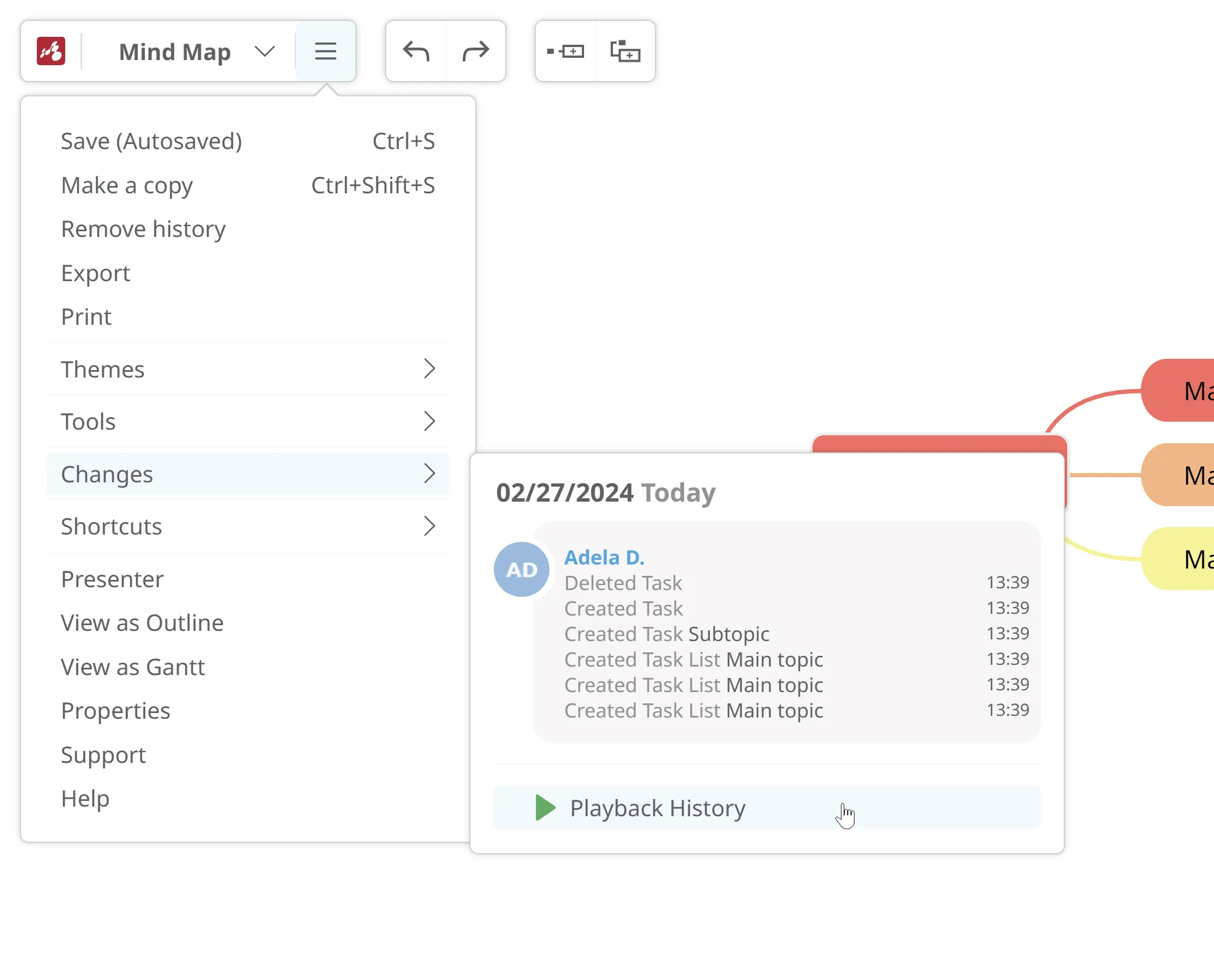
If two or more users are working at the same time, they will be highlighted in different colors, and their changes will also appear in matching colors to help you track contributions easily.
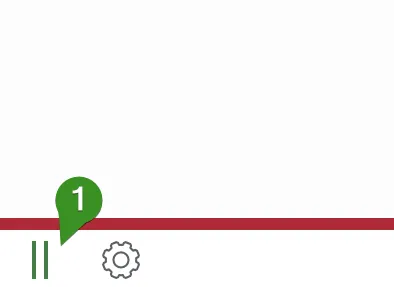
You can pause Playback mode anytime (1). From the Options icon, you can View all changes (2) or Make a copy from this version (3).

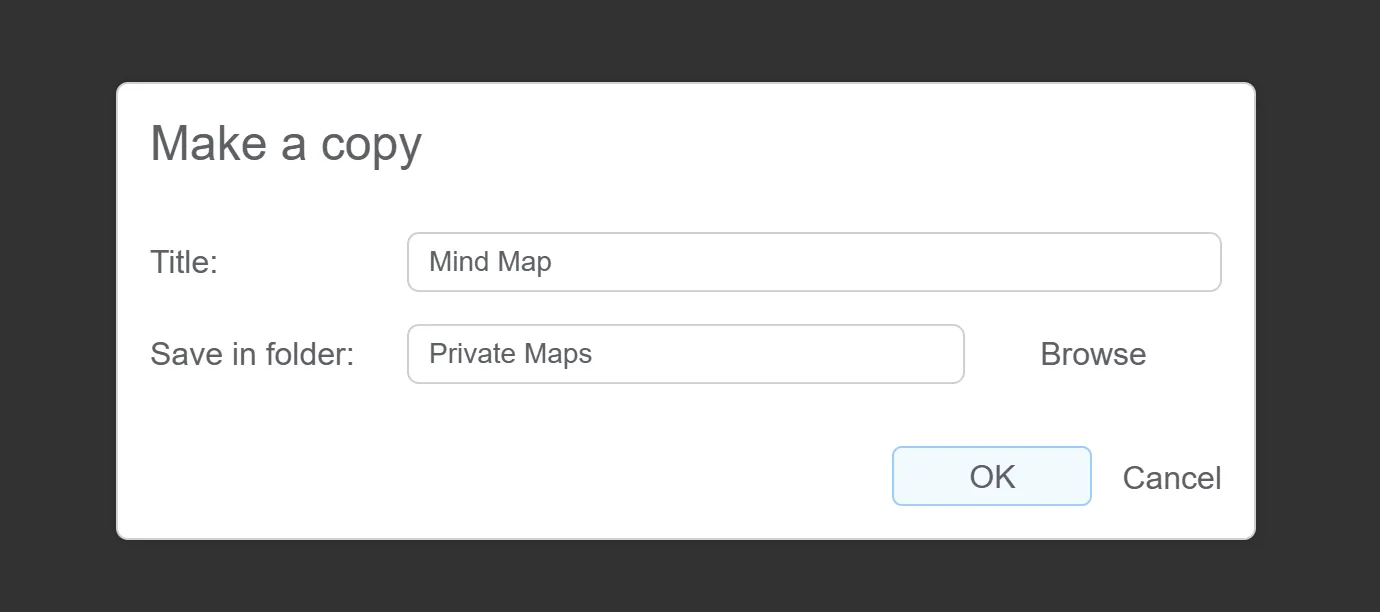
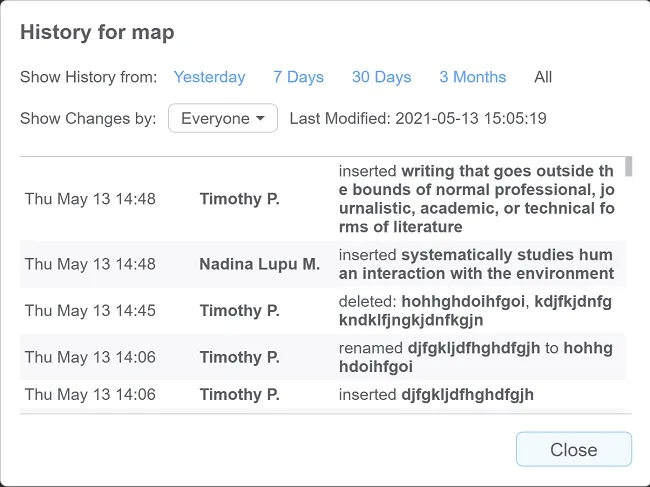
For a more detailed overview, click View details for all changes. You’ll see all changes sorted chronologically, along with the date of the last modification. You can filter changes by user to see exactly what each person updated.
Real-time chat
Section titled “Real-time chat”This feature allows you to share information or brainstorm in real time with your guests or team members.
The chat is available for all subscription plans, including free accounts, and it becomes active as soon as two or more people are working on the same mind map simultaneously.
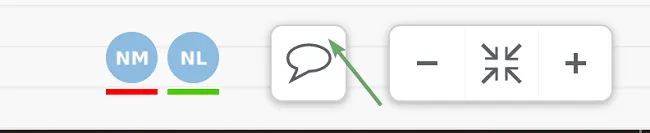
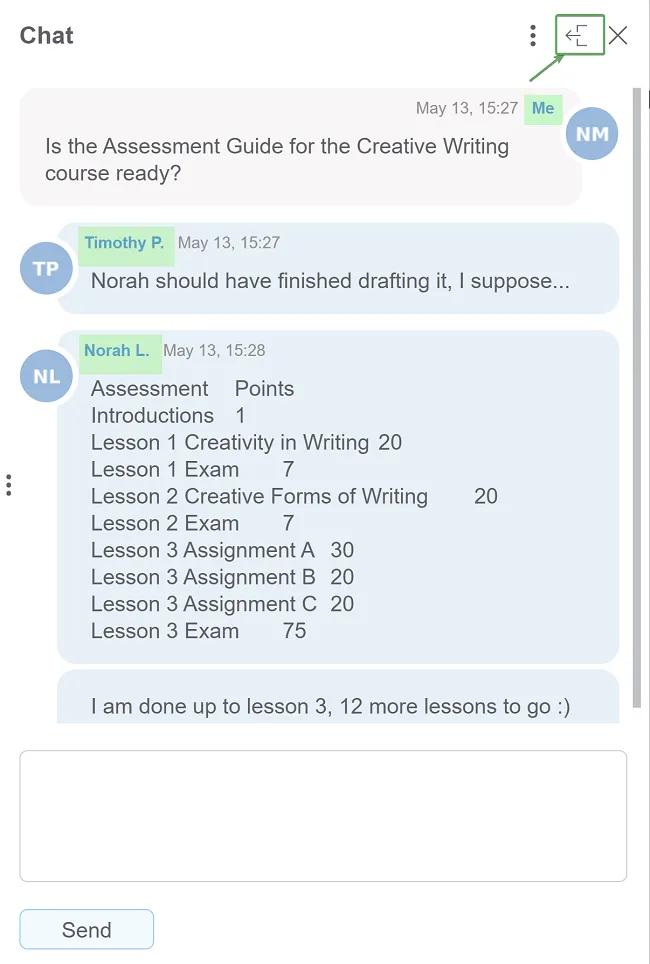
New chat messages are highlighted in red. Once you click the Chat button, you can expand the panel to get a full view of the conversation.