Google Classroom Integration
Teachers can easily share Mindomo mind maps as editable templates with their Google Classroom assignments, allowing students to expand and customize the maps before submitting their work for review. Follow these steps to publish your mind map and distribute it seamlessly through Google Classroom.
Sharing a mind map with Google Classroom
Section titled “Sharing a mind map with Google Classroom”As a teacher, you can use a Mindomo mind map as a template for your Google Classroom assignments.
This way, students will be able to expand the mind map on their own and submit their work for revision.
The mind map can either be blank, or you can provide students with a template structure that includes one or several topics.
Once you are done creating the template mind map in Mindomo, follow these steps to share it with Google Classroom.
-
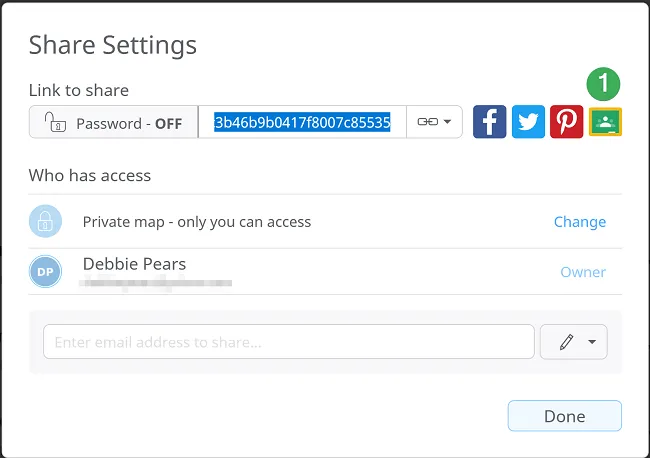
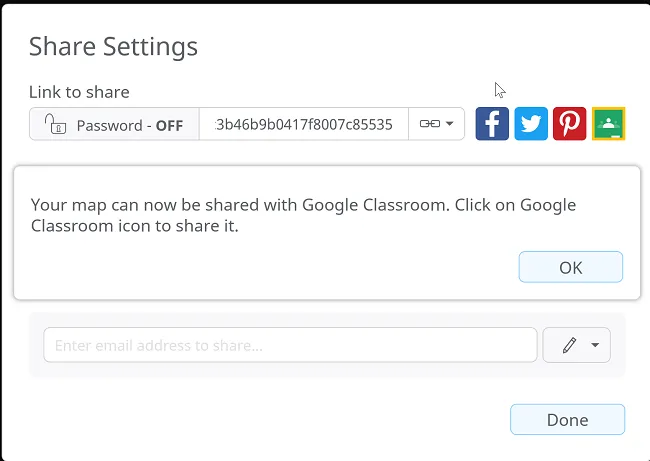
Open the Sharing dialog and click on the Google Classroom icon.
-
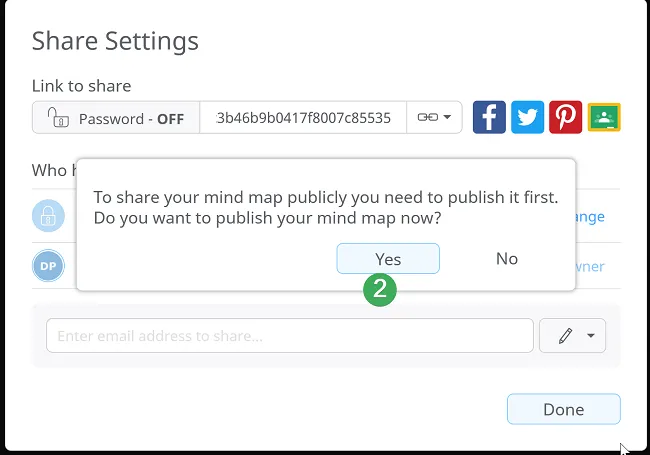
To be able to share your mind map with Google Classroom, you first need to publish it. Clicking on Yes will open the Sharing panel.
-
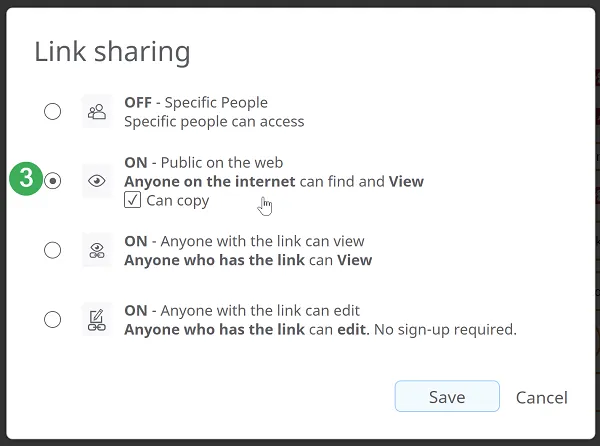
Select the ON – Public on the web option and make sure to check the Can Copy box. This will allow students to copy and expand your mind map.
-
After saving the previous settings, your mind map is now ready to be shared with Google Classroom. Click on the Google Classroom icon again.
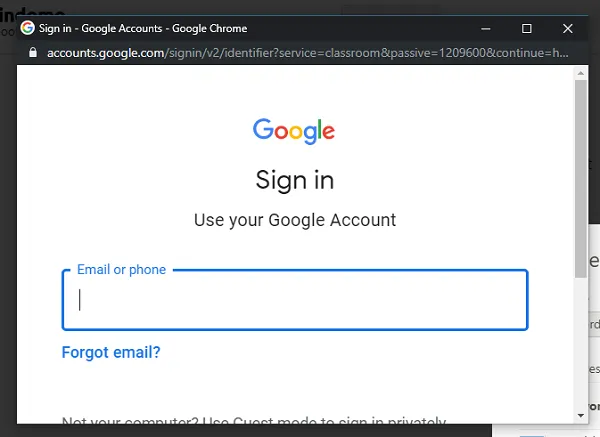
If you are not already connected to your Google account, you will be redirected to the login dialog:
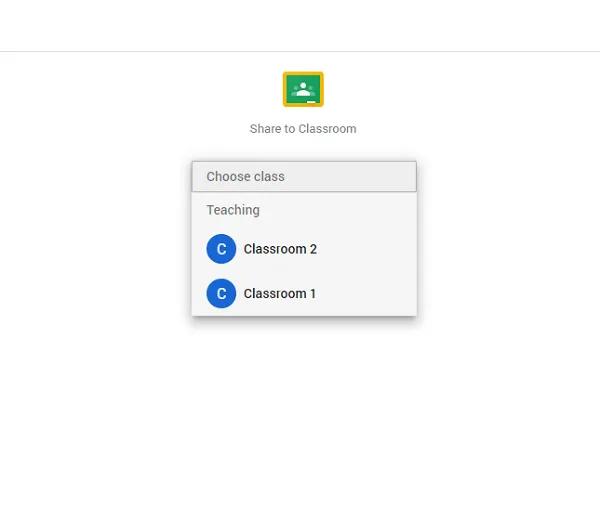
Once you are connected to your Google Classroom account, the dialog that allows you to share your mind map with one of your classrooms will open. Select the target classroom.
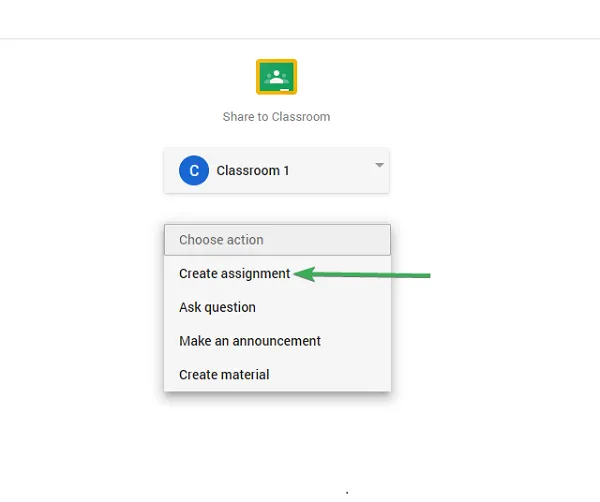
From the new dialog, choose the Create assignment option, then click on Go.
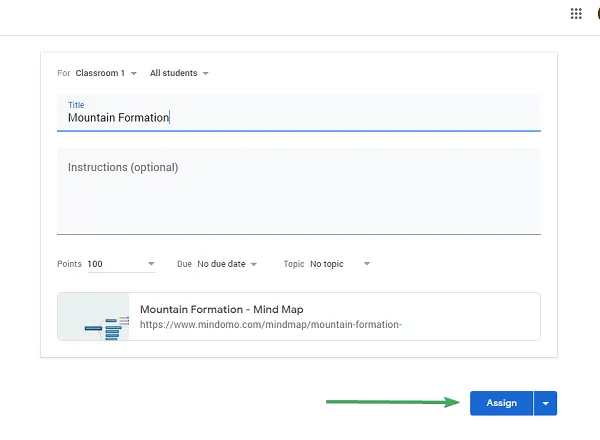
This new tab allows you to add instructions, set a due date for the assignment, and more. Click on Assign to assign this mind map to all the students in the classroom you previously selected. Provide instructions for students on how to share the Google Classroom assignment.
How students will work on the Google Classroom assignment
Section titled “How students will work on the Google Classroom assignment”On the Stream tab of their Google Classroom, students can view the new assignment. Click on the notification to open the assignment page, where the teacher’s mind map is displayed.
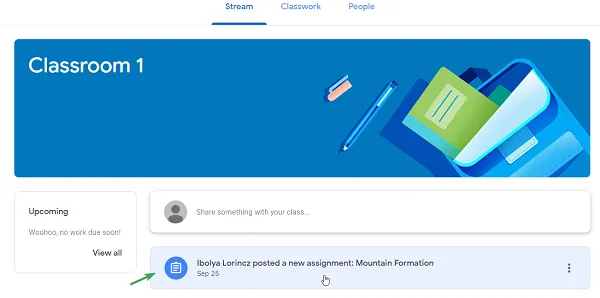
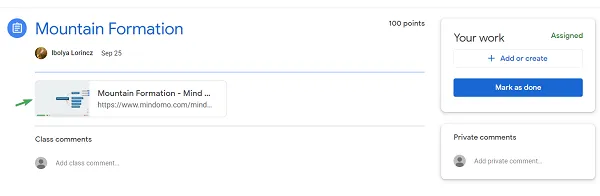
Click on the miniature view of the teacher’s mind map to open it.
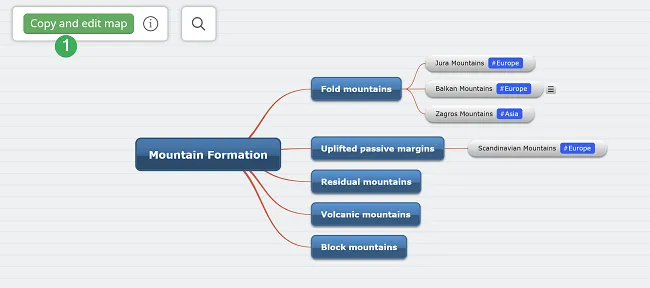
Click on Copy and edit map (1) in the bottom-left corner of the mind map. This will open an editable copy of the teacher’s mind map.
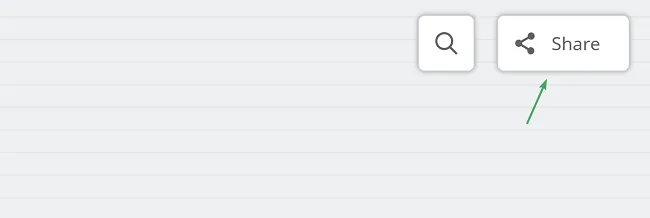
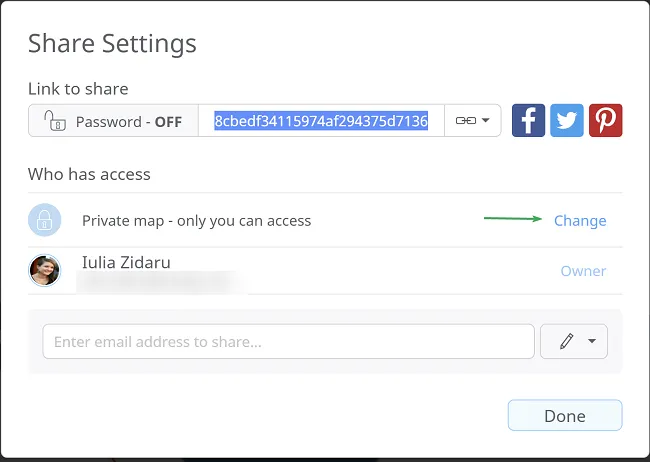
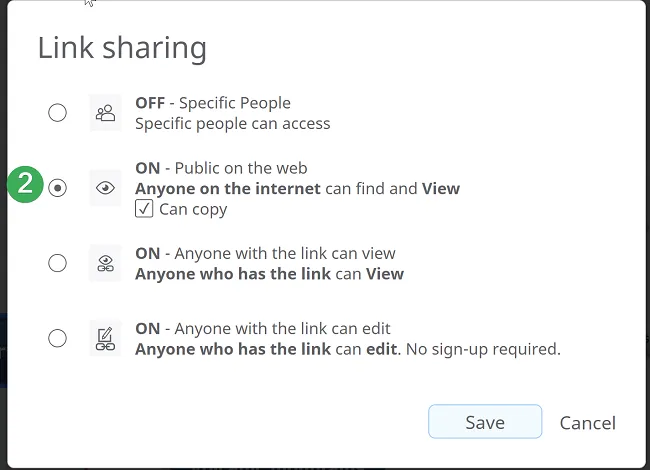
After finishing editing the mind map, to turn in the work, you must first publish the mind map. Open the sharing settings panel, click on Change, and select the second option, ON – Public on the web (2), then click on Save.
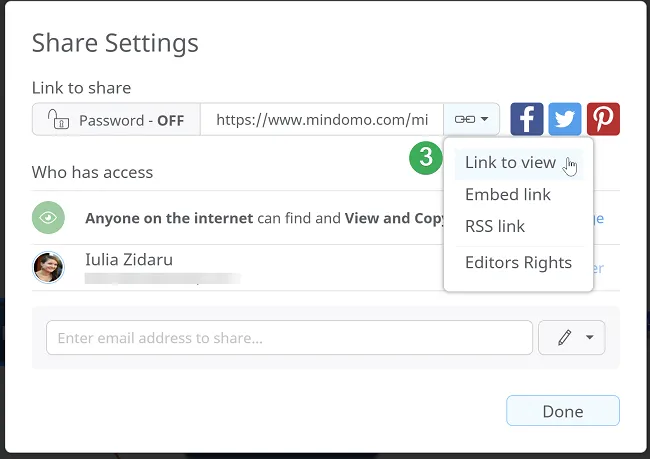
In the sharing panel, click on the Link to view option (3) and copy the link. You will later add this link to the Google Classroom assignment page.
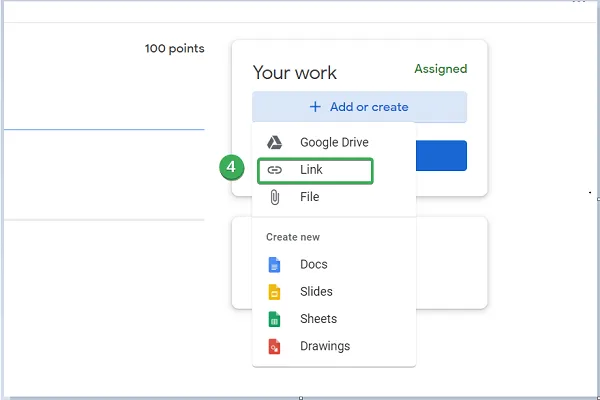
Return to the Google Classroom assignment page, select Add or create, then click on Link (4).
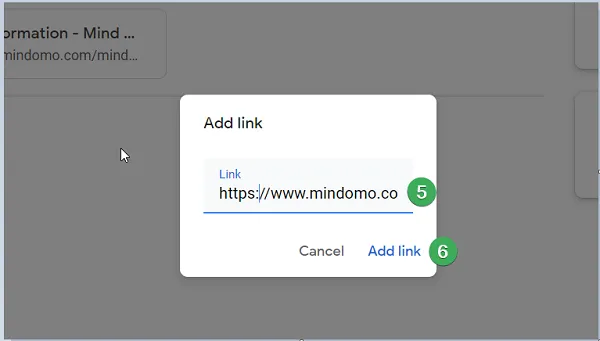
Paste the mind map link you previously copied and click on Add link (6).
You should now see a miniature view of the mind map (7) that you can turn in for the teacher to review.
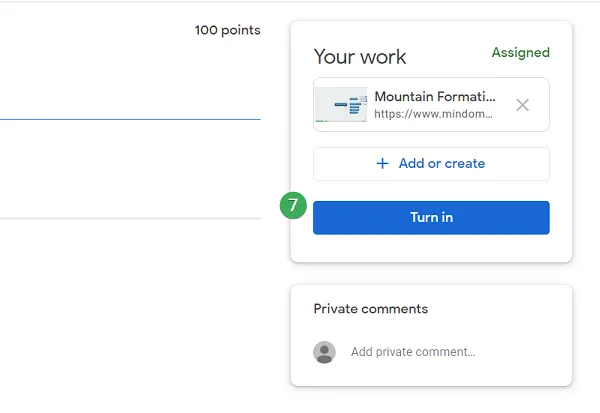
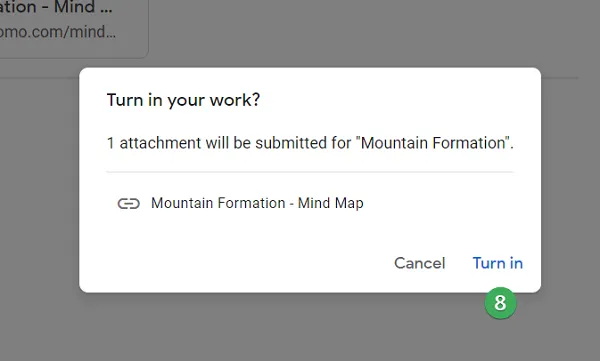
Click on Turn in (8). The teacher will then be notified of your submitted mind map for this assignment.