Mind map assignments
The mind map assignment functionality was specifically developed to help teachers guide students toward easy and engaging visual diagram creation. Teachers can add instructions or multimedia resources for inspiration and even attach mind maps that students can use as a starting point.
Use assignments to help students familiarize themselves with mind mapping, without necessarily having to sign up for Mindomo. Encourage collaboration while always keeping a clear overview of each individual contribution. Once students start collaborating, you get instant access to their diagrams.
Keep all students’ work in one place for easy assessment and offer real-time feedback. Create group assignments to promote teamwork and provide an alternative to conventional homework.
Create an assignment
Section titled “Create an assignment”-
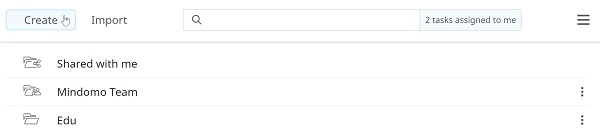
From your dashboard, go to Create.
-
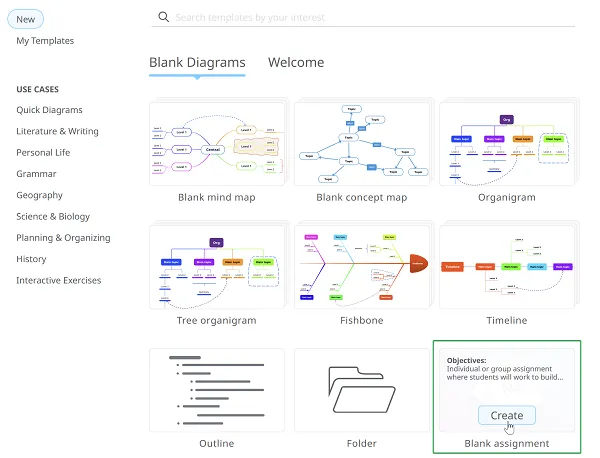
Click Blank Assignment.
-
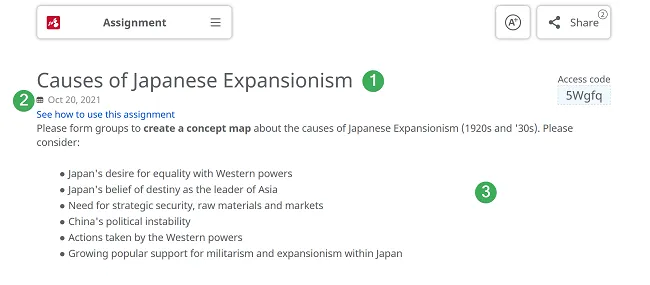
Name your assignment (1)
-
Set a deadline (2)
-
Add a brief description (3)
-
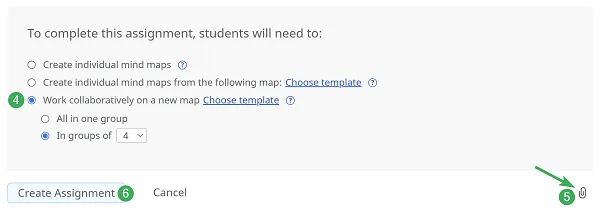
Choose the assignment type (4):
- Students create individual mind maps from scratch.
- Students create individual mind maps starting from a teacher-provided map or template.
- Students collaborate on a shared mind map, starting from scratch or from a template.
-
Add any helpful resources (5)
-
Click Create / Update (6)
Choose template
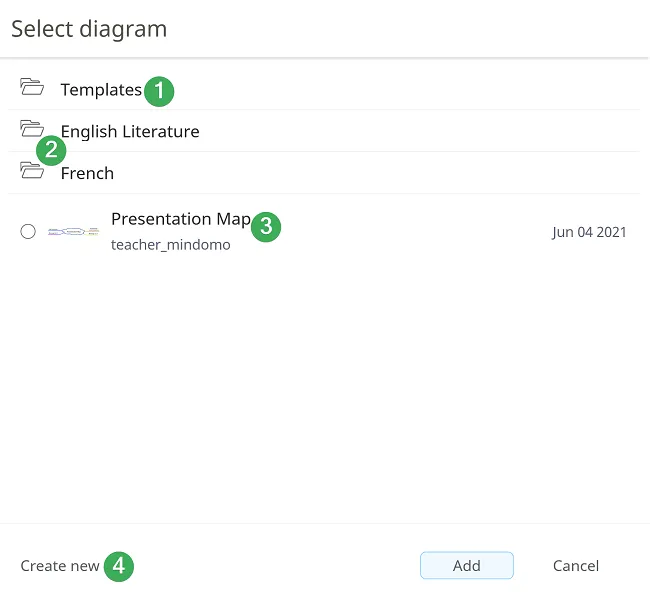
Section titled “Choose template”When setting up an assignment, you can attach a mind map as a starting point. Clicking Choose template opens the following panel:
-
The first folder contains Mindomo-created templates with built-in instructions (1)
-
Your folders from the dashboard (2)
-
Individual mind maps from your dashboard (3)
-
Use Create new to start a brand-new map (4)
Share assignment via email
Section titled “Share assignment via email”-
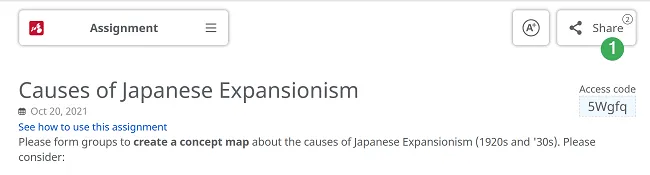
Go to the Share section.
-
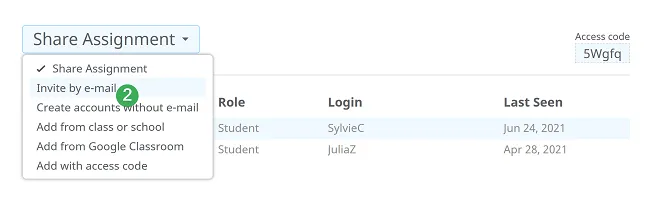
Click Invite by email.
-
Enter students’ email addresses, separated by commas.
You can also invite other teachers. Select whether the emails belong to students or teachers, then click Invite.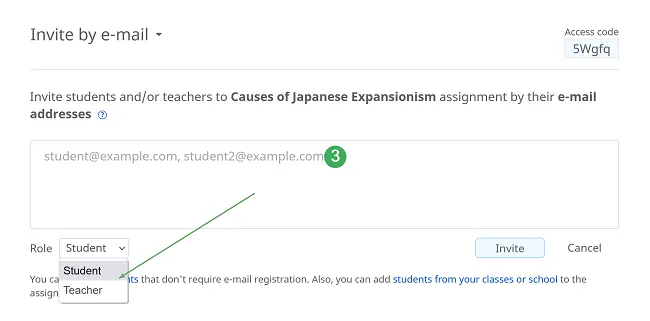
Share assignment by access code
Section titled “Share assignment by access code”-
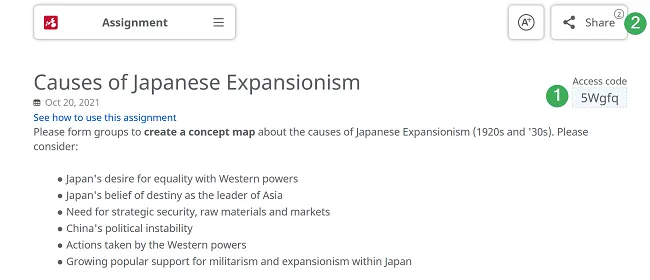
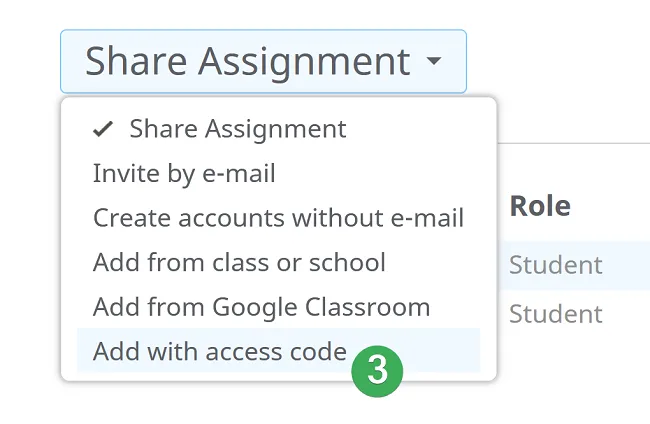
Find the access code in the top-right corner (1) or via Share → Add with access code (2–3).
-
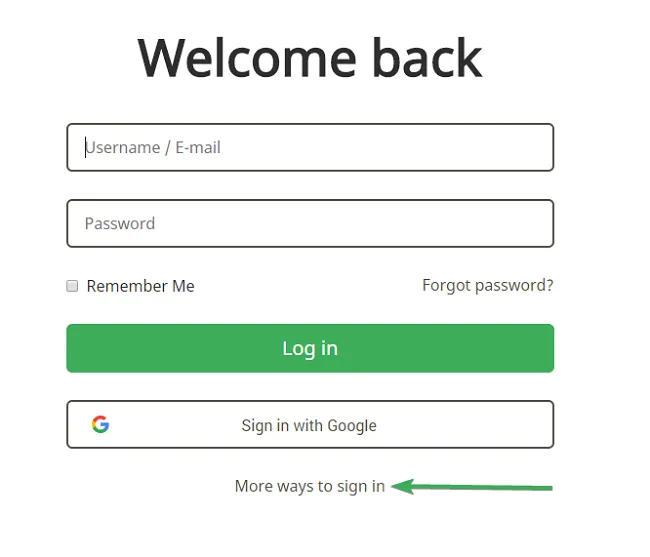
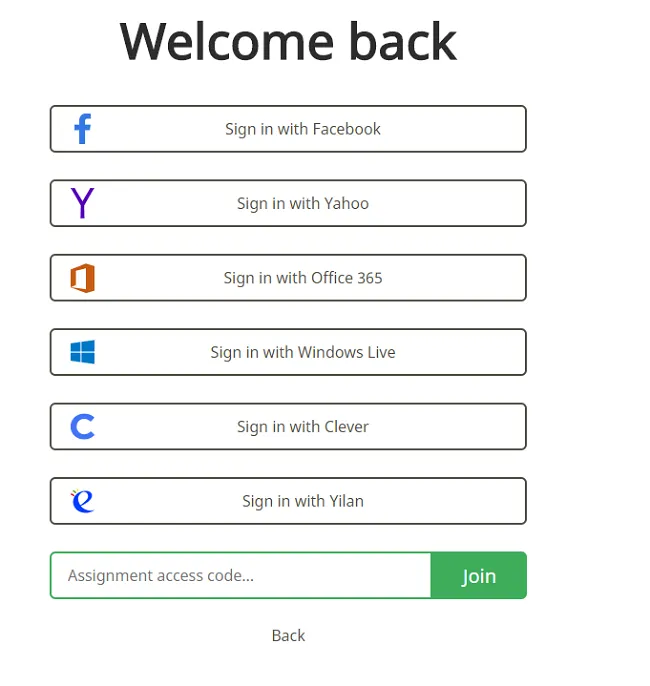
Give students the code and ask them to go to https://www.mindomo.com/login → More ways to sign in.
-
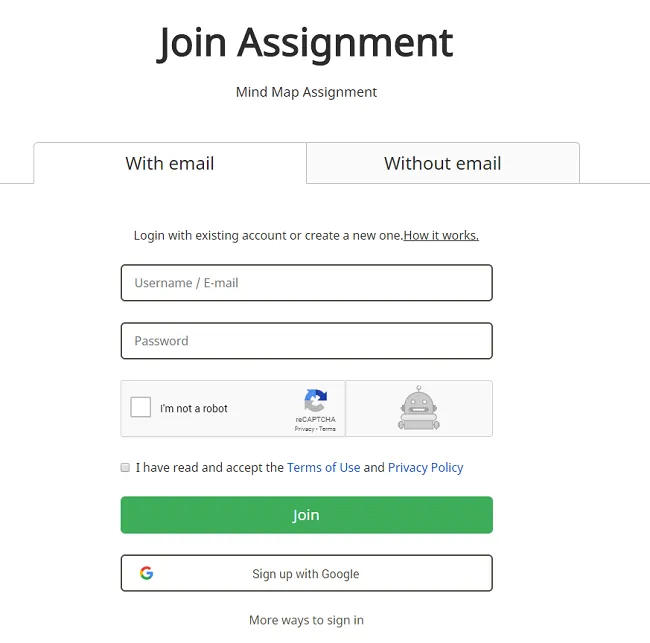
After entering the code, students have the following options:
Join with an existing account or create a new one
Section titled “Join with an existing account or create a new one”-
Students can use their existing Mindomo accounts.
-
If they don’t have an account, they can sign up and access this and future assignments.
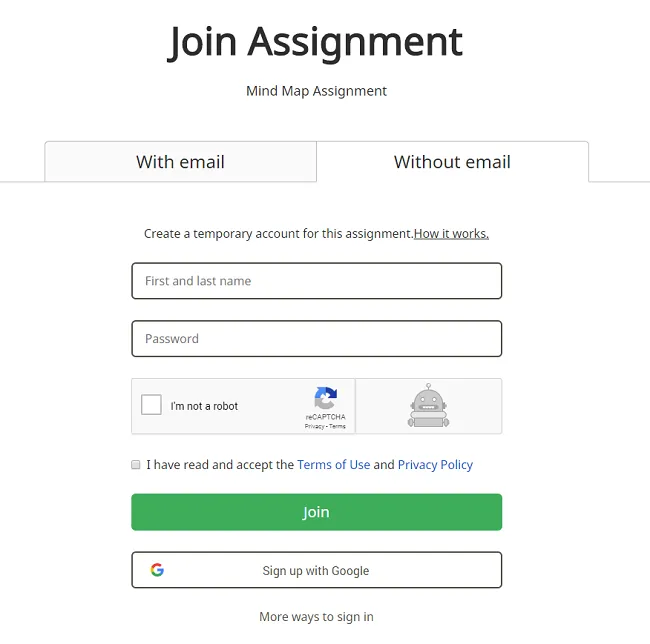
Join with a temporary account
Section titled “Join with a temporary account”-
Students enter their first and last name and set a password.
-
To rejoin, they go to https://www.mindomo.com/join and enter the access code.
-
Teachers can reset forgotten passwords.
-
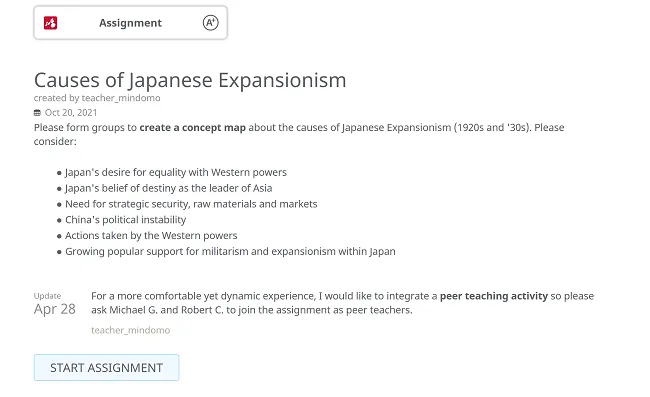
After clicking Join, students get instant access to the assignment.
Share with accounts without email registration
Section titled “Share with accounts without email registration”-
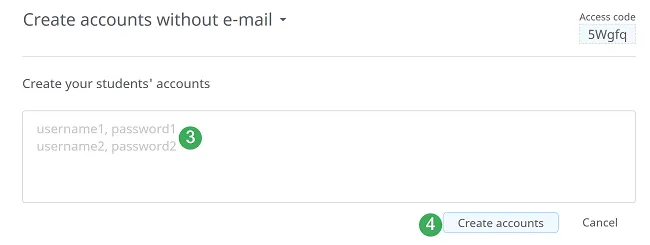
Go to Share → Create accounts without email.

-
Add usernames and passwords, separated by commas, then click Create accounts.
-
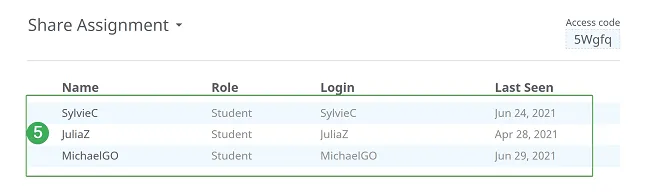
Created accounts are automatically added to the assignment.
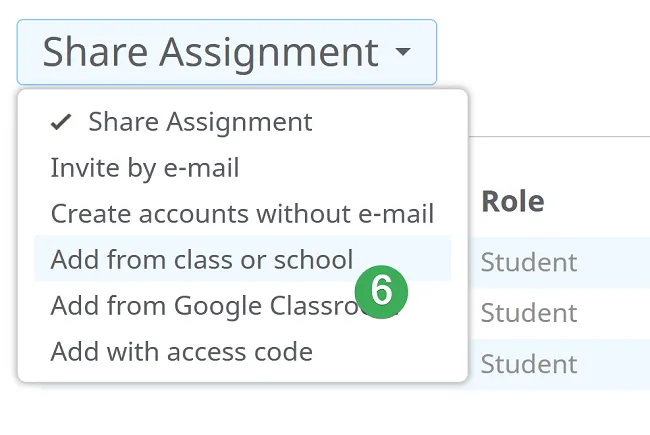
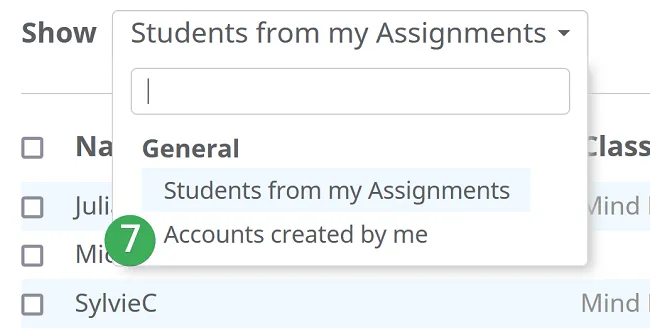
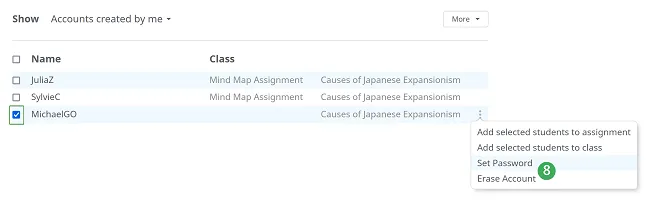
To reset a password, go to Share → Add from class or school → Accounts created by me, select the account, then choose Set password.
Share with class or school
Section titled “Share with class or school”-
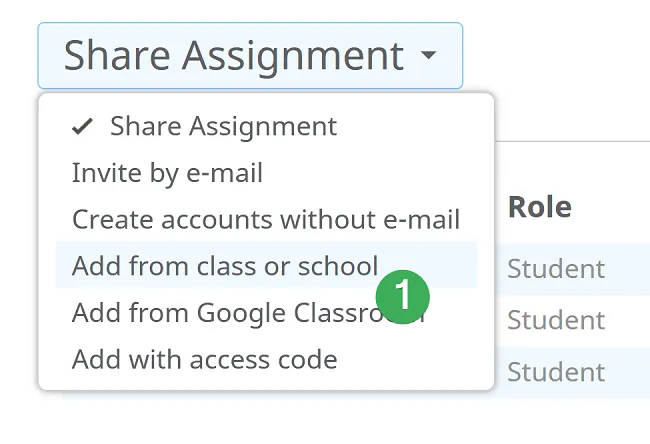
Go to Share → Add from class or school.
-
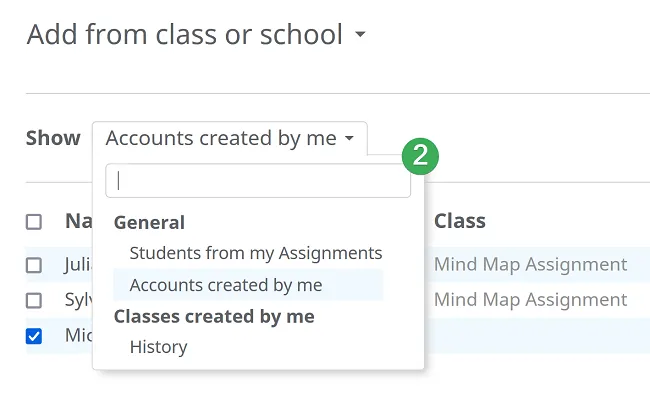
Filter students by:
-
School
-
Previous assignments
-
Accounts created without email
-
Classes you created
-
-
Select students and click Add.
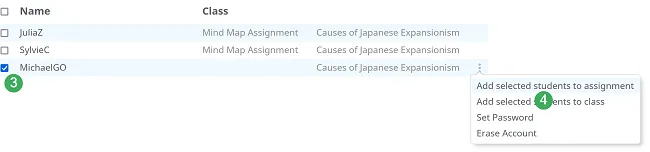
Students receive email notifications except those without email accounts.
Share with Google Classroom
Section titled “Share with Google Classroom”-
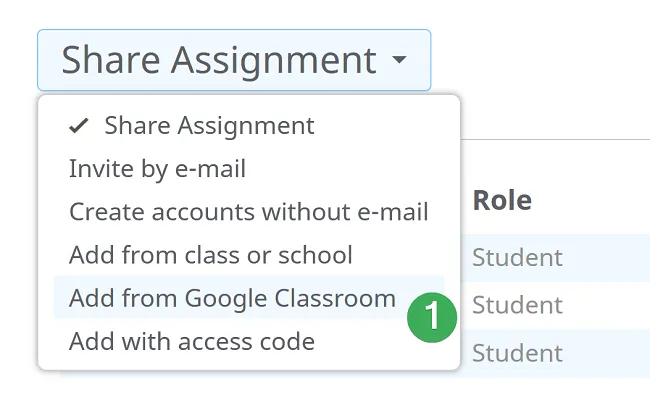
Go to Share → Add students from Google Classroom.
-
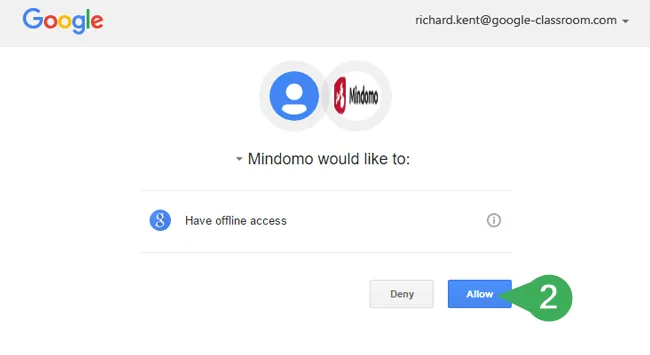
Grant permission for offline access.
-
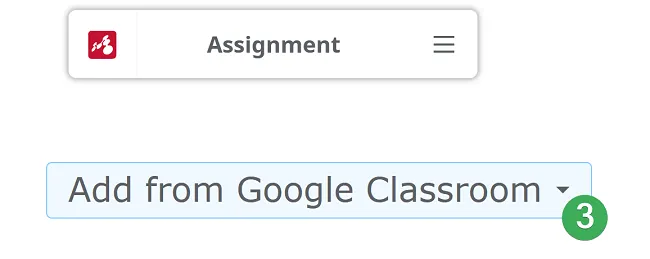
Select a class and click Invite.
Collaborate on assignments
Section titled “Collaborate on assignments”When the first student clicks Start Assignment, they can create the first group.
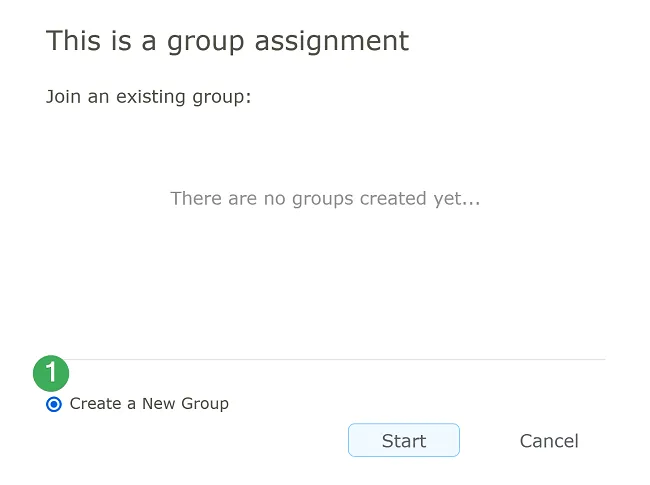
Other students can:
-
Join an existing group
-
Create a new group
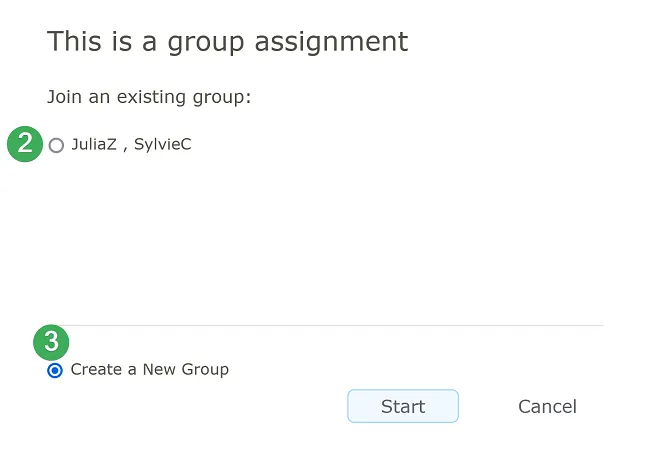
If a group reaches the maximum number of students:
- It remains visible
- No additional students can join
- Students must join another group or create a new one
Review students’ work
Section titled “Review students’ work”-
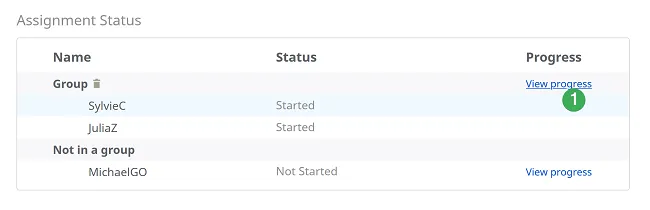
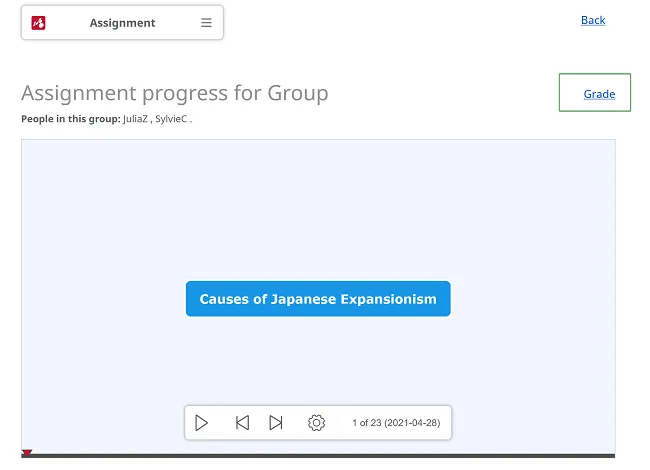
Go to Assignment status → View progress.
-
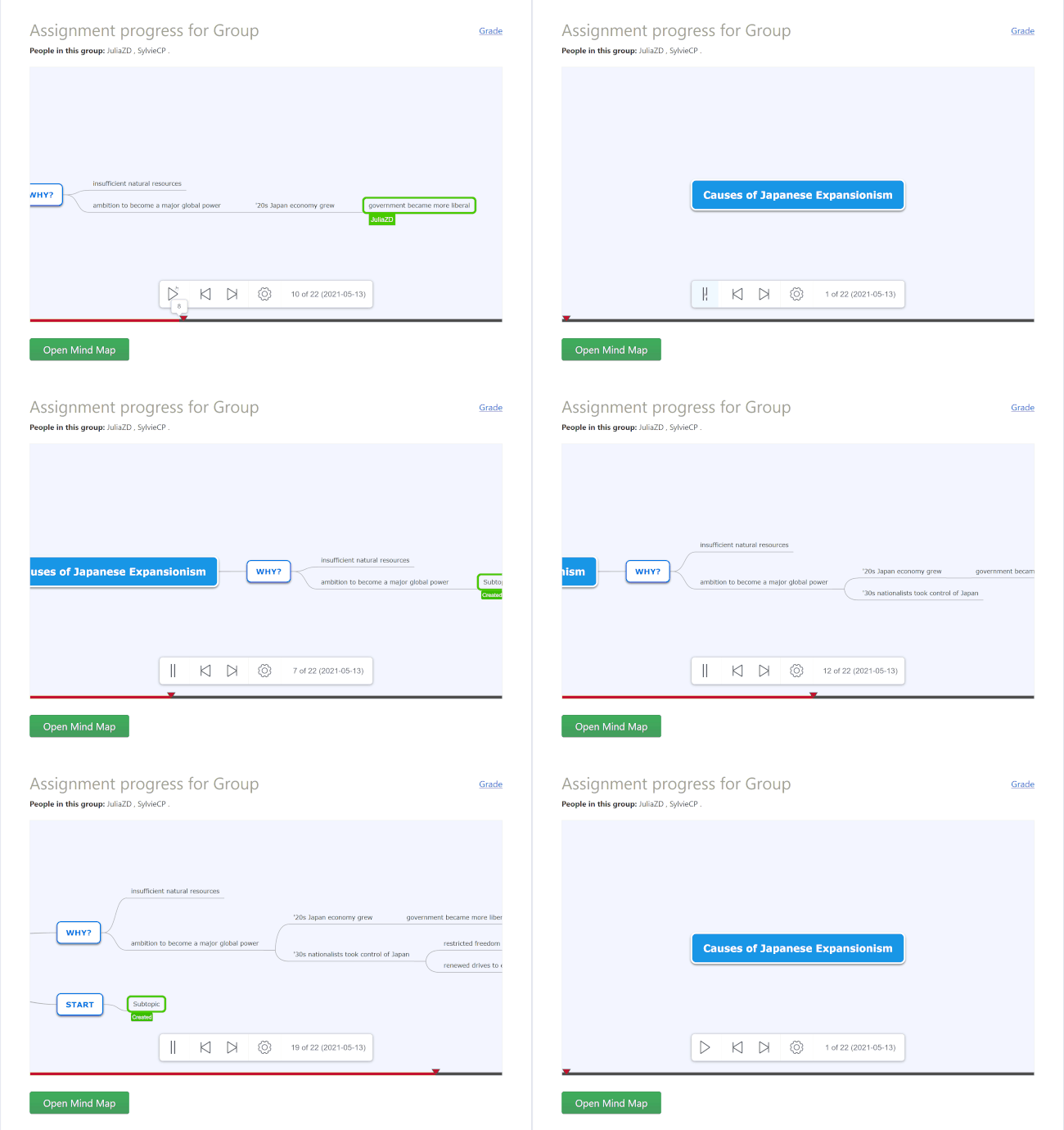
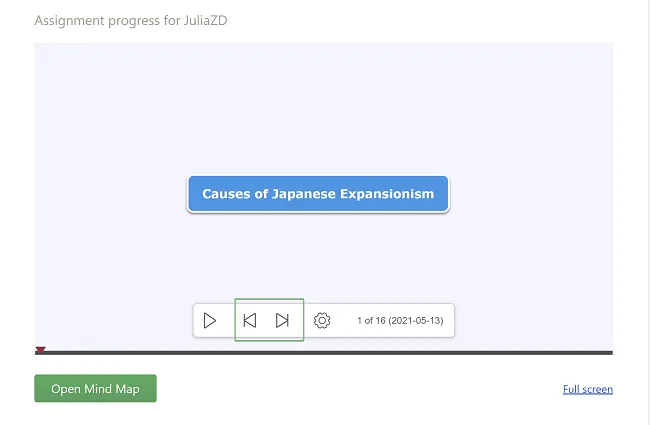
Playback mode opens automatically.
-
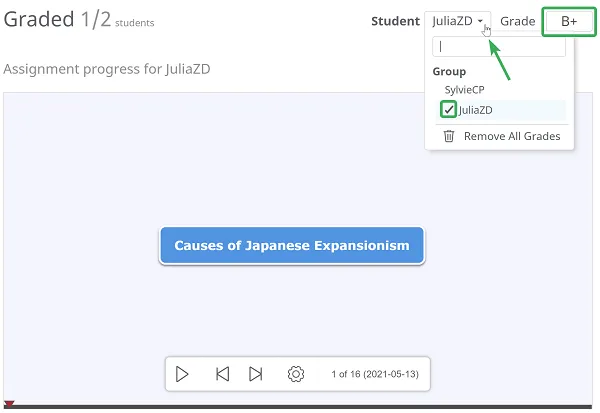
Use the Grade section to review individual contributions.
-
Use Rewind and Forward to navigate changes.
-
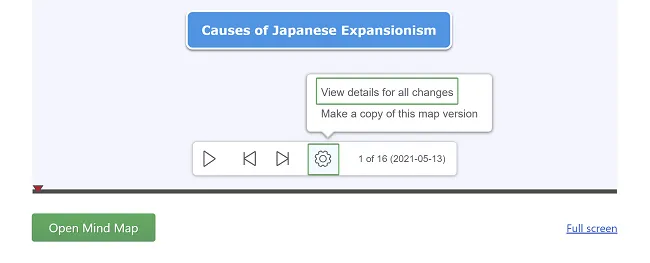
Click Options → View details for all changes for a full history.
Grading and feedback
Section titled “Grading and feedback”-
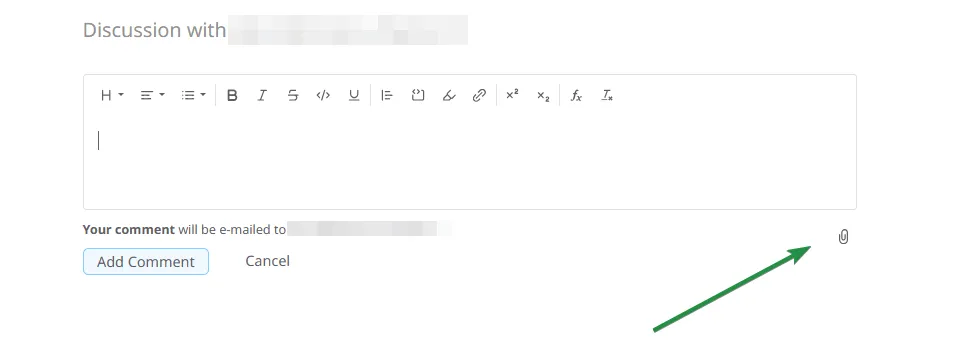
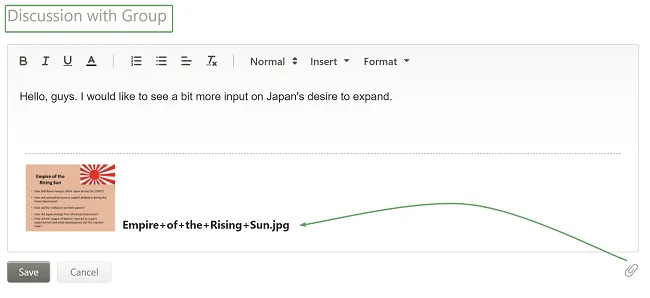
Open View progress to comment and discuss.
-
Discussions can be private or group-based.
-
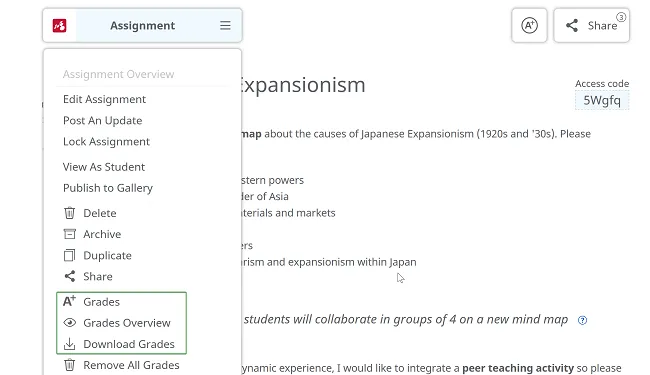
Access grading via Grade, Grades in the File Menu, or the toolbar icon.
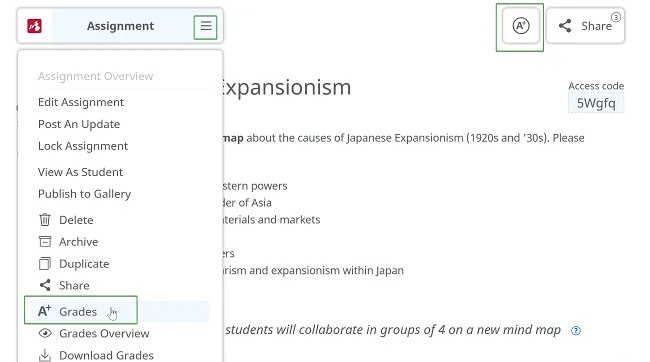
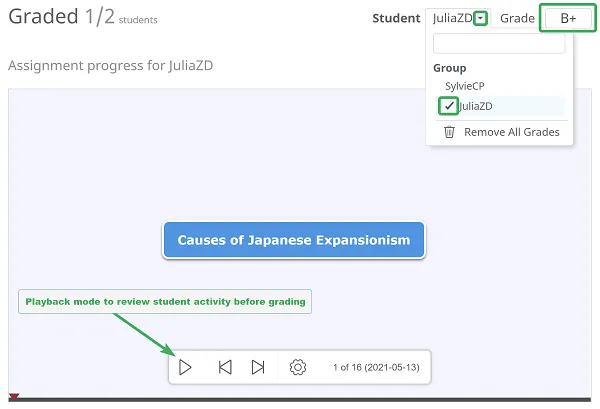
Students are graded individually. Both letter and numeric grading are supported.
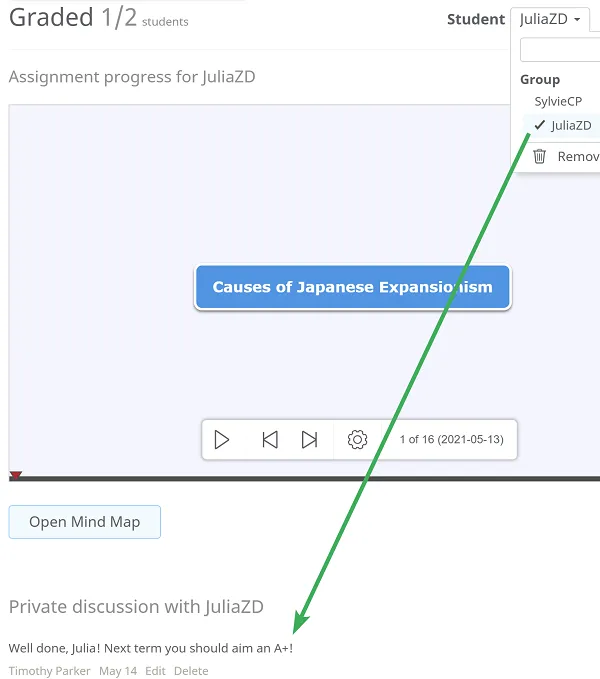
Private feedback can be sent for collaborative assignments.
Download grading reports from File Menu → Grades Overview → Download Grades.
File picker in assignments
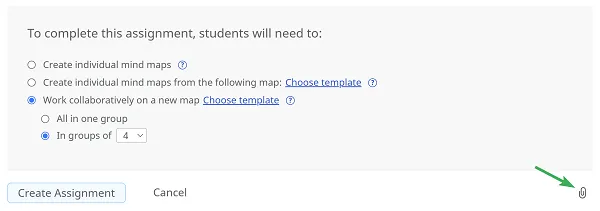
Section titled “File picker in assignments”Attach files from Google Drive, OneDrive, or Dropbox using the file picker:
Create or Edit Assignment
Comments