

Team administration
Each team has one team owner, by default the person who originally purchased the license, who holds full rights over the team and, unlike other members, can’t be removed from it. The owner can add or remove members, add multiple other admins for easier management, and personalize the team’s settings, groups, folders, and templates for everyone on the team. To change ownership, contact support@mindomo.com.
Opening the Team admin panel
Section titled “Opening the Team admin panel”Click your account button (1) in the top right of the Dashboard, then select Team admin (2) from the menu.
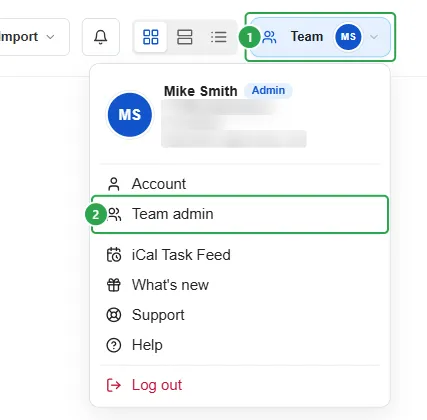
The Team admin panel opens with five sections down the left rail: Members, Groups, Security, License, and Settings.
Add team members
Section titled “Add team members”The Members tab lists everyone on the team. Use the search box or the All groups / All roles filters to narrow the list.
The table shows each member’s Name, E-mail, Role, Groups, Last login, and Premium until date. A small pill next to Add users (e.g. “1 out of 10 available”) shows how many license seats are still free.
Members who haven’t accepted their invitation yet show inline as Invited next to their name; the pill disappears once they accept.
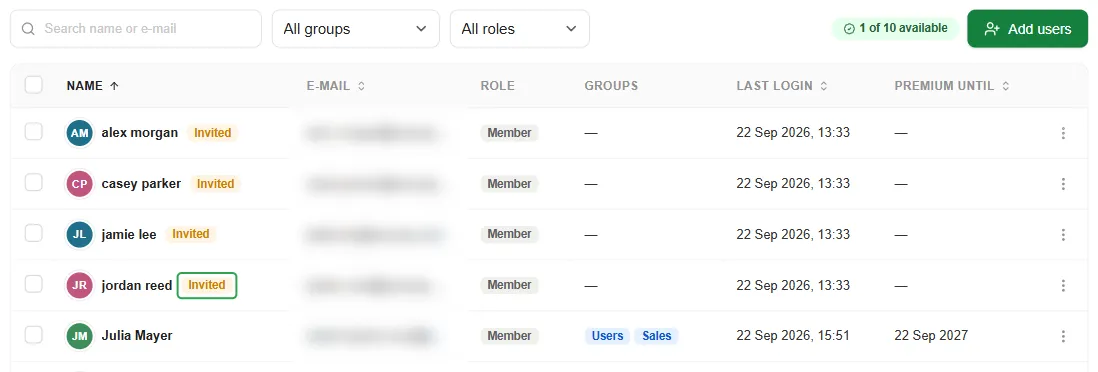

A footer line below the Members table summarizes the totals, with an Export CSV button next to it: click it to download a list of everyone on your team, with the same information shown in the table above.
Paste e-mail addresses
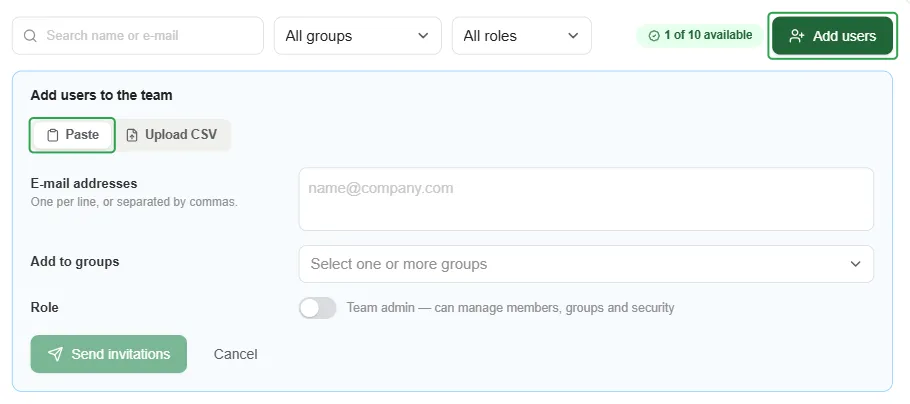
Section titled “Paste e-mail addresses”Click Add users to open the invite panel. On the Paste tab, enter one e-mail address per line (or comma-separated), optionally pick one or more groups to add the invitees to right away, and use the Team admin toggle if they should be able to manage members, groups, and security themselves. Click Send invitations.
Upload a CSV file
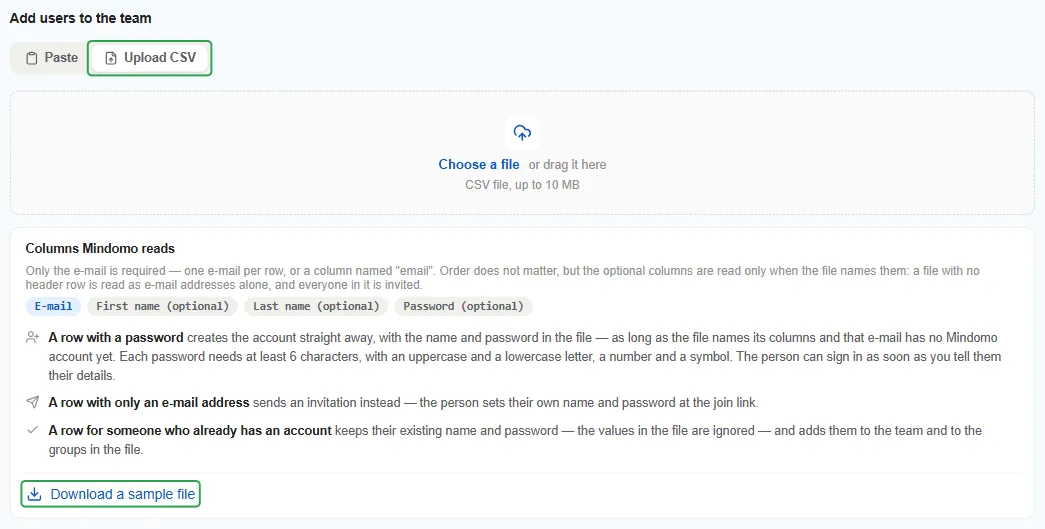
Section titled “Upload a CSV file”The Upload CSV tab is an easier way to invite many people at once than pasting addresses one by one. Click Download a sample file first to get a template with the right headers, then fill it in and upload it: drag it onto the panel, or click Choose a file. Mindomo reads a required E-mail column plus four optional columns: First name, Last name, Password, and Groups.
- A row with a password creates the account immediately, as long as the file names its columns and that address has no Mindomo account yet. Passwords need at least 6 characters, with an uppercase and a lowercase letter, a number, and a symbol.
- A row with only an e-mail address sends an invitation instead: the person sets their own name and password at the join link.
- A row for someone who already has an account keeps their existing name and password and adds them to the team (and to the groups you pick) as usual.
The same Add to groups picker and Team admin toggle from the Paste tab appear below the file and apply to everyone in it at once.
The invited person’s side
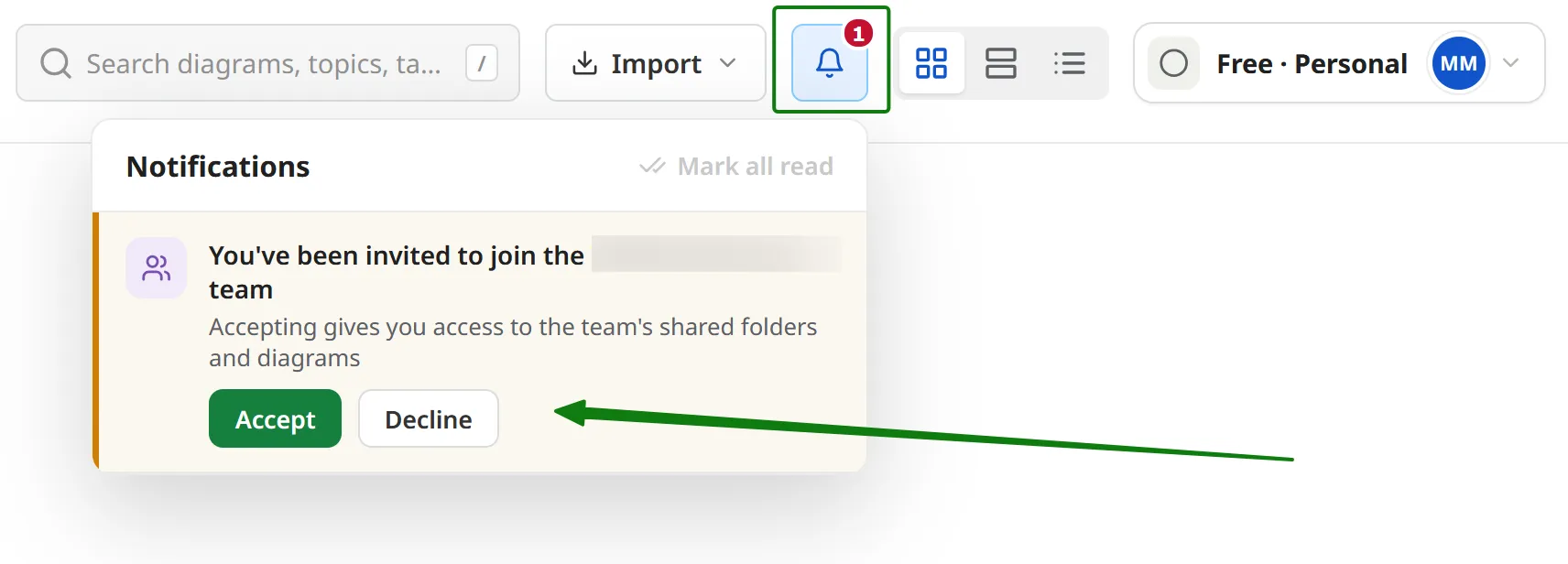
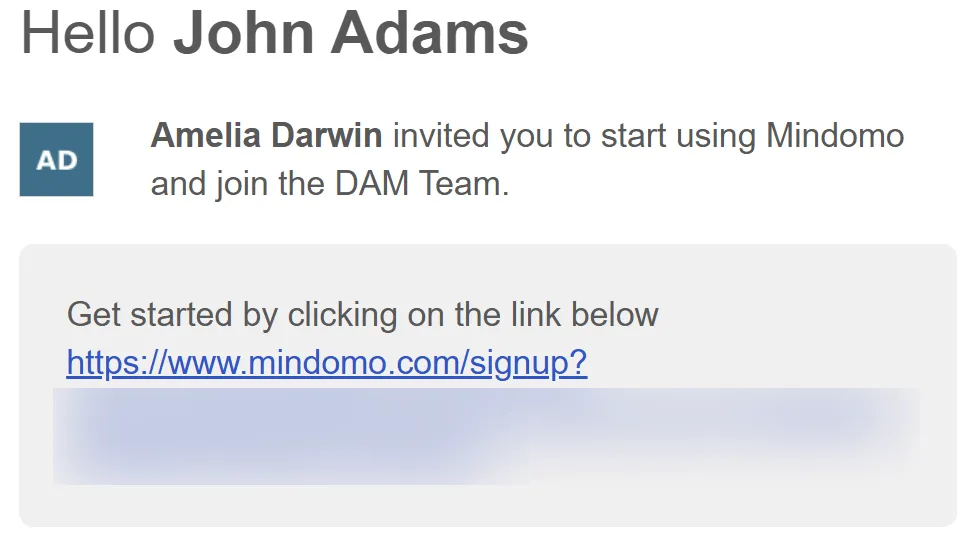
Section titled “The invited person’s side”The invited person receives the invitation by e-mail. Accepting it is what actually grants access to the team and its premium features; being invited alone isn’t enough. If you assigned them to a group when you sent the invite, accepting adds them to that group in the same step; there’s no separate group-join action for them to complete afterward.
-
If they already have a Mindomo account, they just accept the invitation and are added to the team, and any assigned group, right away.
-
If they don’t yet have a Mindomo account, the link in the e-mail takes them through account creation first, after which they’re added to the team, and any assigned group, automatically.
Manage team members
Section titled “Manage team members”Each row in the Members table has a ⋮ menu with seven actions. For a member who’s still Invited, only Remove from team… is enabled; the other six are disabled until they accept.
Once a member has accepted, all seven actions are available:
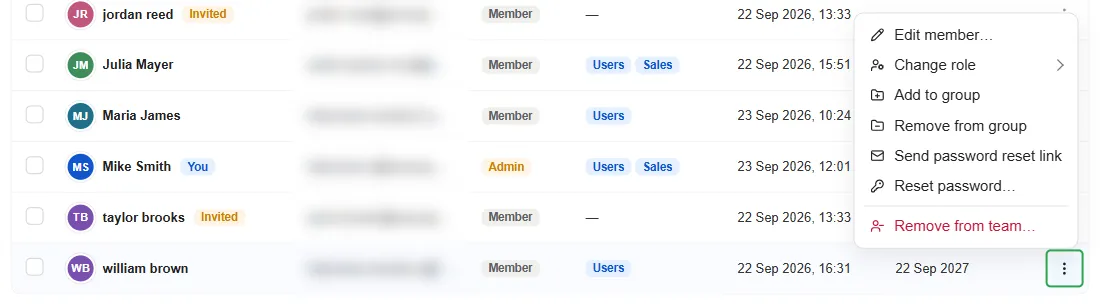
- Edit member… opens one panel to change the member’s name, role, and groups together.
- Change role switches the member between Member and Admin.
- Add to group / Remove from group open the same group picker available at invite time, with a New group shortcut if you need one that doesn’t exist yet.
- Send password reset link e-mails the member a link so they can set their own new password. The member can also reset it themselves from the login page, or you can contact support@mindomo.com for help.
- Reset password… lets you set a new password for them yourself instead: enter one or click Generate, choose whether to sign them out of every device they’re currently signed in on (checked by default), then Set password. This takes effect immediately and ends every open session. If the member can reach their mailbox, Send password reset link above is the safer route, since you never see or handle their password.
- Remove from team… opens a different dialog depending on whether the member has accepted yet; see Removing a member who hasn’t accepted yet and Removing an existing member below.
Removing a member who hasn’t accepted yet
Section titled “Removing a member who hasn’t accepted yet”Remove from team… opens a simple confirmation, Cancel this invitation? The seat is released immediately, the invitation link stops working, and the account behind that address, if any, isn’t touched. You can invite the same address again at any time.
Removing an existing member
Section titled “Removing an existing member”For an accepted member, the dialog shows how many diagrams they own, split into private diagrams and diagrams in team folders, and offers three options for what happens to that work. Selecting an option expands it with the exact breakdown for that member. Every option frees up a seat.
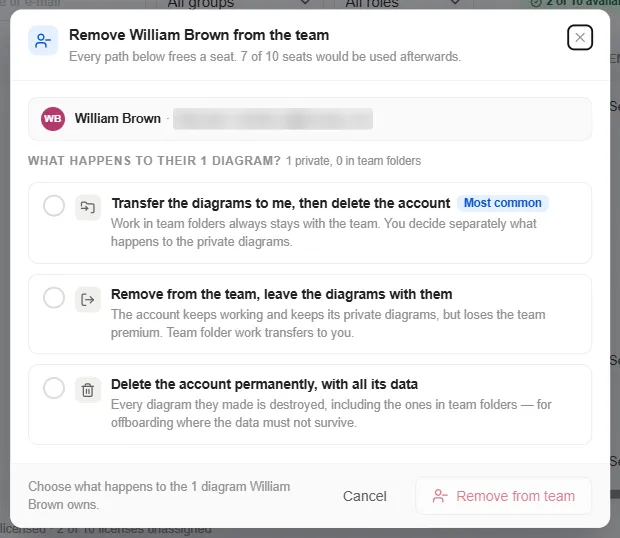
1. Transfer the diagrams to me, then delete the account
Section titled “1. Transfer the diagrams to me, then delete the account”This is the option marked Most common. Team folder diagrams transfer to you automatically, making you their new owner, and the account is deleted once the transfer finishes. Deleting the account can’t be undone, even though the diagrams themselves survive.
Two toggles decide what happens to the member’s private diagrams:
- Move them into my diagrams (on by default) moves the member’s private diagrams into a new folder in your My diagrams, named after the member by default; you can rename it before confirming.
- Keep the people these diagrams are shared with (on by default) preserves every existing share and public link on the member’s private diagrams. Turning it off removes every share, so only you can open those diagrams afterward.
2. Remove from the team, leave the diagrams with them
Section titled “2. Remove from the team, leave the diagrams with them”The account keeps working, but drops to the free plan: instead of unlimited diagrams, they can create only 3, they no longer have access to team folders or advanced exports, and any diagrams over the free limit become read-only. Team folder diagrams transfer to you. The member keeps their private diagrams, but you lose access to them unless they re-share.
- Also remove team diagrams shared with them personally (on by default) revokes any team diagrams a colleague shared with them directly, since leaving the team already ends the access their groups gave them.
This option is reversible: invite them back at any time and their premium features and team access return.
3. Delete the account permanently, with all its data
Section titled “3. Delete the account permanently, with all its data”To confirm, type the member’s e-mail address into the field before Delete permanently unlocks.
Team groups
Section titled “Team groups”Groups exist to organize your team members. Splitting them up makes it easier to share diagrams with just the right set of people instead of one member at a time (see Team sharing below).
Every team has a default group, Users (tagged General), the team’s main group that all members belong to automatically; it can’t be deleted.
Click Create group to add another: give it a name and an optional description, shown to admins in the group list.
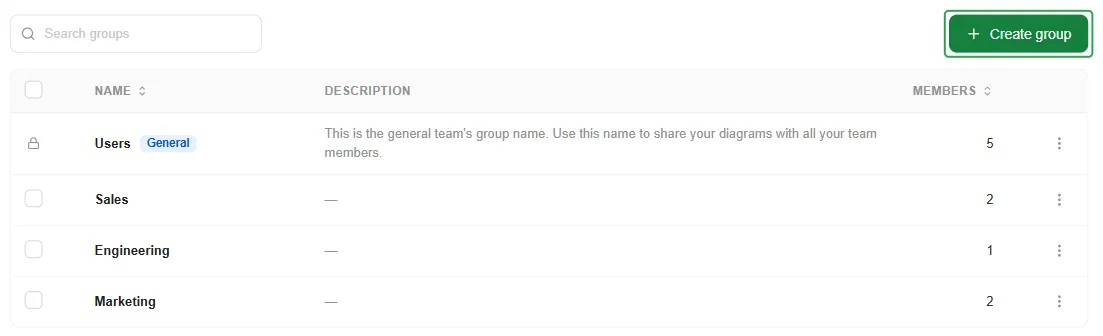
Each group’s row has its own ⋮ menu with Edit group, View members, and Delete group. Renaming reopens the same name/description panel used when creating the group.
Team sharing
Section titled “Team sharing”There are two ways to share diagrams with your team. For most work, use a team folder: it keeps shared maps organized in one place, and you can drag in several at once.
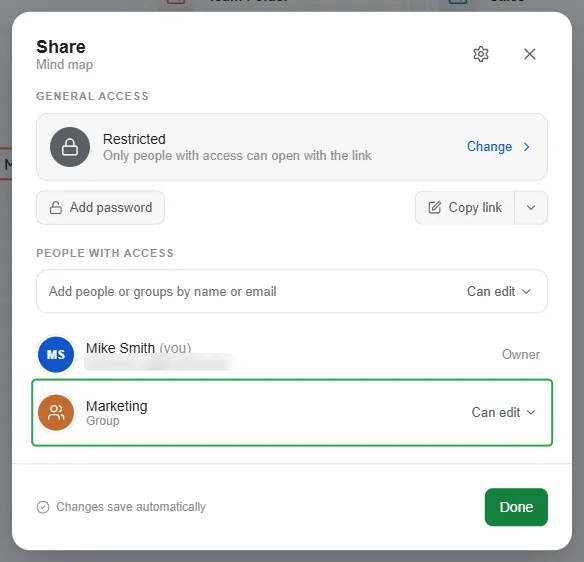
To share a diagram with a group:
- Open the map’s Share dialog.
- In People with access, type a group name, such as Marketing, or Users to share with the whole team. Mindomo suggests matching groups as you type.
- Add more groups the same way if needed.
Every member of those groups gets access, and the map appears in their Shared with me folder.
Team Folders
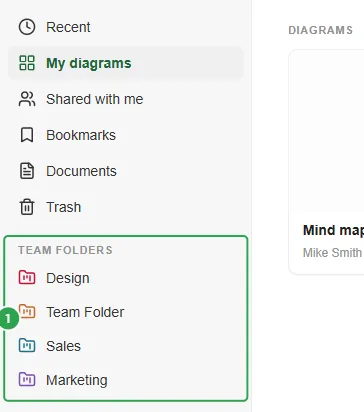
Section titled “Team Folders”Team folders are available to a whole group at once, so any map you drag into one from My diagrams is instantly available to its members. The map takes on the folder’s access rights, which decide whether members can view or edit it.
Every team starts with one team folder shared with the whole team, listed under Team Folders in the sidebar. Admins can create a separate team folder for each group.
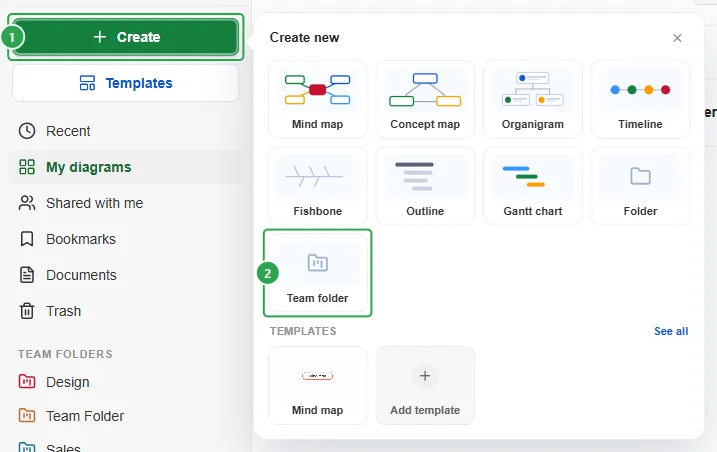
To create one:
-
Click Create (1) in the Dashboard sidebar, then choose Team folder (2) rather than a plain Folder.
-
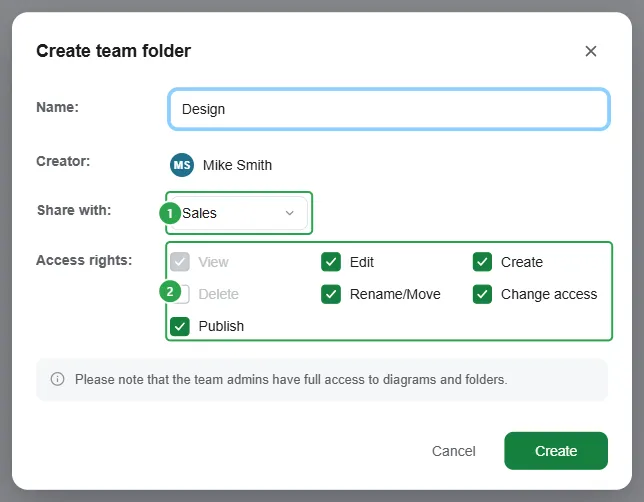
Name the folder and pick a group under Share with (1). Choose Users, the team’s general group, to make the folder’s maps available to everyone on the team.
-
Set the group’s Access rights (2); see Access rights below.
-
Click Create. The folder appears under Team Folders in the sidebar for everyone in that group.
Access rights
Section titled “Access rights”View is always granted and Delete is always off for a new team folder. The other five rights are on by default, and each can be turned off individually. Each right lets the group’s members:
- View: open and read the folder’s diagrams, without changing them.
- Edit: change the content of the folder’s diagrams.
- Create: add new diagrams to the folder.
- Delete: delete diagrams and subfolders inside the folder.
- Rename/Move: rename and move diagrams and subfolders inside the folder.
- Change access: change who each diagram in the folder is shared with.
- Publish: publish the folder’s diagrams on the web.
You can change who has access at any time afterward: open the folder’s ⋮ menu and choose Folder settings to reopen the same panel, now titled Change folder properties, or set Share with back to Nobody to make the folder private again.
Multi-factor authentication
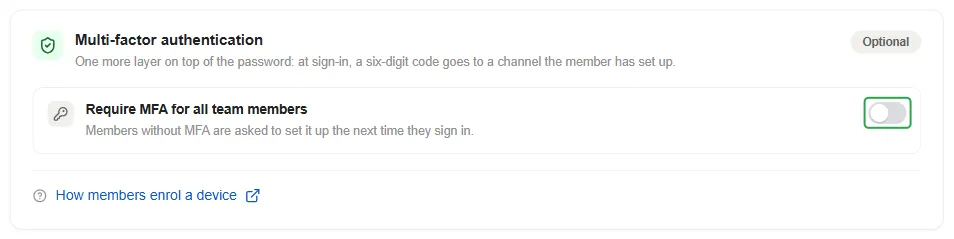
Section titled “Multi-factor authentication”To require multi-factor authentication (MFA) for the whole team, a team admin can go to Security → Login and turn on Require MFA for all team members. Every member is signed out right away, and anyone who hasn’t set up MFA yet is prompted to do so the next time they sign in.
Members can choose their own authentication method once they set it up, but only a team admin can turn the requirement off again, either from this screen or by contacting support@mindomo.com.
Business features
Section titled “Business features”Audit logs
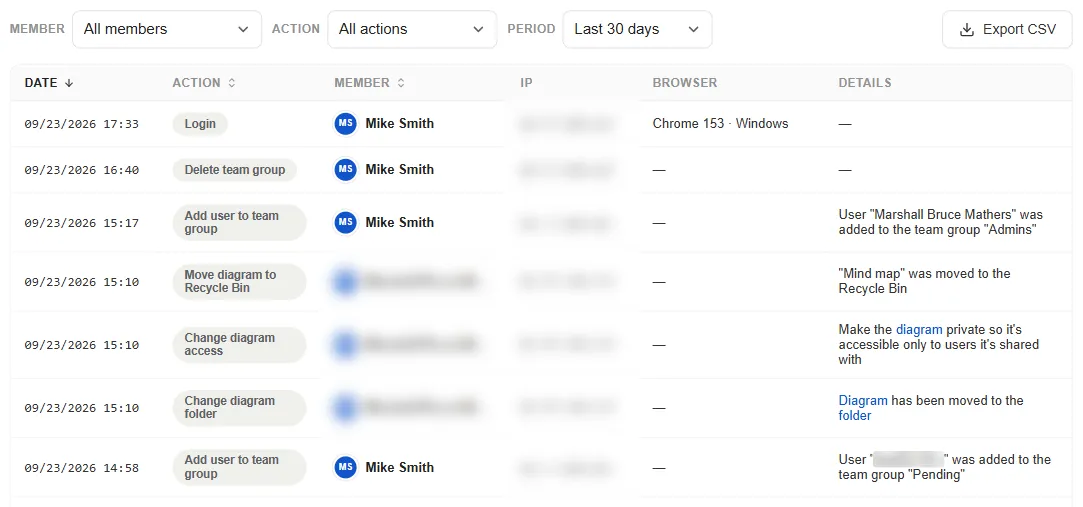
Section titled “Audit logs”Audit logs give admins a detailed record of every team member’s activity. On a Team plan, opening Security → Audit shows an upgrade dialog rather than the panel itself.
On a Business plan, the real panel lists every logged event with its date, the action taken, the member who took it, their IP address, browser, and a Details column with the specifics. Filter by Member, by Action (All actions, Login, User, Organization), or by Period (Last 7 days / Last 30 days), and export the current view with Export CSV.
Security controls
Section titled “Security controls”Security → Settings has three Sharing outside the team toggles. They apply to every team member’s diagrams and take effect immediately, including on existing share links:
- Disable diagram publishing on the web: diagrams can no longer be made public on the web. Members can still share them with the team, or invite specific people by e-mail through private sharing.
- Restrict sharing to approved domains: turning it on opens a field where you list the e-mail domains members can share with. Sharing with any other domain is refused.
- Disable guest editing with a public link: guest editing normally lets anyone with a diagram’s public link edit it, without being on your team. With this toggle on, members can no longer allow that, and public links that already allowed editing become view-only.
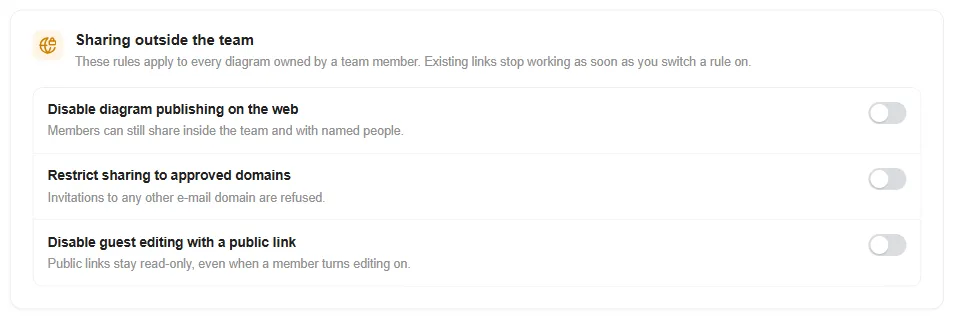
On a Team plan, the toggles are visible, but clicking one opens the upgrade dialog instead of turning it on.
Enabling SAML
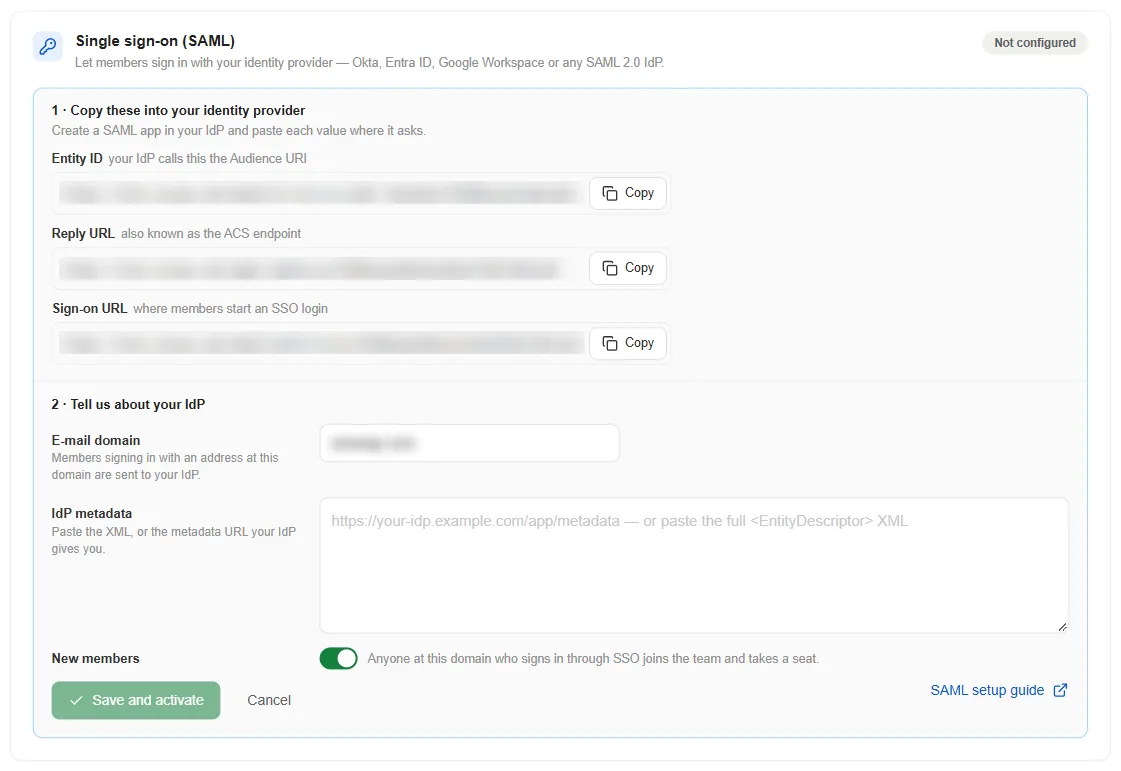
Section titled “Enabling SAML”SAML-based single sign-on (SSO) lets members sign in through your identity provider: Okta, Entra ID, Google Workspace, or any SAML 2.0 IdP. It’s available with a Business license only, from Security → Login.

On a Business plan, clicking Set up SAML opens a two-step setup:
- Copy these into your identity provider: the Entity ID, Reply URL, and Sign-on URL, each with its own Copy button.
- Tell Mindomo about your IdP: the E-mail domain whose members should be sent there, and the IdP metadata (paste the metadata URL your IdP gives you, or the full XML).
The New members toggle controls whether anyone who signs in through SSO at that domain automatically joins the team and takes a seat. Click Save and activate once both sides are configured; members keep their existing password until you switch SSO to required.
See SAML setup for the full walkthrough.
Manage your license
Section titled “Manage your license”The License tab covers everything to do with paying for and sizing your team’s subscription.
Extend your subscription
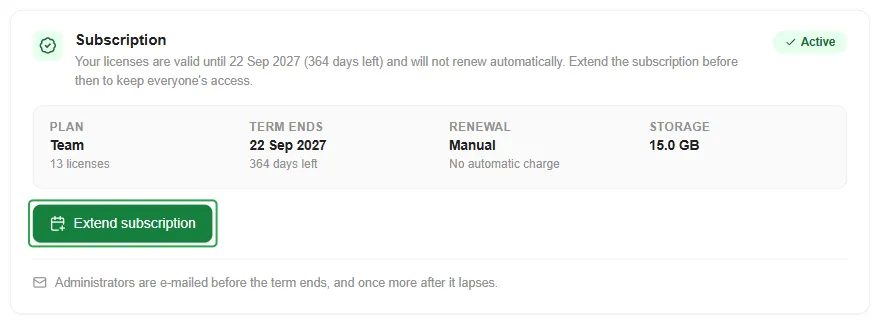
Section titled “Extend your subscription”The Subscription card shows your plan, license count, term end date, days remaining, and storage allowance.
Subscriptions are renewed manually, so click Extend subscription before the term ends to keep everyone’s access. Administrators receive an e-mail reminder before the term ends, and another once it lapses.
Add more users to your license
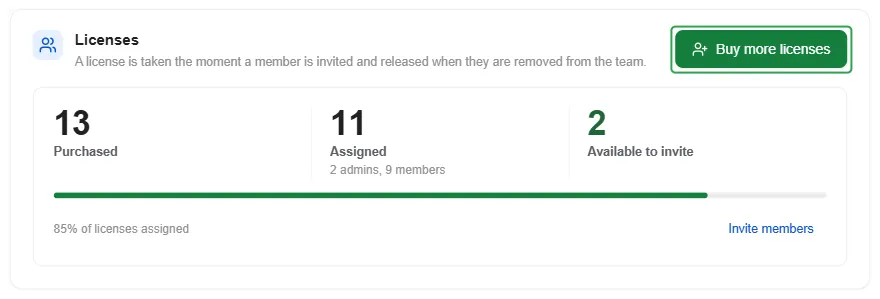
Section titled “Add more users to your license”The Licenses card shows how many seats you’ve purchased, how many are assigned, and how many are still free to invite.
Click Buy more licenses to add seats for new users. The additional users will have the same end date as the rest of the team.
Add more AI credits
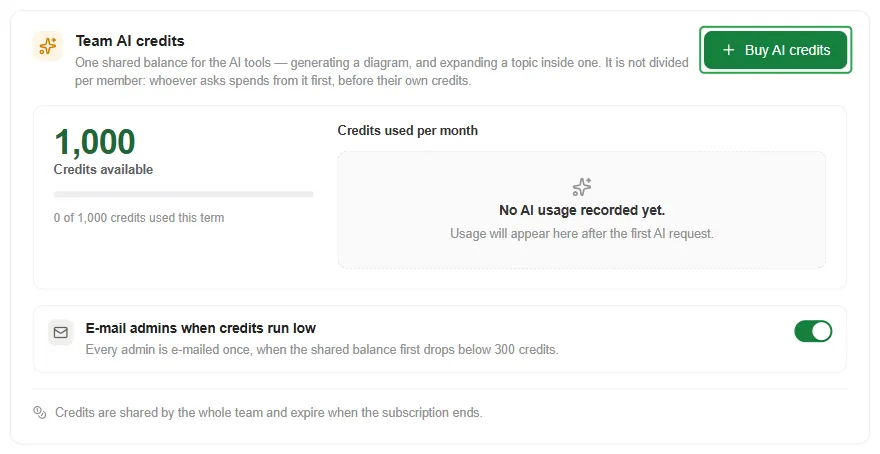
Section titled “Add more AI credits”Your team draws from one shared pool of AI credits for its AI tools: generating diagrams with AI and editing diagrams using AI features. It isn’t divided per member: whoever uses AI spends from the shared pool.
Click Buy AI credits to top it up, and turn on E-mail admins when credits run low to be notified once the shared balance first drops below 300 credits. Credits are shared by the whole team and expire when the subscription ends. See AI Credits and Usage Limits for how credits are calculated and spent.
Add more storage
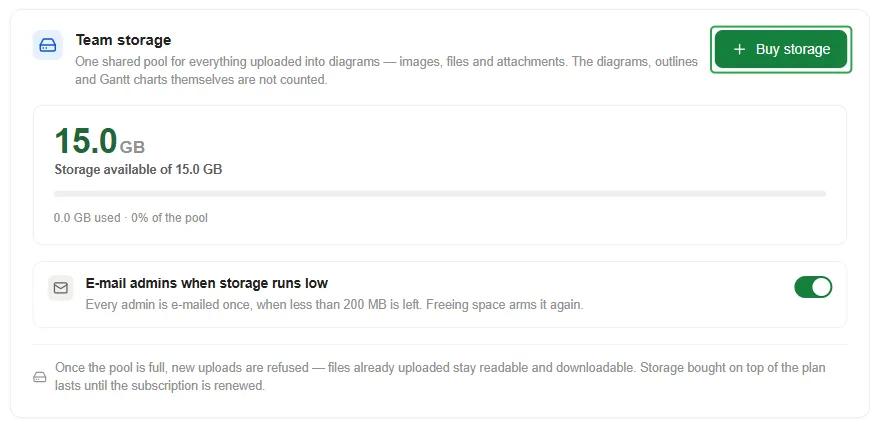
Section titled “Add more storage”Team storage only covers what members upload into diagrams, such as images, files, and attachments. It does not apply to the number of diagrams, outlines, or Gantt charts the team creates, since those are unlimited and never count against this pool.
Click Buy storage to add more, and turn on E-mail admins when storage runs low to be notified once less than 200 MB remains. Once the pool is full, new uploads are refused, though files already uploaded stay readable and downloadable. Storage purchased on top of the plan lasts until the subscription is renewed.
Purchases and invoices
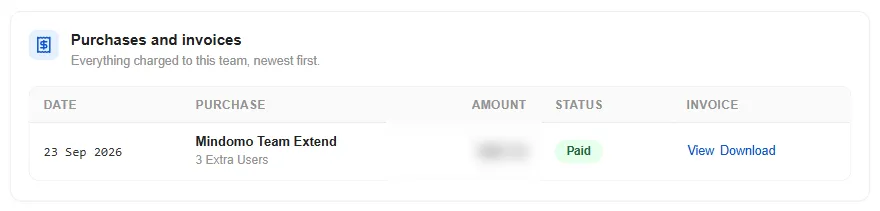
Section titled “Purchases and invoices”This card lists everything ever charged to the team, newest first, with its date, purchase, amount, and status. Each row’s invoice gives you a choice: View it in the browser, or Download it directly.
Team preferences
Section titled “Team preferences”The Settings tab, the last one in the Team admin panel’s left rail, controls team-wide defaults.
Notifications
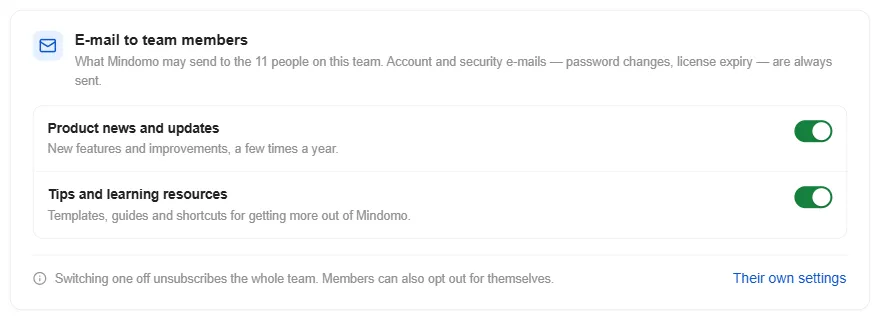
Section titled “Notifications”E-mail to team members lets you turn off Product news and updates and Tips and learning resources for the whole team at once. Switching either off unsubscribes everyone, though members can still opt back in from their own account settings.
AI usage
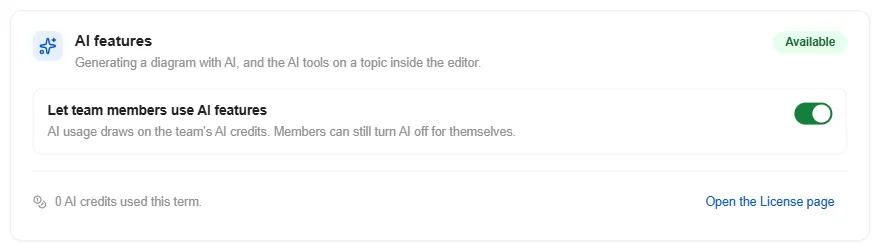
Section titled “AI usage”AI features has one toggle, Let team members use AI features: turning it off stops members from using AI entirely. Usage already draws on the team’s shared AI credits rather than a member’s own. Members can also turn off AI individually from their own account settings, even while it’s enabled for the team.
Templates for your team
Section titled “Templates for your team”Turn any diagram into a template your team can reuse whenever they need it.
-
Create and personalize a diagram: apply a theme (or create your own in your company’s colors), set a layout, and add starting topics, or whatever else you want the template to include. For something more structured, build a fillable template instead, with input topics and suggested text, icons, and images your team members can choose from.
-
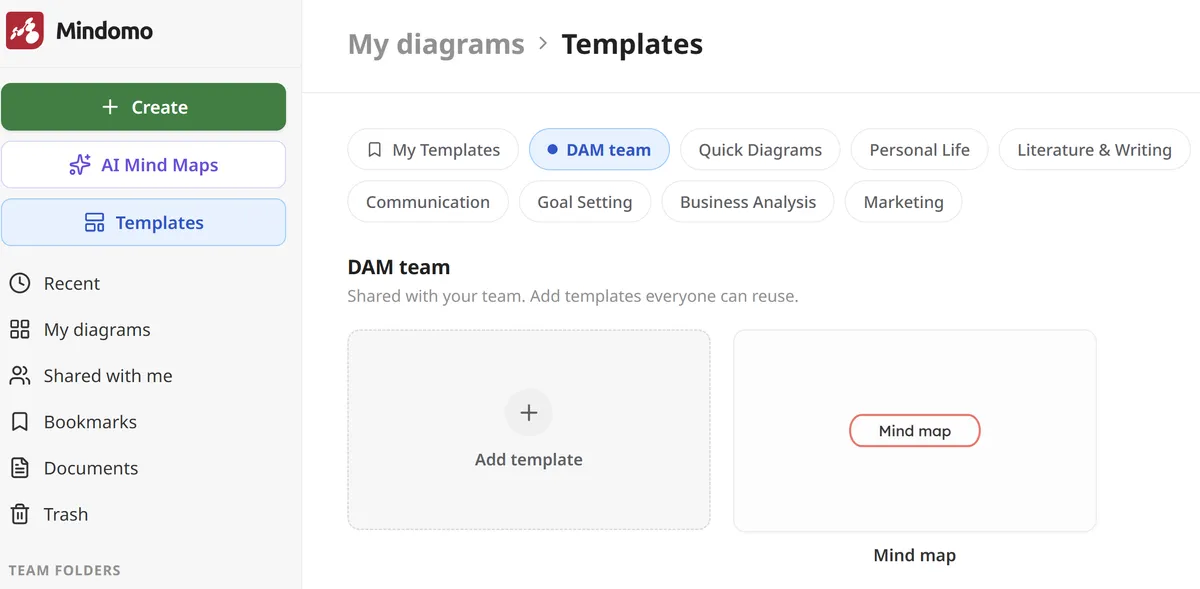
Open Templates, under Create and AI in the Dashboard sidebar, and switch to your team’s own category (marked by your team name).
-
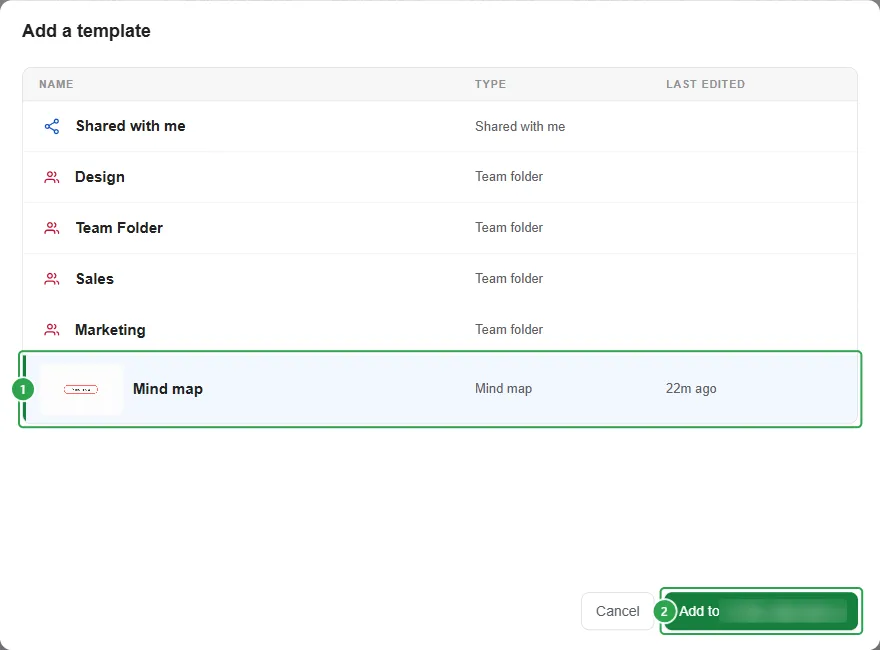
Click Add template, then find the diagram you personalized (1), wherever you saved it.
-
Select it, then click Add to [your team’s name] (2).
-
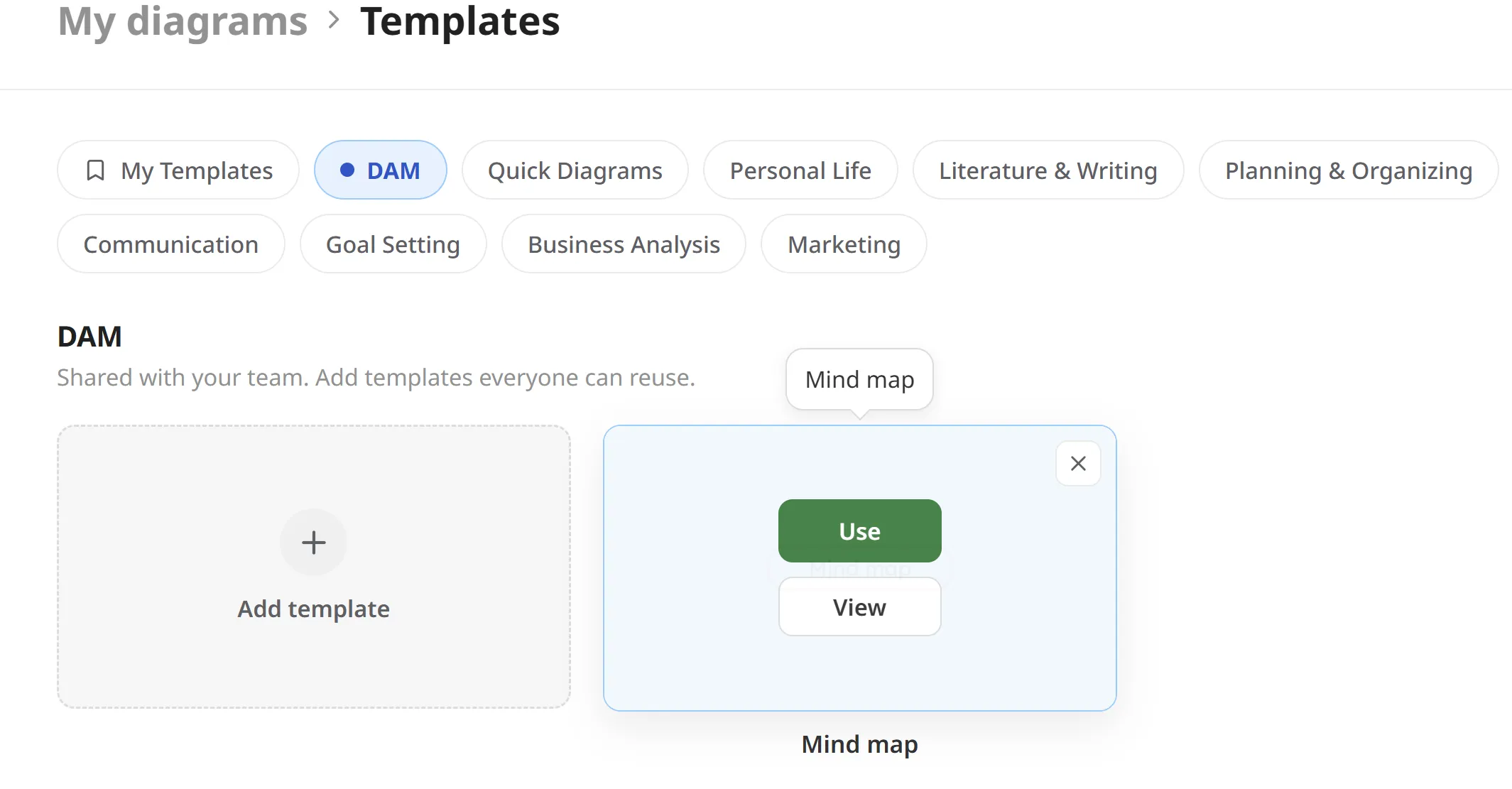
Team members will then find it as a card under your team’s category whenever they open Templates or the Create panel. Hovering over the card reveals Use (1) and View: Use starts a new diagram from it, a personal copy the member can personalize on their own, not a shared or collaborative map.
-
An ✕ in the card’s corner removes it from the category after a confirmation; the original diagram itself isn’t deleted, only its listing as a template.