

School administration
For a higher level of flexibility, the school account can have multiple admins. They are able to add or delete users, have an overview of the student and teacher accounts belonging to the school license, etc. By default, the first admin is the person who originally purchased the school license.
Adding teachers/students to your school license
Section titled “Adding teachers/students to your school license”There are various ways of adding teachers and students to your school license.
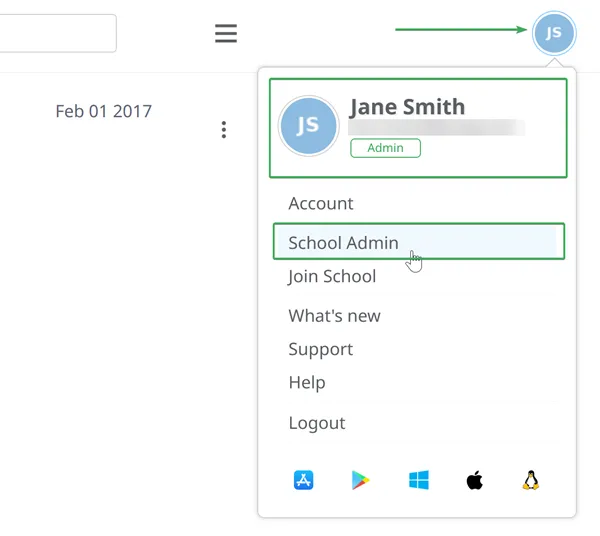
Access the School Admin page. To do so, click on your initials (top-right side of your screen) and select School Admin.
Inviting teachers/students to your school
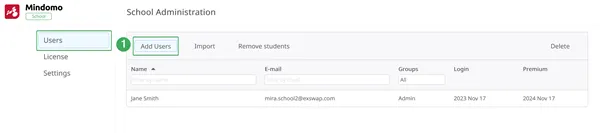
Section titled “Inviting teachers/students to your school”Add teachers and students to your school license by going to the Users section on the left side of the screen, then clicking on the Add users button (1).
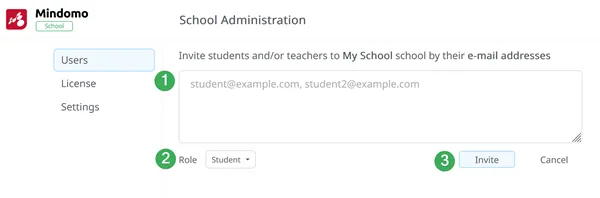
The Add users button opens a menu where you can type in the email addresses of the teachers or students you want to add to your school, separating them with commas.
Here, you can also add a new admin to your school account by selecting Admin from the Role drop-down menu.
The users you add will receive an email invitation to join your school. Clicking the link inside the email redirects them to Mindomo’s login page.
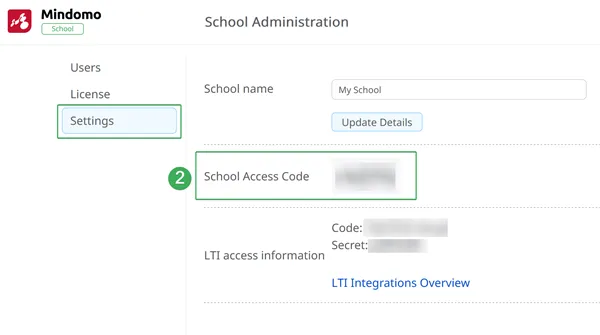
You can also distribute the school access code (2) to students or teachers who want to join your school independently. You can find this under the Settings section of your School Admin panel.
Importing students to your license
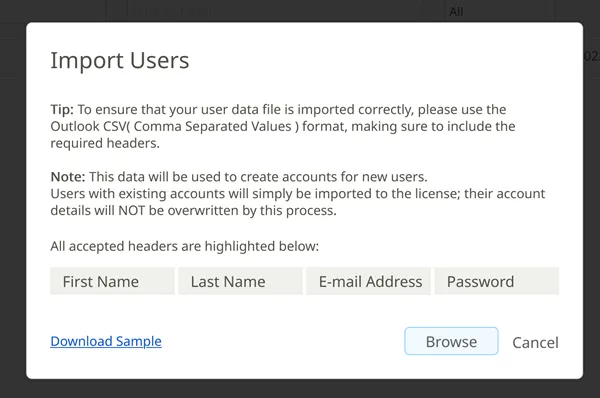
Section titled “Importing students to your license”The Import button opens a pop-up with instructions on how to structure user information so that users are properly added to your account. Please download the sample file to see how it should be structured when creating new accounts.
Fill out your .csv file accordingly, then click Browse to select it.
Automatic license assignment
Section titled “Automatic license assignment”To add students and teachers to your school license without manually entering their information, you can use our custom sign-up mechanism.
This mechanism is based on your school domain: users who sign up to Mindomo using email addresses with the school domain (for example, john_andrews@schooldomain.com) are automatically added to your license and receive premium accounts.
To activate this feature, please contact us at support@mindomo.com.
Removing teacher/student accounts
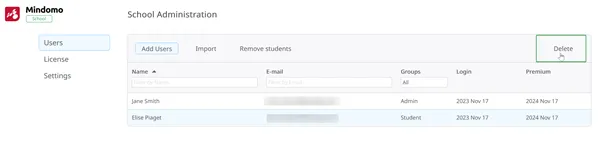
Section titled “Removing teacher/student accounts”Teacher, student, and admin accounts added to the school license can be removed individually by clicking on a user to highlight them, then clicking the Delete button at the top of the user list. You can also select multiple users at once.
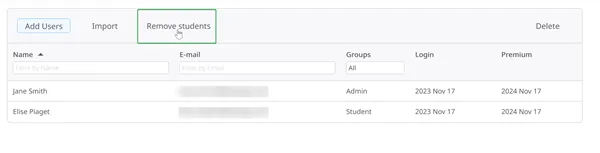
To delete all student accounts on your license at once, use the Remove students button (2).
LTI integration
Section titled “LTI integration”The LTI integration is exclusively available for Classroom and School licenses. It allows you to use Mindomo from popular LMS platforms such as Canvas, Moodle, Desire2Learn, Blackboard, and itslearning.
Please read more about how to use the LTI integrations.
Features
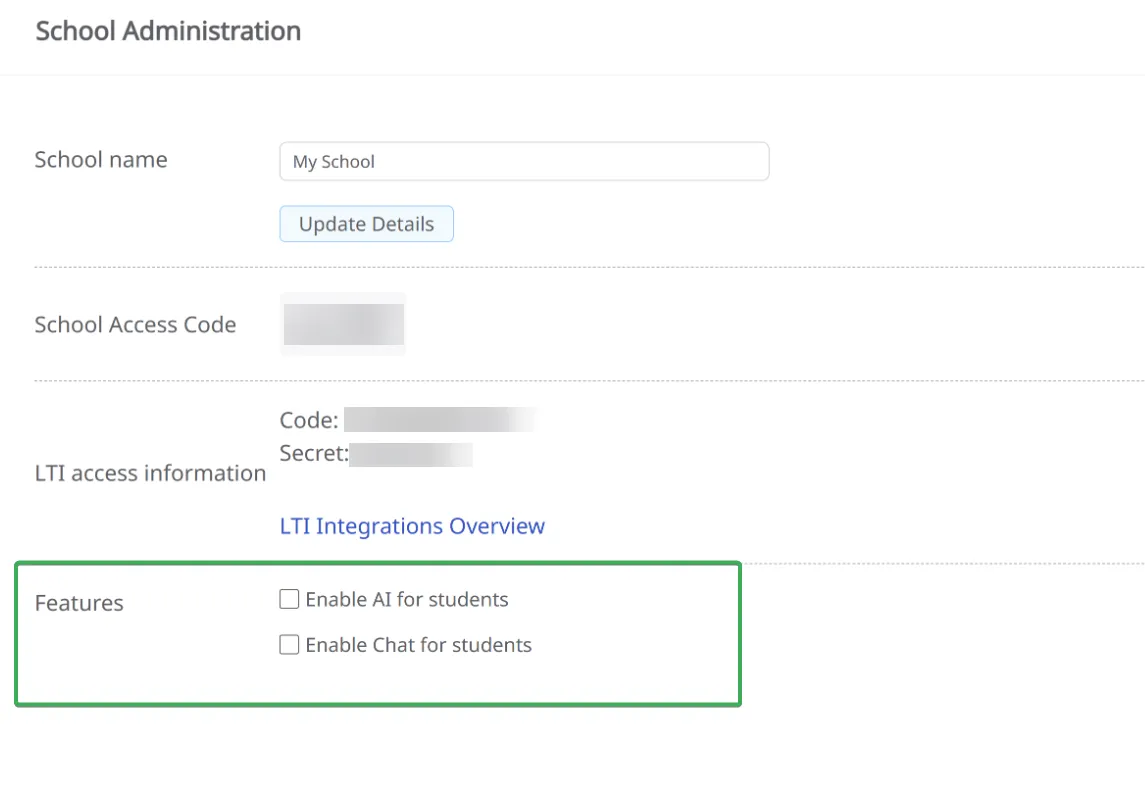
Section titled “Features”School Admins can choose whether to allow or disable students’ access to the school’s AI credits, as well as the chat feature available when collaborating on diagrams. This can be managed by checking the Enable AI for students and Enable Chat for students options found in the School license Settings.
License information
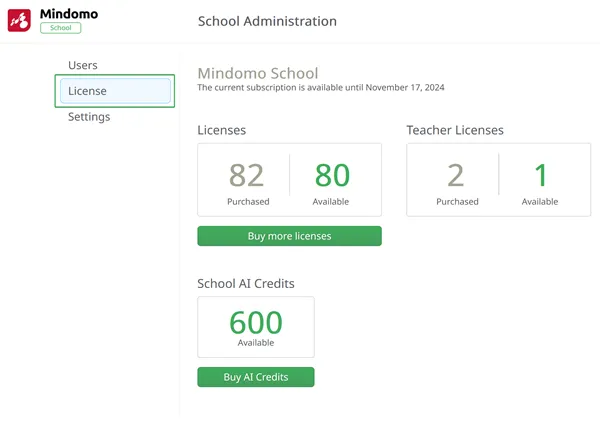
Section titled “License information”The License section on your School Admin page provides an overview of the remaining number of teacher and student accounts available on your license, the license expiration date, and more.
Add more users to your license
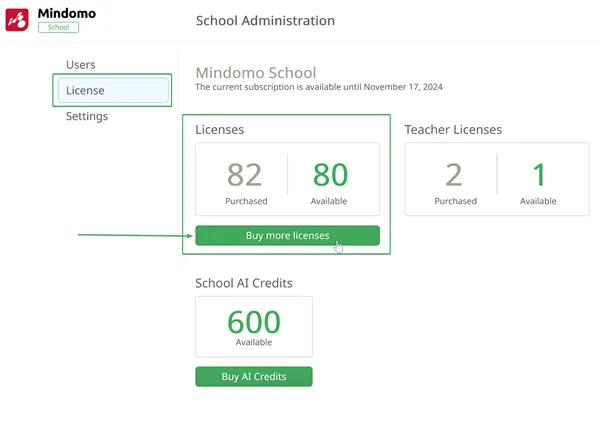
Section titled “Add more users to your license”Add users to your license from the License section of the School Admin panel. To access the School Admin panel, click on your initials or picture, then select your name or email address from the upper-right corner of the Dashboard.
To add more users to your existing School license, click Buy more licenses.
You will be redirected to the license extension panel. In the first row, you will see information about your current license, including the number of users, availability, and license expiration date, along with a drop-down menu where you can select how many users you want to add.
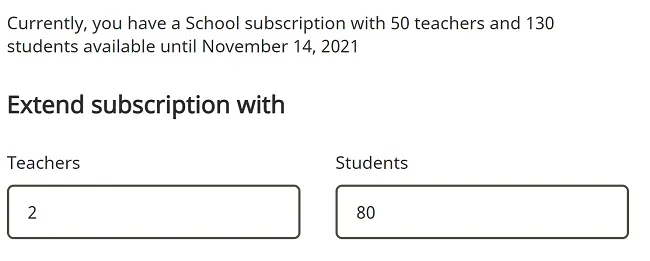
The price is calculated based on the remaining license period.