Tools
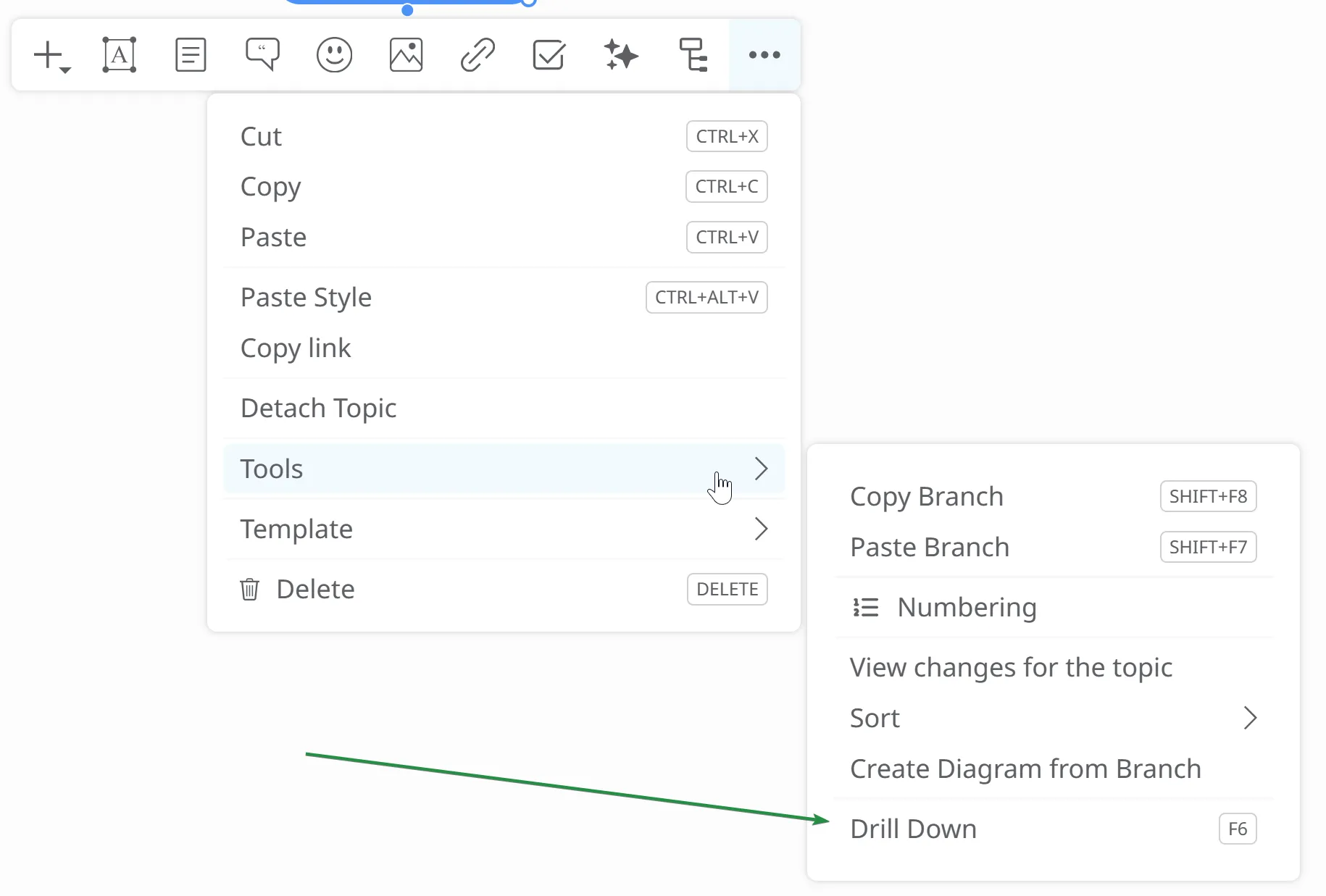
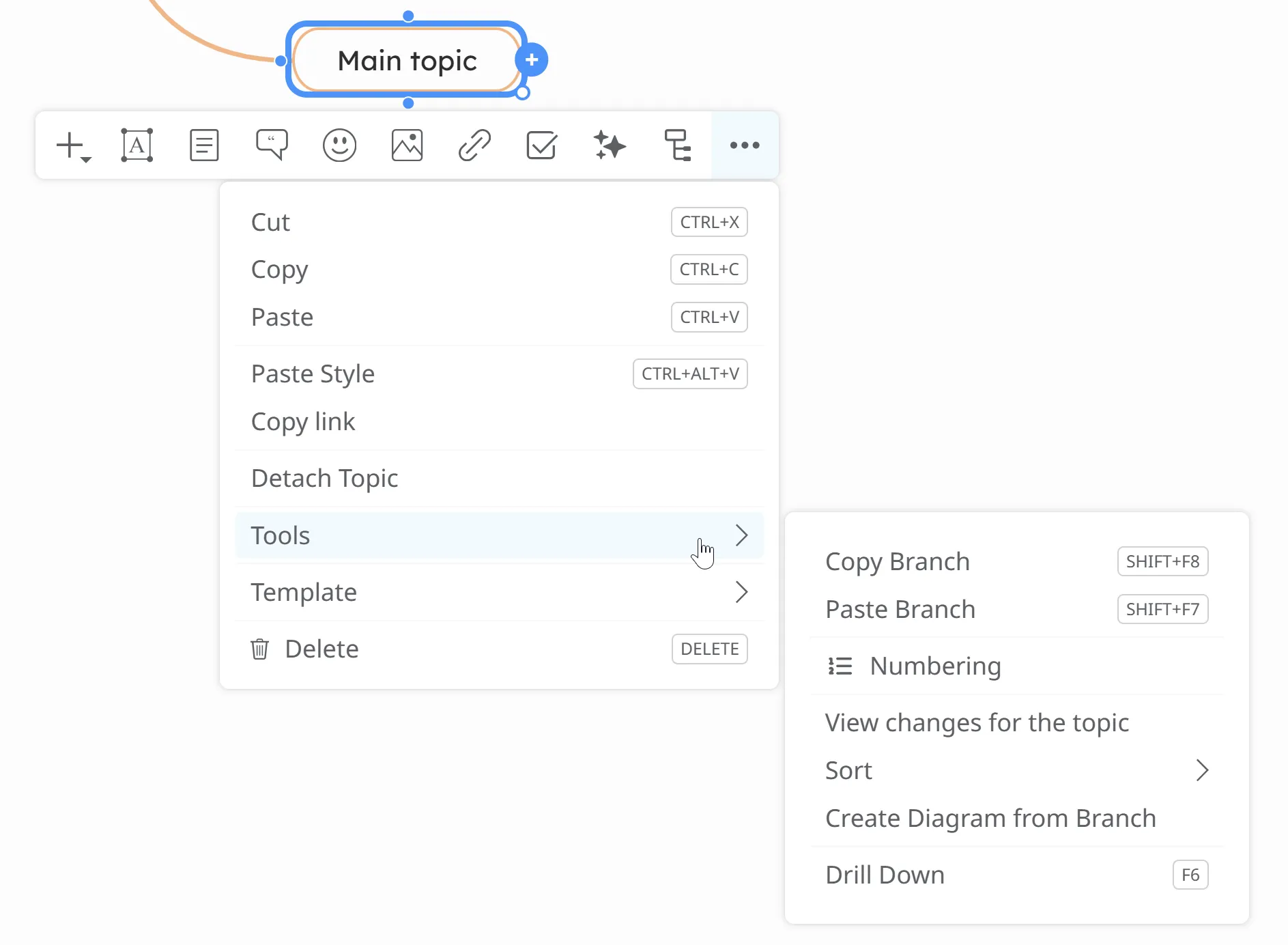
To access the Tools section, first select any topic or subtopic. Next, open the More Options menu and click on Tools. A panel will then appear, presenting different tools and settings you can use.
Copy-Paste branches
Section titled “Copy-Paste branches”These options allows you to copy and paste branches and topics with all the links, images, notes and other resources.
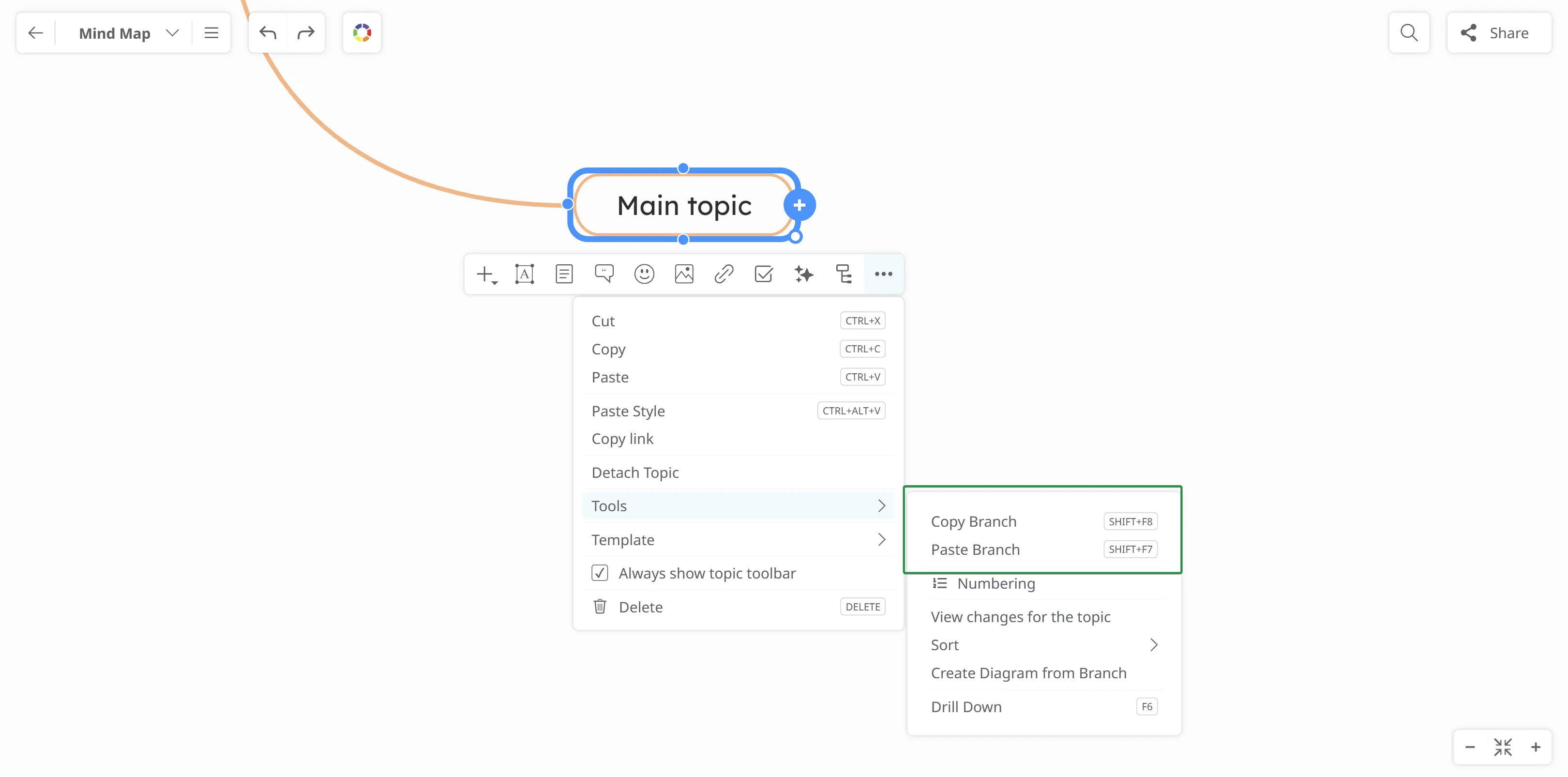
Find the detailed feature overview here: Copying Branches Between Maps
Numbering
Section titled “Numbering”To order the topics, click on Tools, then click on Numbering.
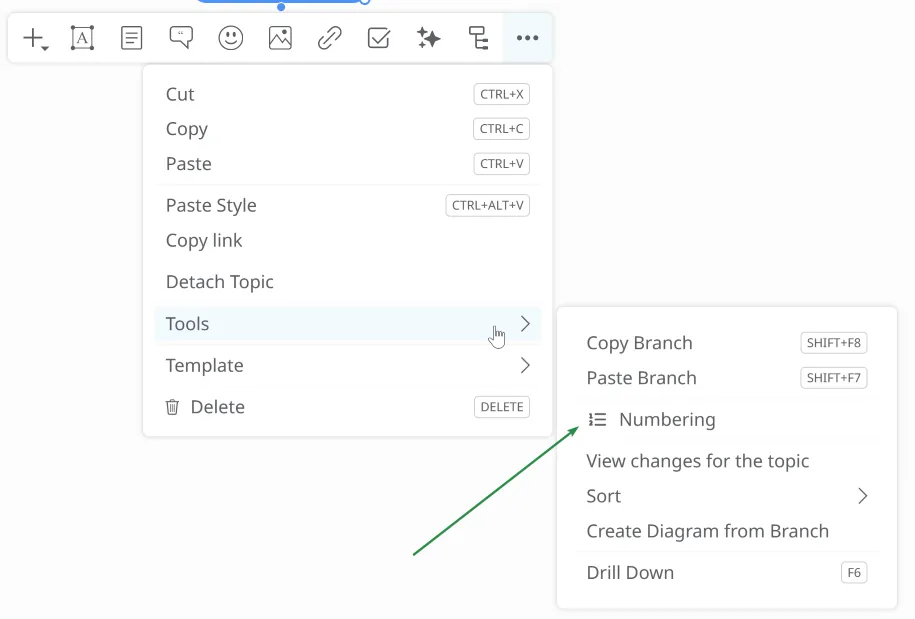
You will see this panel, where you can choose how you want to number the topics.
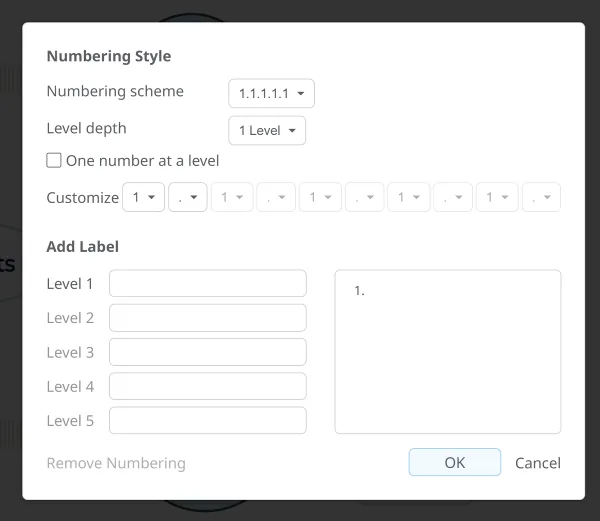
Choose how many levels you want to number.
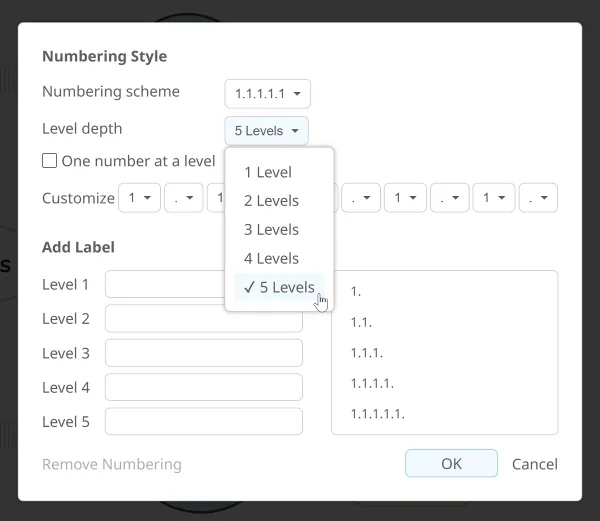
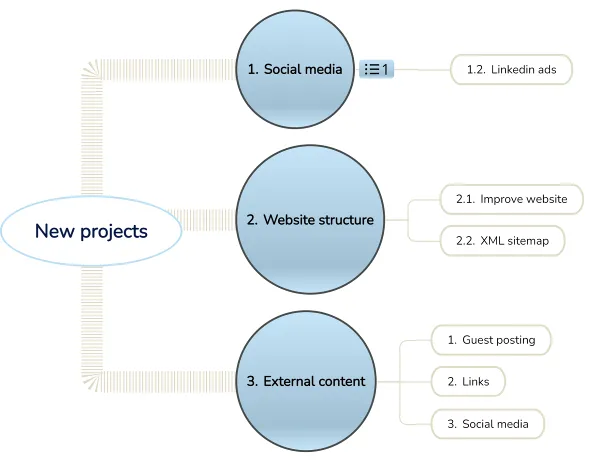
After enabling the desired numbering settings on the root node, the other nodes will be numbered automatically (up to 5 subtopics).
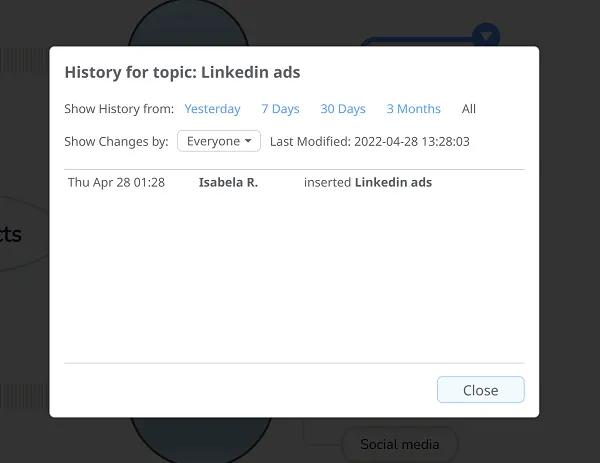
View changes for topic
Section titled “View changes for topic”If you click on Tools, then click on View changes for topic, you will see the changes that you or your collaborators made to that topic. You can also see the date of the changes. Also, you can see changes made on different periods of type like 1 day, 7 days, 30 days, or 3 months.
Sort Subtopics/Branch
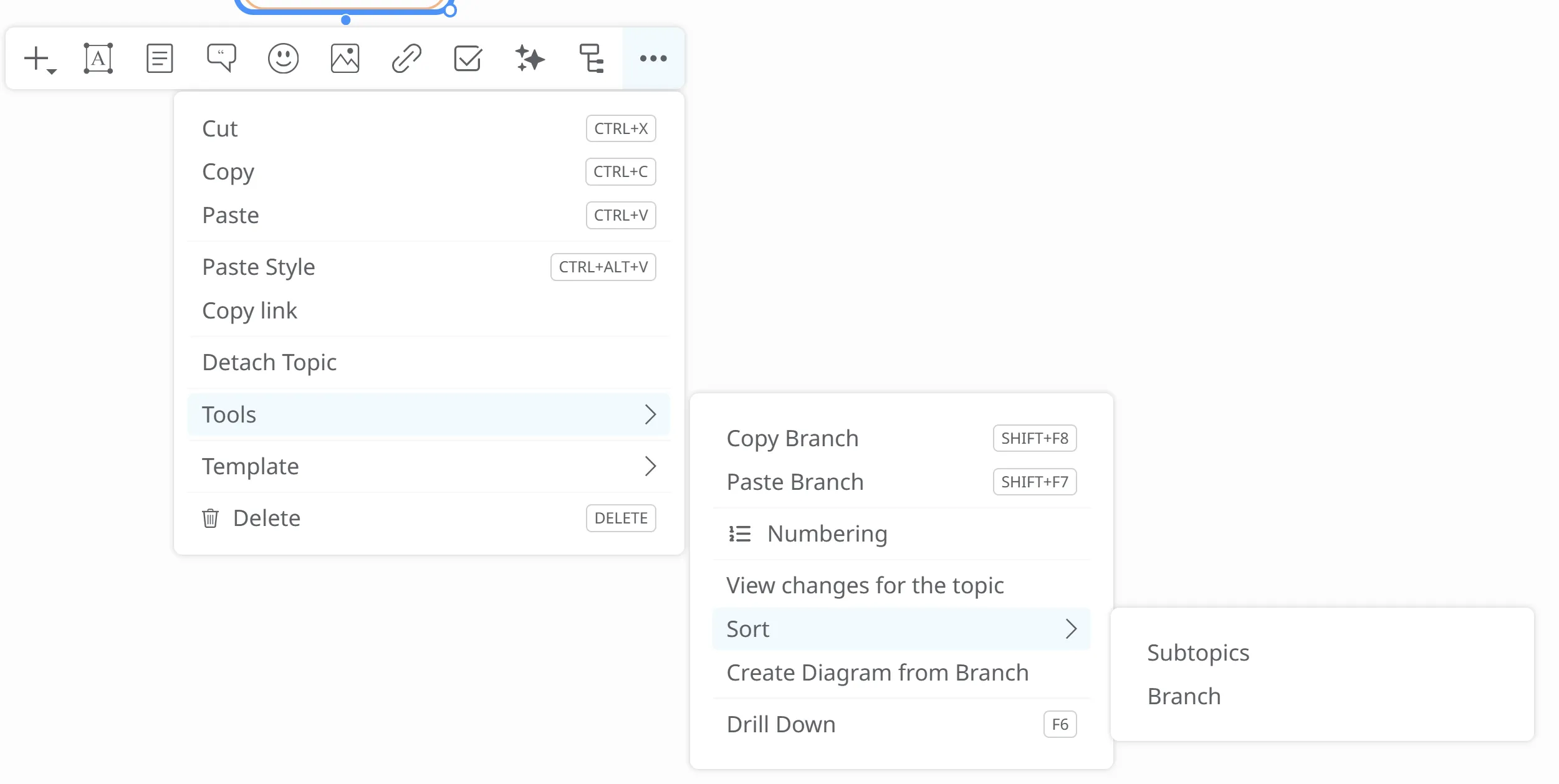
Section titled “Sort Subtopics/Branch”You have the option to sort the subtopics of a branch in alphabetical order or sort the branch.
Create diagram from branch
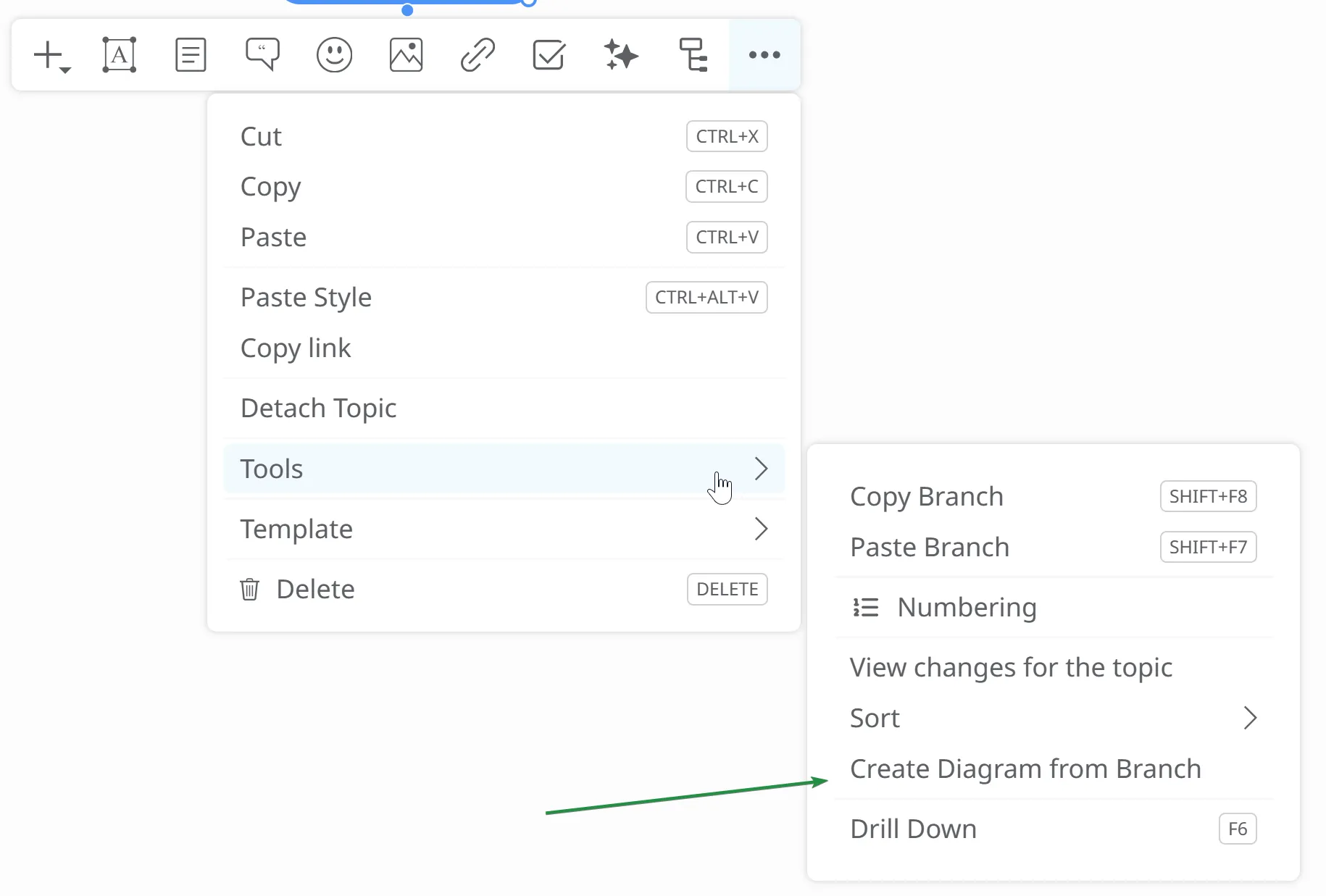
Section titled “Create diagram from branch”If you feel that your mind map is getting larger than expected and you lose focus on the overview, you can create maps from specific branches. These will be automatically linked to the original mind map. To create a map from branch, focus on the root topic, open the context menu, and go to the More Options panel, choose Tools and then click on Create Diagram from Branch.
Drill down - Focus on a specific branch
Section titled “Drill down - Focus on a specific branch”If you are working with a large map and want to concentrate on a particular branch, you can use the Drill Down feature. Select the root topic of the branch, then press F6, or open the More Options panel, go to Tools, and click Drill Down. This will focus on the selected branch and hide the rest of the mind map.