

Search and filter tasks in a mind map
This feature allows you to quickly locate all tasks across your mind maps, concept maps, and Gantt charts, keeping everything neatly organized in one central location. You no longer need to open each map individually or rely on email notifications.
You can also quickly identify upcoming deadlines and see which tasks require immediate attention.
Search and filter tasks in a mind map
Section titled “Search and filter tasks in a mind map”In a mind map, you can filter tasks by:
- Label
- Assignee (Mindomo user or Ghost user)
- Due date
- Priority
- Progress
- Icons
Search in a mind map
Section titled “Search in a mind map”You can view the tasks assigned to you or someone else using the Search or Filter options. You can also search for any topic in a mind map, even if it is not a task.
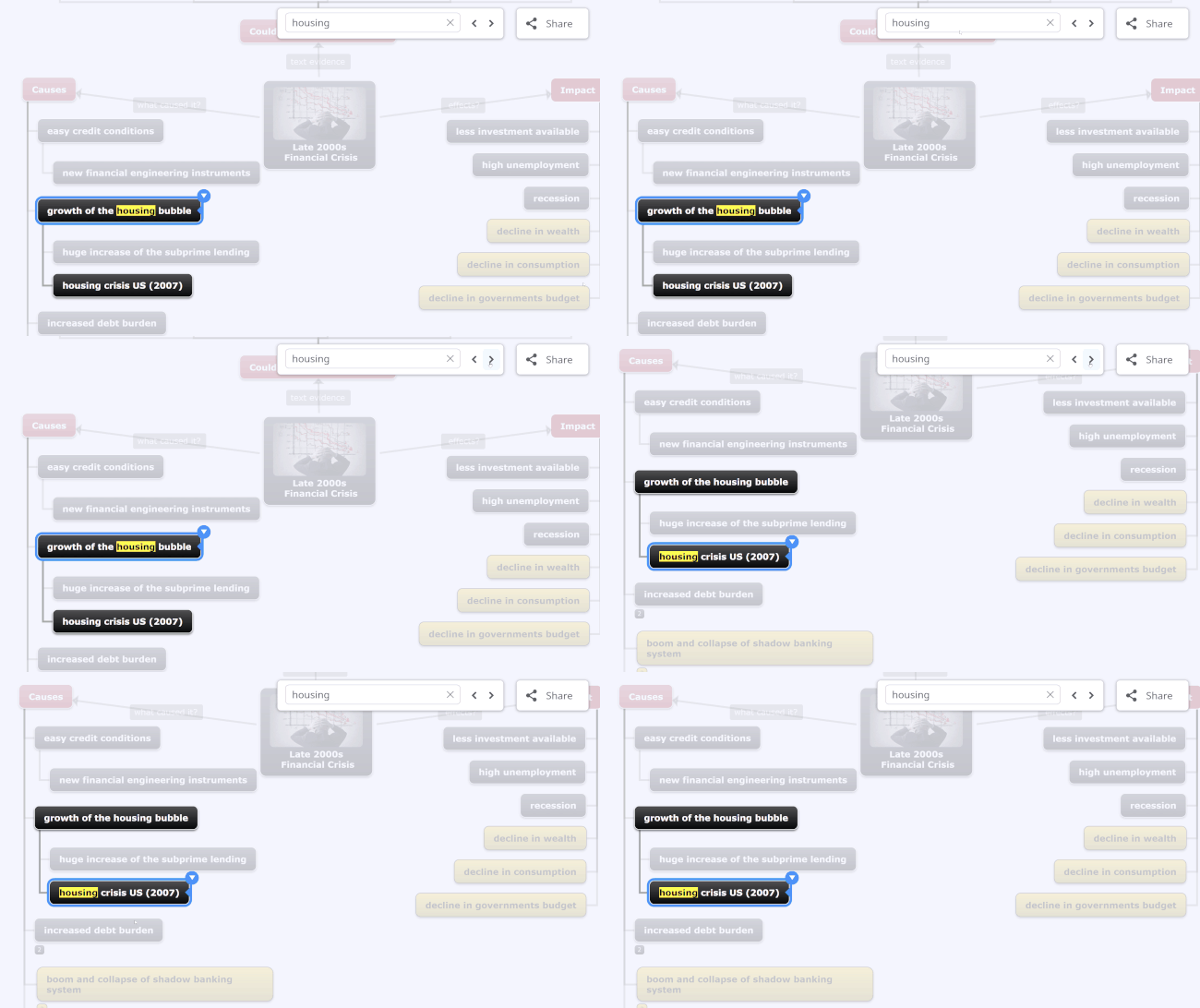
With the Search option, all search results will be highlighted while the rest of the mind map appears blurred.
Filter tasks by Label
Section titled “Filter tasks by Label”Labels help you tag words inside topics so you can find them more easily later on. When searching, you’ll see accurate matches that include those tagged phrases.
To add a label, type “#” followed by your word, then press Enter. For example: #new.
Hashtags will appear in the filtering bar along with the number of times they were used in your map.
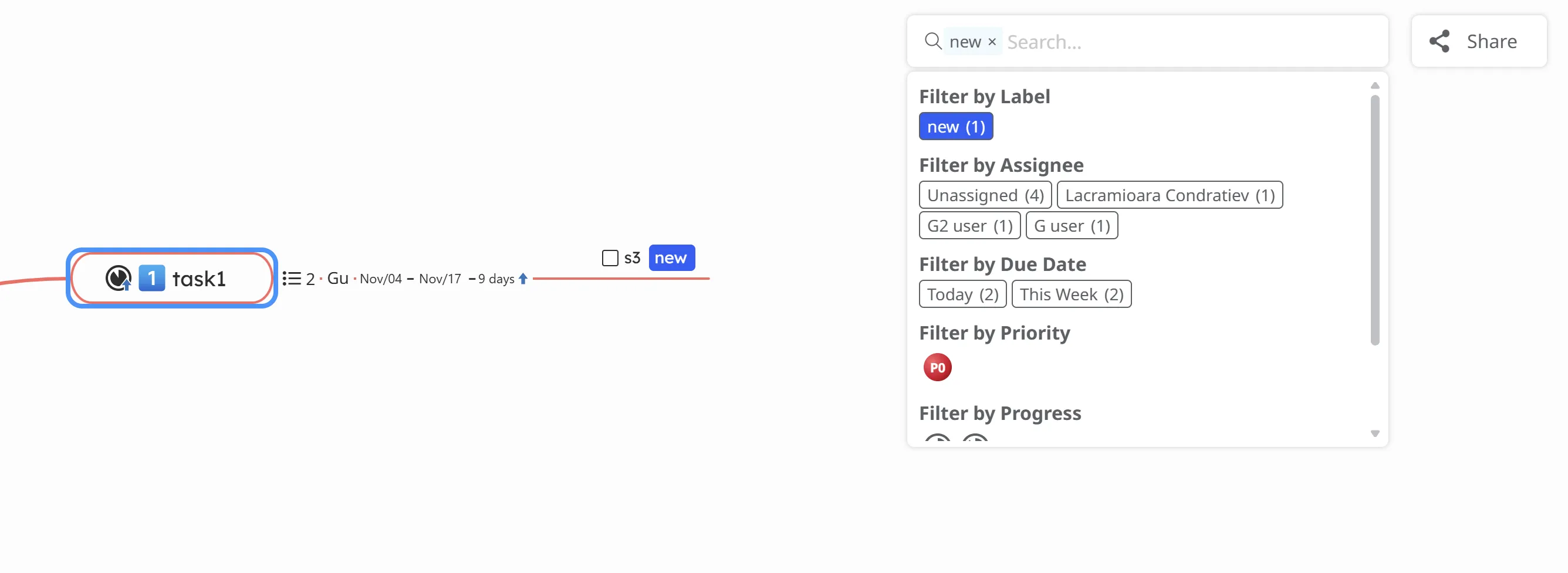
If you filter by label, the results will show the topics that contain them and all their task-related subtopics, even if those subtopics do not include the specific hashtag.
Filter tasks by Assignee
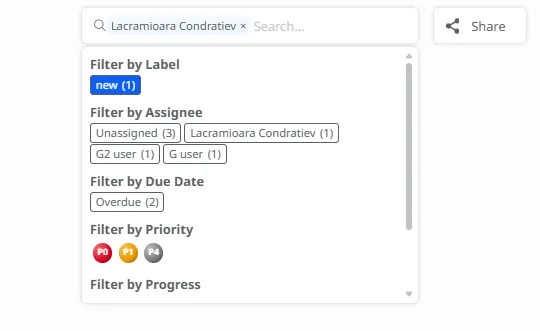
Section titled “Filter tasks by Assignee”You can assign tasks to one or more of your collaborators, and they can assign tasks back to you. Filter tasks by their assignee - either by the names of registered Mindomo users or by searching for the names of the ghost users’ you’ve created.
Search and filter tasks assigned to Ghost Users
Section titled “Search and filter tasks assigned to Ghost Users”Ghost users let you monitor task progress without involving colleagues directly. You can search and filter tasks based on their assigned ghost user(s). The ghost user’s name will appear in your Tasks list and in Search.
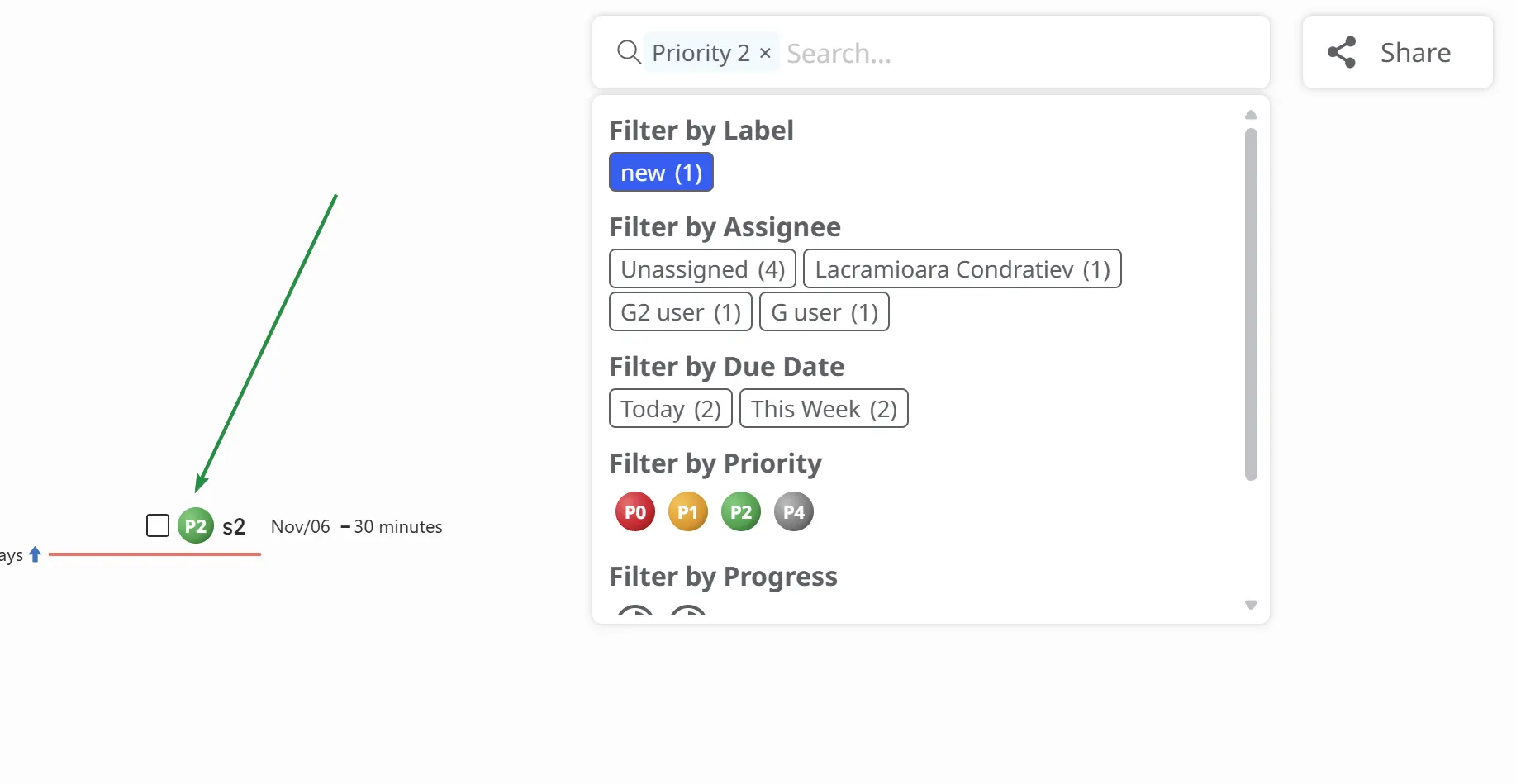
Filter by Priority
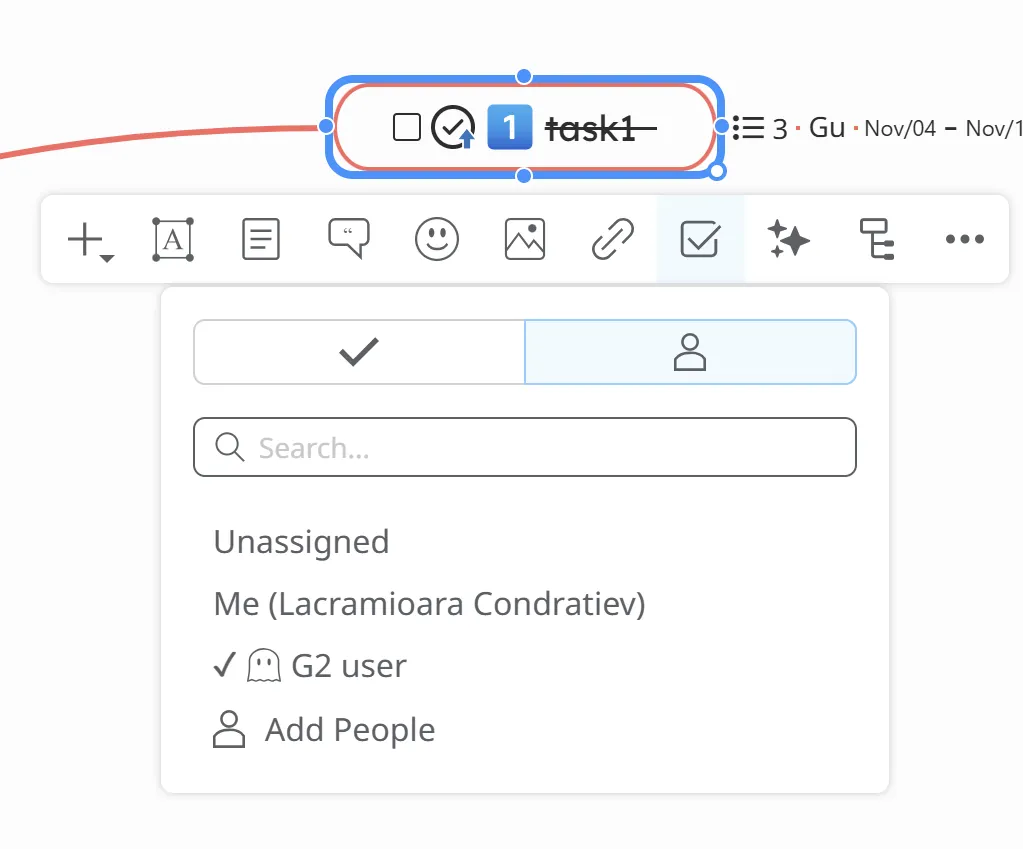
Section titled “Filter by Priority”This filter allows you to quickly narrow down your task list based on the urgency or importance of each task.
By selecting one or more priority levels, you can focus only on the tasks that matter most. By selecting one or more priority levels, you can focus only on the tasks that matter most.
Filter by Progress
Section titled “Filter by Progress”This option allows you to view only the tasks that match a specific completion stage. The icons in this filter reflect the same progress indicators shown on the map and update automatically as progress changes.
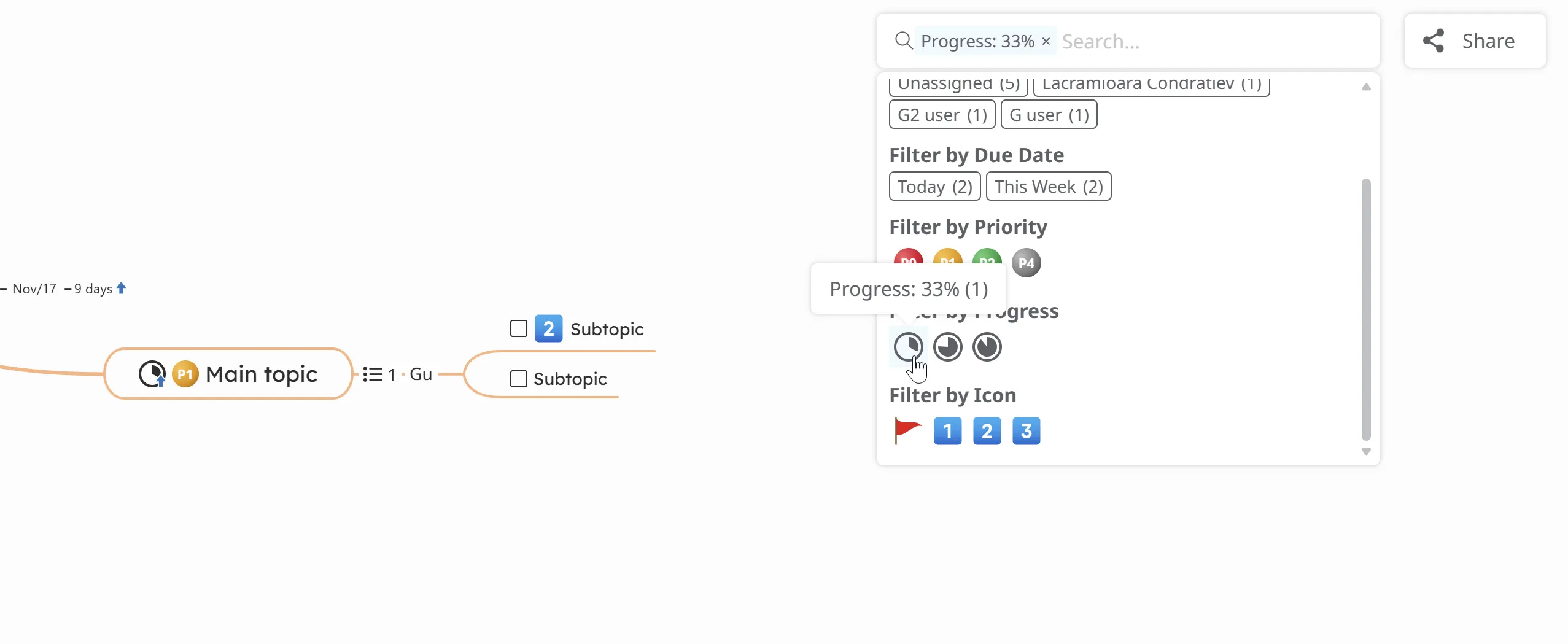
This helps you track your workflow, manage ongoing tasks, and identify what needs your attention next.
Filter tasks by Icons
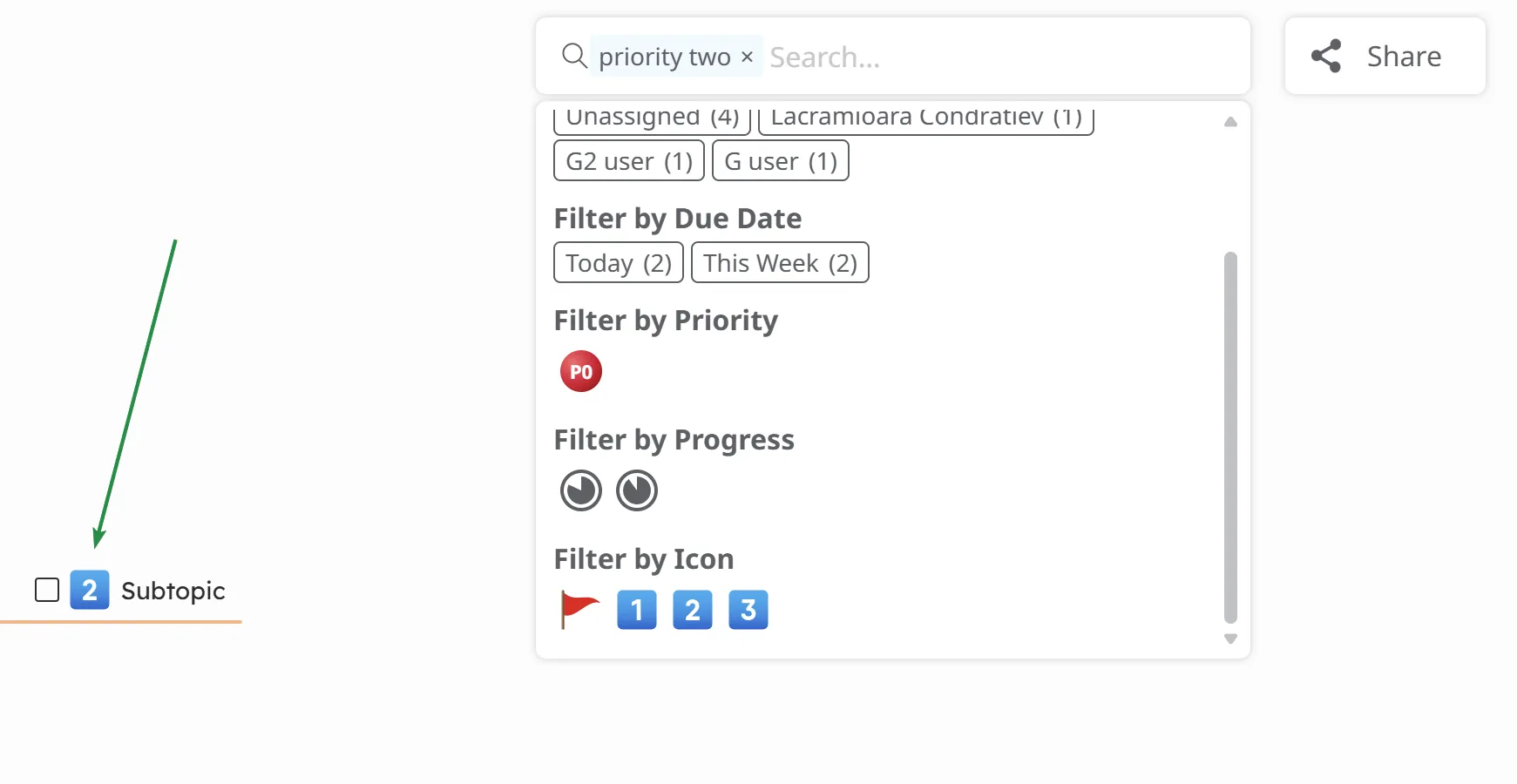
Section titled “Filter tasks by Icons”You can also filter tasks by icons, which appear in the Filter section below Progress. The icons you used in your map will appear in the Search bar, and you can select from there.
Search and filter tasks from the Dashboard
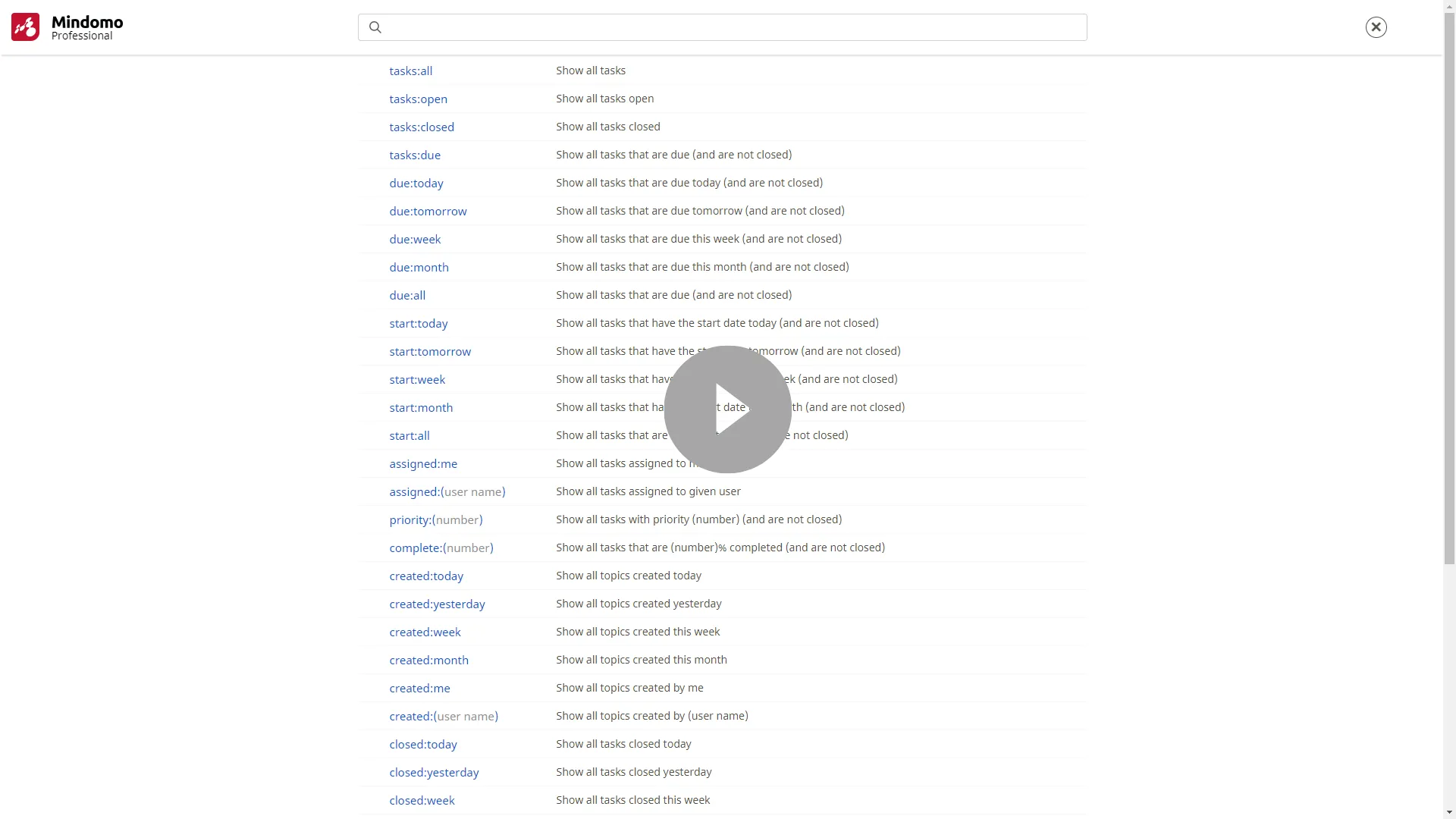
Section titled “Search and filter tasks from the Dashboard”To get an overview of all your tasks across all mind maps, concept maps, and Gantt charts, you can search and filter them directly from the Dashboard. You can view tasks with upcoming due dates, urgent tasks, updated tasks, completed tasks, and more.
When you click on the Search bar, a list of queries with short descriptions will be displayed.
Filter tasks by the assignee
Section titled “Filter tasks by the assignee”Use these queries to find tasks assigned to a specific person (including yourself). Results will include tasks from your diagrams and diagrams shared with you.
| Query | Description |
|---|---|
assigned:me | Show all tasks assigned to me (and are not closed) |
assigned:(user name) | Show all tasks assigned to (given user) (and are not closed) |
Filter topics by their creation date
Section titled “Filter topics by their creation date”You can filter topics by the date they were created or modified. Results include topics from your diagrams and those shared with you.
| Query | Description |
|---|---|
created:today | Show all topics created today |
created:yesterday | Show all topics created yesterday |
created:week | Show all topics created this week |
created:month | Show all topics created this month |
created:me | Show all topics created by me |
created:(user name) | Show all topics created by (user name) |
modified:today | Show all topics that were modified today |
modified:yesterday | Show all topics that were modified yesterday |
modified:week | Show all topics that were modified this week |
modified:month | Show all topics that were modified this month |
Filter tasks by their status
Section titled “Filter tasks by their status”You can filter tasks using different queries. The results shown will be tasks from your diagrams and from diagrams that are shared with you.
| Query | Description |
|---|---|
is:task | Show all tasks (closed tasks and open ones) |
is:due | Show all tasks that are due |
tasks:all | Show all tasks (closed tasks and open ones) |
tasks:due | Show all tasks that are due |
tasks:open | Show all open tasks |
tasks:closed | Show all closed tasks |
Filter open tasks by the scheduled date
Section titled “Filter open tasks by the scheduled date”You can search for tasks that have a specific start date or a specific due date (end date). The results shown will be tasks from your diagrams and from diagrams that are shared with you.
| Query | Description |
|---|---|
due:all | Show all tasks that are due |
due:today | Show all tasks that are due today (and are not closed) |
due:tomorrow | Show all tasks that are due tomorrow |
due:week | Show all tasks that are due this week (and are not closed) |
due:month | Show all tasks that are due this month (and are not closed) |
start:all | Show all tasks that are already started (and are not closed) |
start:today | Show all tasks that have the start date today |
start:tomorrow | Show all tasks that have the start date tomorrow |
start:week | Show all tasks that have the start date this week |
start:month | Show all tasks that have the start date this month |
Filter closed tasks by the finishing date
Section titled “Filter closed tasks by the finishing date”You can search only for closed tasks from your diagrams and choose when they were closed. The results shown will be tasks from your diagrams and from diagrams that are shared with you.
| Query | Description |
|---|---|
closed:today | Show all tasks closed today |
closed:yesterday | Show all tasks closed yesterday |
closed:week | Show all tasks closed this week |
closed:month | Show all tasks closed this month |
Filter tasks by priority and completion level
Section titled “Filter tasks by priority and completion level”You can filter tasks by priority or completion level using the following queries (the results shown will be tasks from your diagrams and from diagrams that are shared with you):
| Query | Description |
|---|---|
priority:(number) | Show all tasks with priority (number) (and are not closed) |
complete:(number) | Show all tasks that are (number)% completed (and are not closed) |