Bookmarks
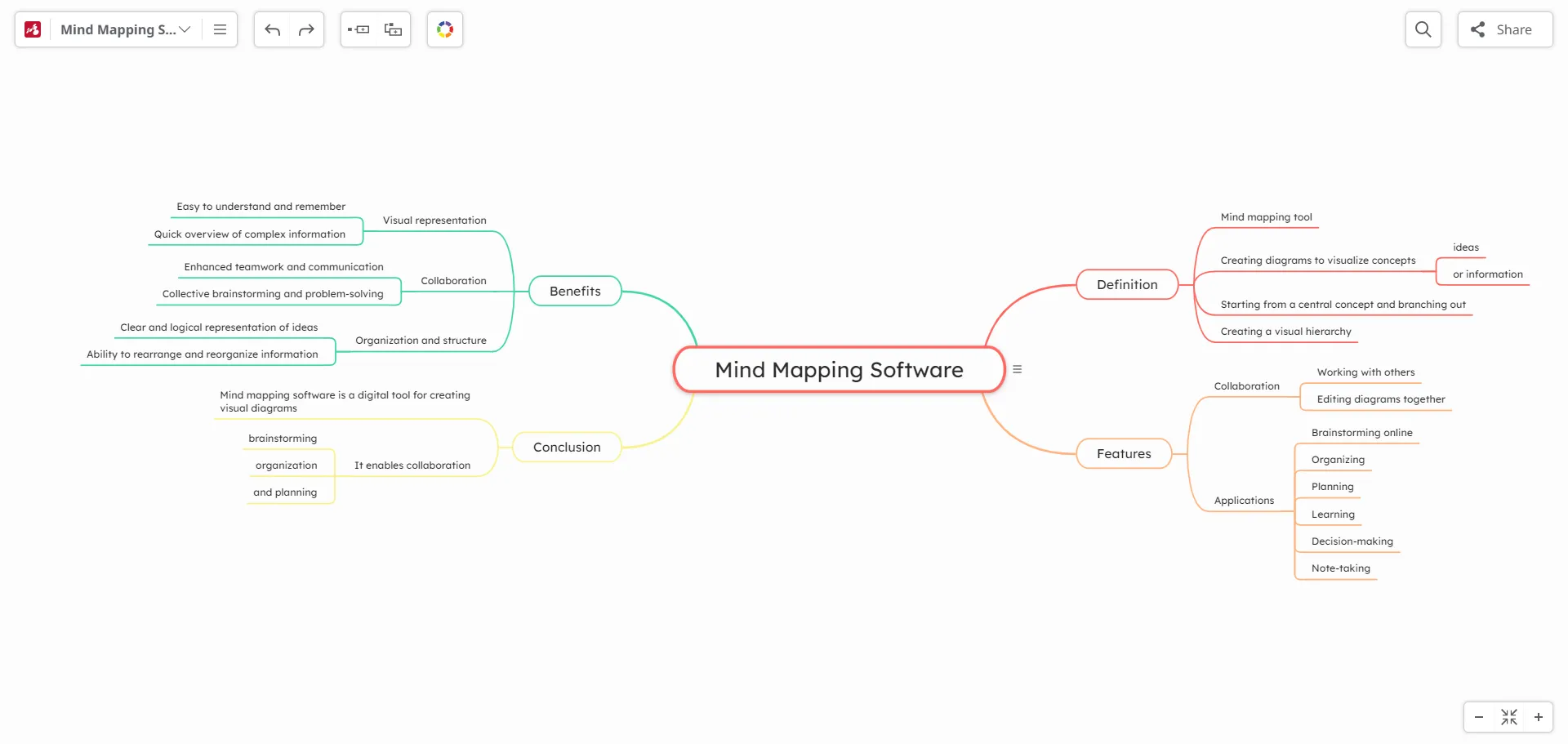
Mindomo Bookmarks lets you easily save texts, links, and images from the web directly to your mind maps, while its AI-powered feature allows you to instantly transform captured content into structured mind maps with just one click. This integration streamlines idea organization and boosts productivity by connecting bookmarking and AI-driven mind mapping seamlessly.
Mindomo Bookmarks and AI generation
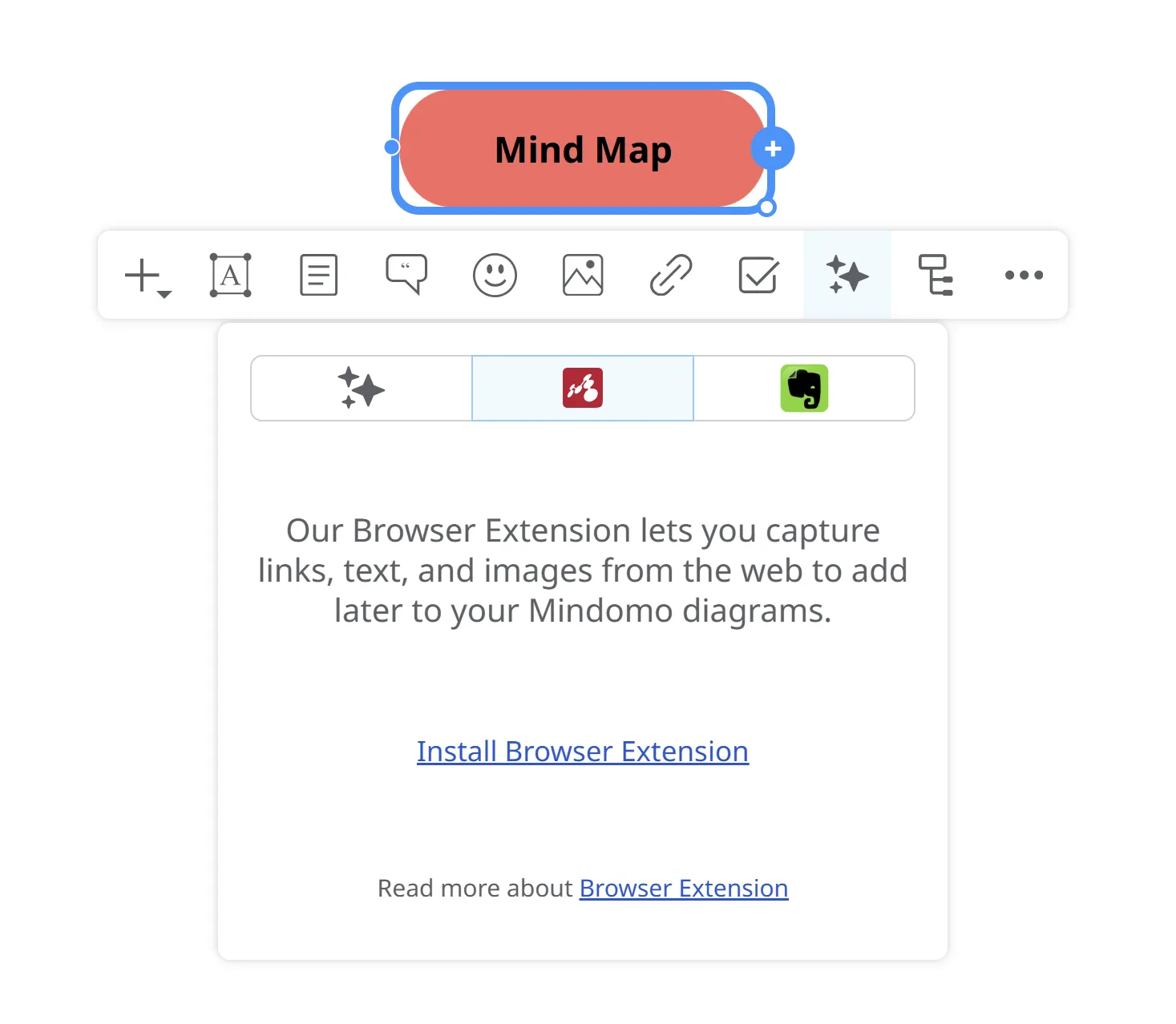
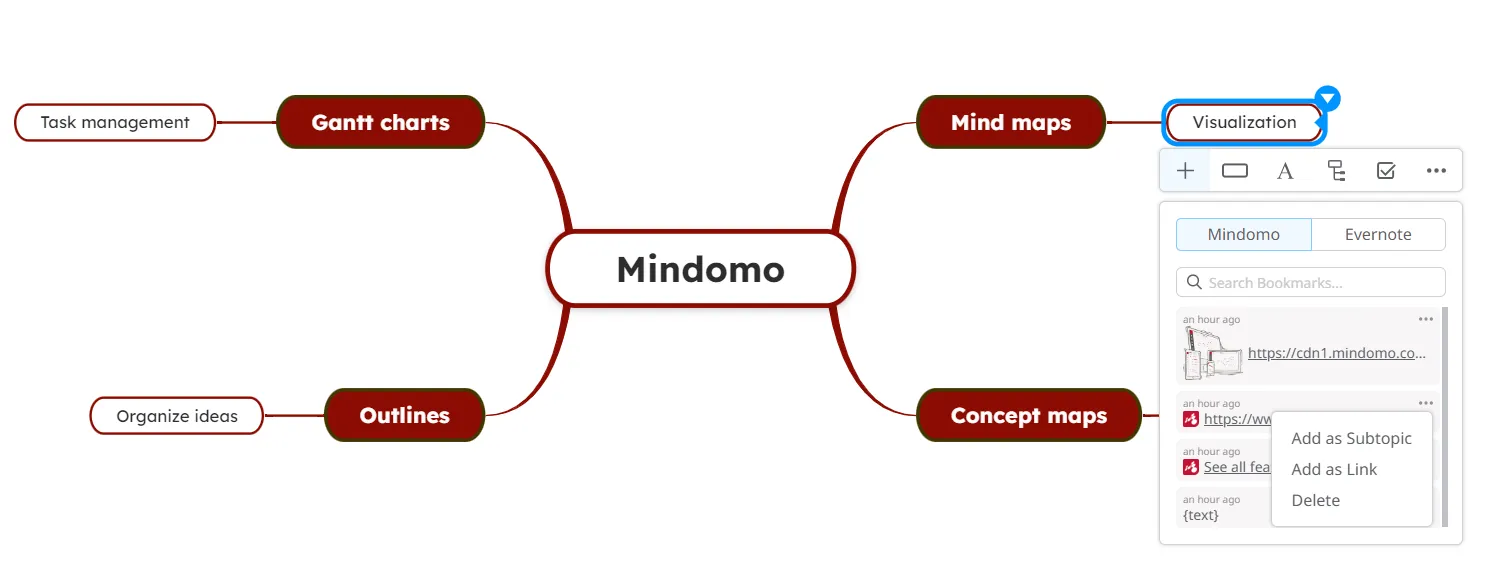
Section titled “Mindomo Bookmarks and AI generation”The Bookmarks functionality lets you save texts(1), links(2), or images(3) and send them to Mindomo. Later, you will be able to access these bookmarks directly from your mind map. Furthermore, you can easily capture information from web pages and turn it into mind maps with just one click using the AI feature.
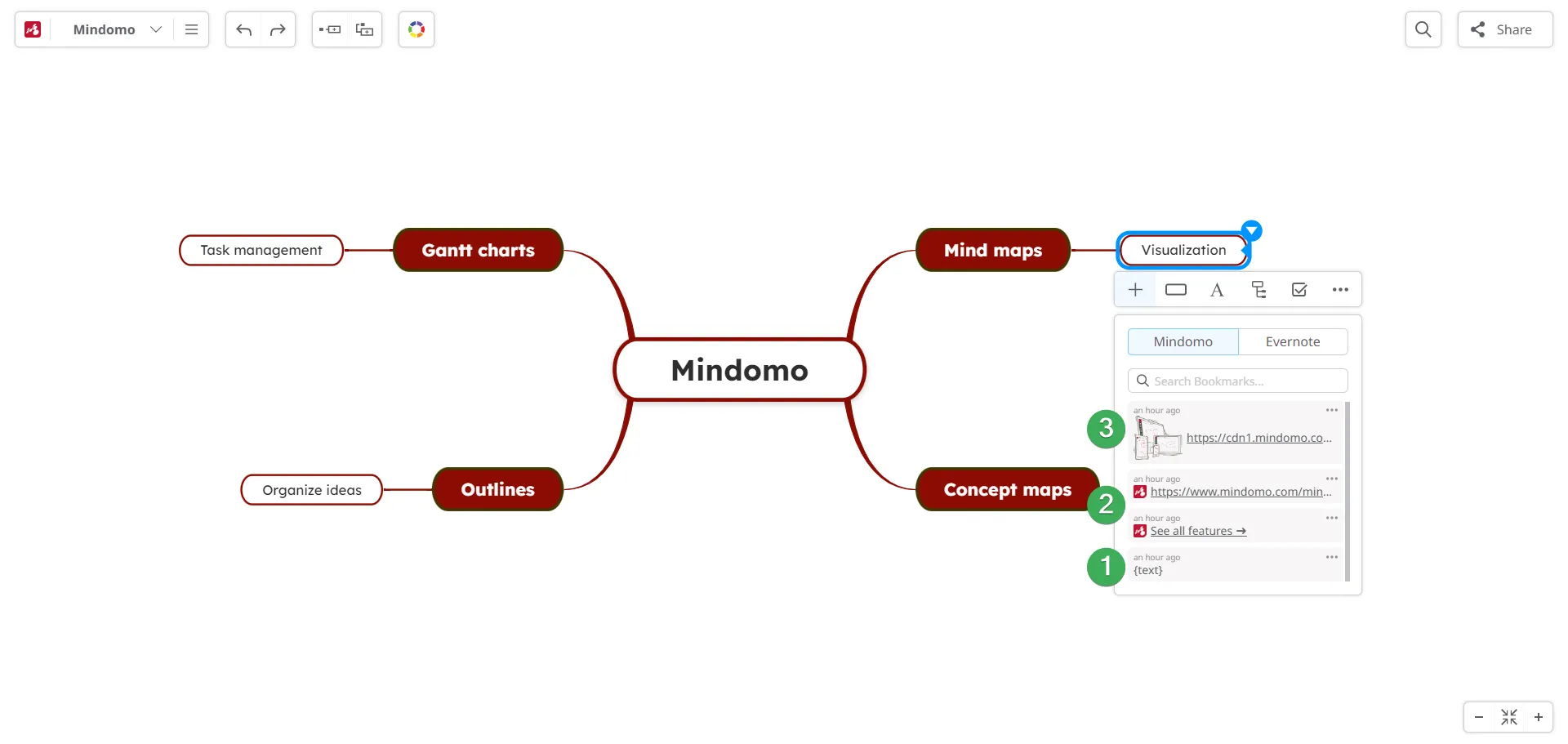
Text bookmarks can be added as subtopics or notes.
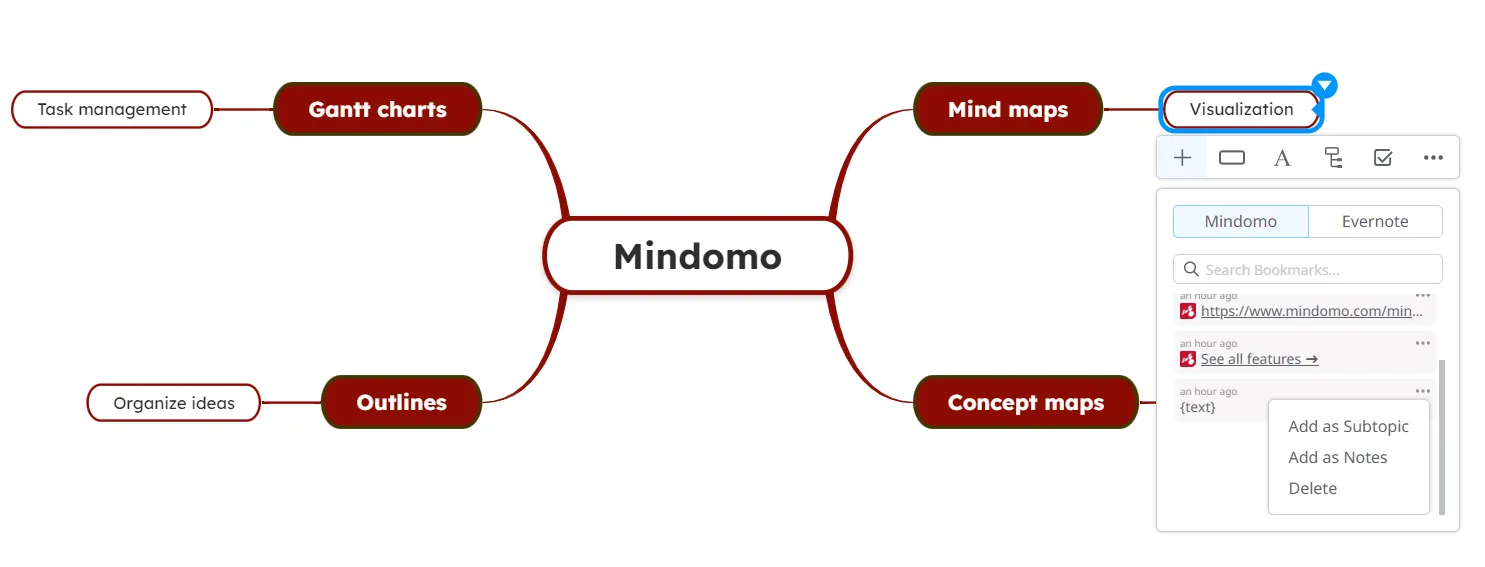
Image bookmarks can be added as subtopics or images.
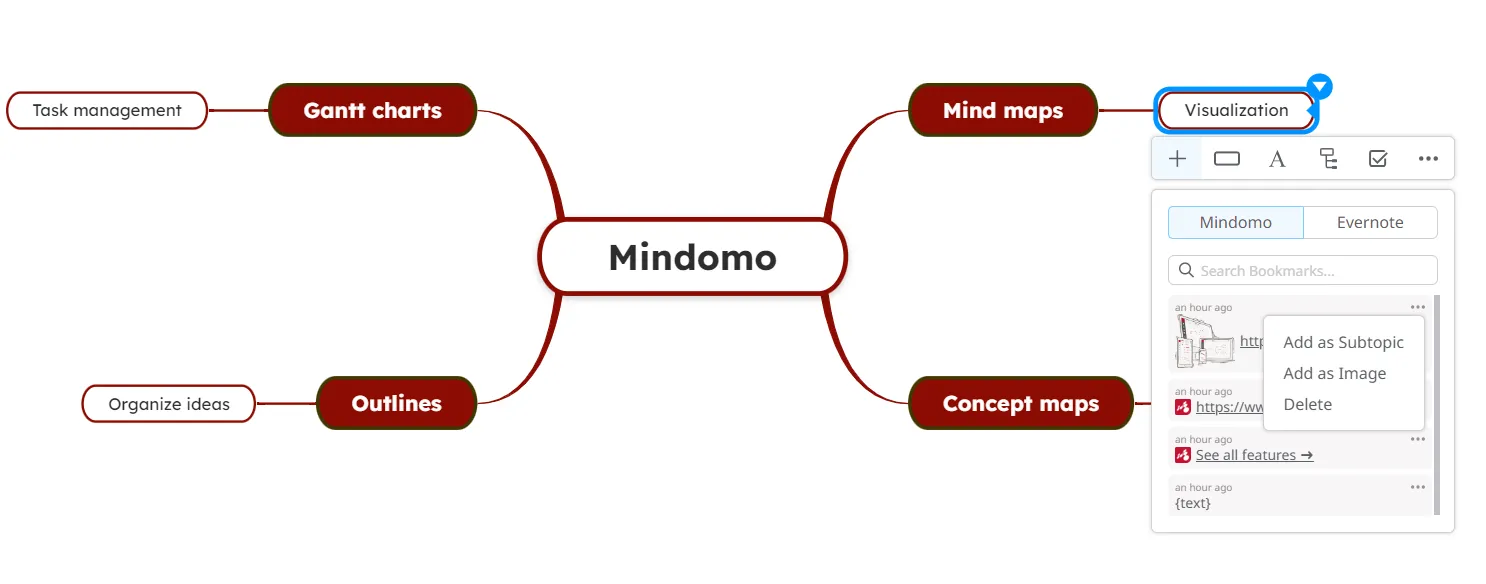
Link bookmarks can be added as subtopics or links.
Install on Chrome
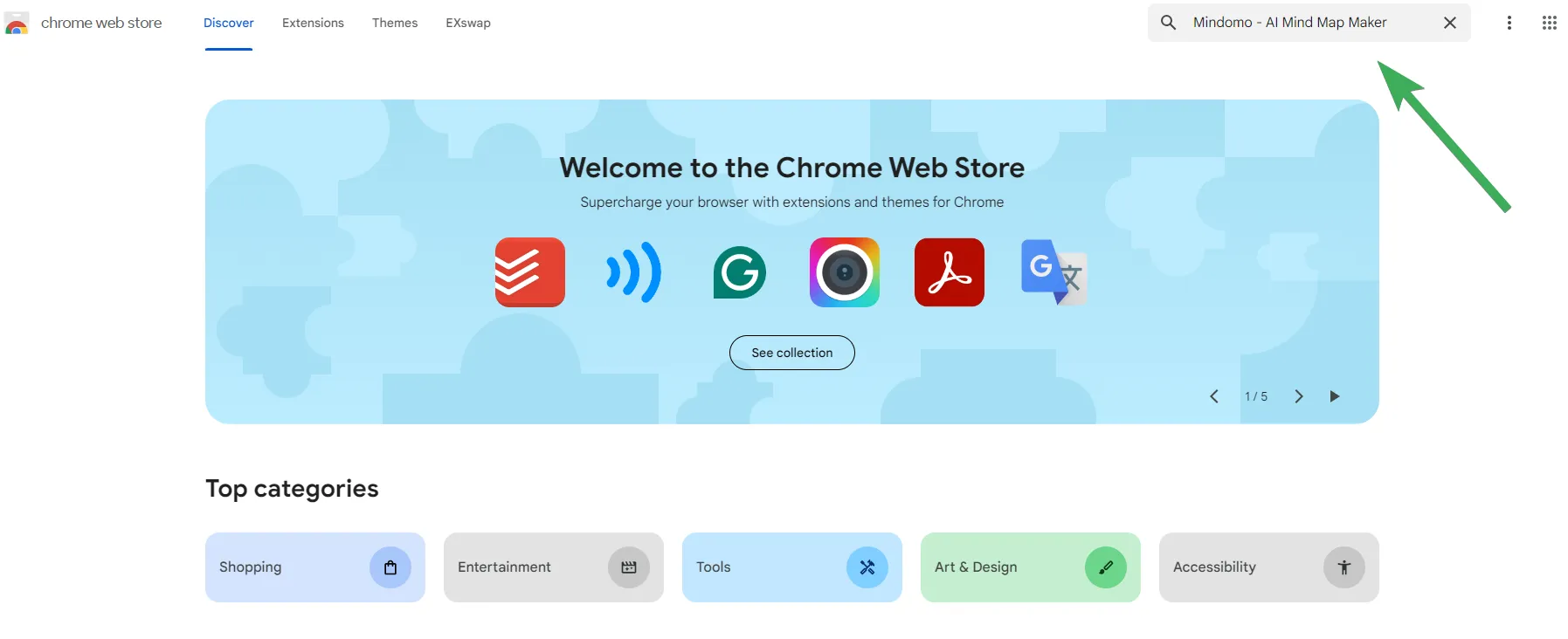
Section titled “Install on Chrome”To add Mindomo - AI Mind Map Maker to your Chrome browser, go to the Chrome Web Store and search for Mindomo - AI Mind Map Maker:
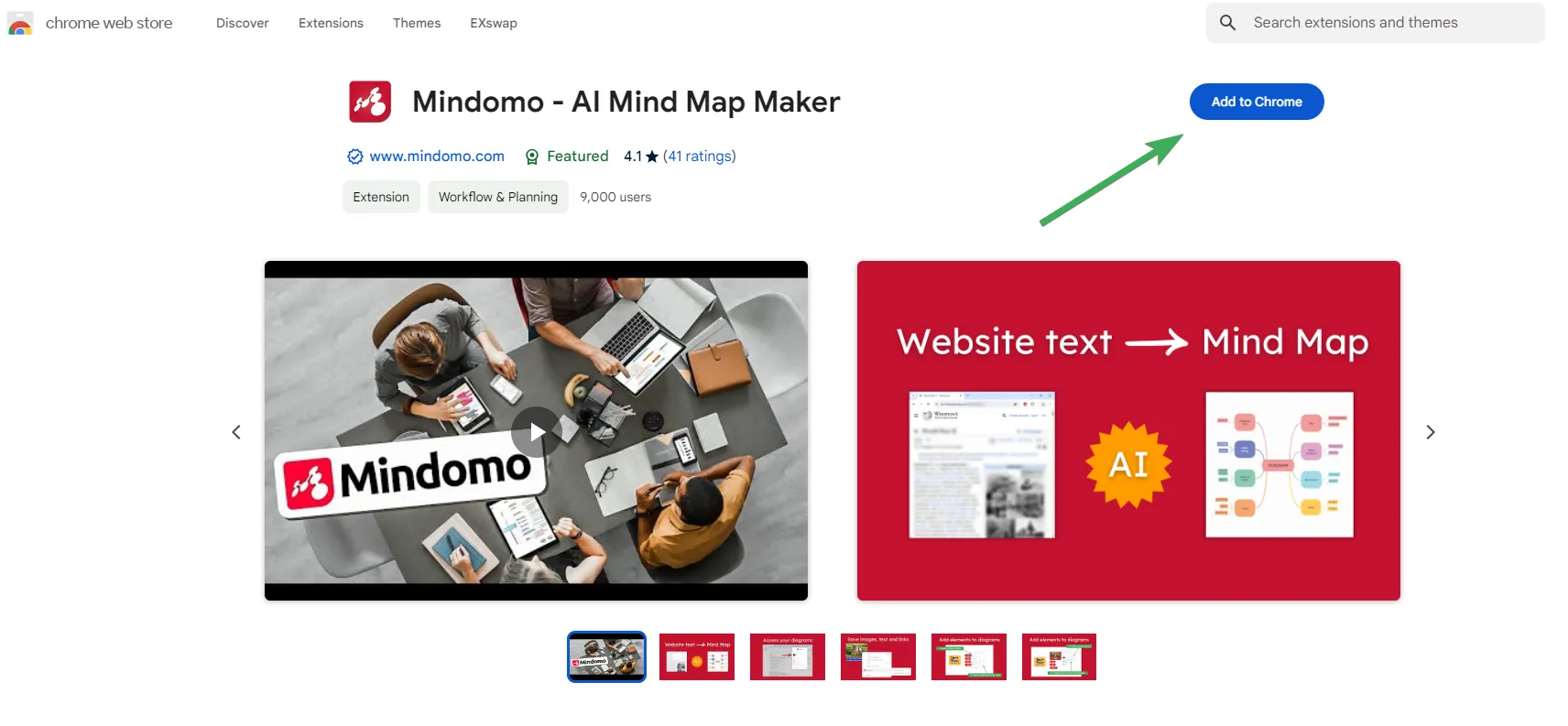
Click on it, then click Add to Chrome.
A pop-up window will appear asking you to confirm that you want to add the extension:
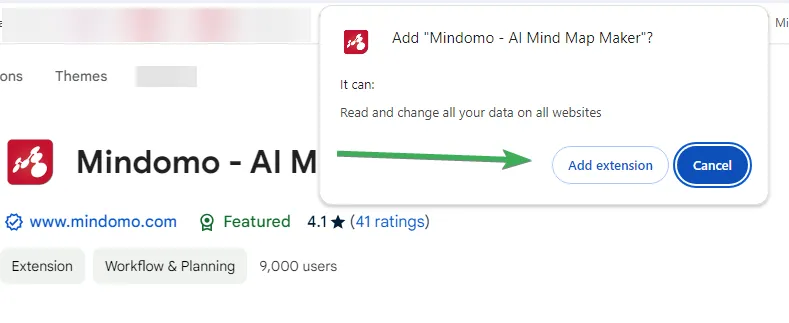
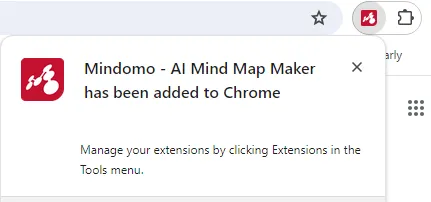
After installation, you will get a notification in the upper right corner confirming that Mindomo - AI Mind Map Maker has been added to your browser.
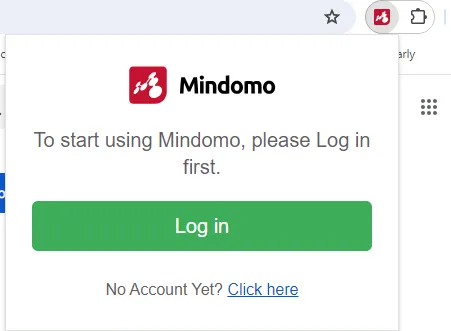
Click on the Mindomo icon to start using the bookmarks and AI feature. You will need to enter your Mindomo account credentials or create a new account.
Install on Edge
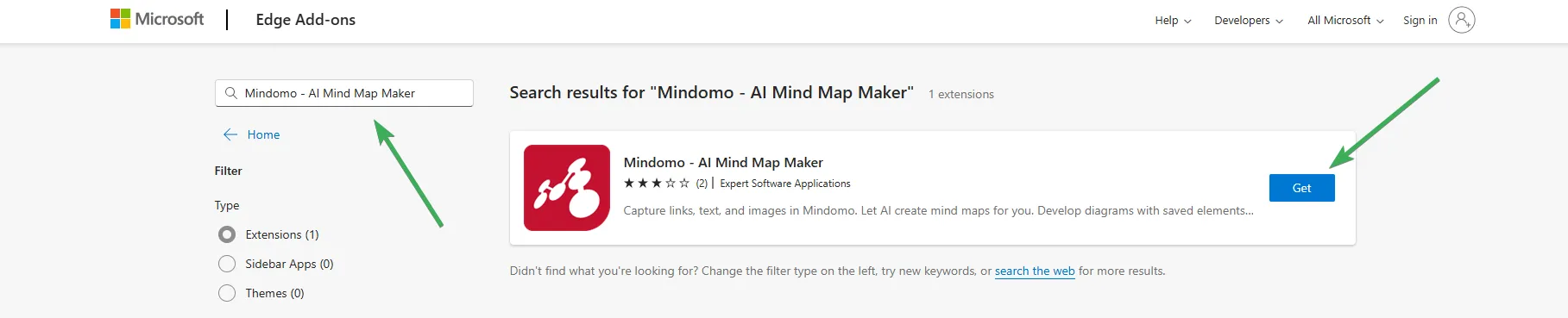
Section titled “Install on Edge”To add Mindomo - AI Mind Map Maker to your Edge browser, go to the Microsoft Edge Add-ons and search for Mindomo - AI Mind Map Maker.
Install on Firefox
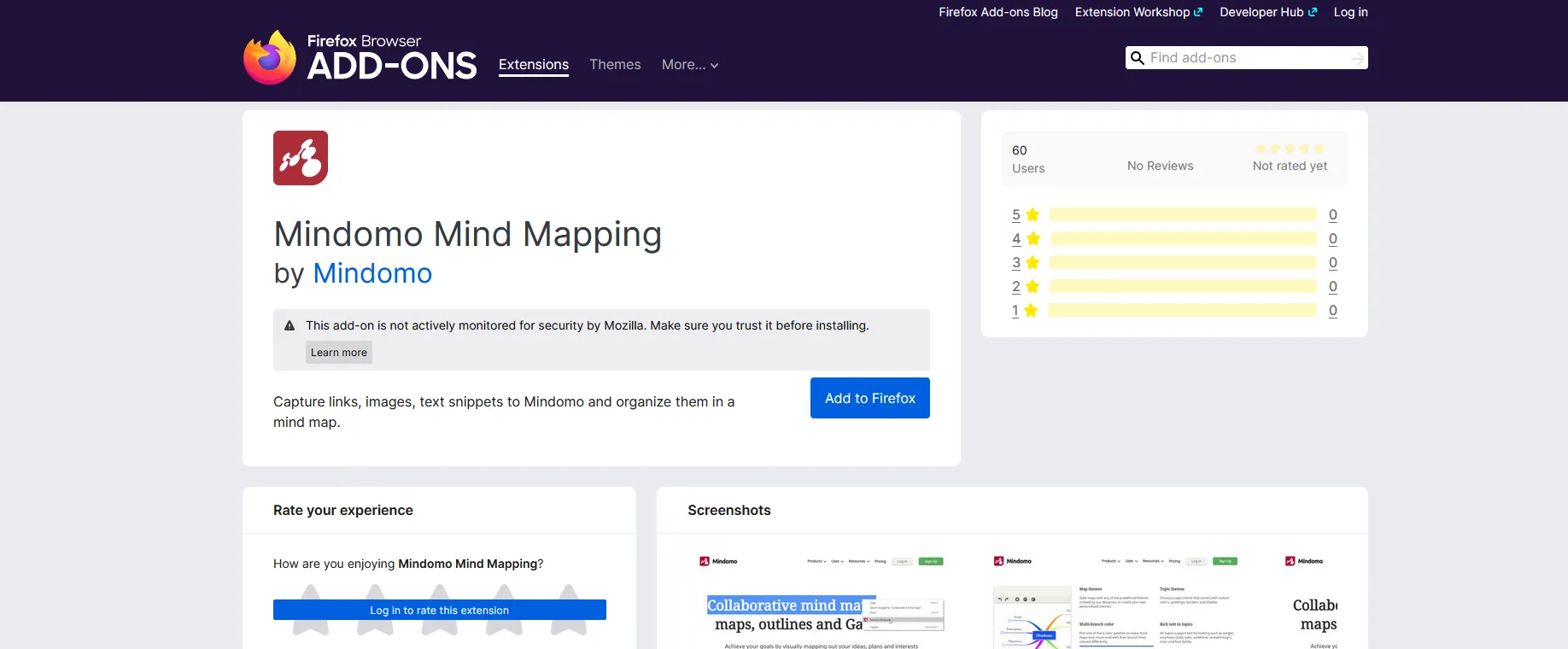
Section titled “Install on Firefox”To add Mindomo Mind Mapping to your Mozilla browser, go to the Mozilla Firefox Add-ons page and search for Mindomo Mind Mapping.
Login to AI Mind Map Maker with a third-party account
Section titled “Login to AI Mind Map Maker with a third-party account”- To set a password for your Mindomo account registered with a third-party account (Google, Facebook, Yahoo, Office 365, Windows Live, Clever, or Yilan), follow this link: Forgot password.
- Type in the email address associated with your third-party account, and you will receive an email with a link to set a password for your Mindomo account.
- After setting a password, return to the Mindomo Bookmarks access panel and enter your email and the new password.
Working with bookmarks and AI generator
Section titled “Working with bookmarks and AI generator”Sending plain text
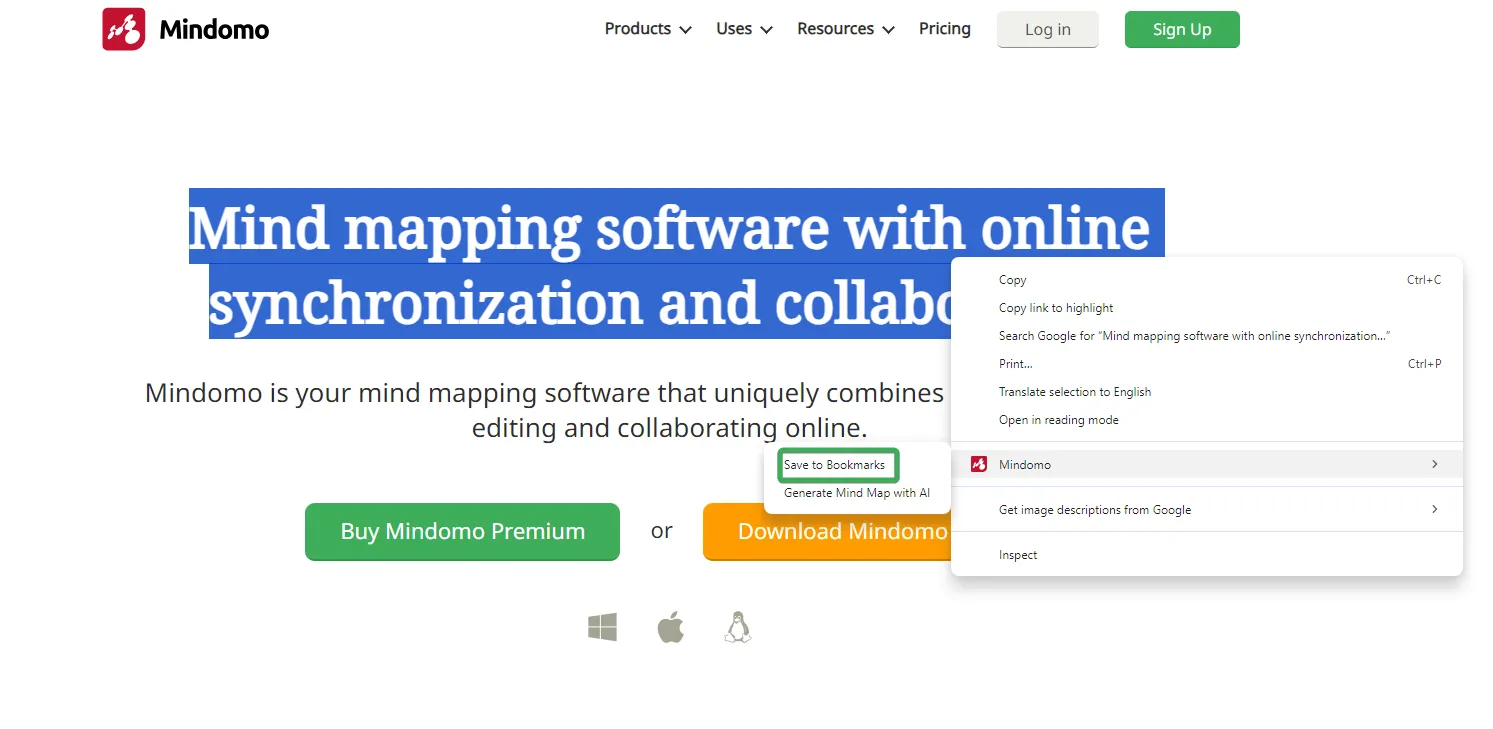
First, select the text, right-click, choose Mindomo, and then select Save to Bookmarks.
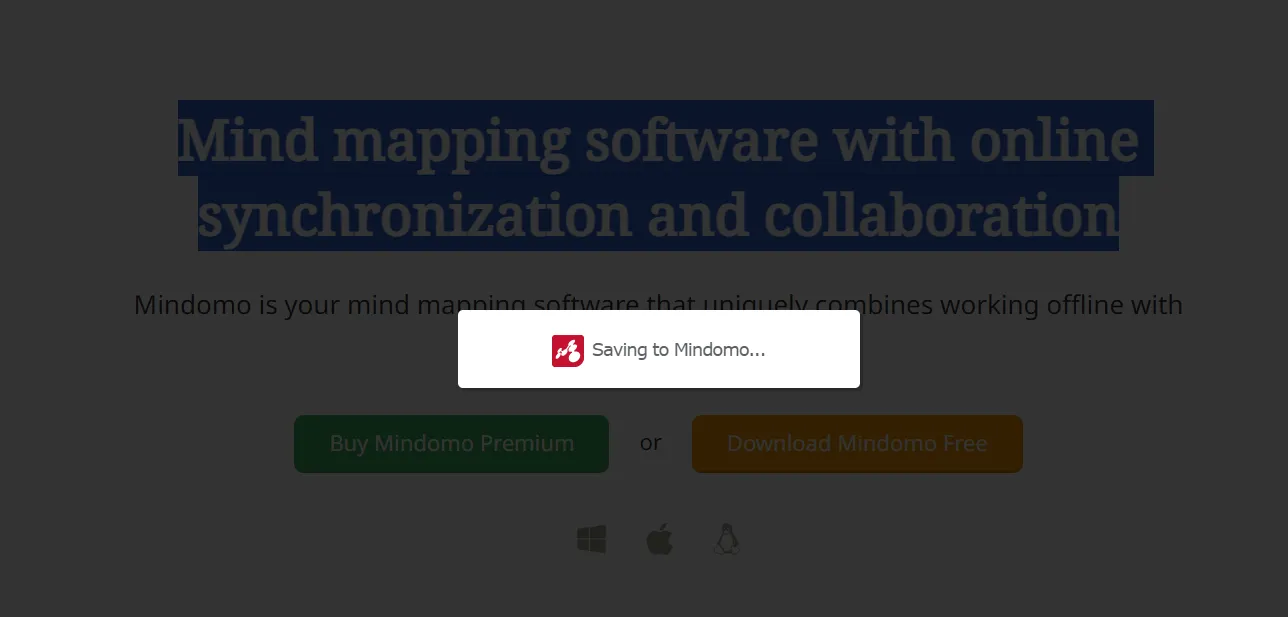
You will get a confirmation that your text has been sent.
Sending link and text
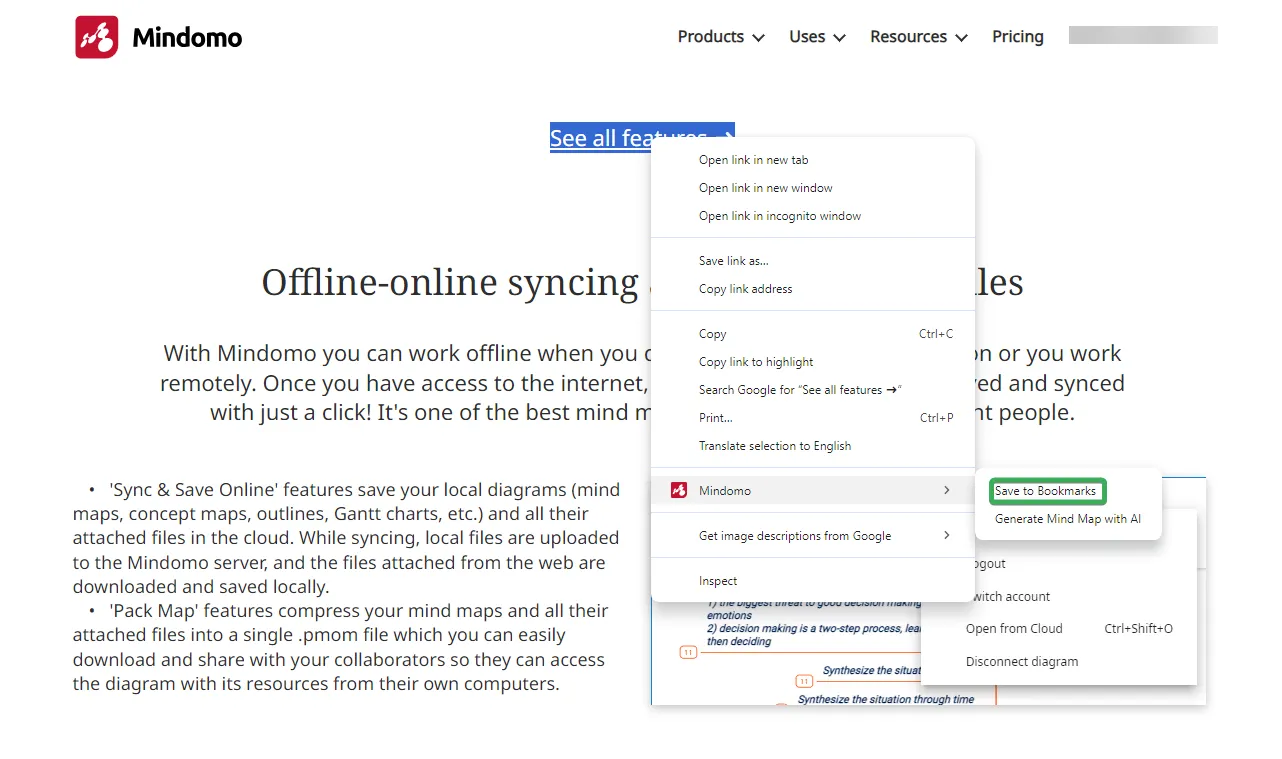
Select the text and link, right-click, choose Mindomo, and select Save to Bookmarks.
You will get a confirmation that your content has been sent.
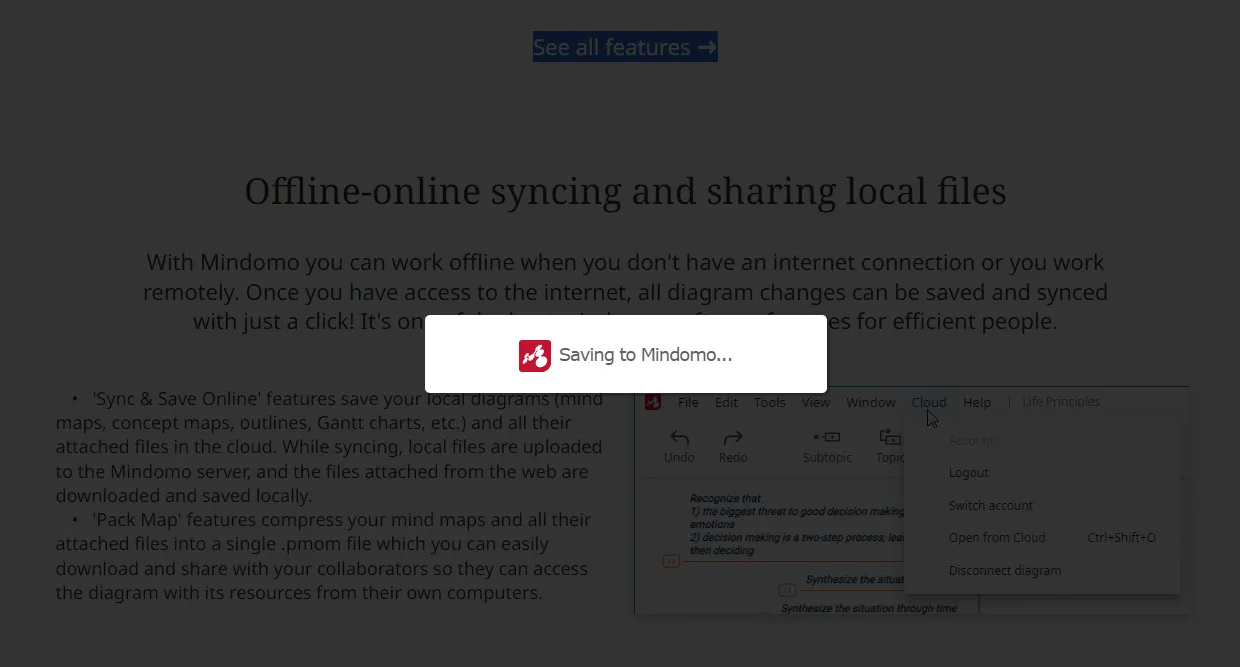
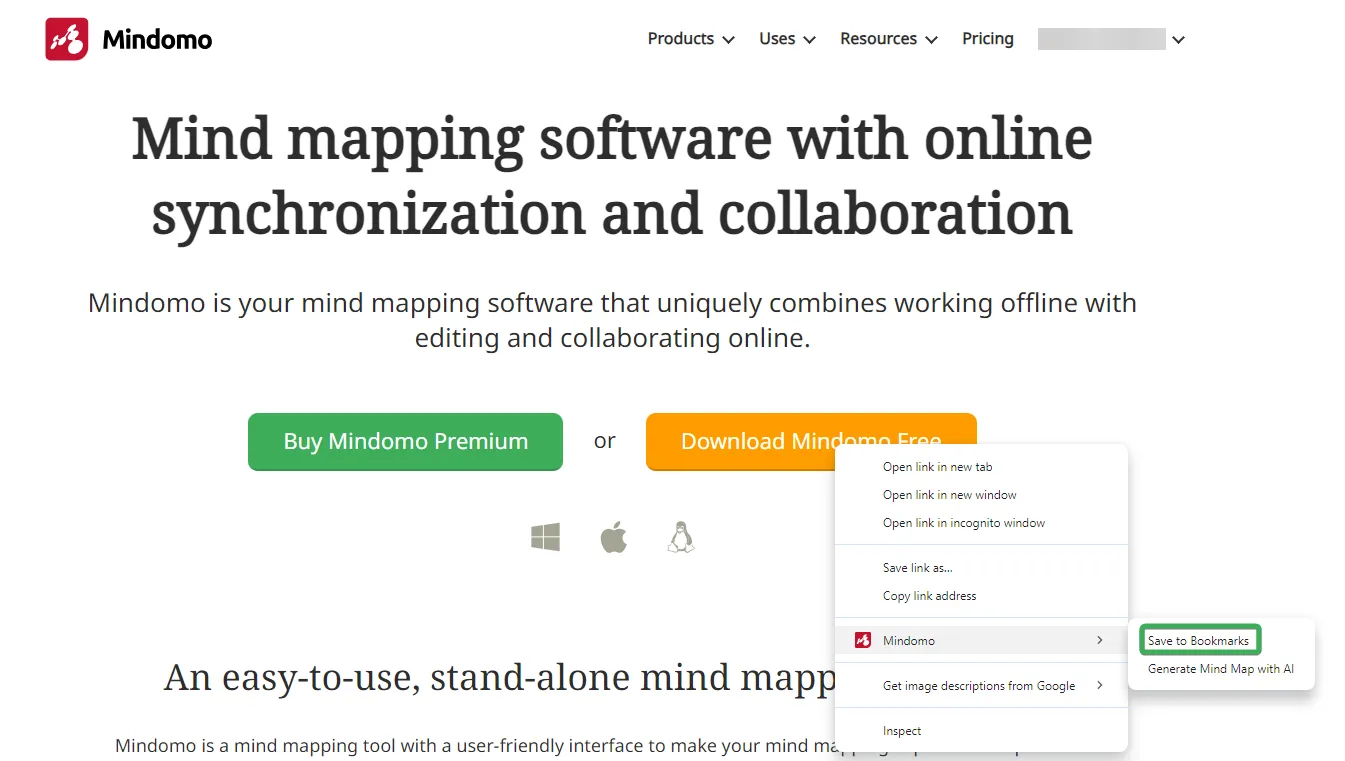
Sending link
Right-click on the link, choose Mindomo, and select Save to Bookmarks.
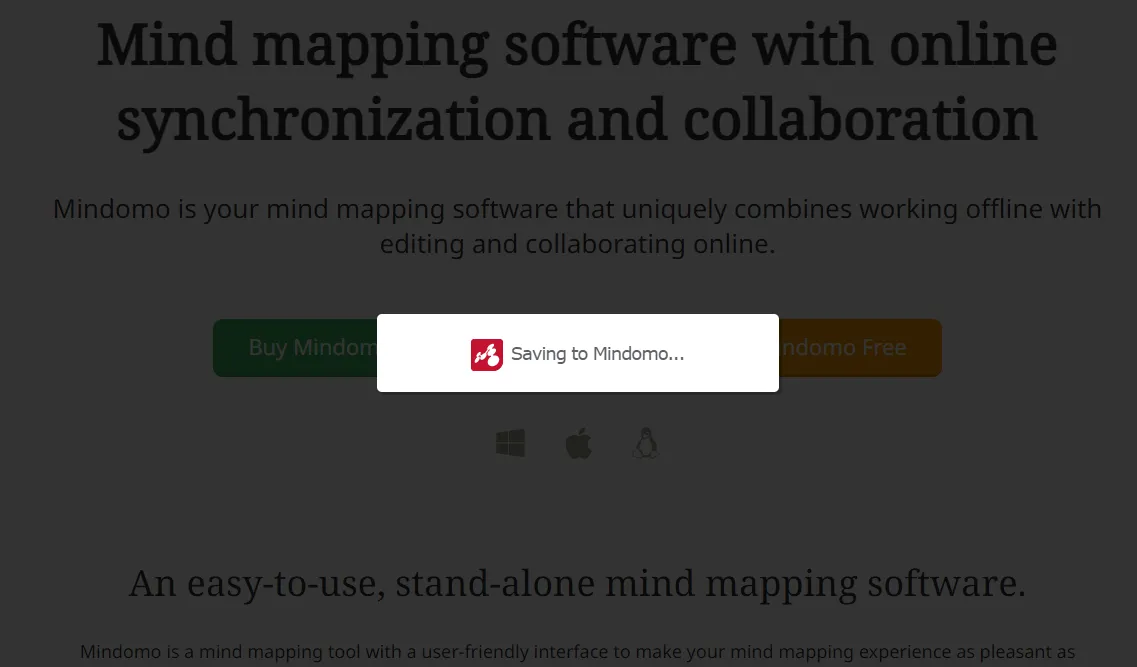
You will get a confirmation that your link has been sent.
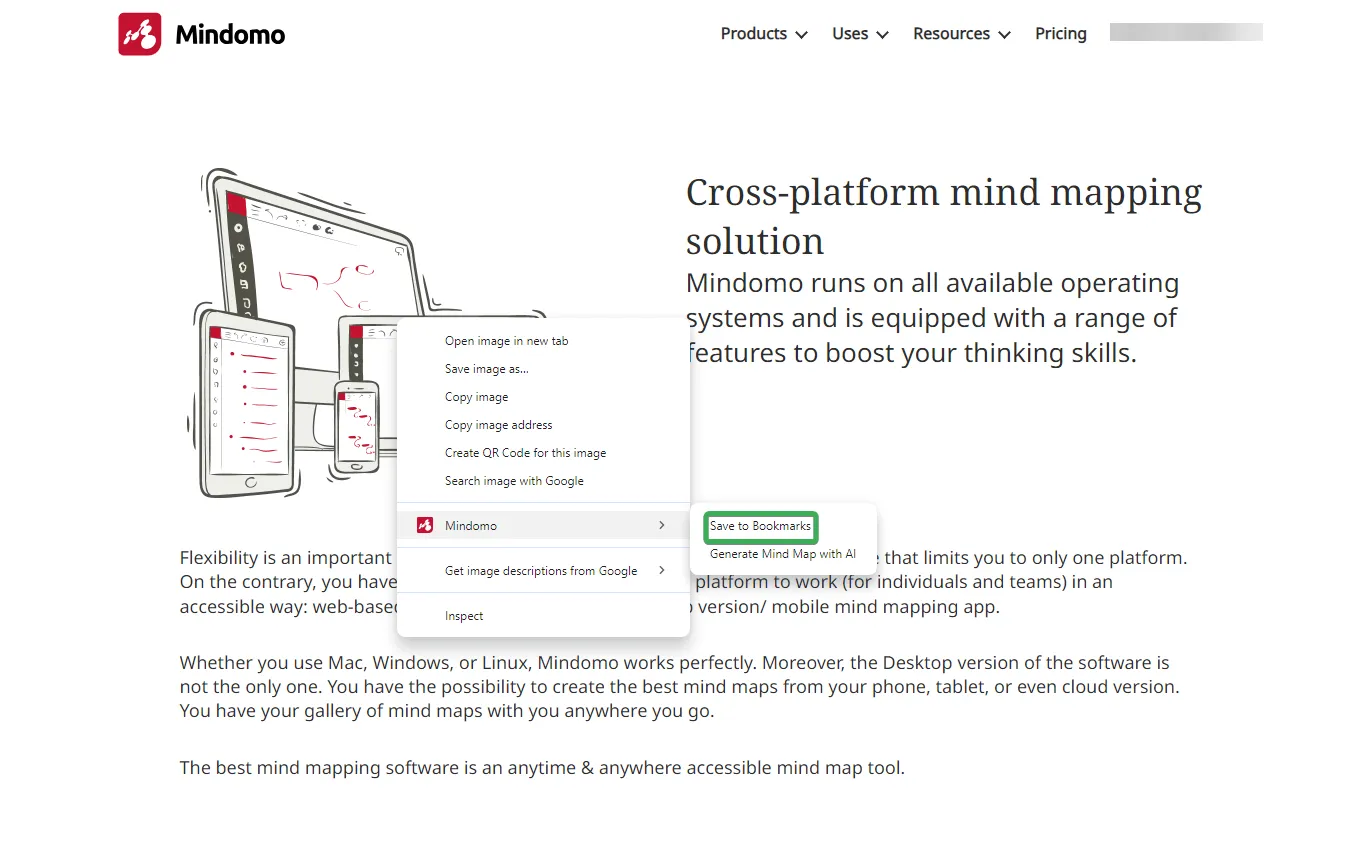
Sending image
Right-click on the image, choose Mindomo, and select Save to Bookmarks.
You will get a confirmation that your image has been sent.
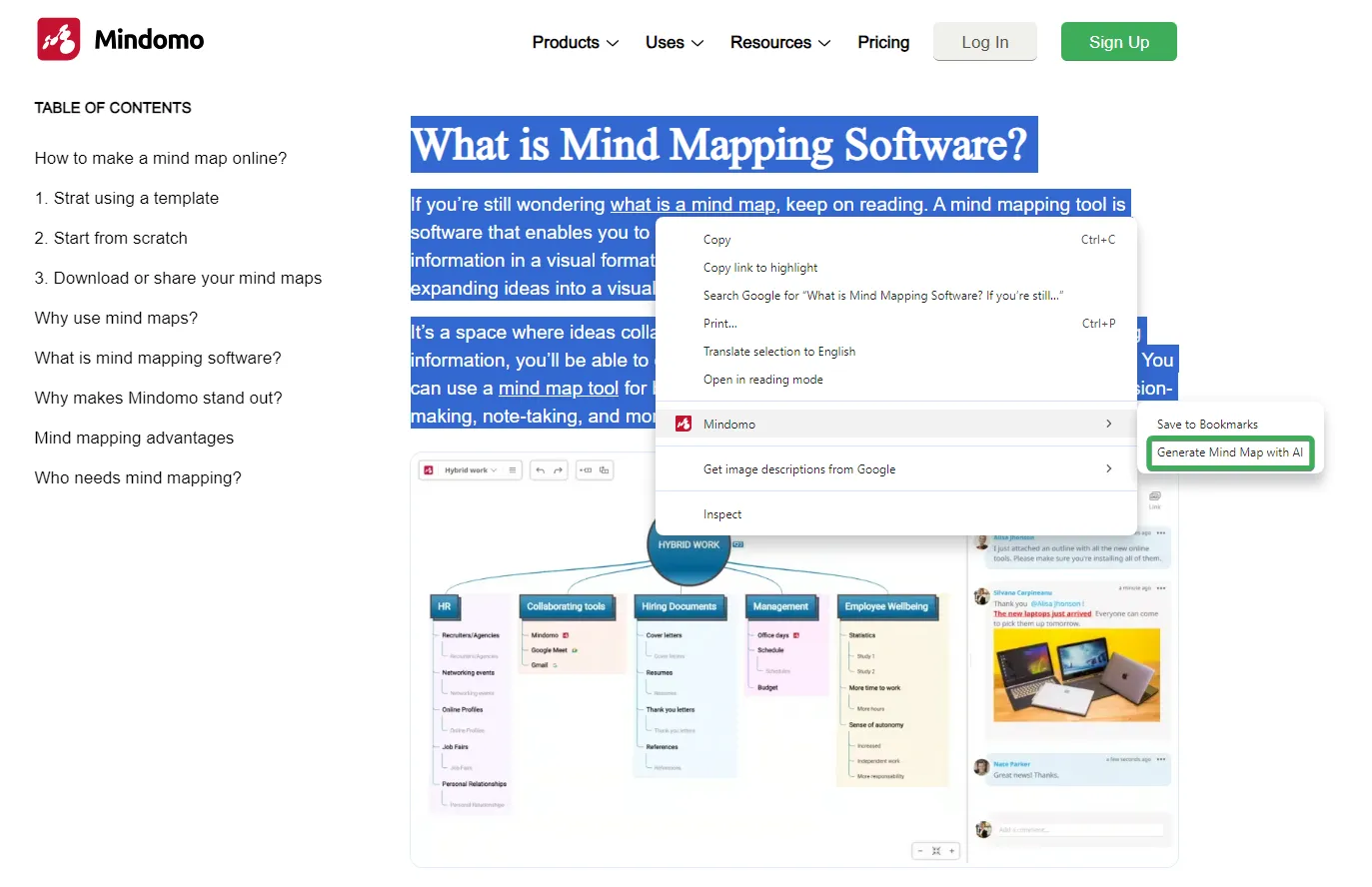
Generate Mind Map with AI
Select the text, right-click, choose Mindomo, and select Generate Mind Map with AI.
You will see a short loading screen indicating the mind map generation, then you will be redirected to Mindomo where you can view the generated mind map.