

Working with Mindomo Desktop
Getting started with Mindomo Desktop is quick and easy. Simply download the application from our website, install it on your device, and begin creating, editing, and managing your mind maps locally or in the Cloud.
Download & Install
Section titled “Download & Install”-
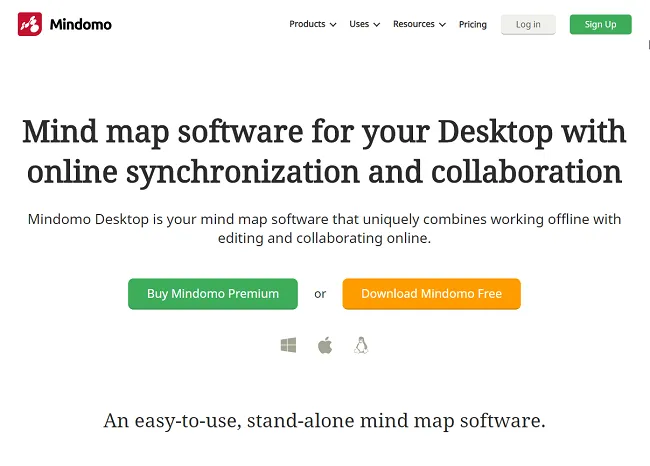
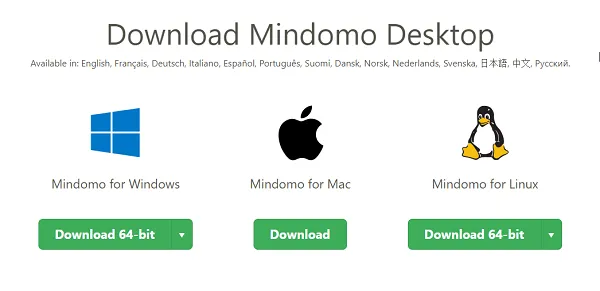
Download the application from our homepage.
-
On Windows, double-click the
.exefile to install it. -
On macOS, open the
.dmgfile and drag Mindomo to the Applications folder.
Create & Open
Section titled “Create & Open”Mindomo Desktop always opens in the Dashboard, allowing you to:
- Create new mind maps, concept maps, Gantt charts, outlines, and organigrams
- Access previously created diagrams
- Work on diagrams saved on your computer
- Download and work on your online diagrams
- Access license information
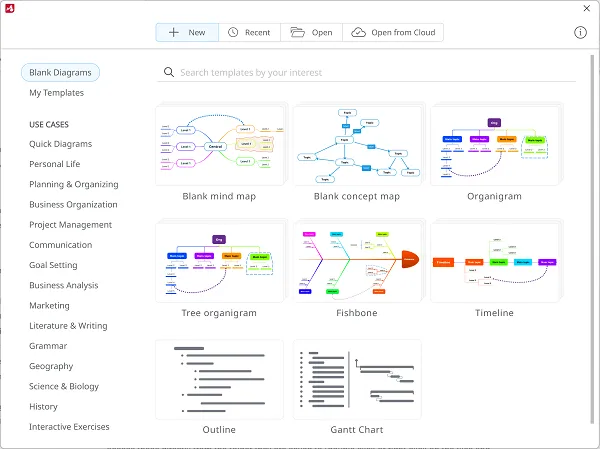
All your diagrams created with Mindomo are saved locally on your device.
You can access them directly from their saved folder (double-click or right-click the file and choose Open with Mindomo) or from the Recent section.

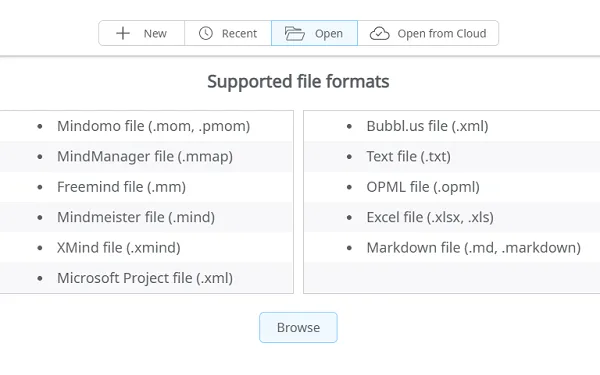
Use Open to browse for diagrams on your device:

Open from Cloud
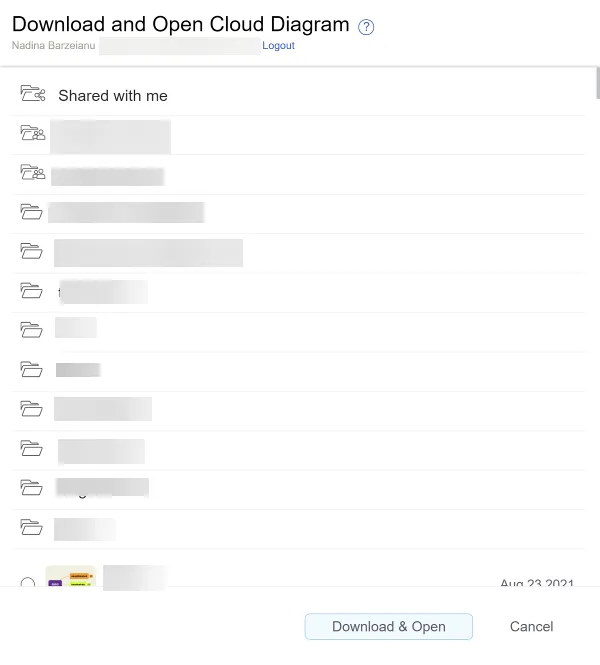
Section titled “Open from Cloud”To work on your Cloud diagrams from the app, go to Open from Cloud. Enter your online credentials in the login panel to download and open your diagrams.

Once logged in, the panel will display:
- The Shared with me folder, containing all diagrams shared with you in edit mode
- Shared Team folders, if you are part of a team
- Your own folders
- Your diagrams from the Dashboard
Info Menu
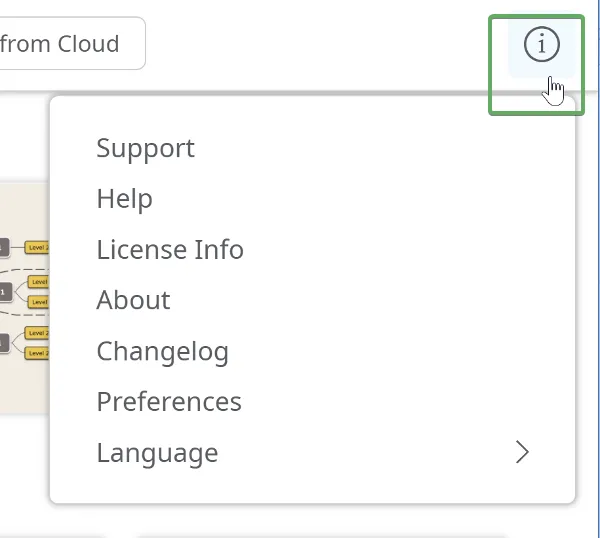
Section titled “Info Menu”From the Dashboard, click the information icon (i) to:
- Go to the Mindomo Forum for support
- Access Mindomo’s Help page
- View license information
- See the Mindomo version you are using
- View the changelog
- Set app preferences (e.g. autosave, spell checker, etc.)
- Set the app language
Synchronize to Cloud
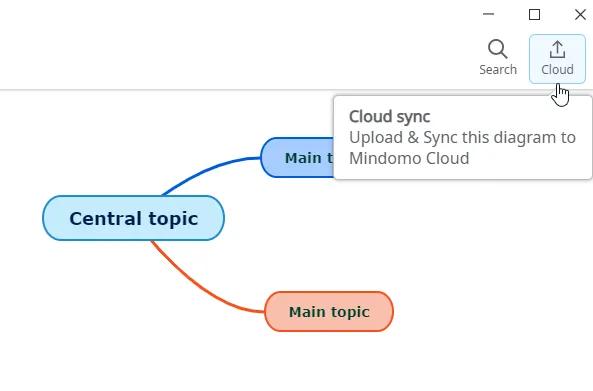
Section titled “Synchronize to Cloud”To upload your diagrams to the Cloud, click the Cloud icon in the upper-right corner.
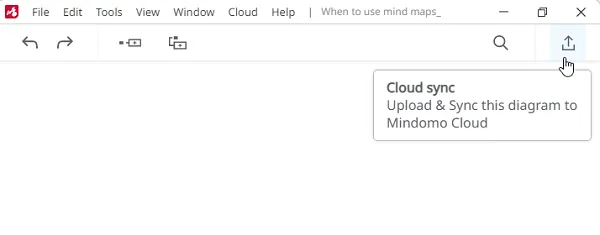
You will be redirected to the login page, where you need to enter your online account credentials.
Once logged in, you will see the Synced status of your diagrams in the upper-right corner.
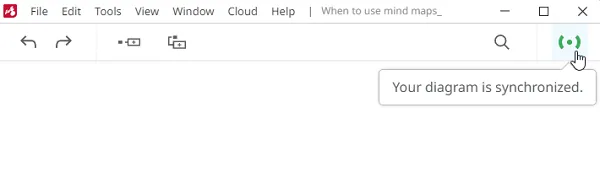
Syncing from the desktop app is automatic. After uploading a diagram to the Cloud, any subsequent changes are automatically synchronized while you are online.
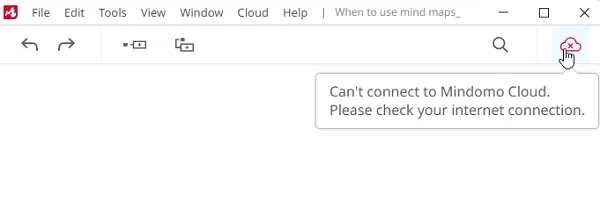
Internet connection lost
If your internet connection is interrupted, the diagram status will change to Offline. Any changes you make while offline are saved locally and will be automatically synchronized once the internet connection is restored.
Sharing diagrams
Section titled “Sharing diagrams”Share diagrams with online users
Use the Cloud feature to save your local diagrams and all attached files online. This allows you to publish diagrams or keep them private and share them only with selected collaborators.
During synchronization, local files are uploaded to the Mindomo server, while files attached online are downloaded and saved locally.
Share diagrams with other Mindomo Desktop users
If you want to share diagrams with users who are only using the installed version of Mindomo, use the Pack Diagram feature. This compresses your diagram and all attached files into a single .pmom file saved locally.
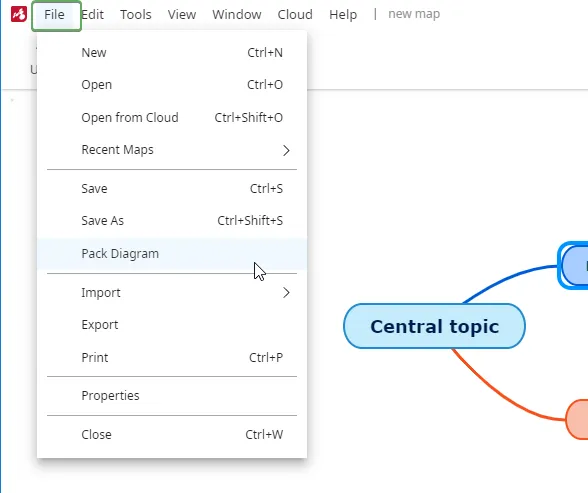
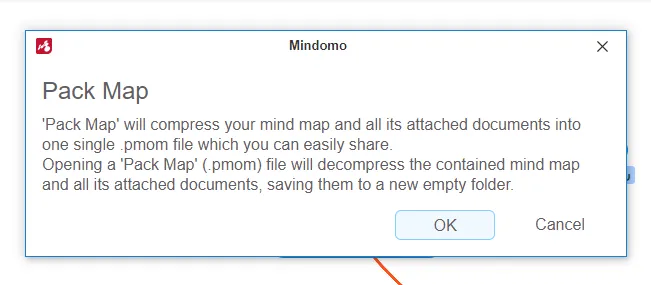
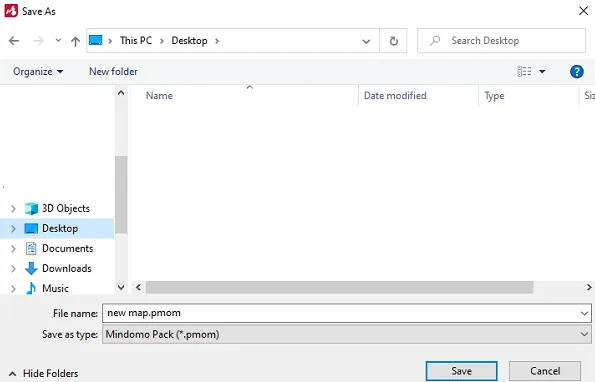
Share the .pmom file with your collaborators so they can open the diagram along with all attached files on their own computers.
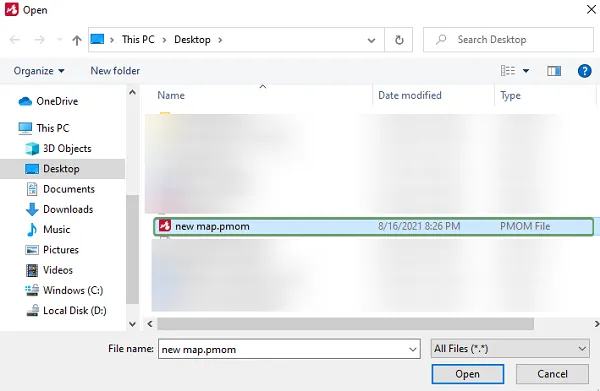
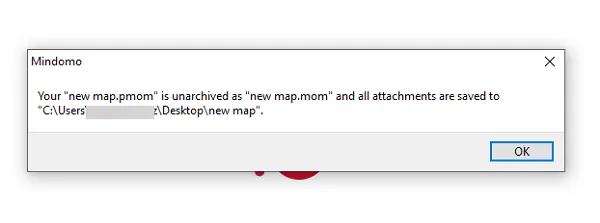
When collaborators open a Pack Diagram (.pmom) file, the diagram and its attached files are decompressed and saved to a new empty folder of their choice.
Licenses
Section titled “Licenses”Mindomo Free
- Unlimited diagrams with up to 40 topics each
- Mind mapping, concept mapping, and outlining functionalities
- Gantt charts
- A wide range of export and import formats (MindManager, FreeMind, MindMeister, XMind, Bubbl.us, PMOM, PDF, DOCX, PPT, TXT, OPML, ZIP, PNG, XLS)
- Full export and import functionality without connecting to an online account
- Online syncing for up to 3 diagrams
Mindomo Lifetime
- Unlimited diagrams with unlimited topics
- Access to the Theme Editor for custom, reusable diagram themes
- Adding images and videos from the internet (included for the first year)
- One year of updates and support from the development team
Mindomo Subscription-based
This license is available with business (Premium, Professional, Team) or educational (Edu Basic, Teacher, Classroom/School) subscriptions. In addition to the Lifetime features, it includes:
- Updates and support for the entire subscription period
- Unlimited diagram syncing
- Unlimited Cloud diagrams