Using templates
A map template is a mind map structure that already contains some information and guiding instructions about a specific subject. It is a tool for providing a practical solution for creating a mind map, whether related to business, education, or personal use. Basically, a template provides the structure that brings together all the elements of a particular topic and serves as a starting point for a new mind map.
Template functionality
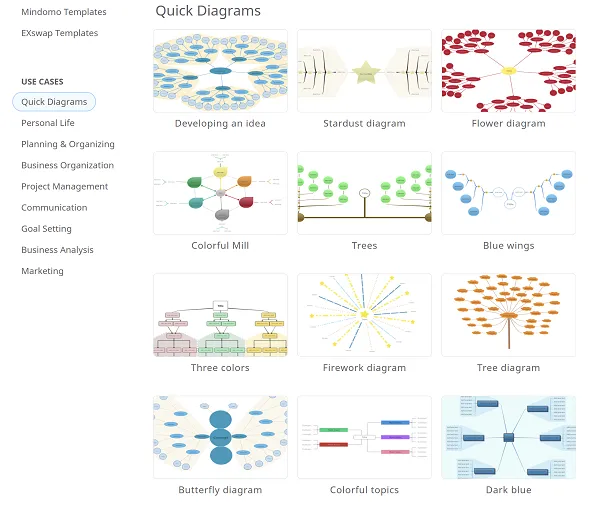
Section titled “Template functionality”Templates can be found on the Dashboard of your account by clicking on Create. You can also use the Search functionality to find a specific template. Templates available on educational accounts are different from those available on work or personal accounts.
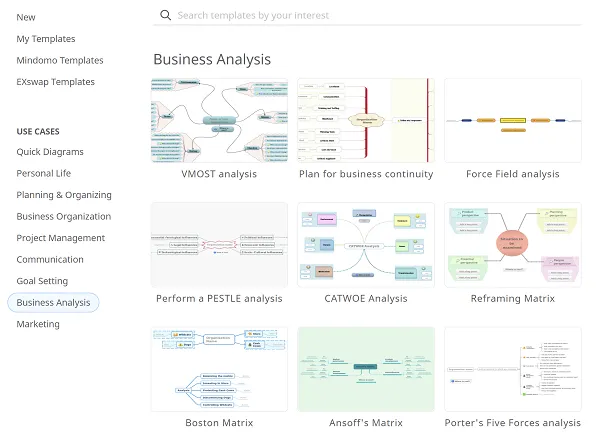
When you hover over a template, you have two options: Use and View.
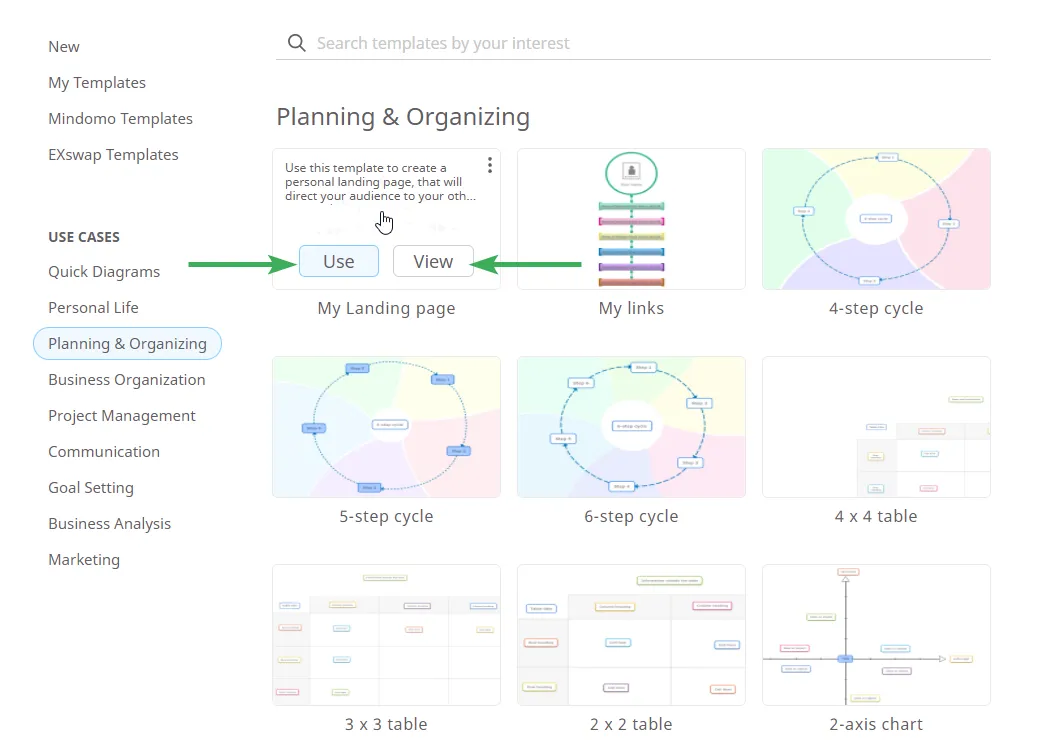
When you click the View button, you can see the template in view mode (you can see how it looks and zoom in and out) and read a short description explaining the purpose of that template. In the top-right corner of your screen, there is a button called Use Template that will open the template so you can edit it.
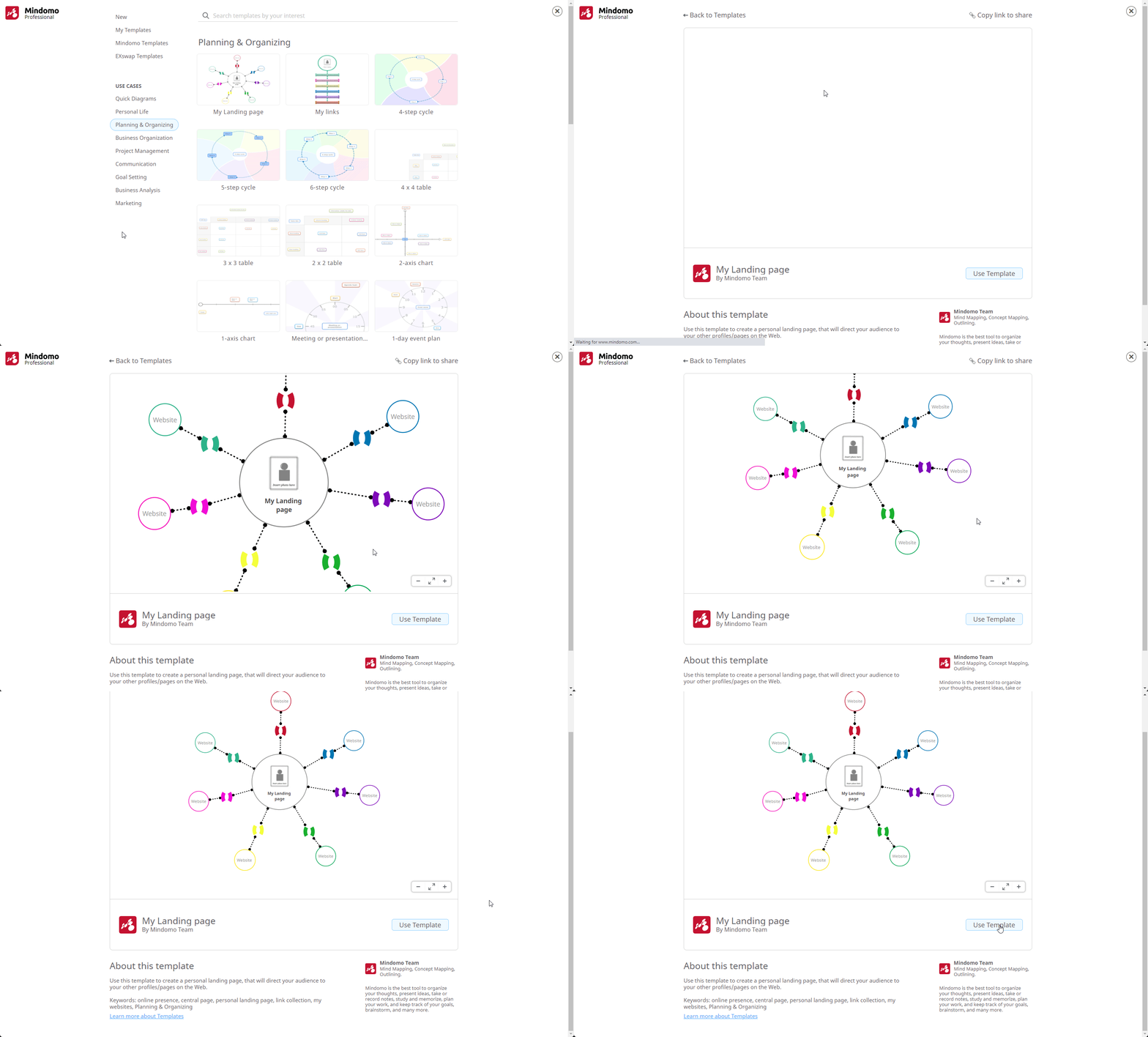
When you click the Use button, an editable copy of the template will open and will be added to your Dashboard.
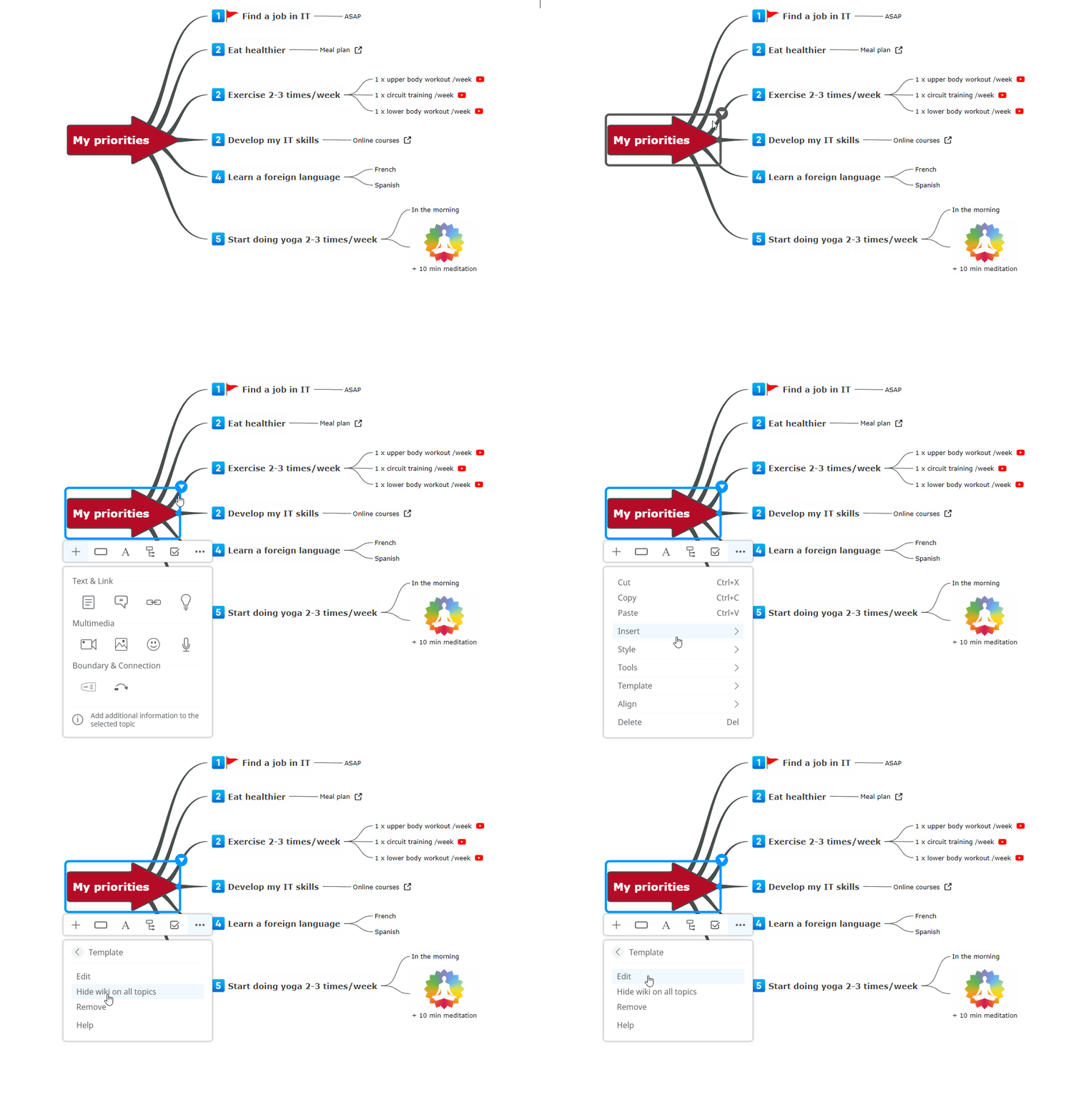
You can also create a template from scratch using your existing mind maps or by creating new ones. Click on the last icon from the context menu, select Template, and click Edit.
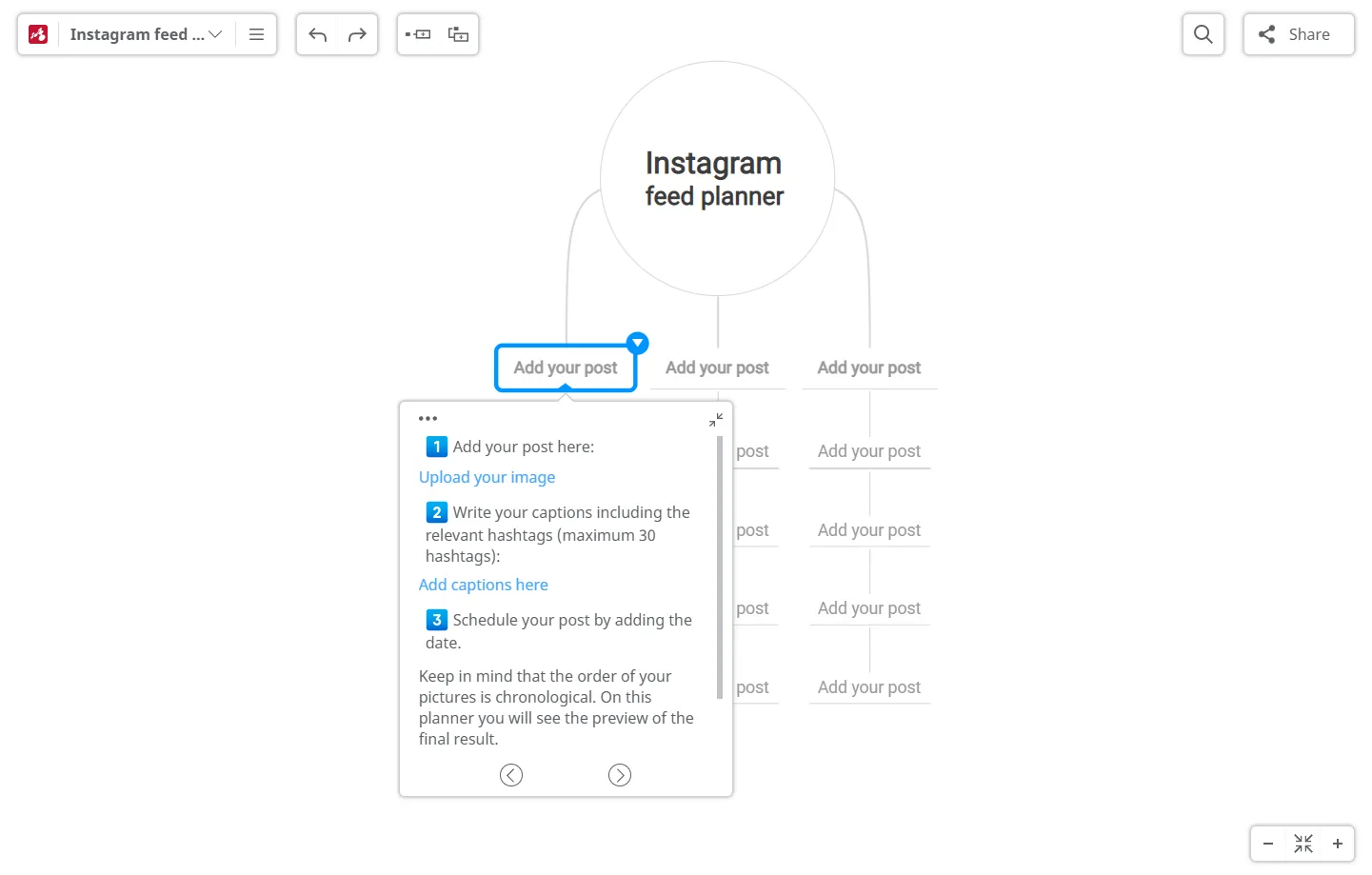
When opening a template, a Guideline box on the central topic will be displayed.
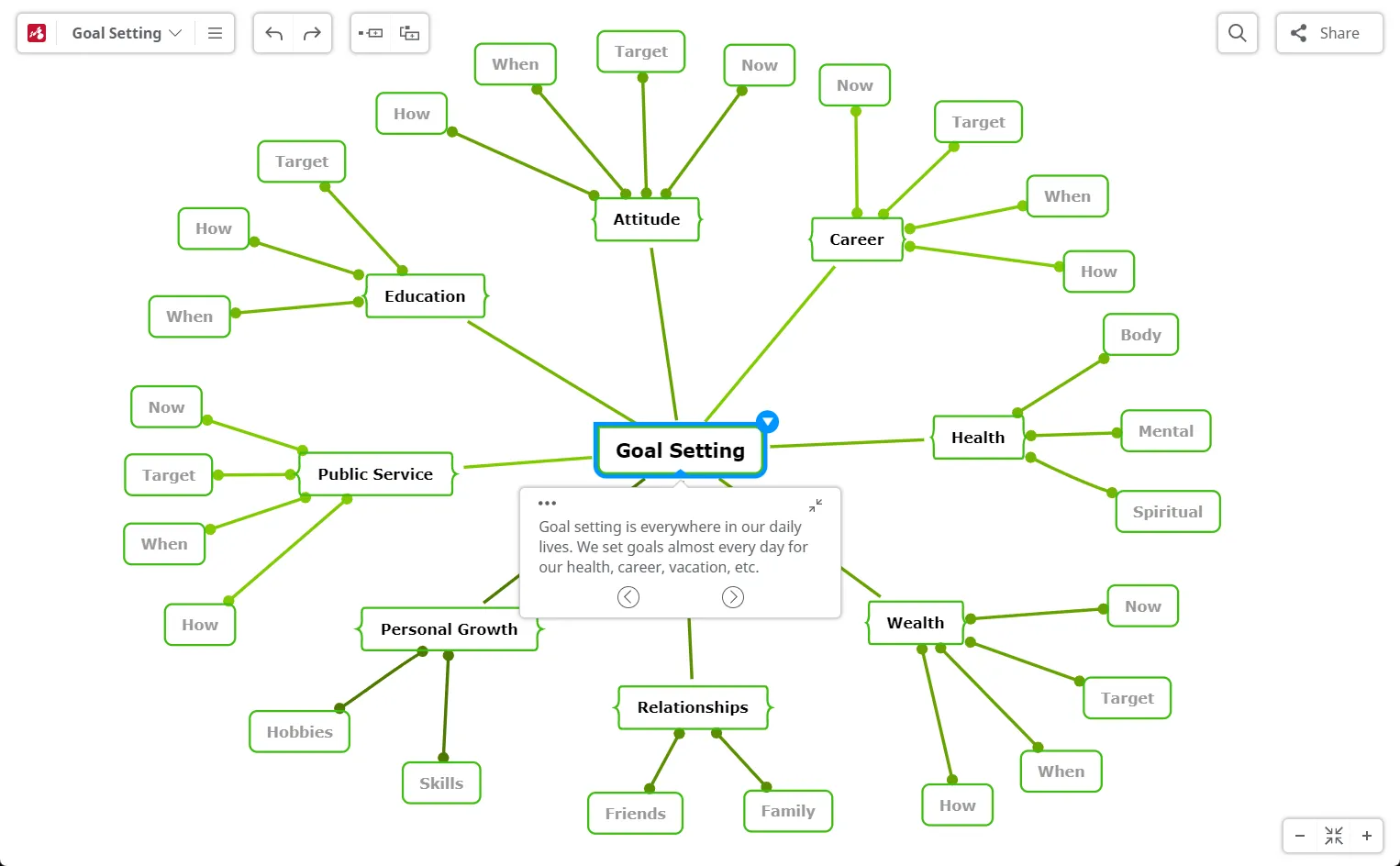
The Guideline box appears on certain topics and may contain informative notes about the topic or branch, intended to help you.
At the bottom of the Guideline box, you have two arrows (Next and Previous). Click the arrow icon on the right (Next) to start working on your mind map. You will be moved to the next topic with guidelines. Using the Next and Previous navigation buttons, you can move between the guiding instructions.
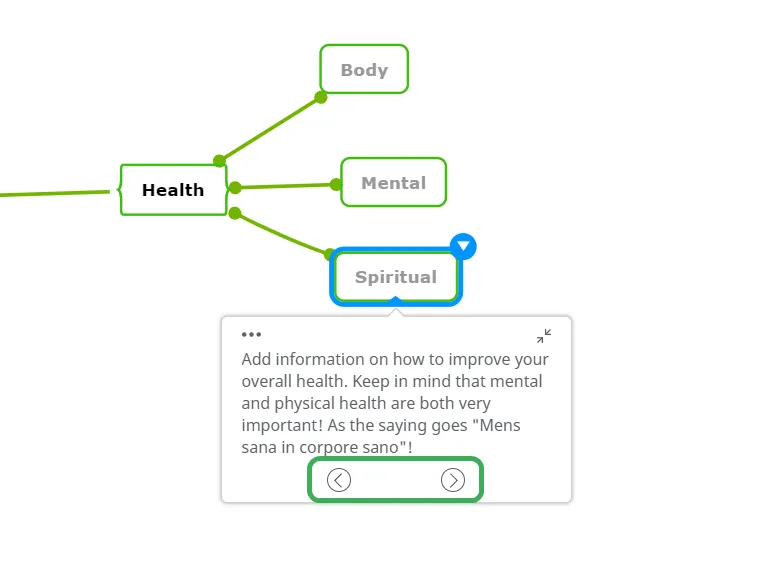
Another way to work on your template is to click on a different topic you want to view the guidelines for and navigate through the mind map template in any order you prefer.
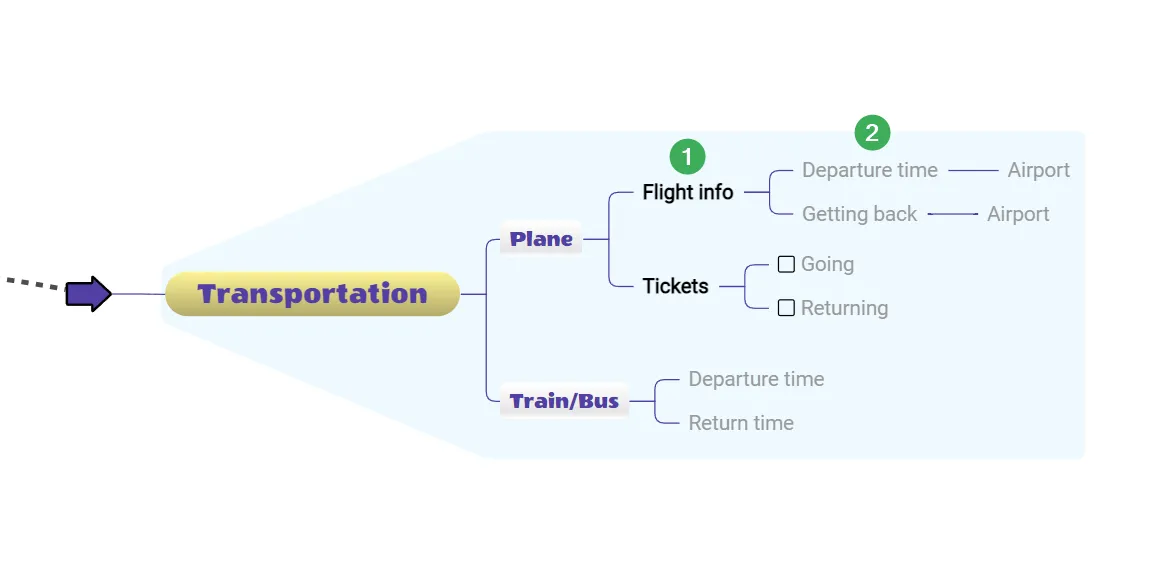
A template contains two types of topics:
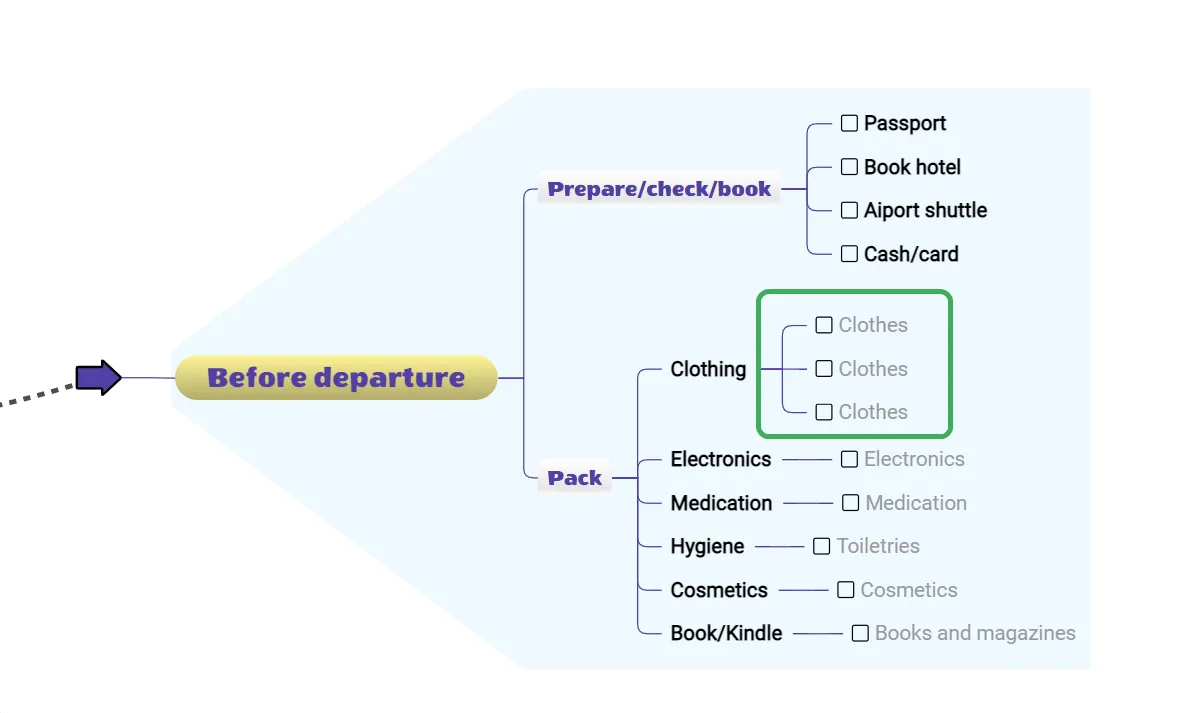
- descriptive topics that build up the structure of the mind map (1);
- topics with input text that should be edited and filled in by you. Once you enter your information, the background text will be replaced (2).
Template options
Section titled “Template options”Some topics contain additional resources such as images, icons, or text suggestions.
A template may allow you to choose an icon or an image from a specific list to add to the selected topic. It may also include a list of suggested texts that will be added to the topic as child topics.
Template topics
Section titled “Template topics”Some topics have one or more branches attached by default. This means that when you insert a new child topic, a new branch will be added instead of a single topic. This speeds up the process of creating your mind map by providing predefined template topics that can be reused multiple times.
If you have more than one answer to a particular question or set of questions, you can add multiple subtopics.
Use keyboard shortcuts to quickly create topics: press TAB to insert an editable subtopic and ENTER to insert a sibling topic that you can fill in.
Removing template data
Section titled “Removing template data”A map template predetermines the flow of your ideas with the help of a predefined structure and auxiliary information. However, if you want to keep a clean and tidy mind map, you can minimize the template Guideline box (using the button in the top-right corner) or choose to remove the template data entirely. This way, your mind map will contain only the information you consider relevant after filling in the topics using the Guideline box.
Go to the More options icon in the top-left corner of the template Guideline box and select Remove. You can choose to remove the template data for the selected topic, the selected topic and its branch, or the entire mind map.
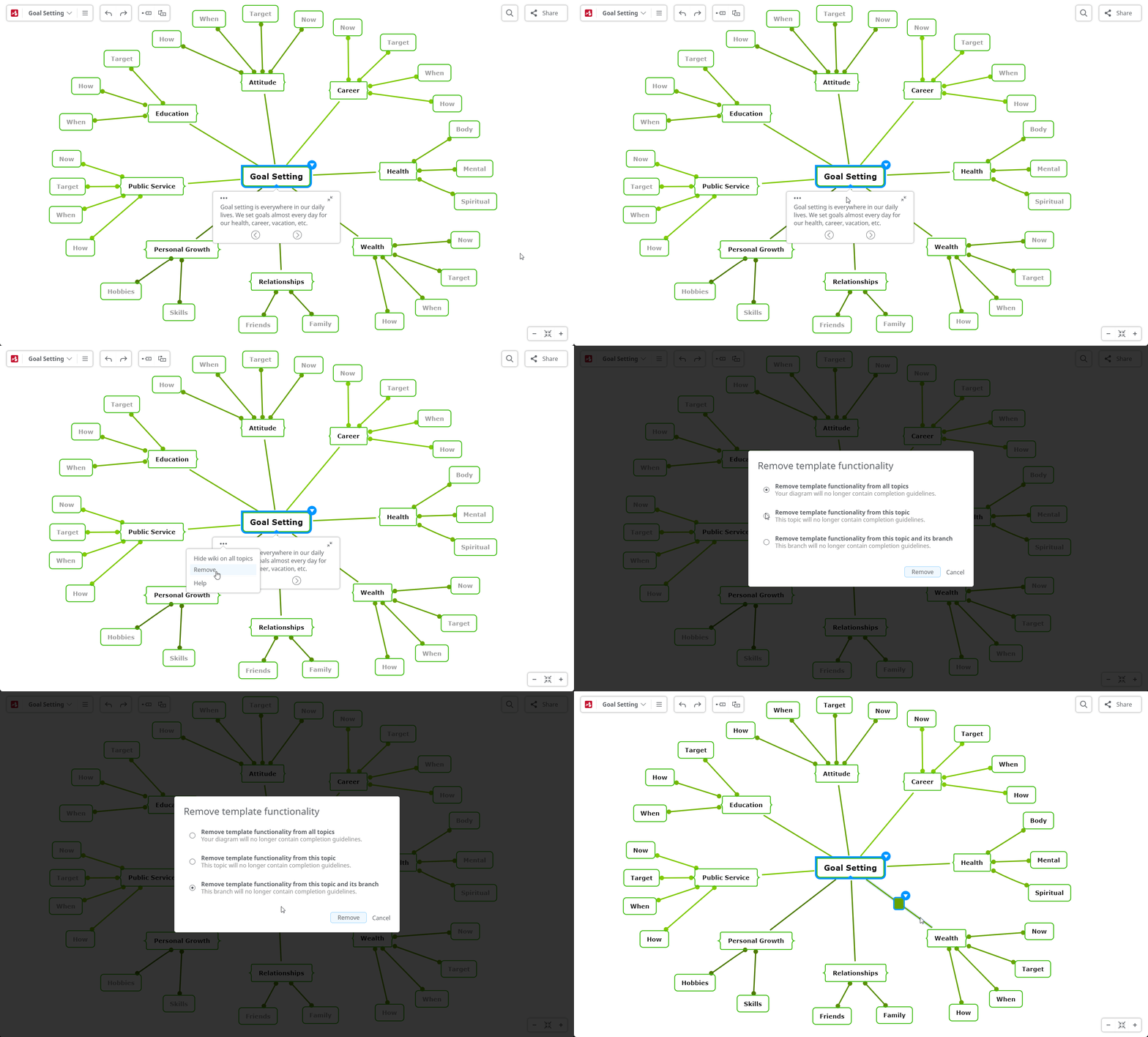
A confirmation message, “Template data has been removed successfully.”, will be displayed.
Quick diagrams
Section titled “Quick diagrams”Quick diagrams are templates without any data or Guideline box. You can complete them to create your own mind map.
They are used for their design and offer an easy way to create a mind map without arranging topics or choosing themes—simply add your data, topics, and subtopics.