

Themes
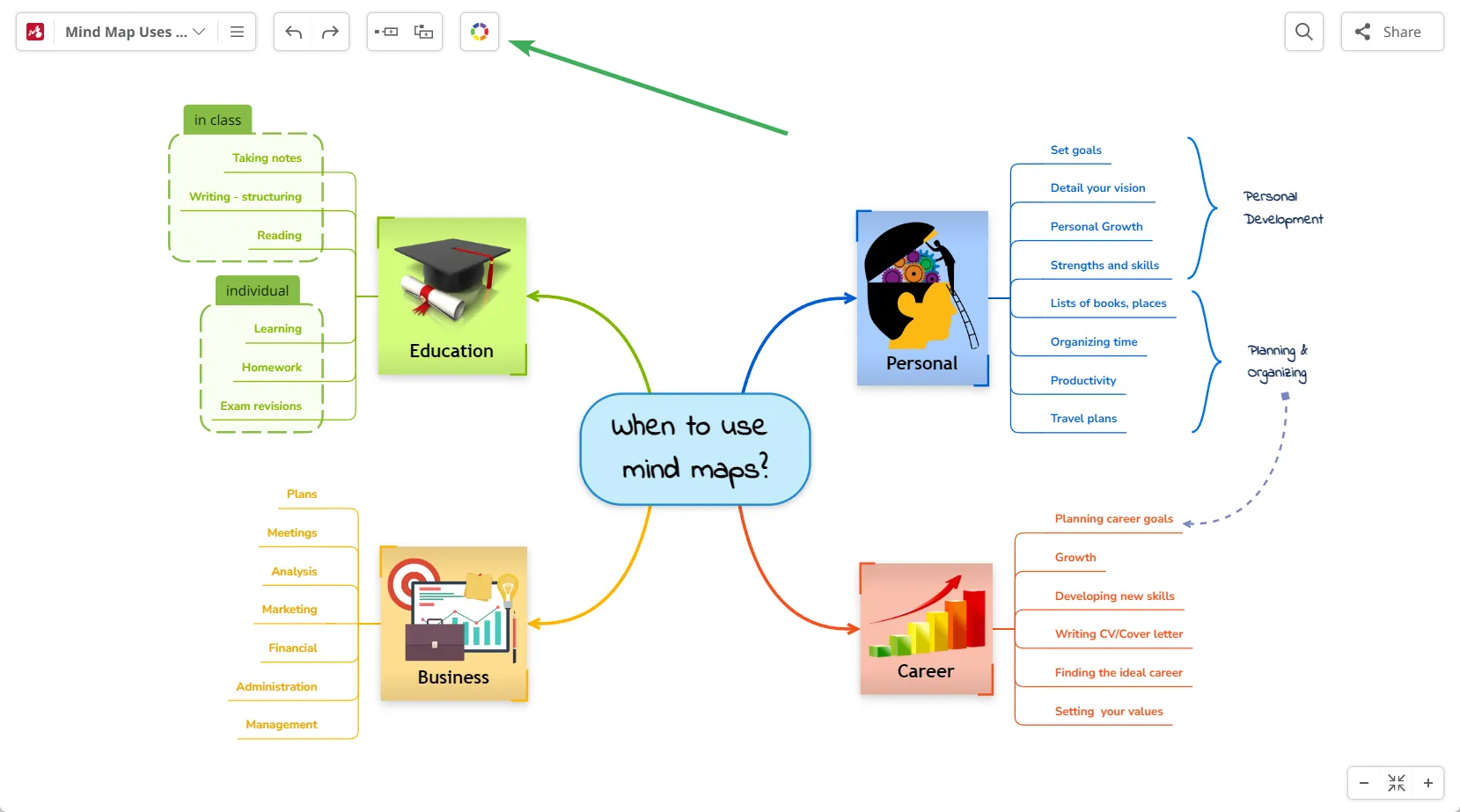
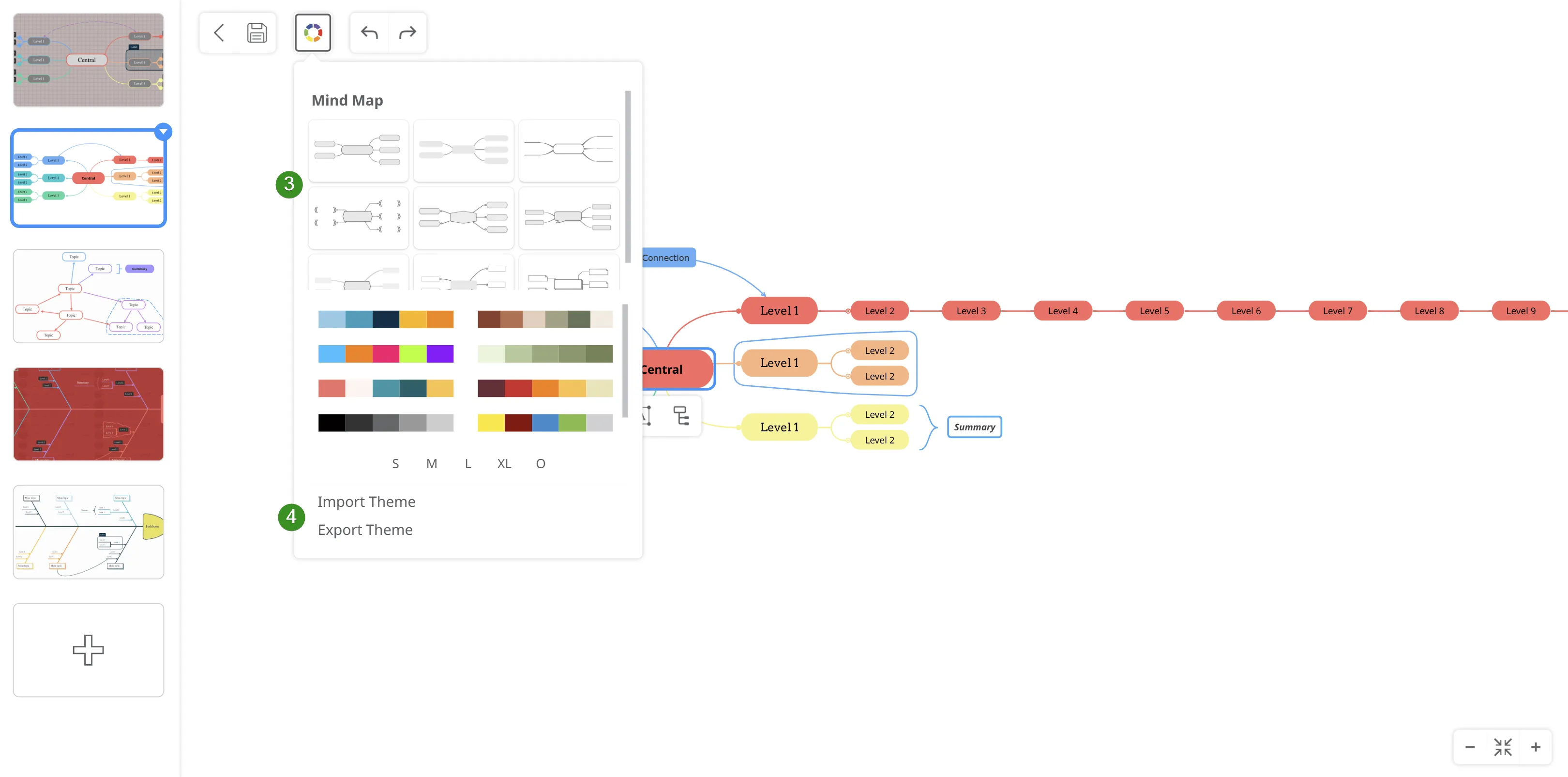
Customize the look of your entire diagram using the Themes menu. Click the Map Styling Wheel to access a variety of theme options and adjust the map’s appearance to match your preferences.
Automatic Theme Styling
Section titled “Automatic Theme Styling”Automatic Theme Styling includes our predefined themes that can be accessed with a single click.
1. Style & Layout
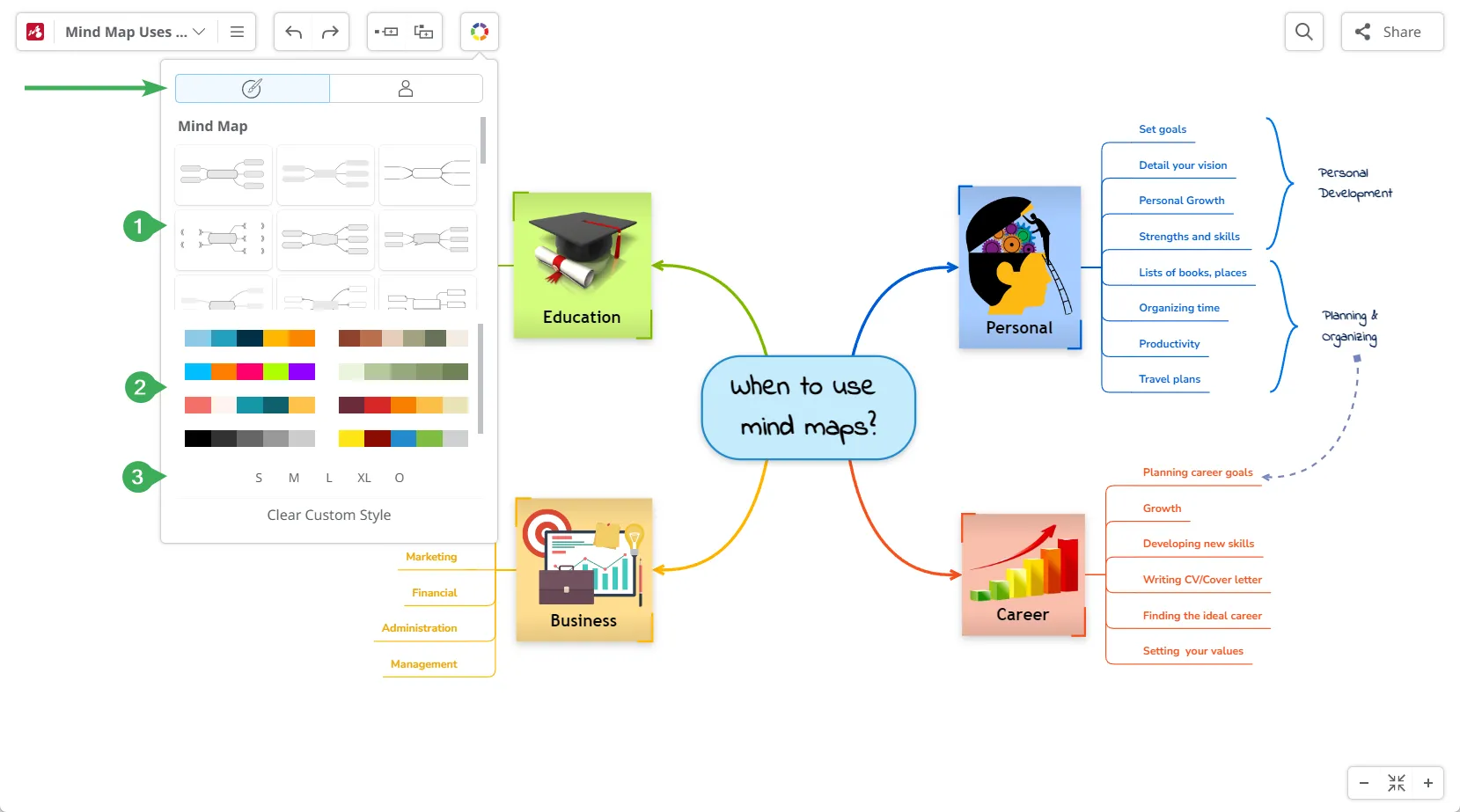
Section titled “1. Style & Layout”Access a variety of theme styles designed for different layouts such as mind maps, tree charts, organigrams, fishbones, and timelines. Each style offers distinct shapes, connectors, fonts, and line designs.
2. Color Palettes
Section titled “2. Color Palettes”Apply a color palette to your diagram with a single click. Clicking repeatedly on the same palette cycles through its alternative color variations.
3. Size
Section titled “3. Size”Adjust the size of your map using presets from S (Small) to XL (Extra Large), or revert to the original size (O) whenever needed.
Custom Theme
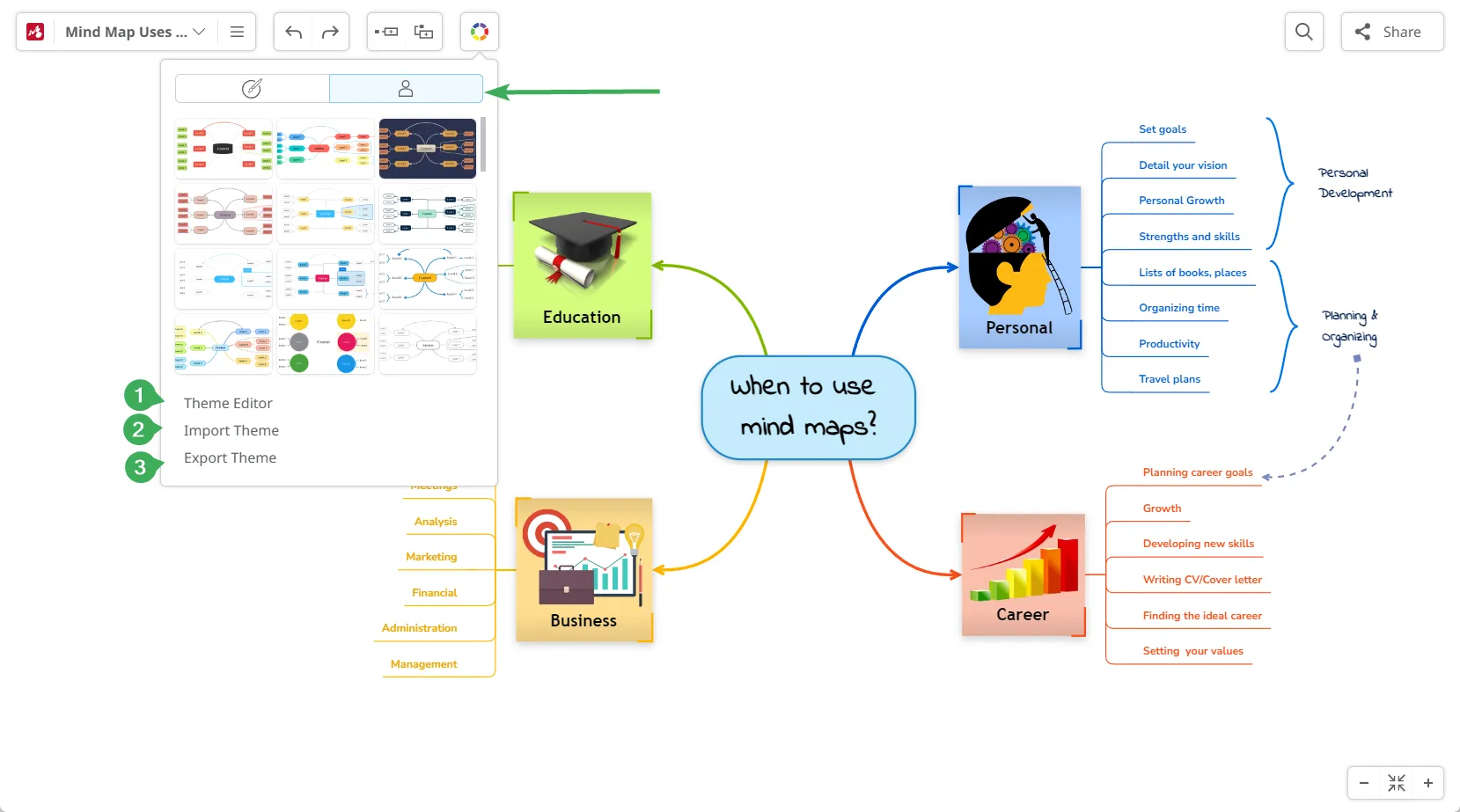
Section titled “Custom Theme”Here, you can find the themes you have created using the Theme Editor (1) based on the layout set on your map. There are also the options to import a theme (2) and export a theme (3).
Theme Editor
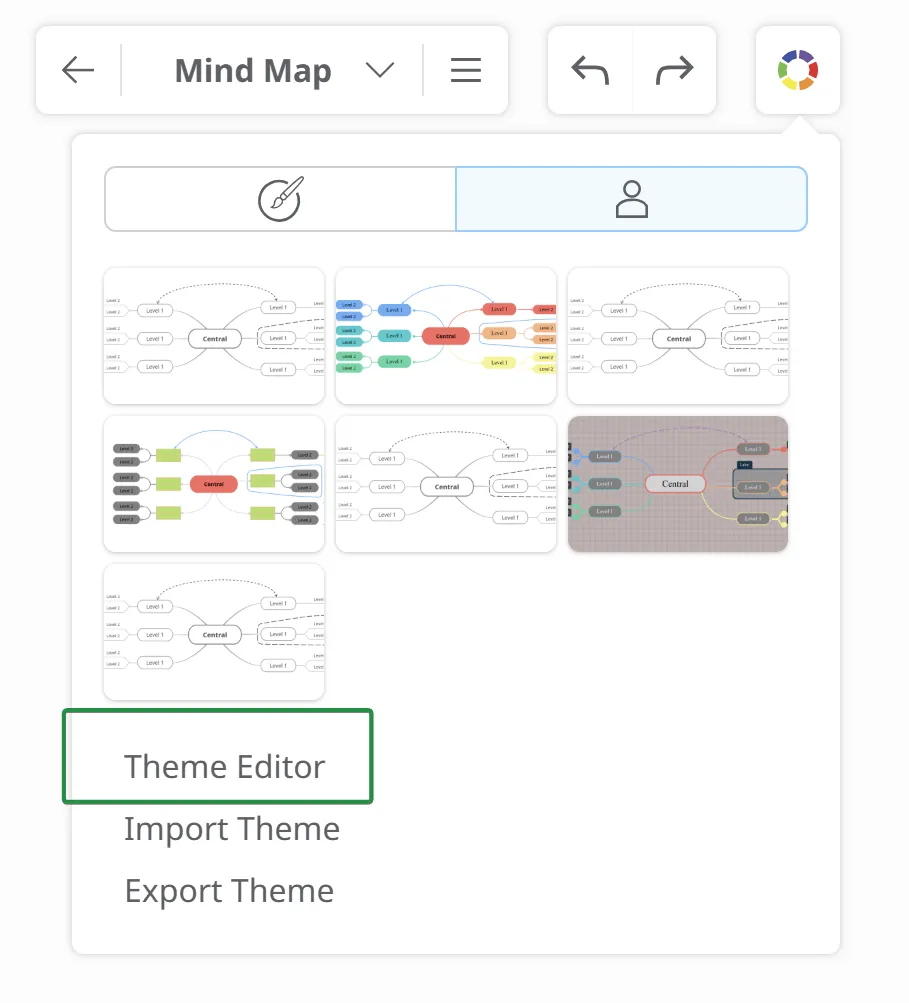
Section titled “Theme Editor”Create personalized map themes by customizing topic styles, connecting lines, and the map background.
-
Click on the Map Styling Wheel, then click on the second tab to access the Theme Editor:
-
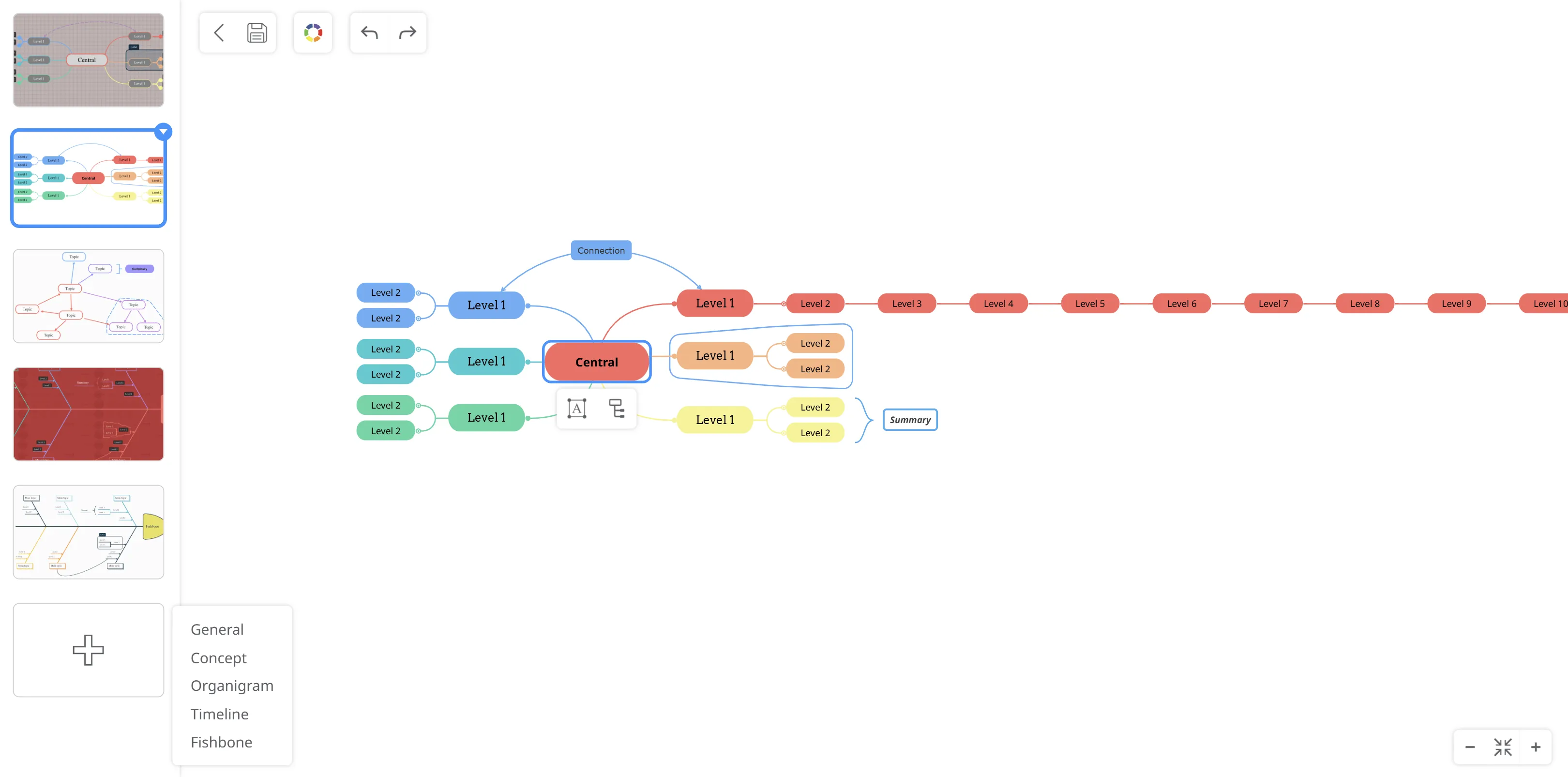
Click on the plus icon (+) from the left-side to create a new theme.
-
Select one of the 5 options - normal map, concept map, organigram, timeline, fishbone.
-
Your custom themes will be displayed on the left side.
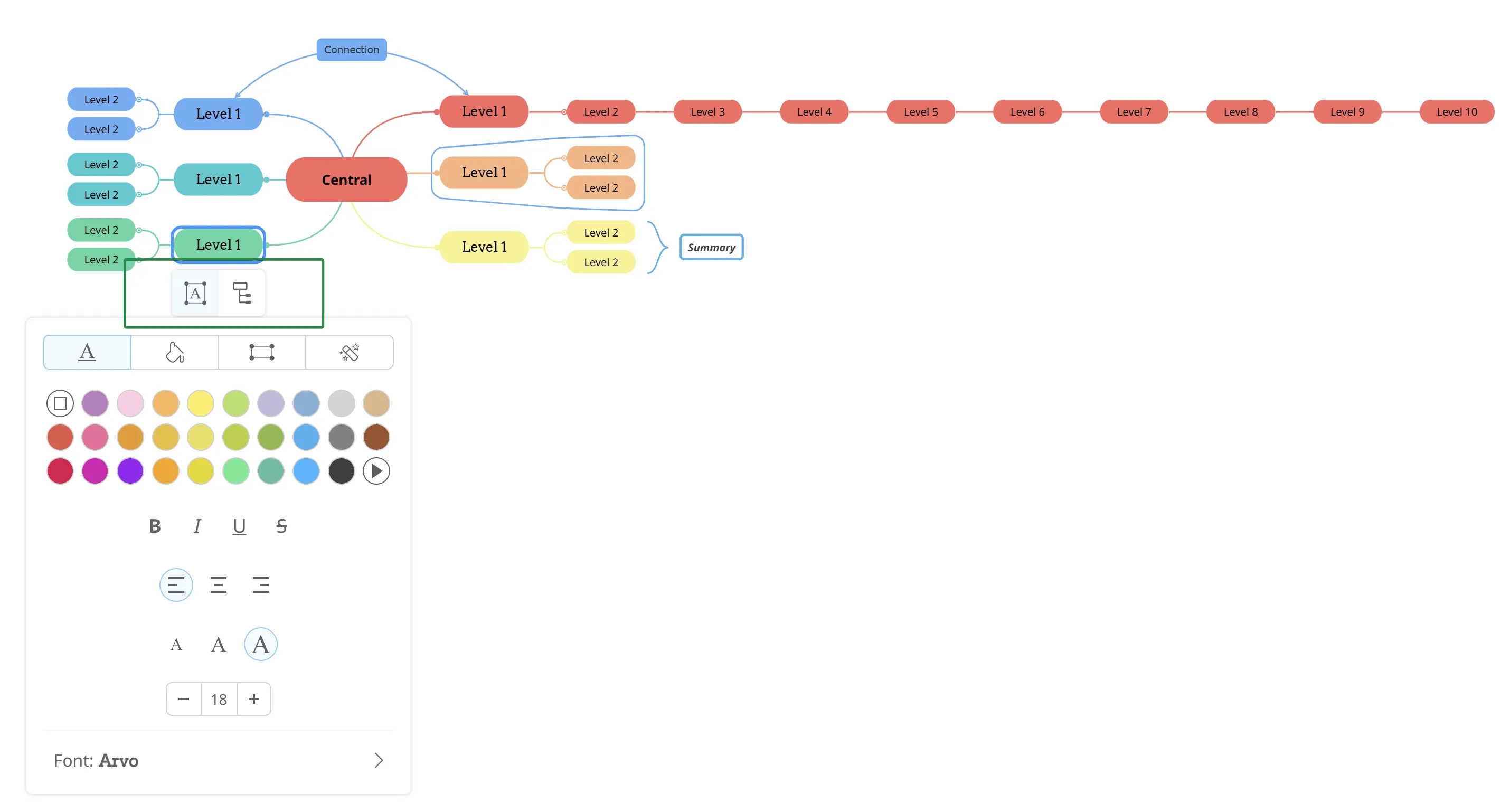
The Theme Editor gives you the possibility to quickly change the way your topics look like, level by level (central topic, main topics, level 2 subtopics, etc.).
- Open the context menu of a topic. You only need to customize one topic per level, as this will propagate to all the topics on that level.
- You have the option to edit the Style and Layout of the topic.
Map background customization
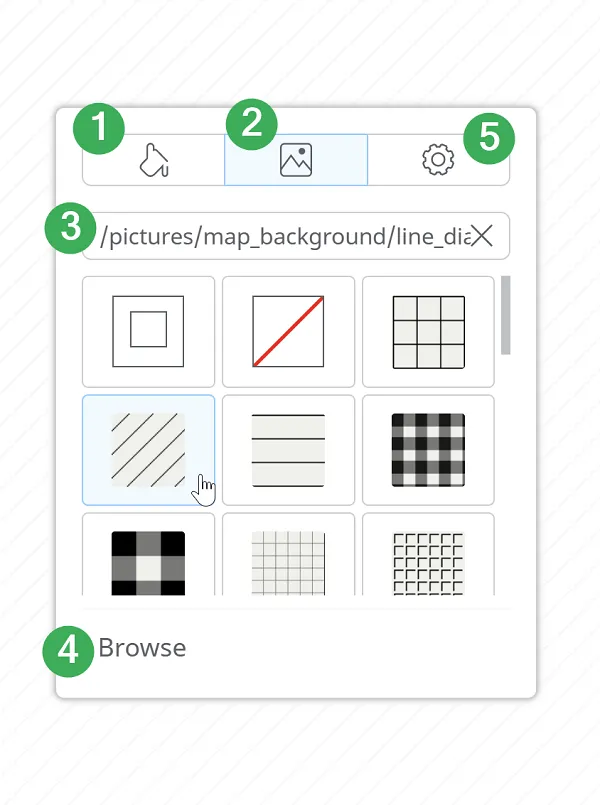
Section titled “Map background customization”Right-click on your map to open the menu.
-
Set the background color.
-
Add a pattern to the map background (square, diagonal lines, etc.).
-
Add an image as background by inserting the image URL.
-
Browse your computer and add your own image as background.
-
Personalize the fit (cover, center, etc.), or the levels of opacity and blur of your background.
Saving a custom theme
Section titled “Saving a custom theme”-
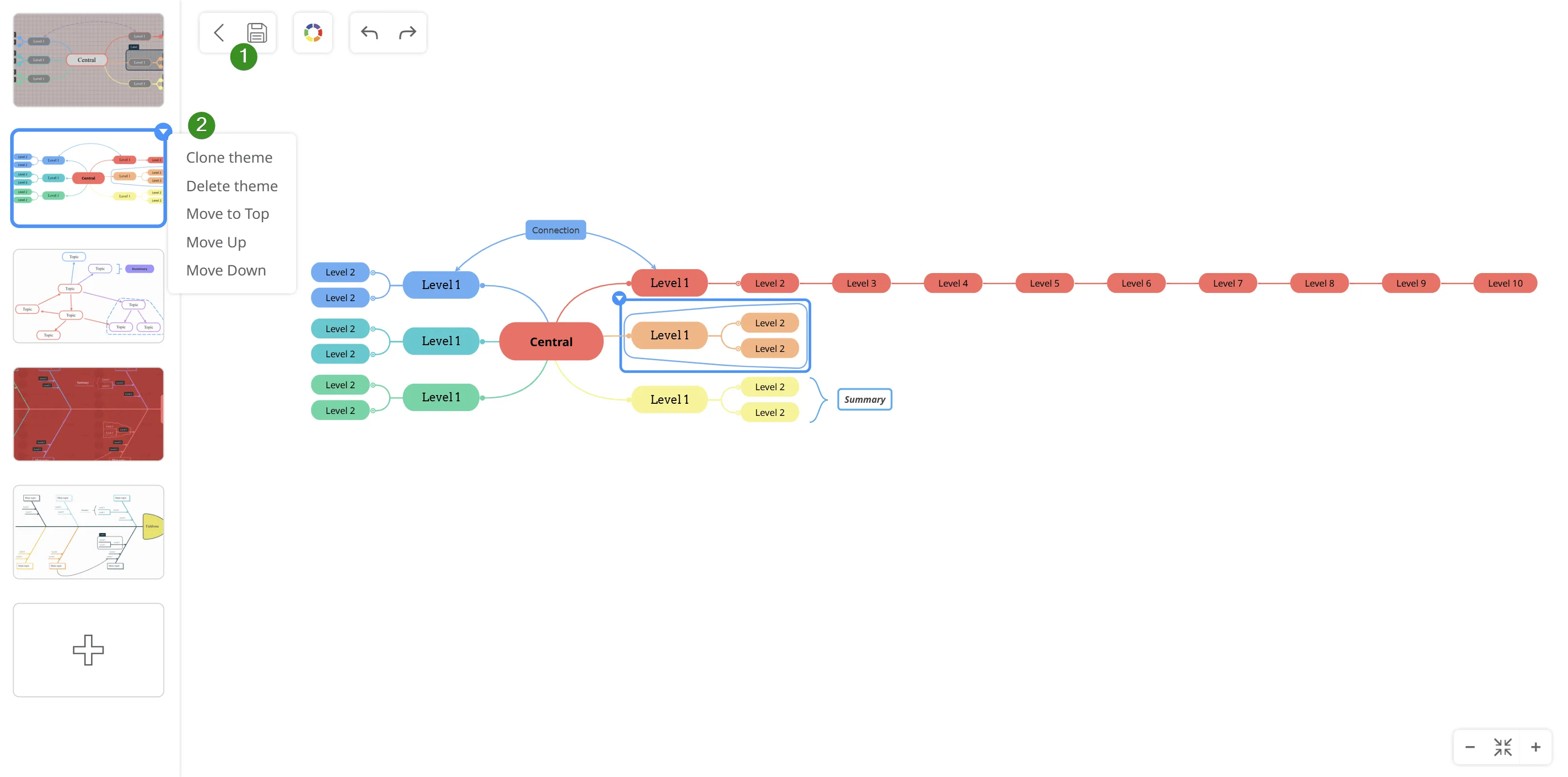
To save the theme, click on the Save icon from the top.
-
Your custom themes - click on the context menu to clone, delete or move themes up and down in the list.
-
Click on the Map styling wheel to see the list of available themes and sizes.
-
Import/Export your themes.