Google Drive
Mindomo’s integration with Google Drive allows you to securely back up your diagrams, access and edit mind maps directly from your Drive, and easily attach media stored in your account. With automatic hourly backups and seamless export and file picker options, managing and safeguarding your work has never been easier.
Backup
Section titled “Backup”Data backup means creating a copy of the data on your system that you can use for recovery in case your original data is lost or corrupted. You can also use backups to recover older versions of files if you have deleted them from your system.
We now offer hourly backups for all your diagrams to safeguard your work even more effectively. You can rest assured that your most recent edits are securely backed up.
To set up Google Drive backup, follow these steps:
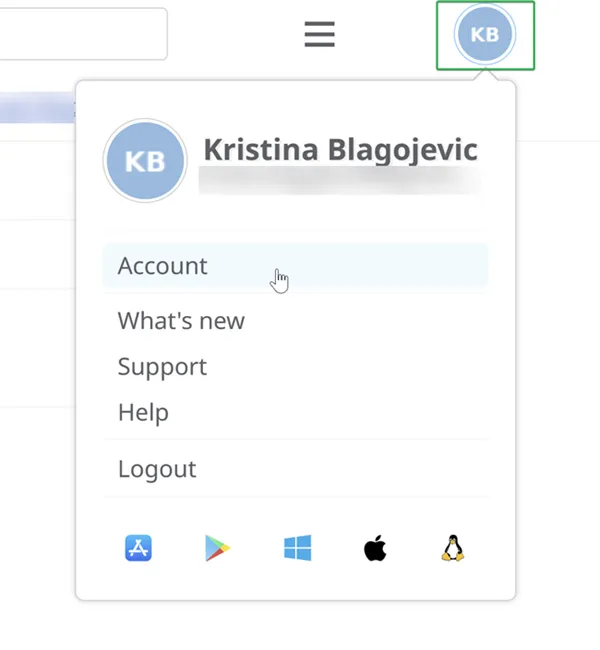
- Click on your initials/picture in the top right corner of the dashboard, then select Account.
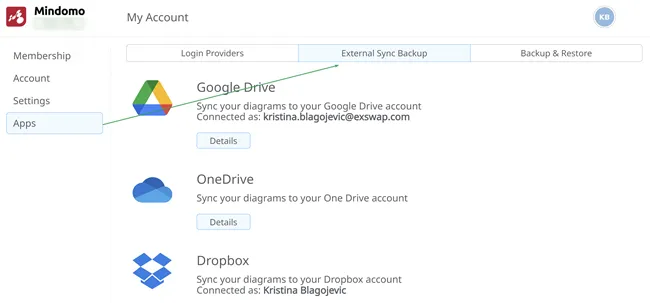
- Click on Apps and then on External Sync Backup.
- Click on the Details button.
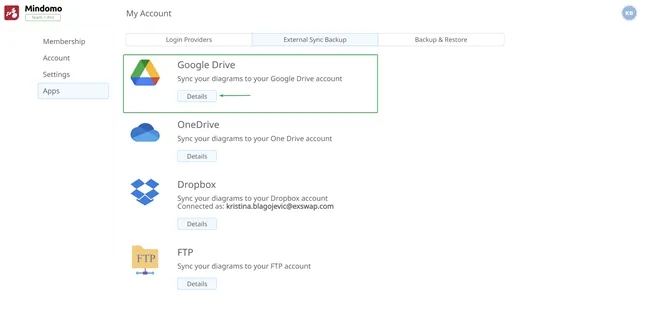
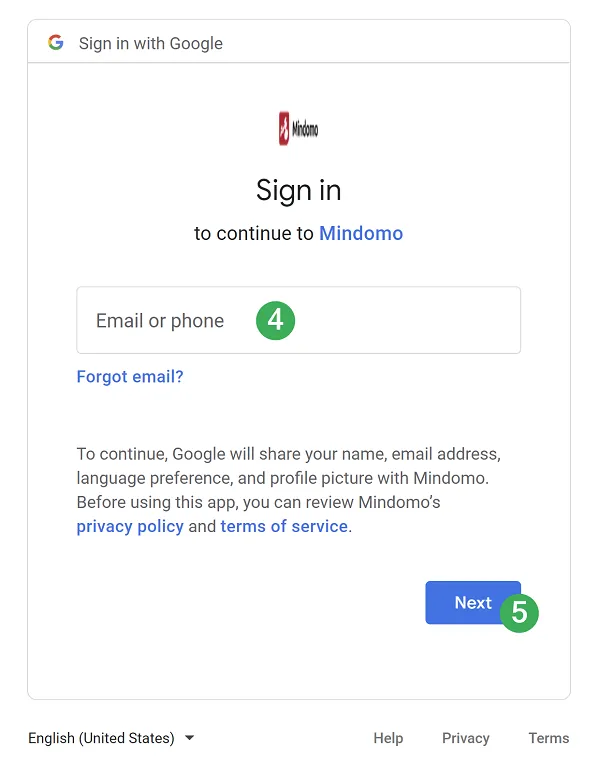
- Grant Mindomo access to your Google Drive account.
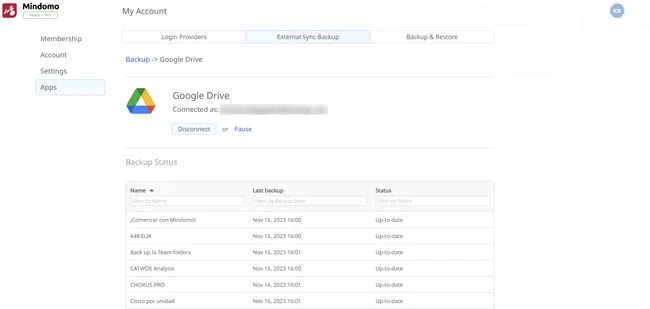
- Your maps will be backed up, and you will be able to see the status.
- If you no longer want to back up your maps to Google Drive, click on the Disconnect button.
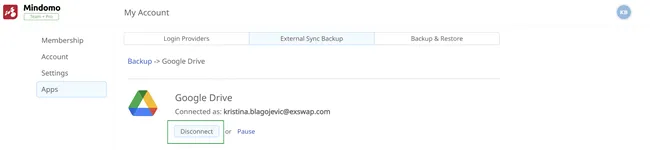
If you click on the Pause button, new diagrams will not be automatically synchronized to Google Drive. To resume automatic synchronization, click on the Synchronize all your diagrams button.
Accessing Mindomo from Google Drive
Section titled “Accessing Mindomo from Google Drive”You can access Mindomo directly from Google Drive. To do this:
- Click on the 3-dot sign → Open with → Connect more apps.
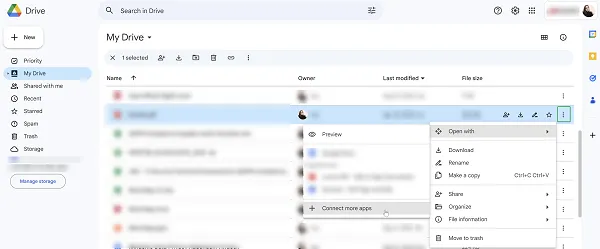
- Type in “Mindomo”.
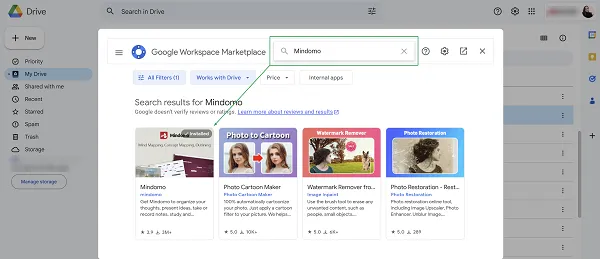
- Click on the Install button.
Once installed, you can access and edit mind maps directly from Google Drive by clicking Open with and selecting Mindomo:
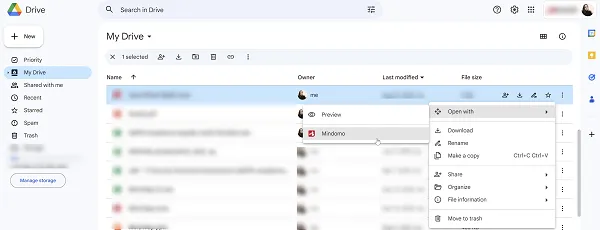
If a mind map is opened directly from Google Drive, it will be backed up even if the backup option is off (in case you clicked the Disconnect button).
We have also improved hierarchy replication in your backup, ensuring your diagrams’ folder structure is faithfully preserved. Additionally, the organization of mind maps is periodically rebuilt. This means that if you move a mind map from one folder to another in your Mindomo account, it will also be moved to the corresponding folder on Google Drive.
Export to Google Drive
Section titled “Export to Google Drive”To export your mind maps in any format to Google Drive, click the Export button and choose Google Drive:
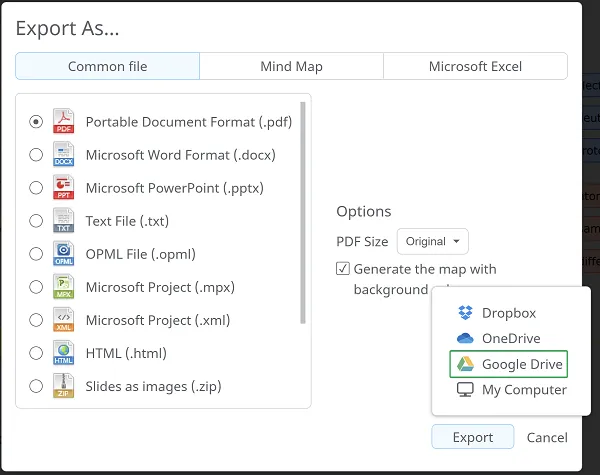
If you have already connected your Mindomo account to Google Drive, the export will happen automatically. Otherwise, you will be redirected and asked to connect the two accounts.
File Picker
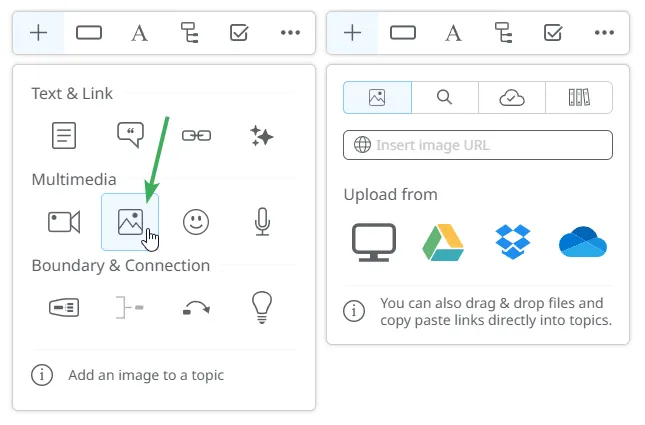
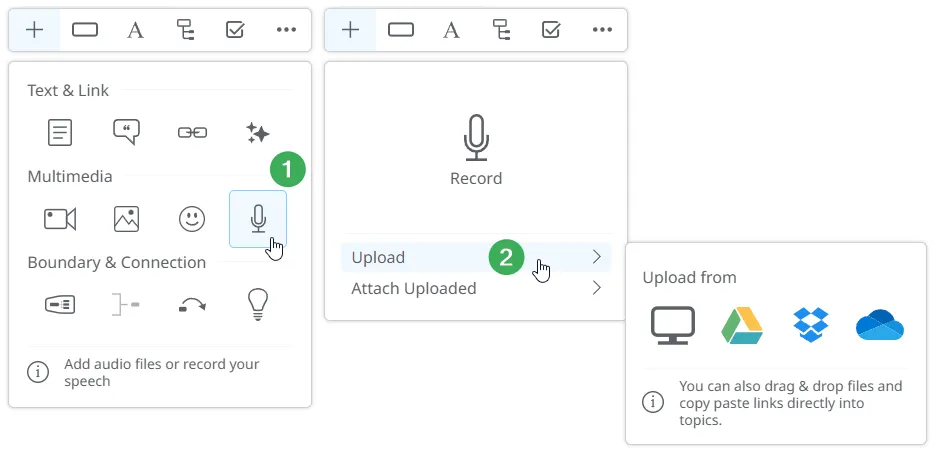
Section titled “File Picker”With Google Drive integration, you can easily attach files stored in your Drive directly into your mind map. You can access the file picker from the following panels:
1. Hyperlink & Attachments
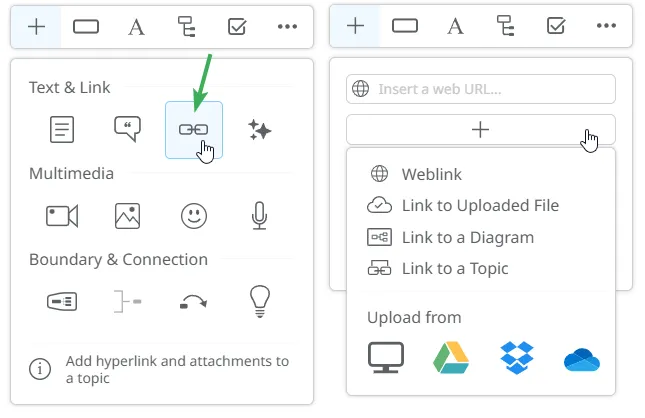
2. Images
3. Audio
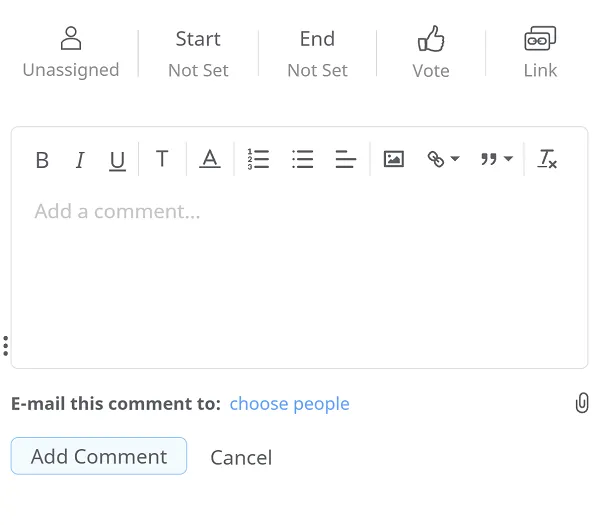
4. Comments
The comments functionality is available in mind maps, outlines, and Gantt Charts: