

Creating mind maps on Android
This guide provides detailed instructions to help you efficiently create, organize, and customize mind maps and folders on your Android device. Discover how to utilize templates, leverage AI-assisted mind mapping, and manage your diagrams within the app to enhance your productivity and workflow.
Create mind maps and folders
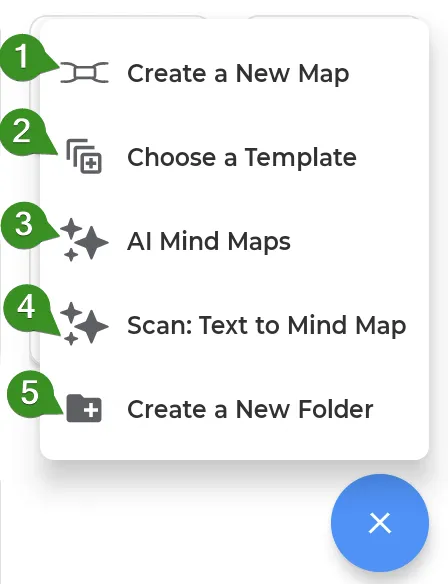
Section titled “Create mind maps and folders”Tap on the + sign in the lower right corner to create:
- New mind map
- Choose a template
- Generate a mind map from scratch with AI
- Scan: Text to Mind Map
- New folder
Use a template
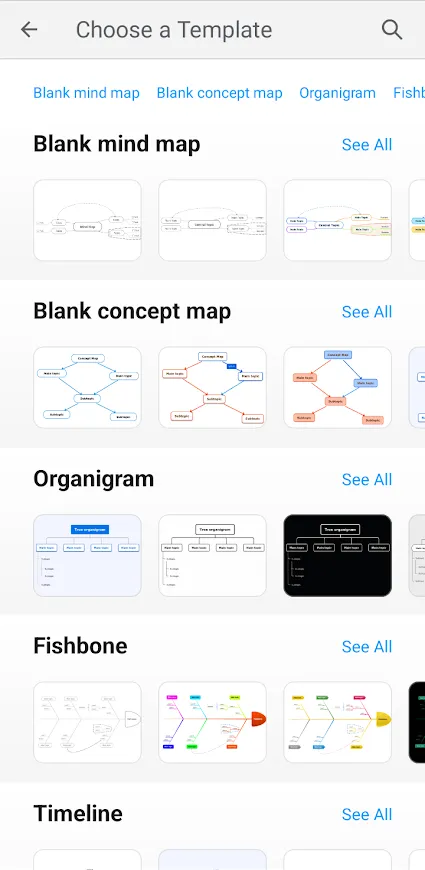
Section titled “Use a template”Choosing a template will allow you to use a predefined theme and color scheme for your mind map, concept map, or organigram.
We also offer mind map templates that are prefilled and contain instructions on how to complete them.
Use AI mind maps
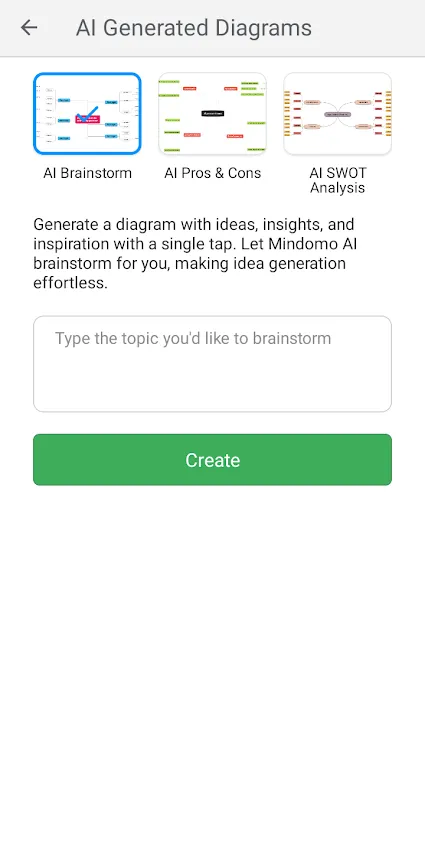
Section titled “Use AI mind maps”Mindomo AI allows you to instantly generate distinct types of mind maps, each tailored to specific needs and preferences:
- Brainstorm
- Pros & Cons
- SWOT Analysis
Select the diagram type you wish to create using Artificial Intelligence (AI), then enter a topic for analysis/brainstorming. Mindomo AI will generate a fully editable diagram for you.
Add topics
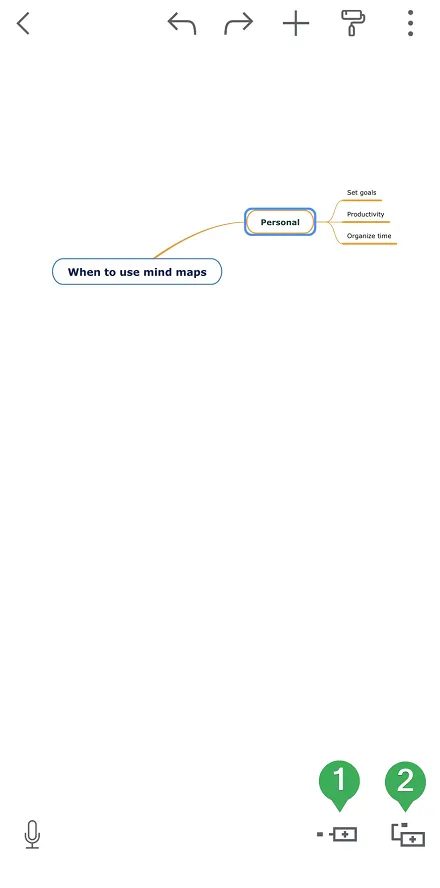

Section titled “Add topics”- Add subtopic by tapping on the first icon in the lower right corner
- Add sibling topic by tapping on the second icon in the lower right corner
Move topics
Section titled “Move topics”To move or reposition a topic, press and hold it, then drag it to the desired location.
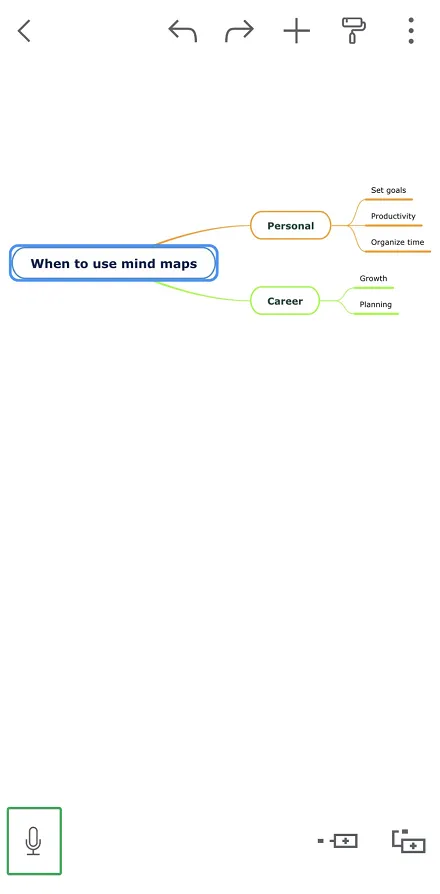
Speech-To-Text functionality
Section titled “Speech-To-Text functionality”This functionality enables the recognition of spoken language into text.
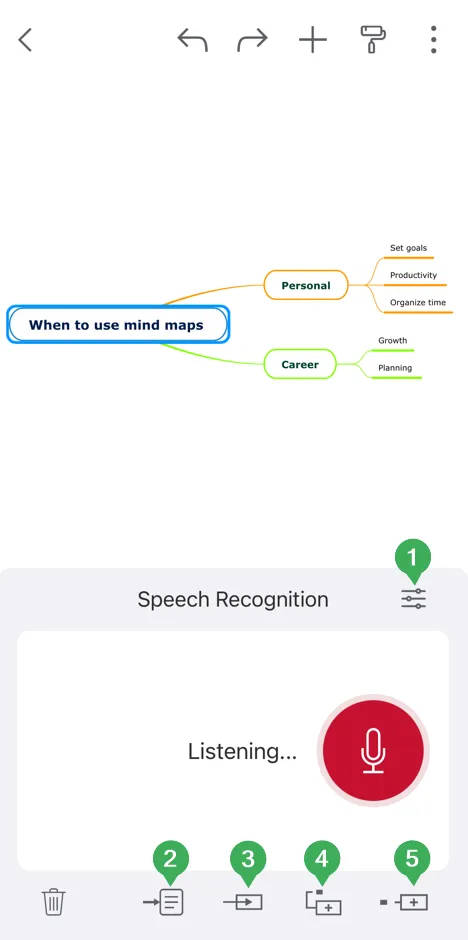
Before speech recognition, select the language (1). You will be able to insert the text into a note (2), into a selected (sub)topic (3), into a new sibling topic (4), or into a new subtopic (5).
Topic customization
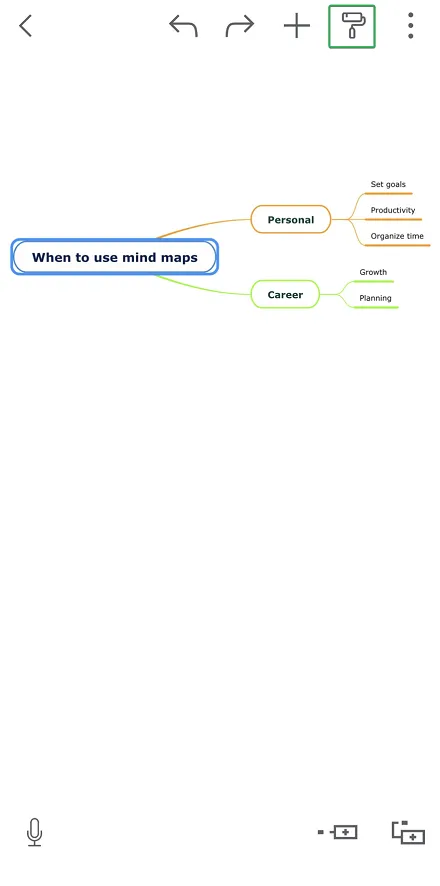
Section titled “Topic customization”To customize a topic, tap on the Style icon in the upper right corner and then tap on the topic you would like to change:
You can customize the selected topic (Topic panel) or the entire diagram (Map panel).
Text customization
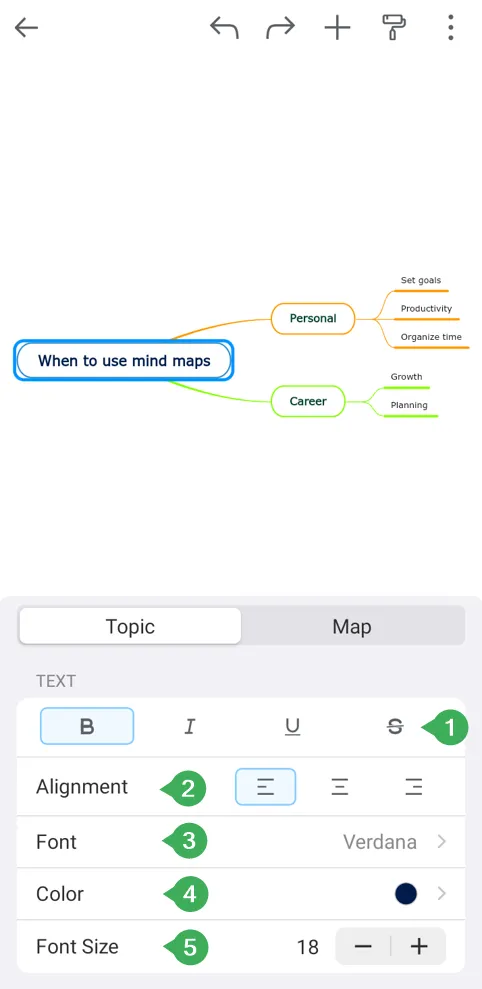
Section titled “Text customization”In the Topic panel, you have the TEXT category where you can set:
- Bold, Italic, Underline, and Strikethrough – use these options to format your text
- Alignment – you can choose Left, Center, or Right
- Font – choose from various font families
- Color – select the color of your text
- Font size
Style customization
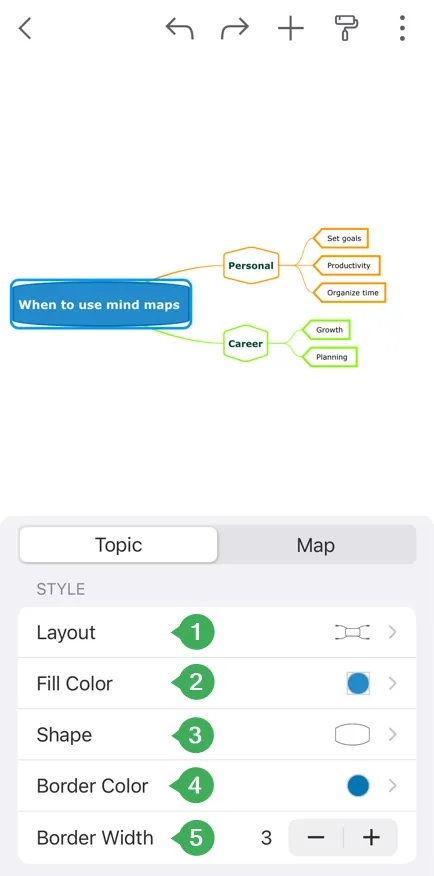
Section titled “Style customization”Scroll down to the Style category. Here you can change:
- Layout – choose from several layout types; can be changed for the whole mind map or set for certain branches
- Fill Color – choose a background color for your topic
- Shape – there are various topic shapes you can choose from: rectangle, rounded rectangle, elliptic rectangle, circle, oval, line, capsule, parallelogram, hexagon, rounded hexagon, diamond, left arrow, right arrow, trapeze, cloud, speech bubble, etc.
- Border Color – choose a border color for your topic
- Border Width – use the two arrows to adjust the width of your topic’s border
Line customization
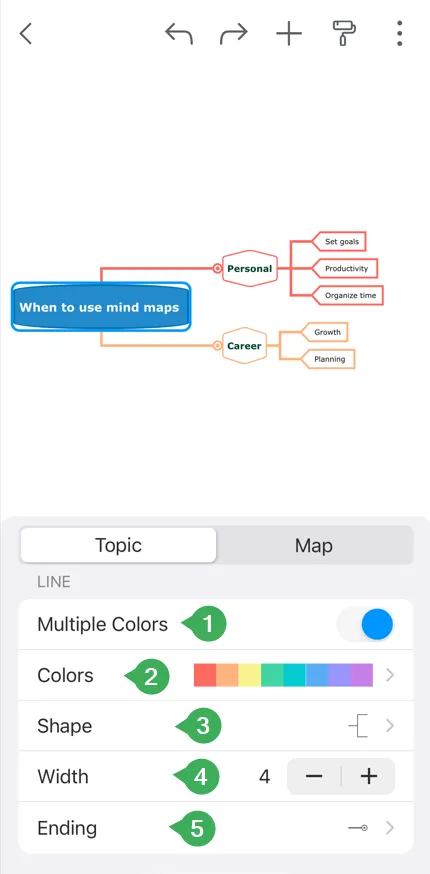
Section titled “Line customization”Scroll down to the Line category. Here you can change:
- Multiple Colors – enable this option if you want your connections to have a rainbow color scheme
- Colors – you can select the scheme of colors for your connections. If the Multiple Colors option is not active, you will only be able to select a single color for your lines
- Shape – there are various line shapes you can choose from: straight, arc, rough, curve, elbow, rounded elbow, angle, no line, etc.
- Line Width – adjust it to make the connections thinner or thicker
- Ending – there are various line ending types you can choose from
Multimedia customization
Section titled “Multimedia customization”Scroll down to the Multimedia category. If you added an image inside a topic, here you can change:
- Alignment – choose the alignment of the image inside the topic: right, left, bottom, or top
- Rounded corners – enable this option if you want to apply rounded corners to the image

Map customization
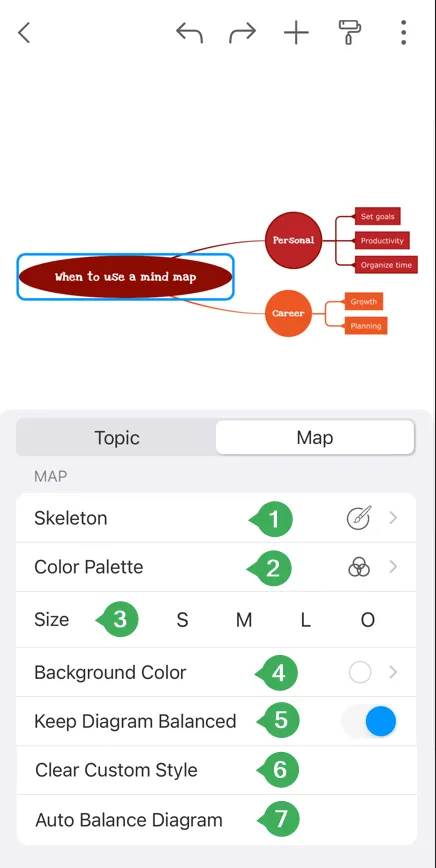
Section titled “Map customization”In the Map panel, you can customize the entire diagram:
- Skeleton – choose one of the predefined structures
- Color Palette – choose one of the predefined color sets
- Size – choose one of the size options for your mind map
- Background color – select a background color for your mind map
- Keep diagram balanced – by enabling this option, the topics of your mind map will be auto-aligned
- Clear custom style
- Auto balance diagram
Insert panel
Section titled “Insert panel”To enrich your mind map with notes, icons, images, etc., tap on the Insert icon in the top-right corner:
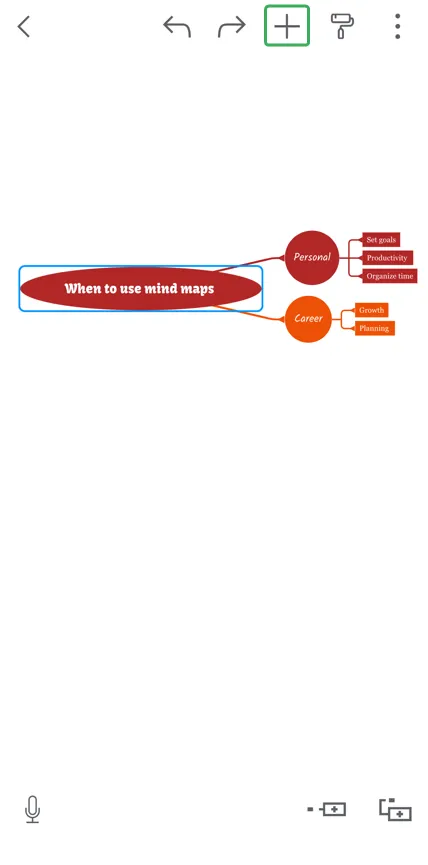
The Insert panel gives you the option to add the following:
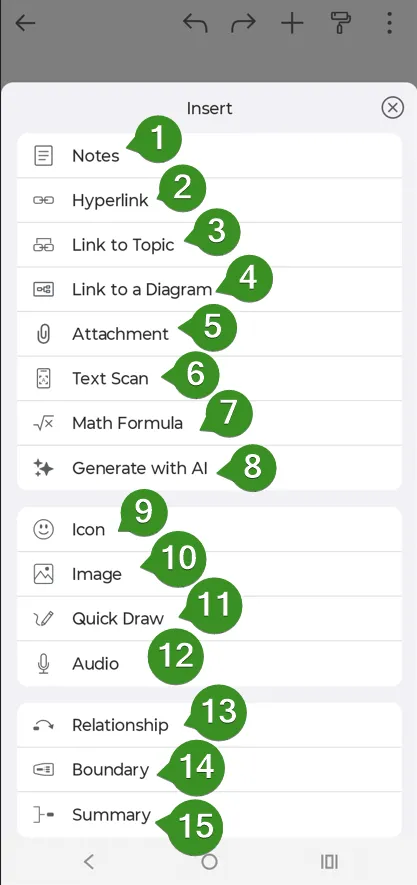
- Notes – add or remove notes to the topics of your mind map
- Hyperlink – add a hyperlink to your topics
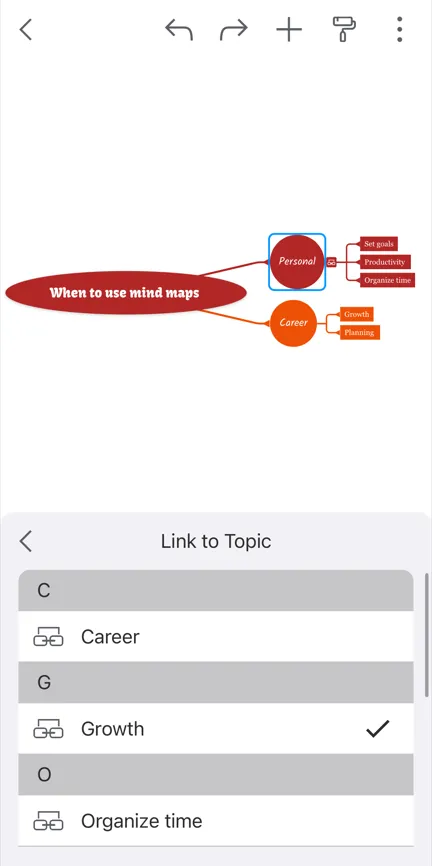
- Link to Topic – add a link that navigates to a specific topic in this diagram when clicked
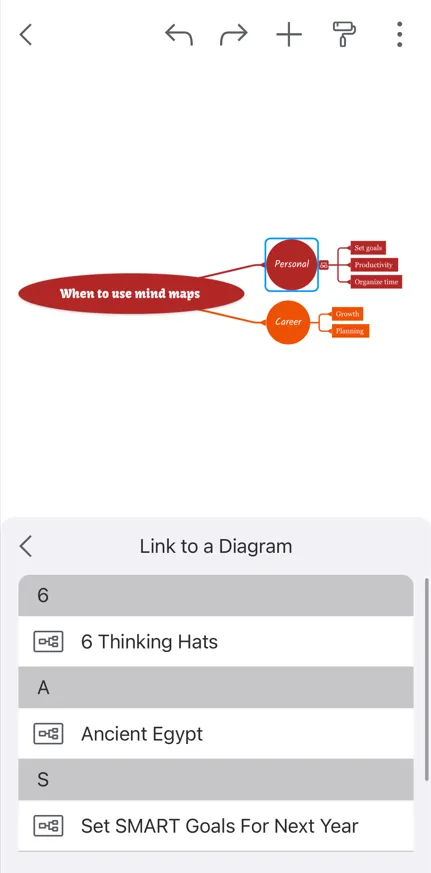
- Link to a Diagram – add a link to one of your diagrams (clicking on it will open the designated diagram)
- Attachments – add attachments
- Text Scan – with this option, you can either scan text by taking a new photo or choosing a photo from the library. After taking a new photo or choosing a photo from the library, you can: Replace text on topic, Add text as a new subtopic, or Add each line as a subtopic.
-
Math Formula – allows you to add mathematical expressions into your diagram using KaTeX syntax
-
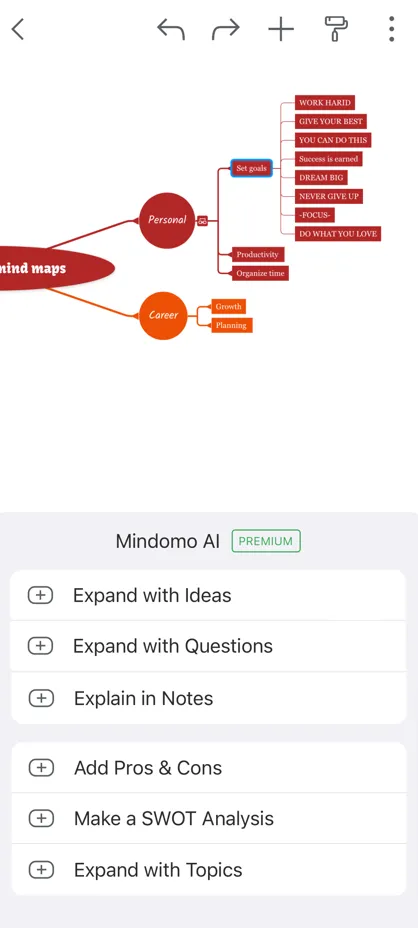
Generate with AI – there are 6 options you can choose to expand your diagram using Mindomo AI:
- Expand with Ideas: produce succinct yet impactful ideas, each presented in a sentence of no more than 15 words. These ideas are added as subtopics to your selected topic.
- Expand with Questions: adds a set of questions associated with your selected topic.
- Expand in Notes: automatically creates detailed explanations in the notes section.
- Add Pros & Cons: adds a few pro and con arguments in subtopics, ensuring a comprehensive examination of your selected topic.
- Make a SWOT Analysis: automatically generates a SWOT analysis, highlighting the strengths, weaknesses, opportunities, and threats, arranged in separate subtopics, offering a holistic view of your subject.
- Expand with Topics: expand your mind map with five additional subtopics.
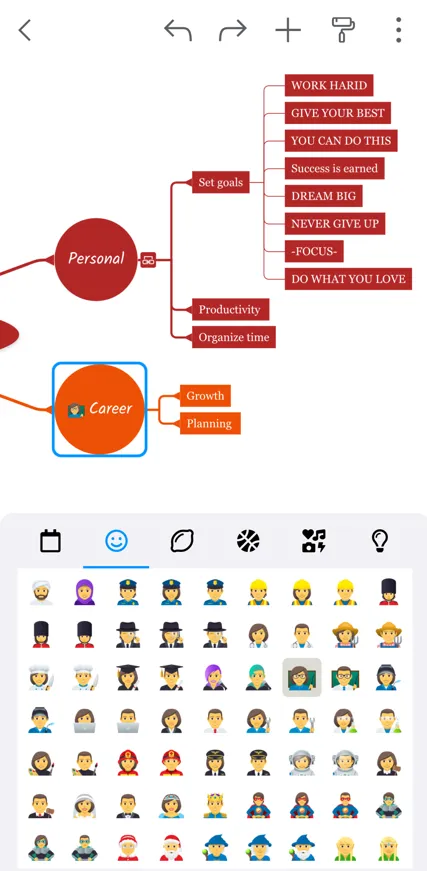
- Icon – add icons to your topics. Tap on the icon from inside the list to remove it.
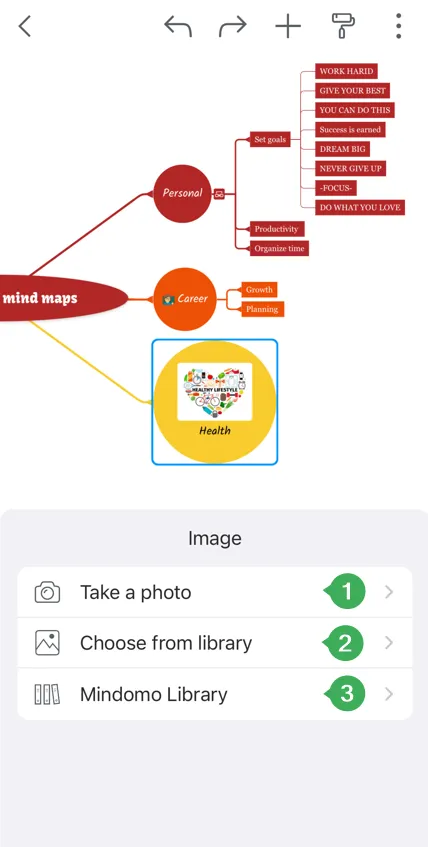
- Image – you can take a photo (1), choose an image from the library (2), or choose an image from the Mindomo library (3)
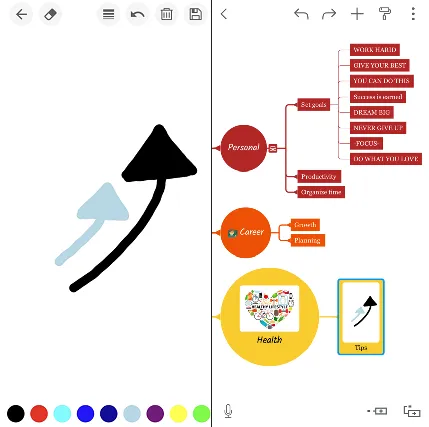
- Quick Draw – this option will open a blank canvas so that you can freely doodle and insert your drawing directly into the topic
-
Audio – record audio
-
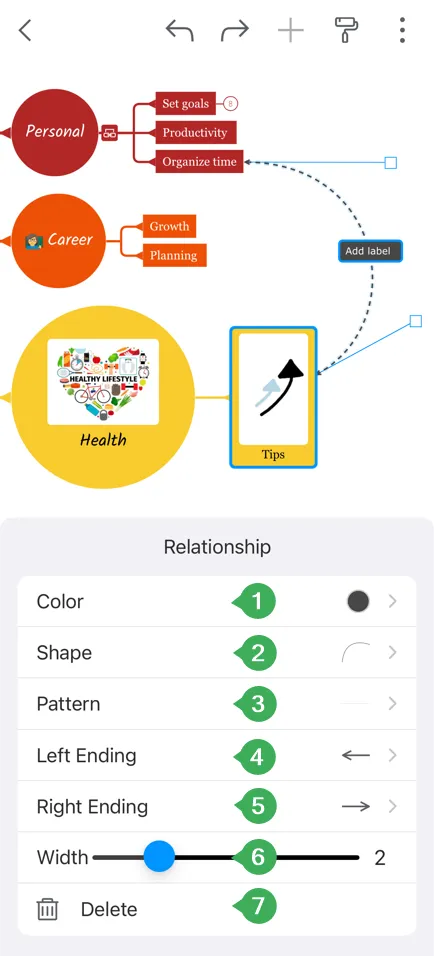
Relationship – add a relationship between two topics of your mind map. Tap on the relationship and then on the Style icon to customize the relationship label (1. color, 2. shape, 3. pattern, 4. arrows’ endings, 5. width, 6. delete relationship)
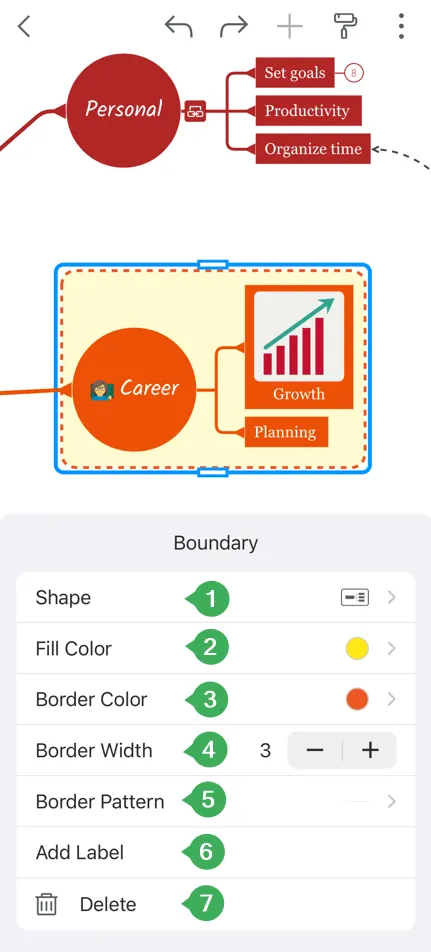
- Boundary – add a boundary to mark and determine the limits of an area on your diagram. You can change the shape (1), fill color (2), set border color (3), width (4), pattern (5), edit the label (6), or delete the boundary (7).
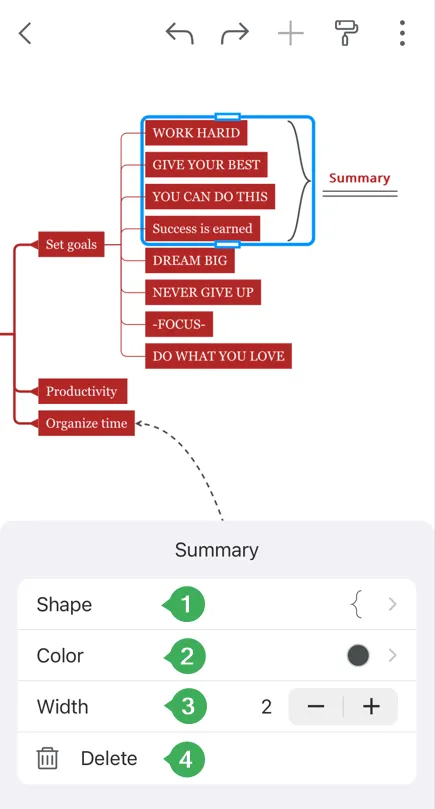
- Summary – after adding the summary, you will be able to customize its shape (1), border color (2), border width (3), or delete the summary (4).
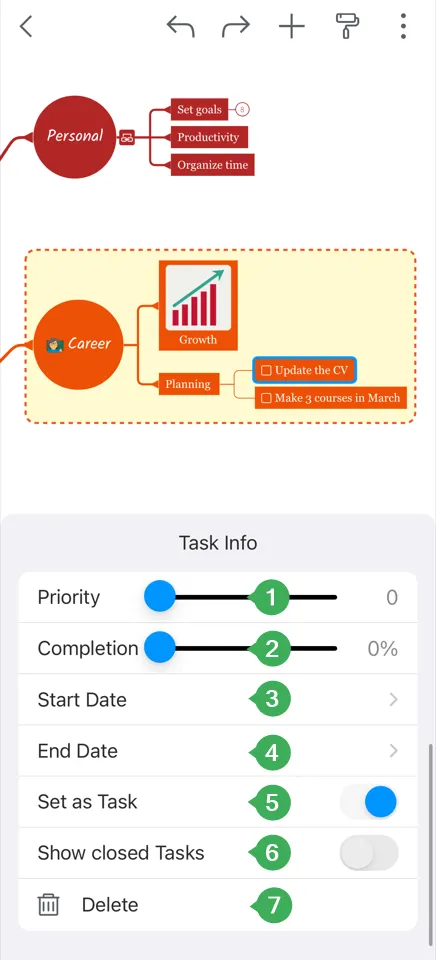
- Task Info – set priority (1), completion (2), and start and end dates (3, 4). A checkbox will appear in front of task subtopics (5). Make sure that the Show completed tasks (6) option is enabled to view all completed tasks. You can also delete it (7).

Option panel
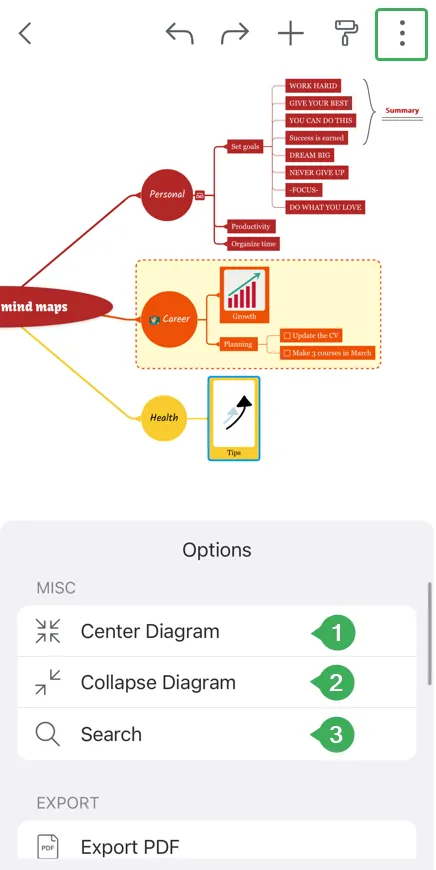
Section titled “Option panel”- Center Diagram – use this option to reset the position of your diagram on the canvas
- Collapse Diagram – use this option to hide all subtopics
- Search
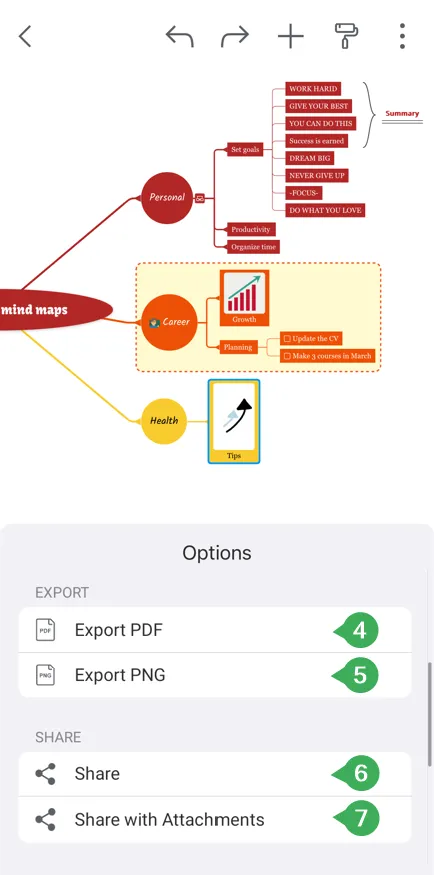
- Export PDF – store your diagram locally on your device in PDF format
- Export PNG – store your mind map locally on your device in PNG format
- Share
- Share with attachments
- Play Presentation
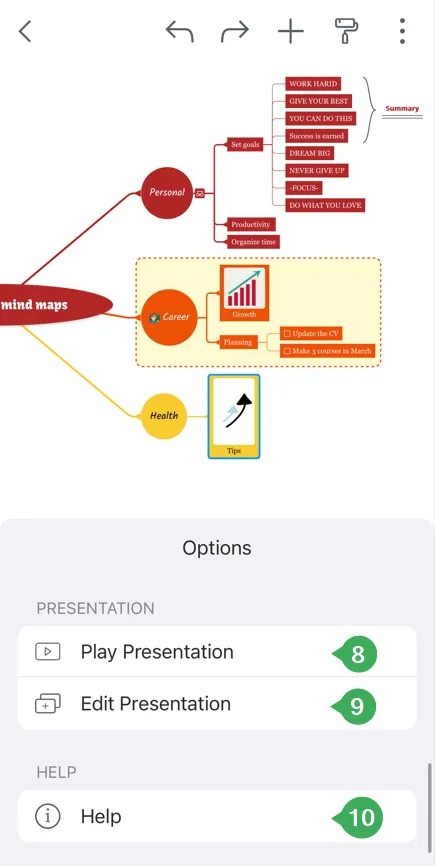
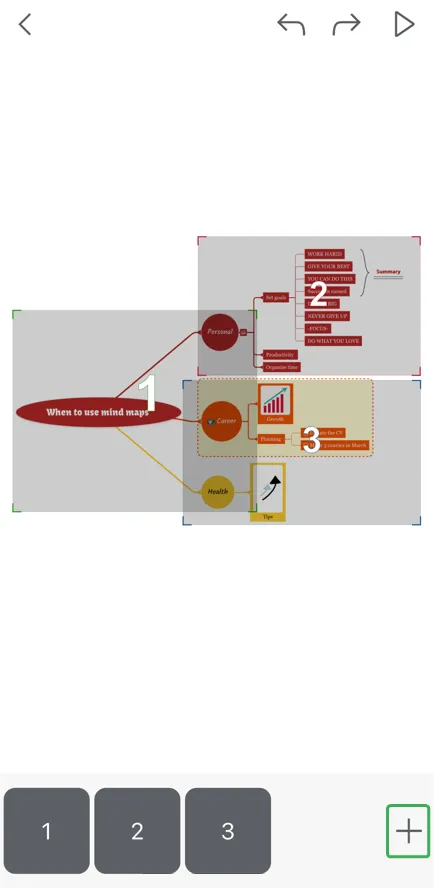
- Edit Presentation – to insert a new slide, tap on the + sign. Select the topics you want to include in your slide by drawing a rectangle on the screen with your finger.
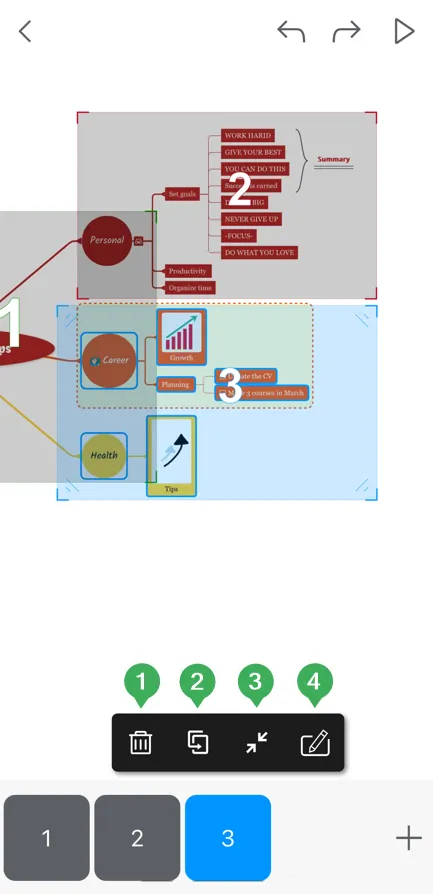
By tapping on the number of the slide at the bottom of your screen, you will be able to delete a slide (1), duplicate a slide (2), resize a slide (3), and include or exclude topics from the slide (4).
- Help page – opens the help section
Access your Mindomo Cloud account
Section titled “Access your Mindomo Cloud account”The Mindomo mobile app has two sections you can use:
- Cloud: you need to log in to a Mindomo Cloud account. The diagrams stored in this section will be automatically synced to your Cloud account, allowing you to access them from any device.
- Device: diagrams will be stored on your device’s local storage.
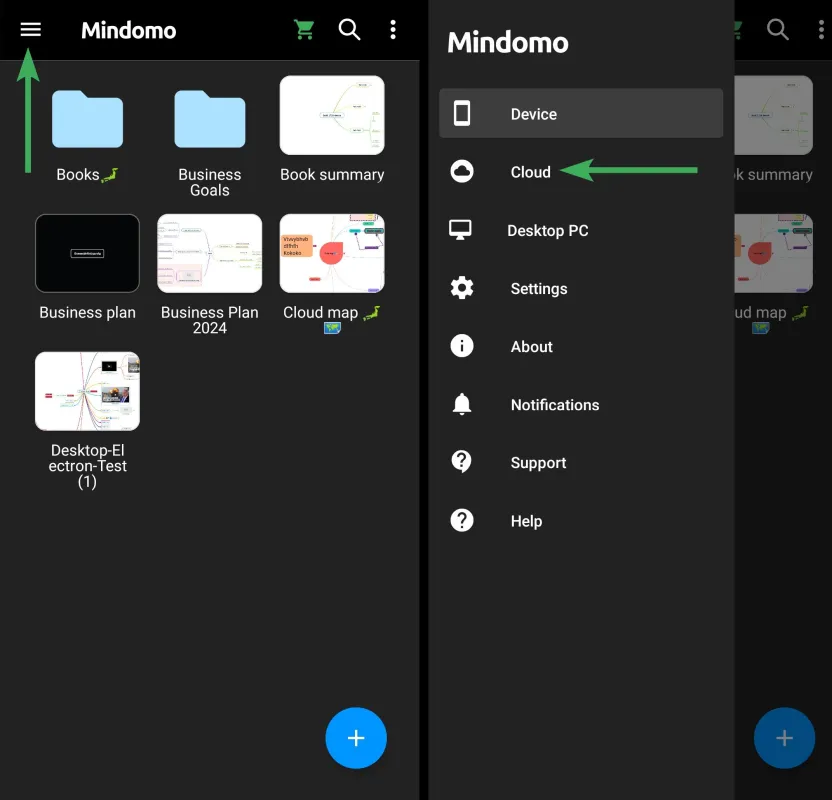
To access the Cloud section, follow these steps:
- Tap on the File menu
- Tap on Cloud
- Log in with your registered email address and password
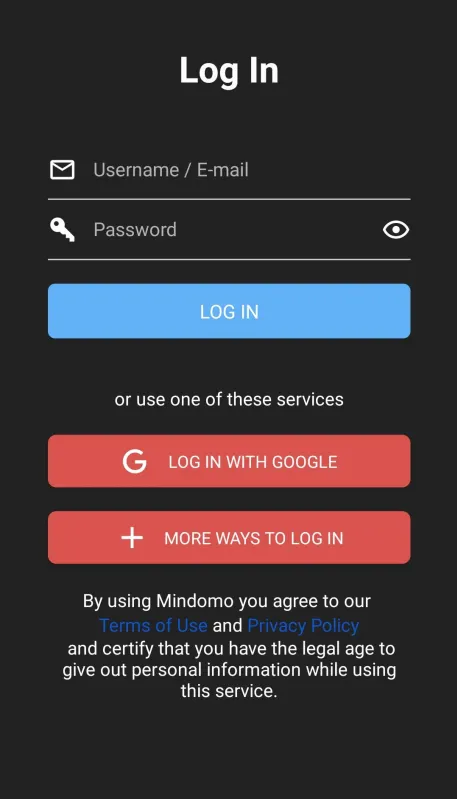
If you do not have a Mindomo Cloud account, use one of the following options:
Log in with Google
Section titled “Log in with Google”You can use your Google account to create a Mindomo account instantly. Tap on Log in with Google, then log in to your Google account.
Log in using another account
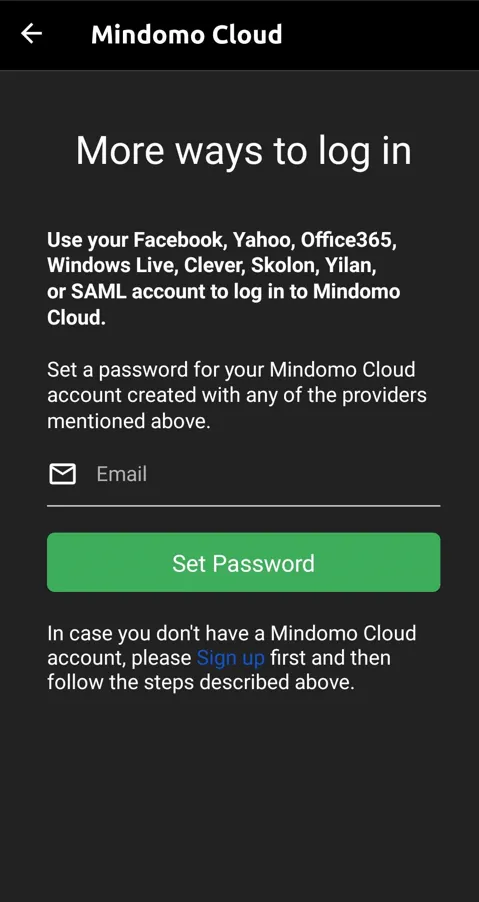
Section titled “Log in using another account”Use this method only if you previously signed in from the browser version of Mindomo using your Facebook, Yahoo, Office365, Windows Live, Clever, Skolon, Yilan, or SAML account. When you signed in to Mindomo from a browser using one of these accounts, a Mindomo Cloud account was created, and you can now set up a password to log in from the mobile app as well.
Tap on More ways to log in. Then type in the email address linked to the account you used and tap on Set Password.
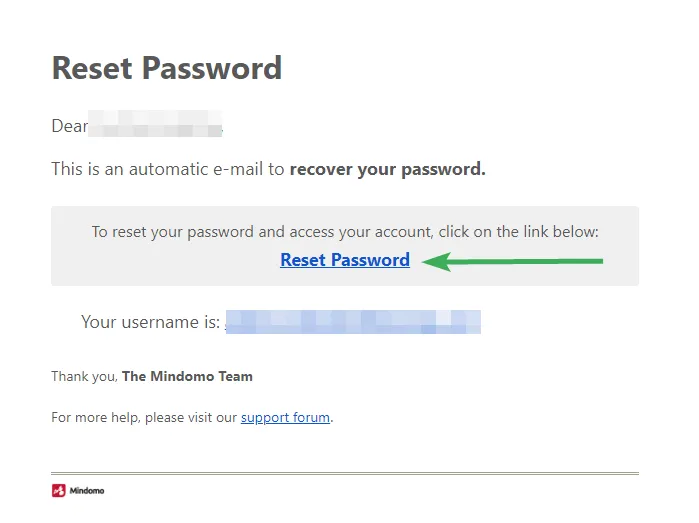
Follow the instructions you receive in your email. Afterward, return to the Mindomo app and use the email address and the new password to log in to your account.
Sign up
Section titled “Sign up”To create a new Mindomo account, use this link and follow the steps: Sign up. After creating a Mindomo Cloud account, you can log in from any device or browser.
Log out
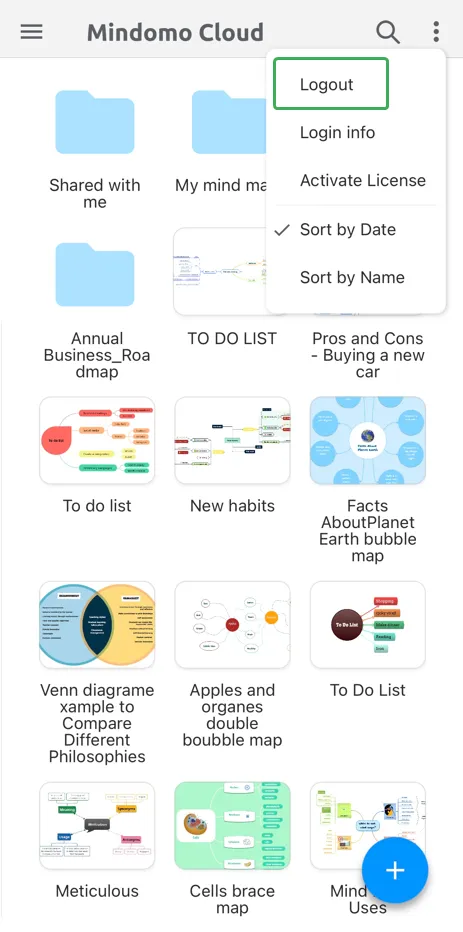
Section titled “Log out”- To log out of your account, tap on the More icon, then on Logout
Mindomo Cloud folder
Section titled “Mindomo Cloud folder”- The Cloud folder contains your diagrams from your online account.
- When you are online, any changes you make to your diagrams in the Cloud folder will be automatically synced to your online account.
- When you are offline, the changes you make to your diagrams in the Cloud folder are automatically saved, and when you reconnect to the internet, those changes will be synchronized with the online version.
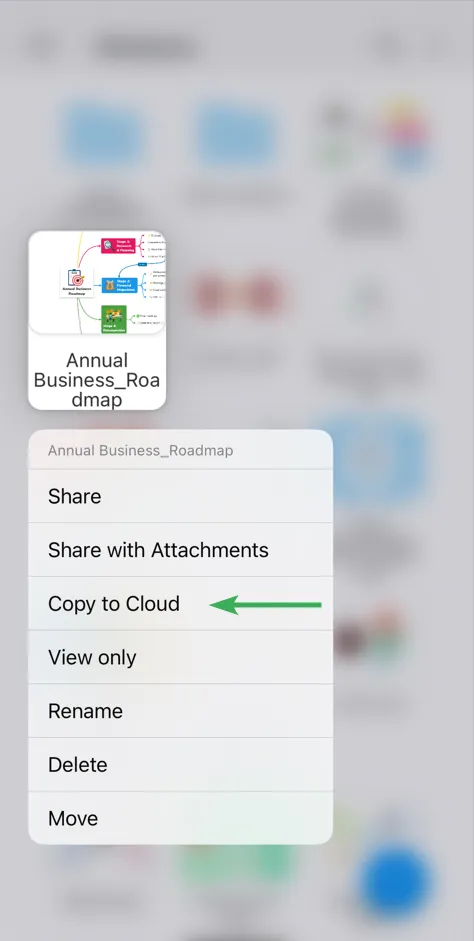
- To move a diagram from your local folder (Device) to the Cloud folder, long-tap on the diagram, then tap on Copy to Cloud. This will create a copy of your diagram in your Cloud folder.
Mindomo Device folder
Section titled “Mindomo Device folder”This folder contains diagrams that are located only on your device. They will not be synchronized with the online account unless you move them to the Cloud folder.
Save changes to maps
Section titled “Save changes to maps”The changes you make to diagrams in the local or Cloud folder are automatically saved on your device.
How to find your old diagrams
Section titled “How to find your old diagrams”According to the new Android requirements, Mindomo will request storage permissions to a single folder used exclusively to store app files.
If you have used the Mindomo app for diagramming before, your diagrams are not lost or deleted.
All you need to do is find the old folder where Mindomo stored your files and give Mindomo permission to access that folder.
Selected folder 1
Section titled “Selected folder 1”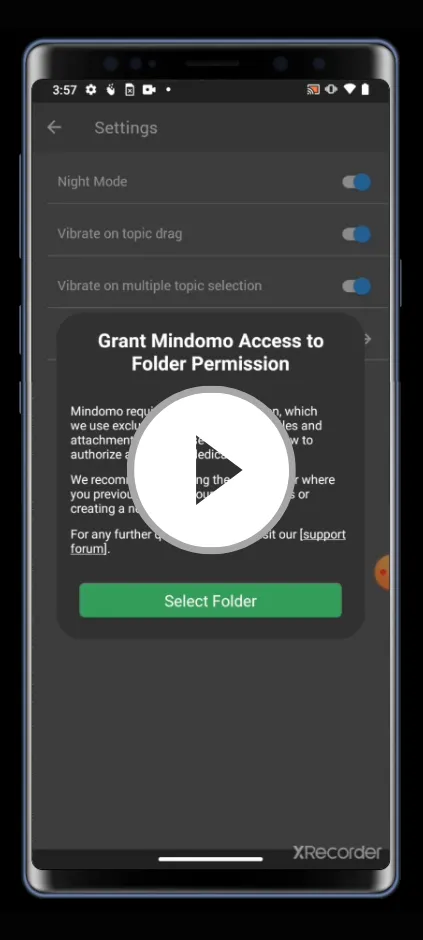
Mindomo stored your diagrams in your phone’s internal storage.
By default, most Android phones hide the phone’s internal storage. You need to manually activate a setting to see all folders in your phone’s internal storage.
Please check the video above, which illustrates the procedure for a Motorola E7 Plus phone. Please note that the process may look different on your phone.
If you cannot find this option in your phone’s settings, you should Google “show internal storage on ______ (your phone)” or watch the next video.
Selected folder 2
Section titled “Selected folder 2”
If the above steps did not work, please check the video above. It presents a different solution that can help you recover your old diagrams.
Create folder
Section titled “Create folder”
If you installed the app for the first time, you need to create a folder where Mindomo will store all your diagrams. Please check the video above on how to do this.
Notifications
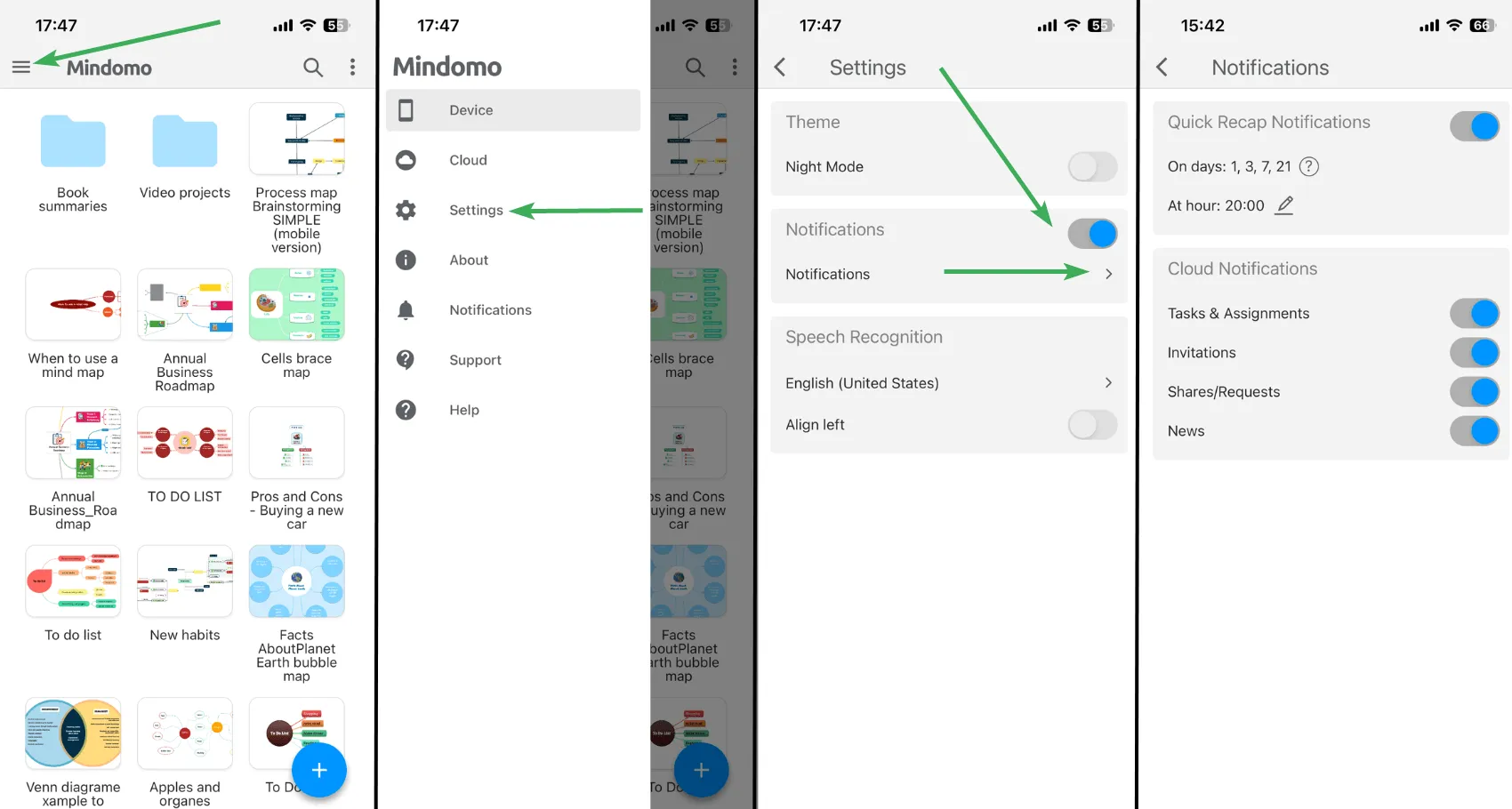
Section titled “Notifications”Mindomo has two categories of mobile notifications: Quick Recap Notifications (reminders from diagrams stored in the Device folder) and Cloud Notifications (notifications from your diagrams saved in your Mindomo Cloud).
At any time, you can adjust Notification Settings by following these steps: navigate to the File menu, then select Settings. Here, you will find a toggle switch that is enabled by default (toggling it will activate or deactivate all notifications). Tap on Notifications for further customization.
Quick Recap Notifications
Section titled “Quick Recap Notifications”Quick Recap Notifications serve as reminders to review diagrams that have been inactive and are stored in the Device folder. These notifications are sent after 1, 3, 7, and 21 days of inactivity on a diagram. From the settings, you can select the specific hour at which you wish to receive them.
Cloud Notifications
Section titled “Cloud Notifications”Cloud Notifications on mobile mirror the Email notifications you receive and are also delivered to your mobile device. These notifications are automatically and instantly sent in various situations, organized into the following categories:
1. Tasks & Assignments
Section titled “1. Tasks & Assignments”Task notifications keep you updated on your tasks by notifying you when important changes occur. You will receive notifications when:
- a task is assigned to you
- someone comments on a task you are involved with
- a task is completed or reopened
- changes are made to the due date
- a task is due soon
- a deadline has been exceeded
- a task is about to start
Notifications for all tasks due or set to start on the current or following day are sent once daily in the morning.
Notifications for all tasks due or overdue during the current week are sent once weekly, on Monday morning.
If you are using an Education account (Student/Teacher/School), you will receive assignment notifications that keep you informed about key updates. You will receive notifications when:
- an assignment is submitted or unsubmitted
- comments are added to the assignment
- changes are made to the due date
- an assignment is due soon
- the due date has been exceeded
2. Invitations
Section titled “2. Invitations”These notifications are automatically sent whenever you are invited to join a team or collaborate on a diagram. For educational licenses, you will also receive invitation notifications when you are invited to join a school or work on an assignment.
3. Shares/Requests
Section titled “3. Shares/Requests”These notifications are automatically sent when a diagram is shared with you or when someone requests access to collaborate on your diagram.
4. News
Section titled “4. News”These notifications are sent whenever changes and improvements are made to the application.