Sharing mind maps
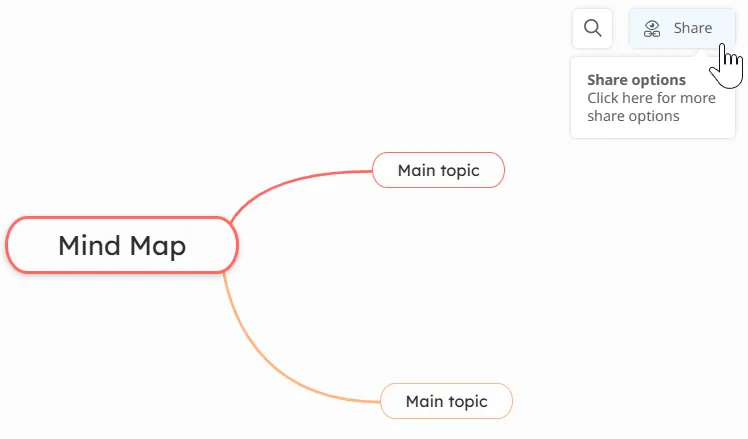
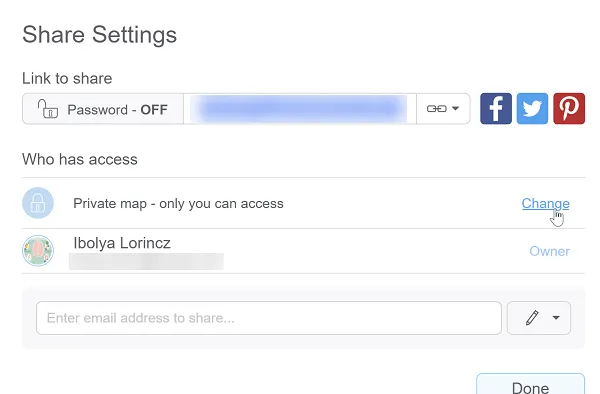
All mind maps created on your Dashboard are private until you decide to share them. You can share a mind map directly from the map via the Share panel:
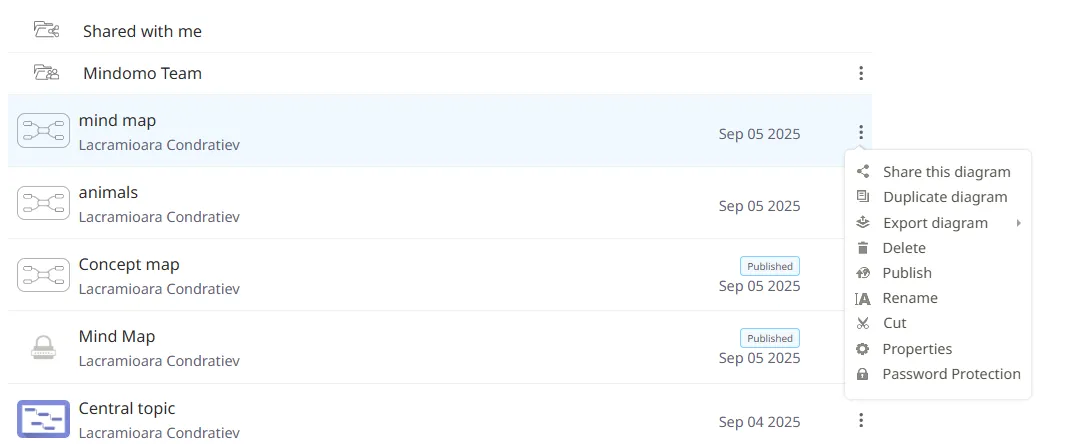
You can also open the Share panel from the Dashboard by clicking the context menu on the right side of each mind map:
Private Sharing
Section titled “Private Sharing”To share your mind map with another person:
1. Open the Share panel and enter the email address of the person you want to share the mind map with.
-
To share with multiple people, press Enter after each email address.
-
The recipient will receive an email invitation with a link to collaborate on your mind map. If they don’t have a Mindomo account, they will be prompted to create one.
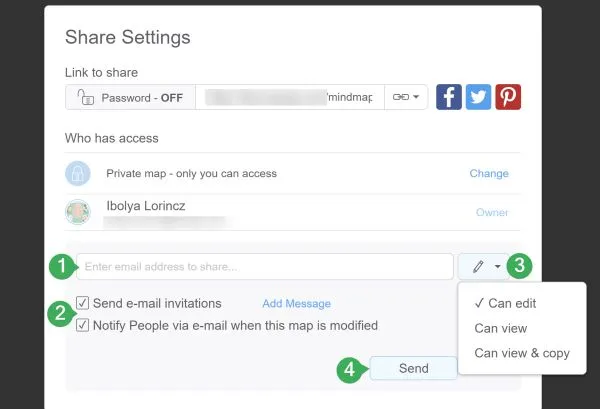
2. Select whether you want to send email invitations with a message and notifications. If not, the recipient will find the shared mind map in the Shared with me folder.
3. Set the person’s permission: edit, view, or view and copy.
4. Click Send.
Group Sharing
Section titled “Group Sharing”You can also share the map with a group. To do this, simply type the group’s name exactly as you would when sharing the map with an individual user.
For more information about creating and managing groups, please visit this page Manage groups.
Public Sharing
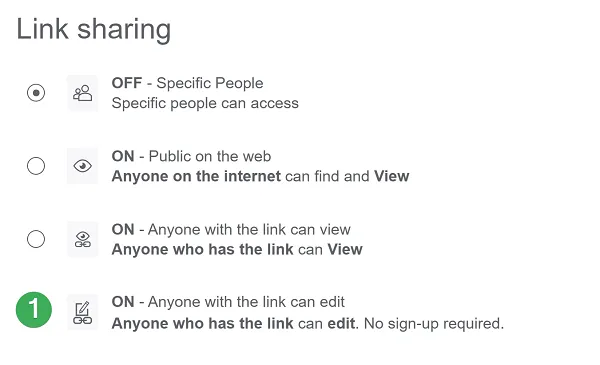
Section titled “Public Sharing”By default, all mind maps are private. You can choose to make them public or publish them.To do this, open the Share panel, then click Change to access the Link Sharing panel:
You have 3 options:
-
ON - Public on the web
Makes your mind map publicly available in the Mindomo public gallery. If you enable Can copy, anyone can create a copy of your map (your original is not affected). -
ON - Anyone with the link can view
Publishes your mind map so it is viewable only by people who have the link. If you enable Can copy, viewers can create their own copies. -
ON - Anyone with the link can edit
Available only with a Professional license or Business license. This option allows users to edit your mind map via its URL - even if they are free users or do not have a registered Mindomo account.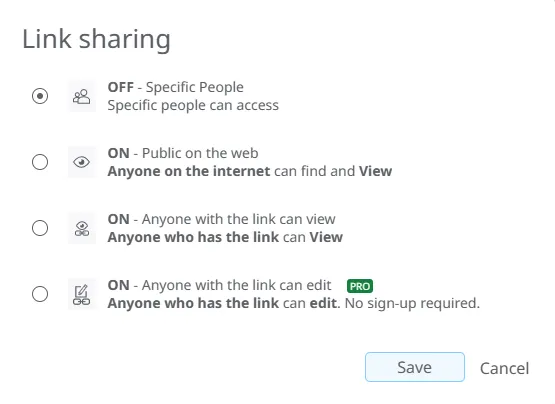
Get the Embed Link
Section titled “Get the Embed Link”To get the embed link for your mind map:
- Open the Share panel.
- Set the sharing option to Anyone with the link can view.
- Choose Embed link from the drop-down menu.
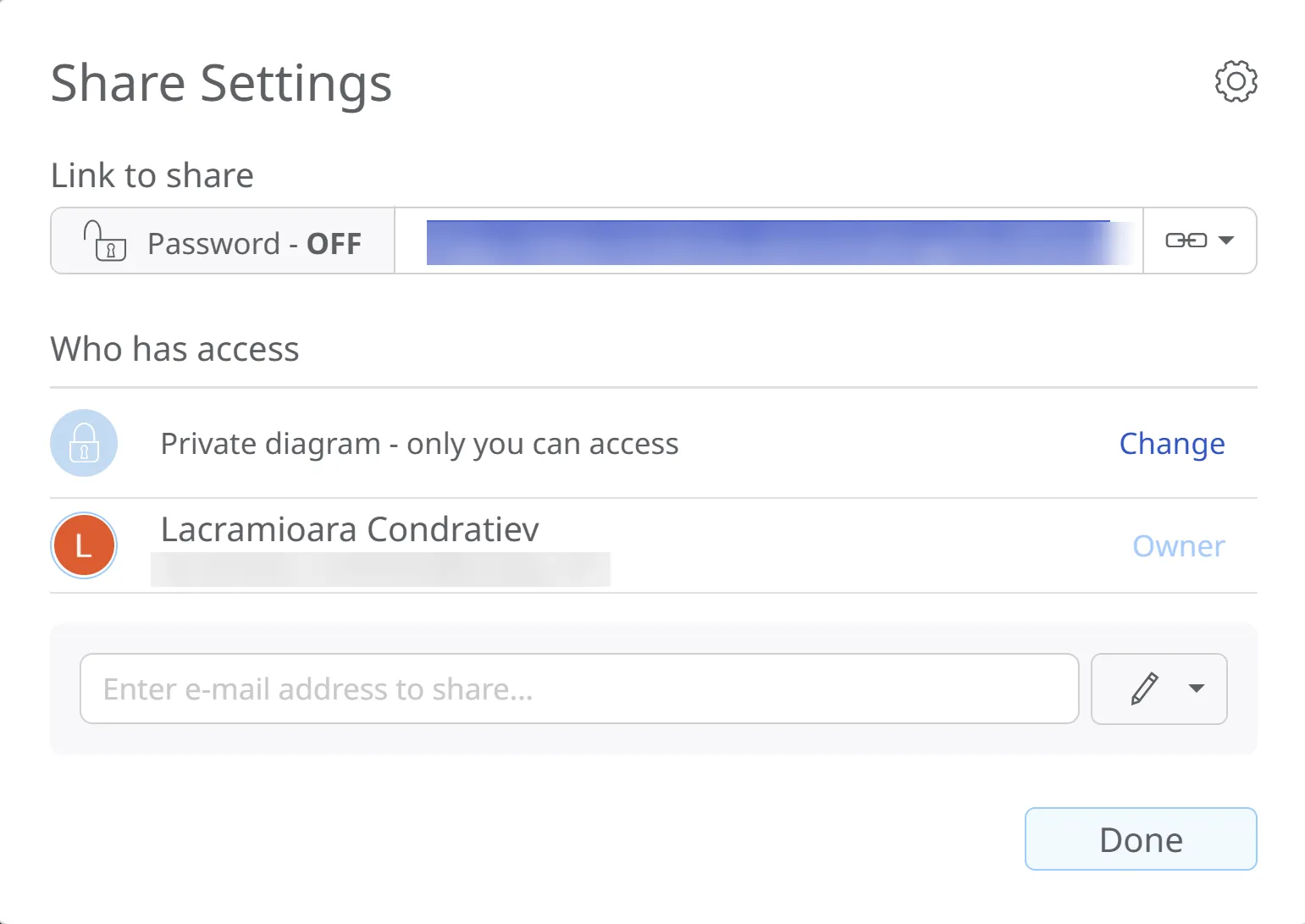
You can also use this menu to obtain a direct view link and the RSS link.
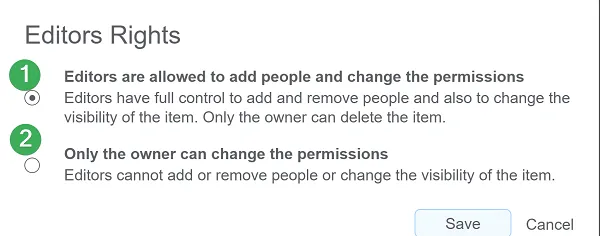
Editors Rights
Section titled “Editors Rights”1. Editors are allowed to add people and change permissions.
2. Only the owner can change the owner’s permissions.
Sharing with Guests
Section titled “Sharing with Guests”A guest user may be a team member or external collaborator who is allowed to access and edit your mind maps using premium features.
Guest sharing is available only with a paid Professional subscription or Business license.
To enable guest editing go to the Link sharing panel and select the last option:
After you share the mind map via its URL:
-
Guest users will be able to edit the mind map using premium features.
-
If guests are free users, these maps will not count toward their 3-map limit.
-
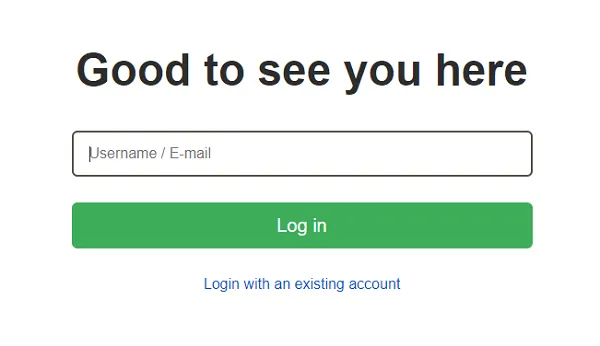
If they do not have Mindomo accounts and do not want to sign up, they can still access and edit your shared mind maps using a guest username.
Share with Team
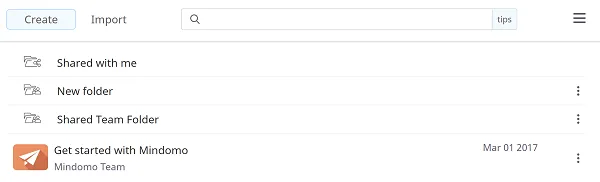
Section titled “Share with Team”The Shared Team folder is available only with a Team subscription
All team members will have direct access to the Shared Team folder from their Dashboards. This folder has a different icon then rest of your folders and will have a name set by the Team Admin. All mind maps you create/move in this folder are instantly accessible and editable for the entire team.
Learn more about Team license features here.
Password Protection
Section titled “Password Protection”For extra safety, you can set a password for your mind map.
Sharing the password gives users access to view and edit the map.
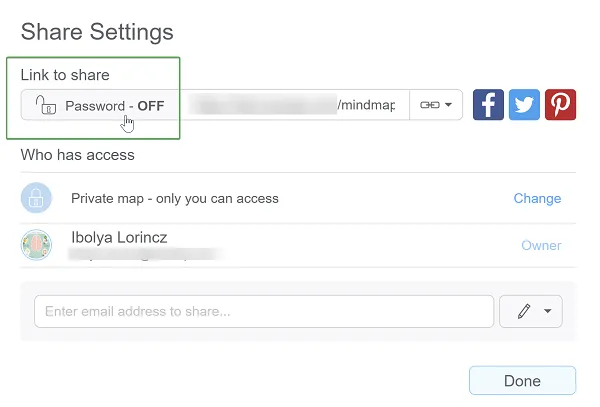
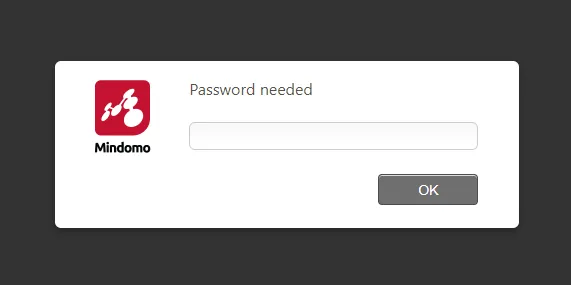
Anyone trying to access the map will be prompted for the password: