

Printing mind maps
Mindomo provides flexible printing options that let you export your mind maps as high-quality PDF files in a variety of page sizes. Whether you want to print the entire map, specific branches, or presentation slides, you can customize the output to match your needs perfect for both compact summaries and detailed, large-format prints
How to print
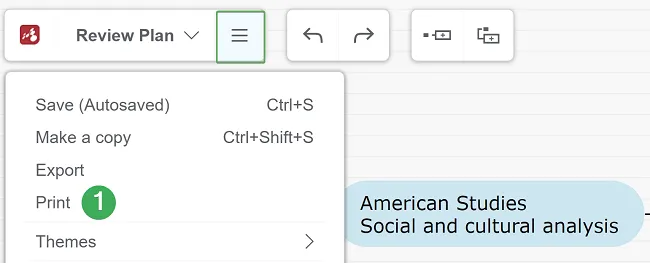
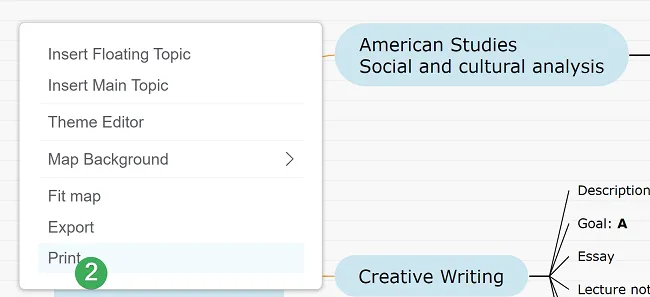
Section titled “How to print”To print your mind map, open the File Menu in the top-left corner (1), or simply right-click on the map background (2).
PDF file size
Section titled “PDF file size”Printing is made through PDF format and you can choose from the following PDF sizes:
- A4
- A3
- A2
- Letter
- Ledger
- Long bond
- Widescreen
- Original
If your map includes a presentation, you can also print its slides.
You may enable Transparent background to export the map without a background color.

Print large maps
Section titled “Print large maps”For very large maps, you can print them branch by branch for better clarity. Follow these steps:
-
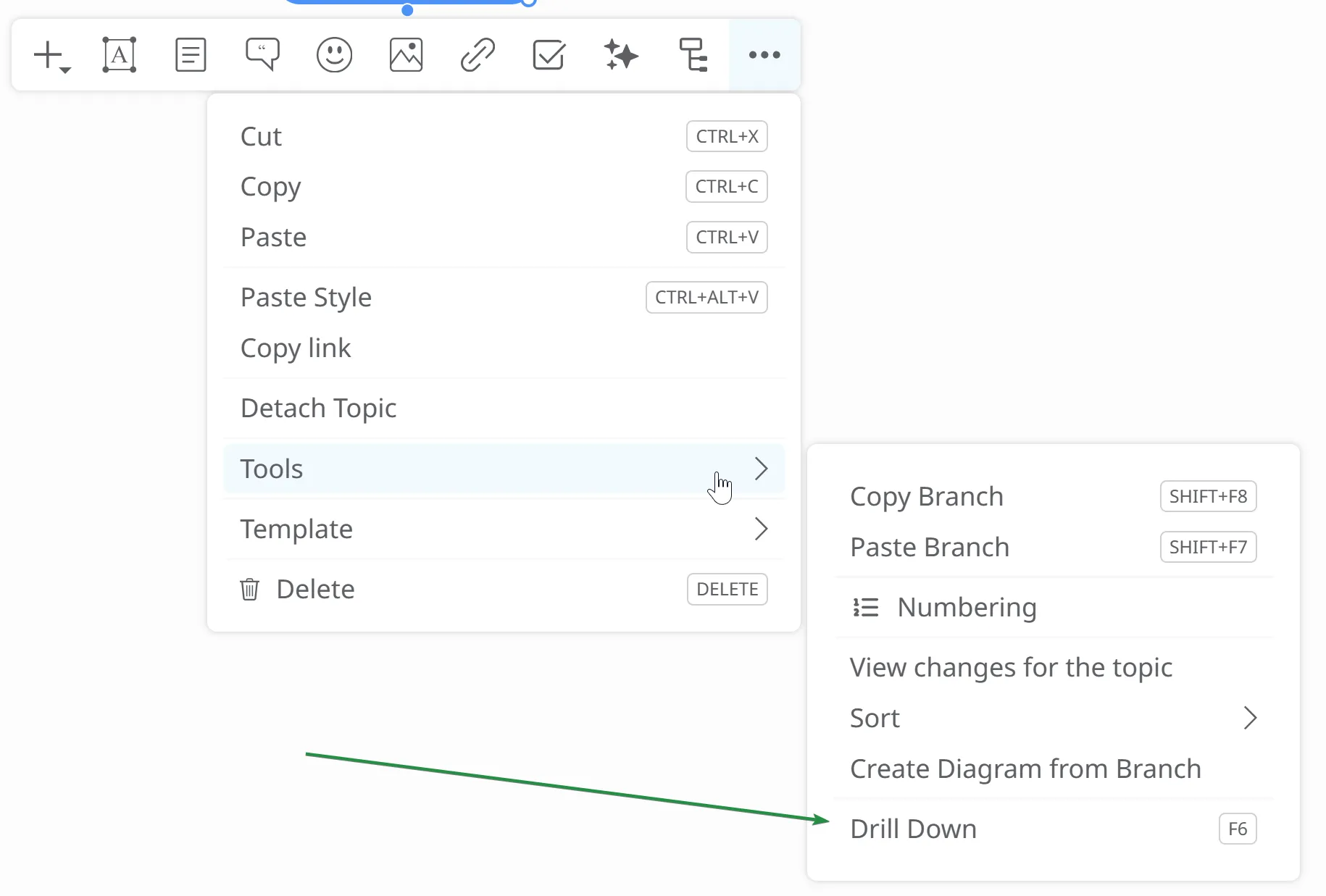
Select a root topic and press F6, or go to Tools → Drill Down to focus on that branch.
-
Print the branch.
-
Press F6 again to return to the full map.
-
Repeat for any additional branches.
Slides as PDF printing
Section titled “Slides as PDF printing”If you have a premium account and want to print a large map slide by slide, you can export your presentation as a PDF. Here’s how:
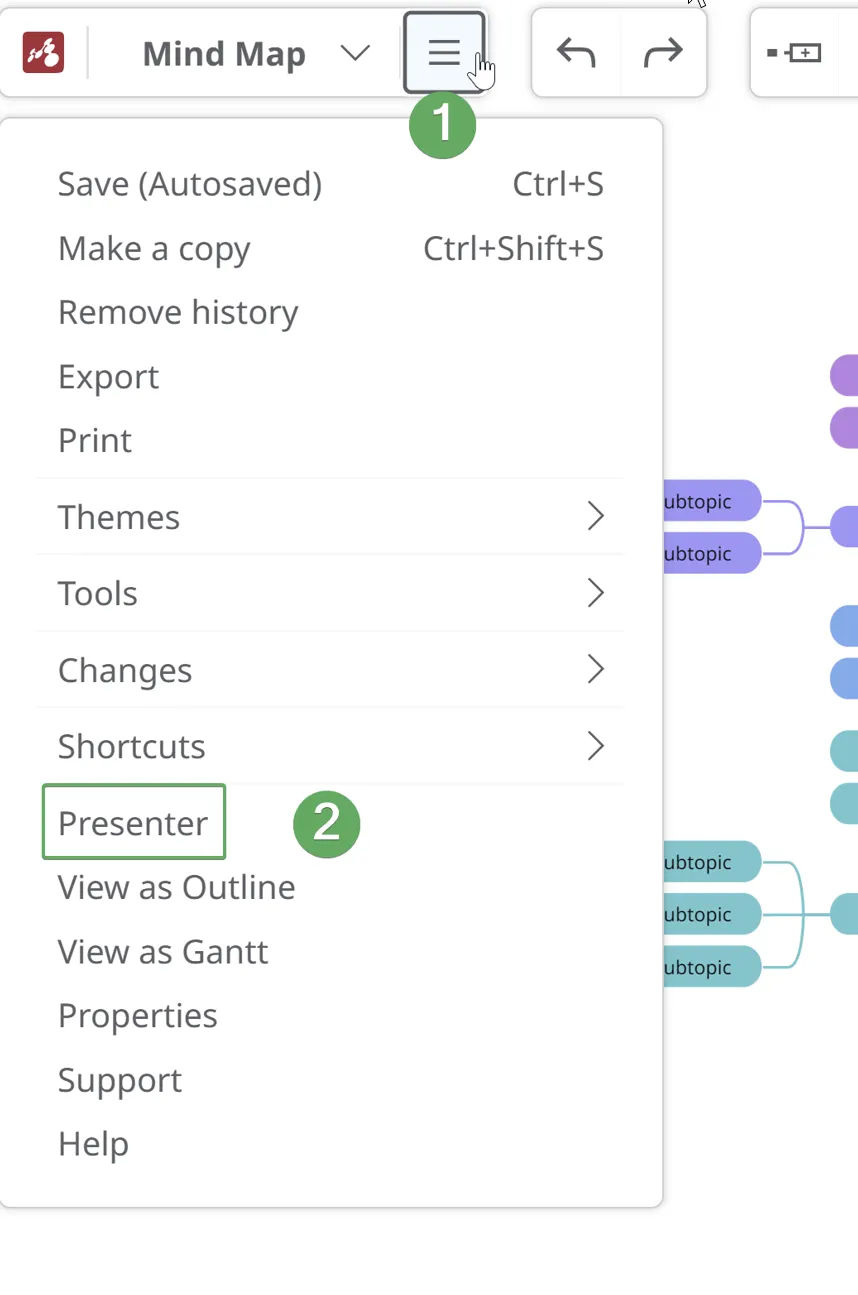
1. Open the File Menu and click Presenter. In Presenter mode, hold SHIFT and drag to select the slides you want to include.
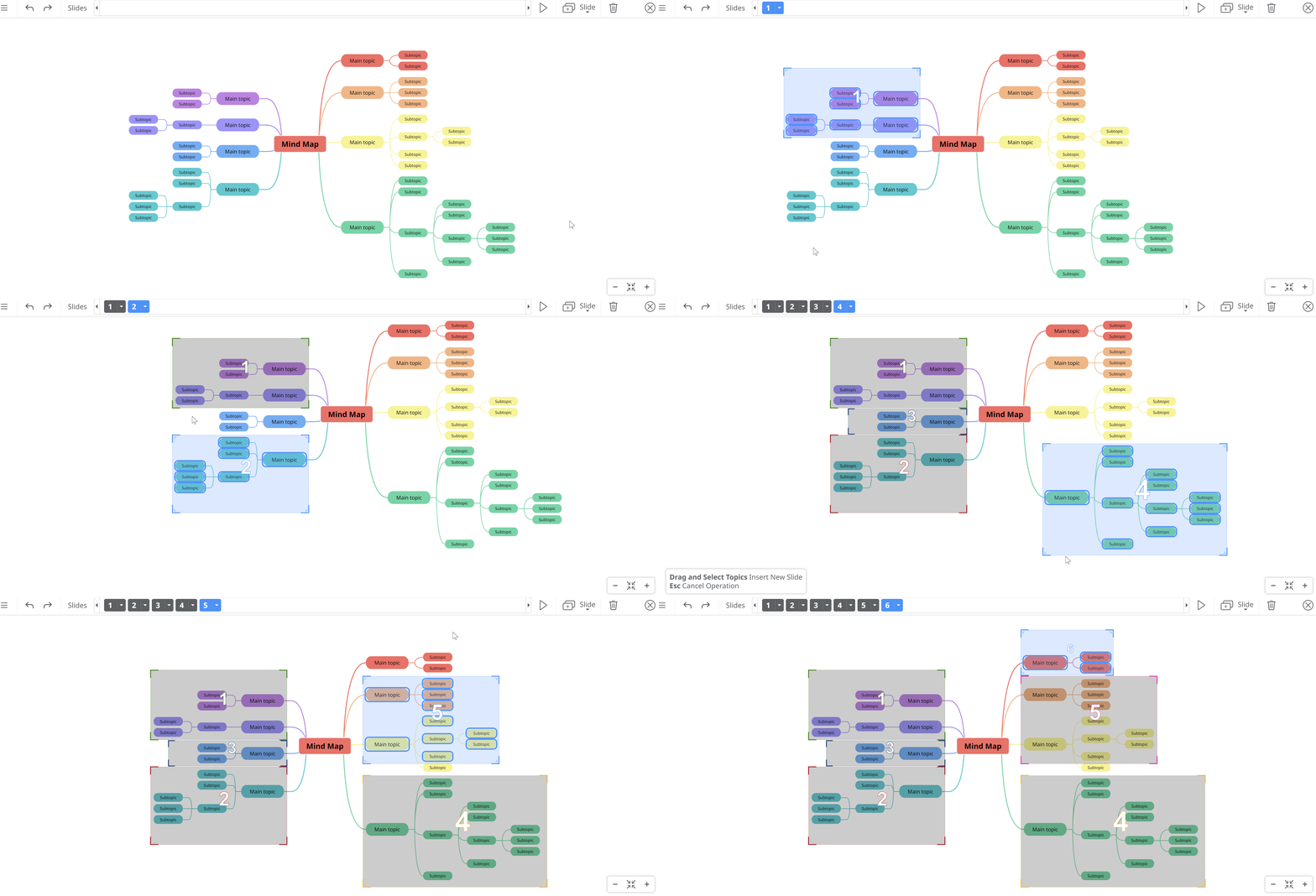
2. Exit Presenter mode, return to the File Menu, go to Export, select Slides as PDF (.pdf), and click Export.
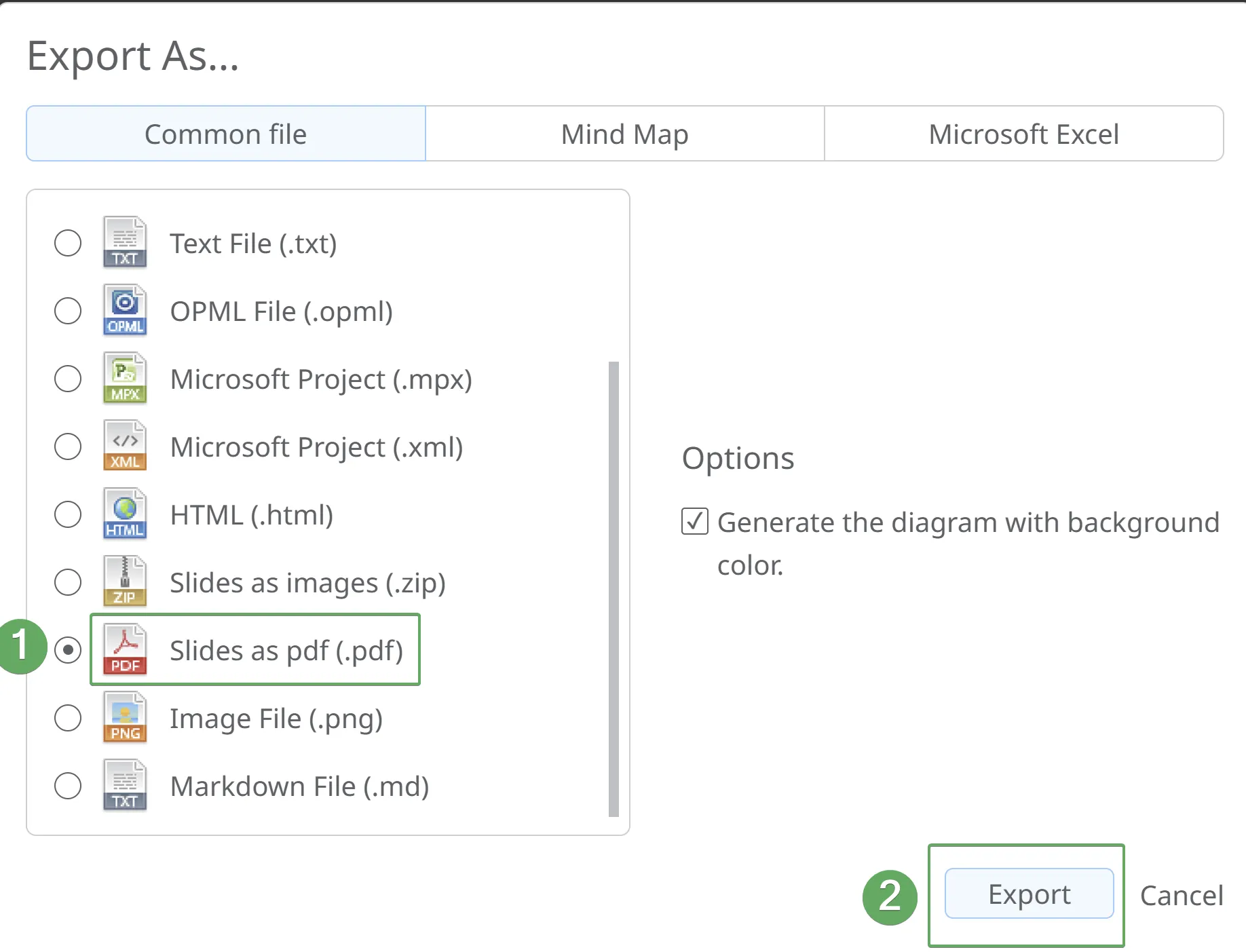
- Open the resulting PDF and print the slides individually.
This method is ideal for printing large maps one slide at a time.
Multi-page printing
Section titled “Multi-page printing”You can create multi-page prints using Adobe Acrobat Reader:
-
Open your exported PDF in Adobe Acrobat Reader.
-
Go to File → Print.
-
Under Page Sizing & Handling, select Poster (1). This will split your PDF into multiple pages.
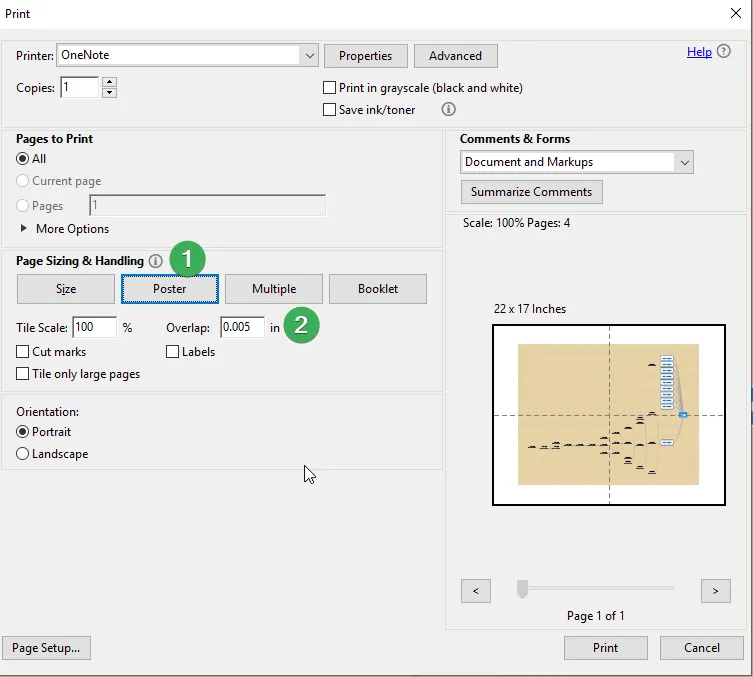
The print preview will show how the pages align when assembled. Once you’re satisfied with the layout, click Print to generate the tiled pages and piece them together into one large image.