

Two-factor authentication
Two-factor authentication, also called multi-factor authentication (MFA), adds a second step when you log in to Mindomo. After you enter your password, you also enter a six-digit code. This extra step helps keep your account and diagrams secure.
You can get the code in one of two ways:
- Email authentication: Mindomo emails you a code each time you log in.
- Authentication app: an app on your phone, such as Google Authenticator, gives you the code.
Both methods are secure. Email is quicker to set up, and an app means you don’t have to wait for an email each time you log in.
Turn on two-factor authentication
Section titled “Turn on two-factor authentication”Click your initials or profile picture in the top-right corner of the Dashboard and choose Account. Select Profile on the left, then open the Password & security tab (1). The Multi-factor authentication card (2) shows whether two-factor authentication is On or Off, with a switch for each method.
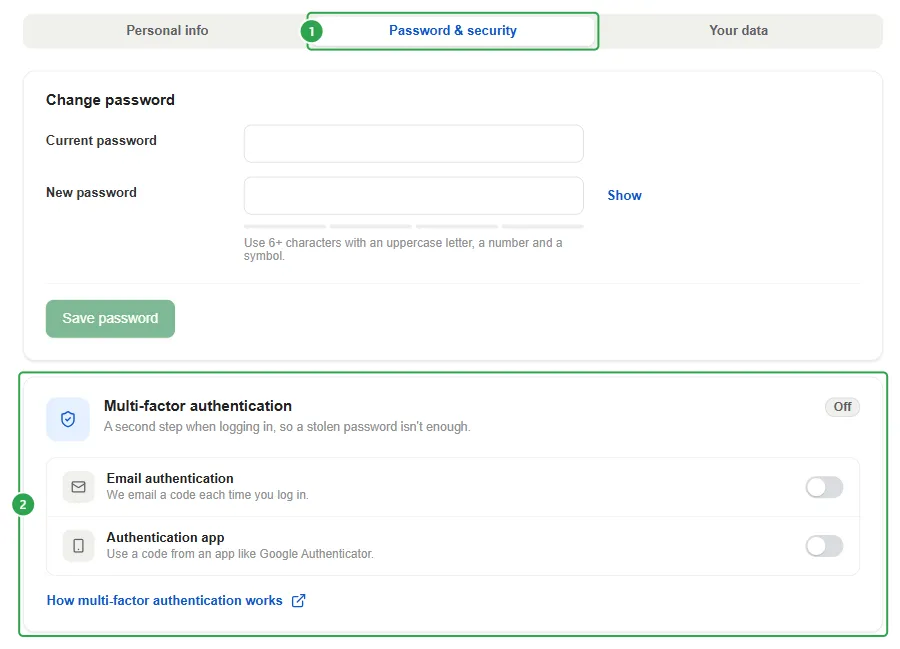
Turn on the switch for the method you want to use. A Confirm your password page opens:
- Check that the account under Logged in as is the right one.
- Enter your Password (1). If you can’t remember it, click Forgot your password?.
- Click Confirm (2).
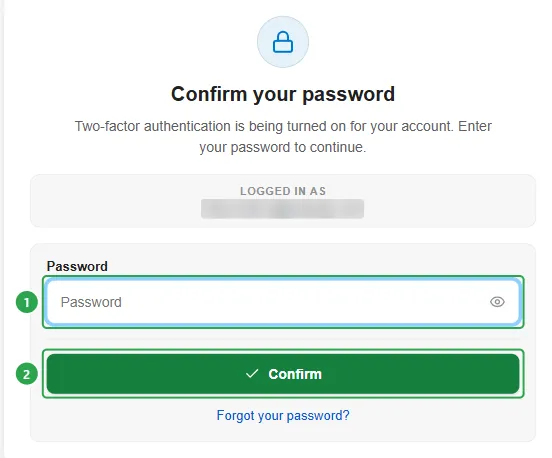
Nothing changes on your account until you enter a valid code. If you leave the setup page before that, you’ll confirm your password again next time.
Email authentication
Section titled “Email authentication”Mindomo emails a six-digit code to the address shown under Code sent to.
- Open the email from Mindomo and find the code. If you can’t see it, check your spam or junk folder.
- Type the code in the Verification code boxes, one digit per box.
- Click Verify.
The code expires after 5 minutes. If it doesn’t arrive or expires, click Send a new code and use the newest one.
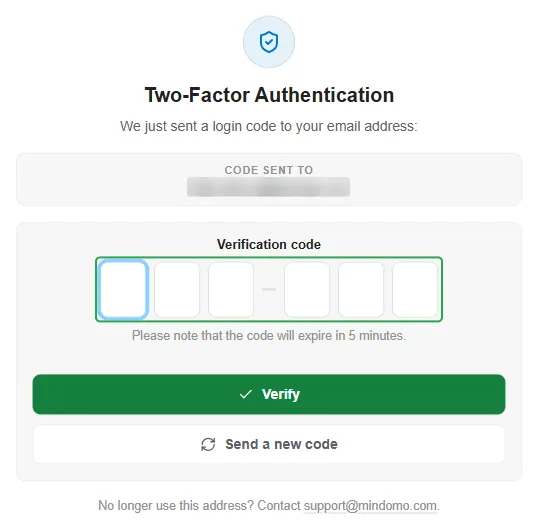
Once it’s verified, the Multi-factor authentication card shows On.
Authentication app
Section titled “Authentication app”The Set up your authenticator app page takes you through three steps:
- Install an authenticator app on your phone. We’ve tested Google Authenticator, Microsoft Authenticator and 2FAS Auth from the App Store and Google Play, but other authenticator apps may also work. If you already have one, go straight to step 2.
- Scan the QR code or enter the setup key. In your app, choose Add account, then point your phone’s camera at the QR code. If you can’t scan it, for example because you’re setting this up on your phone, choose to enter a key manually in your app and type in the setup key shown under Can’t scan it? Enter this key instead:. Click Copy to copy the key.
- Enter the code from your app. Your app now shows a six-digit code for Mindomo. Type it in the Authenticator app code boxes. Codes refresh every 30 seconds, so use the one showing now.
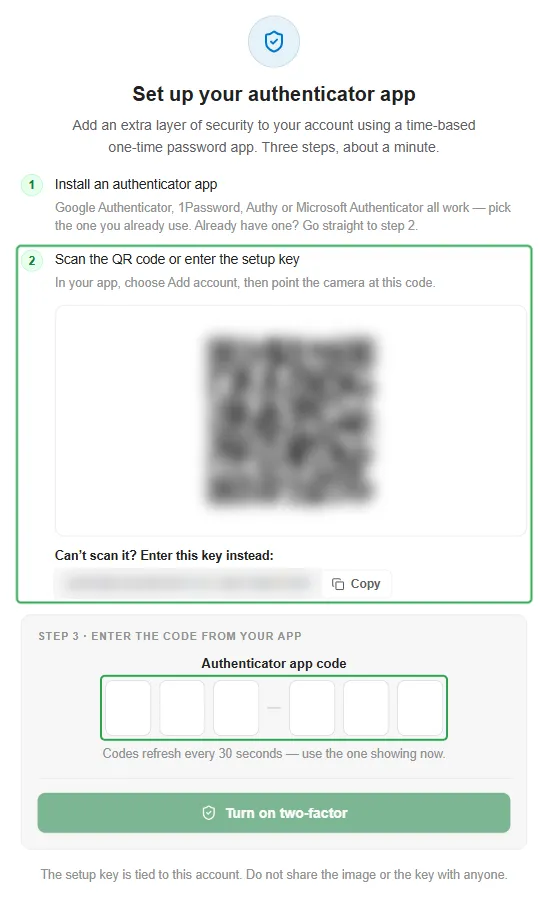
Two-factor authentication turns on as soon as you type the last digit. You’re taken back to Password & security, where the card now shows On and the Authentication app switch is on.
Turn off two-factor authentication
Section titled “Turn off two-factor authentication”On the Password & security tab, turn off the switch for the method you use. To confirm it’s you, Mindomo asks for a code from that method.
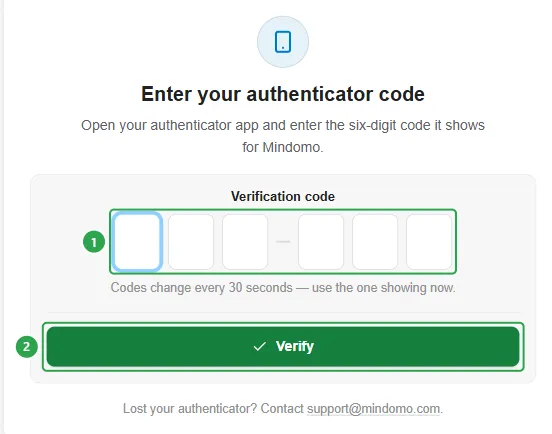
- Authentication app: an Enter your authenticator code page opens. You don’t need to enter your password. Type the six-digit code your app shows for Mindomo in the Verification code field (1) and click Verify (2). You’re taken back to Password & security, where the card shows Off. You can now remove the Mindomo entry from your authenticator app, since its codes no longer work.
- Email authentication: Mindomo emails you a six-digit code. Enter it to confirm. The code expires after 5 minutes.
Required by your organization
Section titled “Required by your organization”If you’re part of a team, your team admin can make two-factor authentication mandatory for everyone. If that has happened, here’s what you may notice:
- You were suddenly signed out. Everyone on the team is signed out when the requirement is turned on. Log in again as usual.
- Mindomo asks you to set up two-factor authentication when you log in. Follow the steps on screen. This happens only if you didn’t already have it on.
- You can’t turn off Email authentication. On your Password & security tab, the switch is on and locked, with Required by your organization. under it. Your login codes come by email.
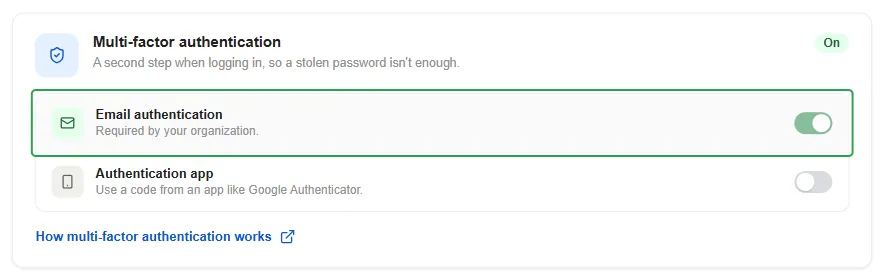
If you’d rather use an app, you can still turn on the Authentication app switch and set it up.
Only your team admin can lift the requirement. Once they do, Email authentication is turned off again, unless you had turned it on yourself before. If you have questions about why it’s required, ask your team admin.
Troubleshooting
Section titled “Troubleshooting”- The app’s code isn’t accepted. Codes change every 30 seconds, so wait for a fresh one and type it straight away. If the codes still aren’t accepted, check that your phone sets its date and time automatically. Authenticator codes depend on the clock.
- The email code didn’t arrive. Check your spam or junk folder, then click Send a new code and use the newest email.
- The email code expired. Codes are valid for 5 minutes. Click Send a new code and enter the new one.