

Classes
A class is a group of students: a roster with one join code that gives you an overview of everyone in it and gives them access to every assignment you give the class. You set it up once, and every assignment you give that class from then on simply appears for them. You never invite anybody per assignment, and next term’s assignments reach the same group without any further work.
That is why a class is worth creating before your first assignment: the assignment setup asks which class the work goes to, and a class you have already filled is one less thing to do at the point where you want to publish.
Where classes live
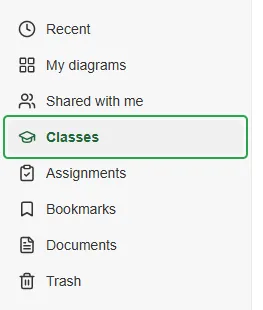
Section titled “Where classes live”Classes is a category in the dashboard sidebar, alongside Assignments.
It opens on the list of your classes. The view switch (1) offers the same Grid, Tiles and List views the rest of the dashboard uses. Active and Archived each carry a count (2), and a Trash tab joins them once something has been deleted. Create a class (3) is the dashed tile pinned first in the Active list.
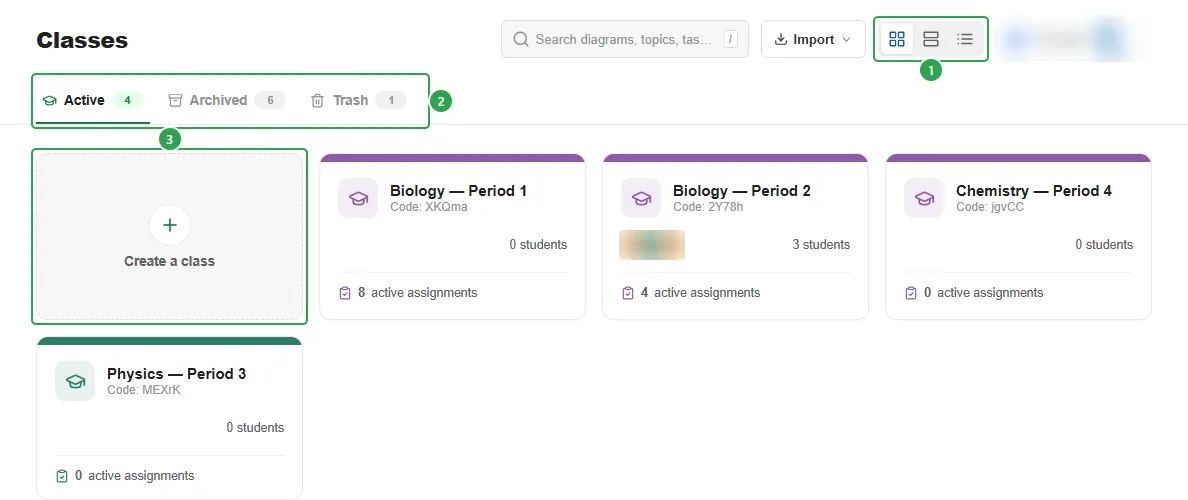
Every other tile is a class, and it tells you the state of that class at a glance: a colour bar and icon, the name, its Code, a stack of student avatars with the head count, and an assignment count. That count changes with the tab you’re on: active assignments in Active, archived assignments in Archived, deleted assignments in Trash.
Creating a class
Section titled “Creating a class”Click Create a class and Mindomo asks for two things: a Class name (1) and a Color (2). The colour is what you will recognise the class by in the list and at the top of its own page, so it is worth spending a second on if you teach the same subject to several groups.
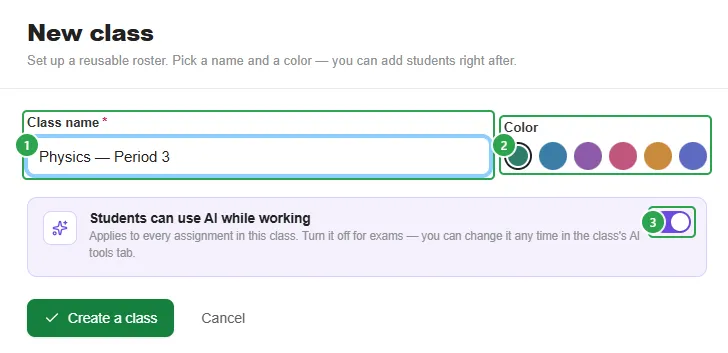
Students can use AI while working (3) starts on. You can turn it off now, or leave it on and change it later from the class’s AI tools tab. It applies to every assignment in the class either way, so there is no need to decide immediately unless you already know this group is sitting an exam.
Create a class then puts you straight on the new class’s How students join tab, because handing out the code is the next thing to do, though it is not the only way to get students in. Adding students to a class covers every option on that tab.
The class page
Section titled “The class page”The header carries the class colour icon and the name, then a line (1) showing the student count, the join Code and an AI on pill. Edit, Archive class and Delete class (2) sit on the right, and the tab bar (3) is below.

- Students: the roster. It only appears once somebody is on it, so a brand-new class opens on How students join with four tabs instead of five.
- How students join: the access code, the join link, the QR code and every way of adding students to a class yourself.
- Co-teachers: colleagues you want on this class.
- Assignments: everything you have given this class.
- AI tools: whether students may use AI in this class’s work.
Edit opens a small Edit class dialog with the same Class name and Color fields as the create form, and Save.
Students
Section titled “Students”The roster lists one row per student: the name, the address underneath it, and a status pill: Joined (1) for anybody who is actually in the class, Invited for an emailed invitation nobody has accepted yet. Students you created accounts for read No email (PIN account) where the address would be.
Each row has a ⋯ (three dots) menu (2) with Reset PIN and Remove from class.

Selecting rows (the checkbox appears when you hover one) puts a bar above the list that counts what you have picked and offers Select all, Reset PIN and Remove from class for the whole selection at once.
Removing a student
Section titled “Removing a student”Remove from class asks you to confirm, naming the student, and then the student is off the roster: they lose access to the class and to every assignment in it. Their work is not deleted with them. The diagrams they built and the grades you gave stay with the assignment, so the record of what the class did survives the roster change.
Because a class is what students join, this is also how you move somebody out of the wrong class: remove them here, and have them join the right class with that class’s code.
Co-teachers
Section titled “Co-teachers”The Co-teachers tab invites colleagues by email. Its own note says what they get: Co-teachers help you run this class. They see the roster and can view and grade student work. They can’t delete the class. Until you invite anybody it reads You’re the only teacher on this class.
That limit only applies to the class itself: on its assignments, a co-teacher holds the same rights as the teacher who created each one, including archiving or deleting it. See Assignments.
Each co-teacher’s row has a red × on the right of their email, and that removes them from the class.
Assignments
Section titled “Assignments”Every assignment given to this class is listed here, with New assignment pinned first. It is one of the three routes into the assignment setup. See Create an assignment.
AI tools
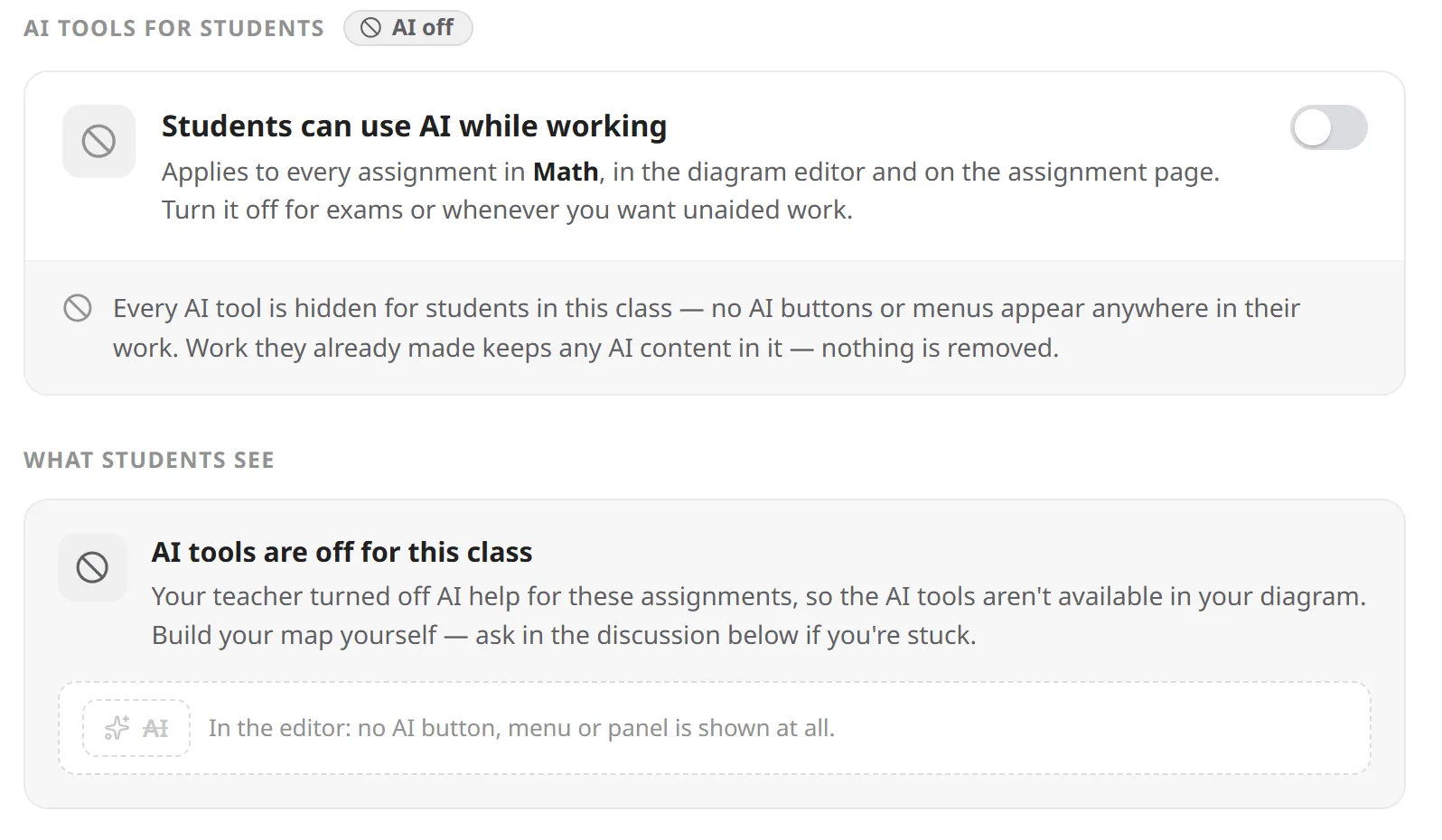
Section titled “AI tools”Students can use AI while working is the same switch the create form offered, with the consequences spelled out: it applies to every assignment in this class, in the diagram editor and on the assignment page, and changes take effect immediately, including for assignments students already started. Your own AI tools are never affected. You and your co-teachers can still generate templates and starting diagrams either way.
Turning it on doesn’t give the class a credit balance of its own: a student who has no AI credits spends the school’s shared credits instead, and their AI tools stop when those run out. A school admin tops the pool up from the License tab, under School AI credits.
A What students see section tells you what the class notices. With AI on: Nothing extra. Students get the AI tools in their diagrams as usual, and no notice on their assignment page.
Below is an example of how it looks turned off, from your settings.
Archiving a class
Section titled “Archiving a class”Archive class is the reversible way to put a class away at the end of a term. There is no confirmation: the class page comes straight back with Restore and Delete (1) in place of the three usual buttons, and a note explaining what changed (2): This class is archived, hidden from your active list and its join code is off. Restore it to make it active again.

Archiving is not just a filing move. Here is everything that changes:
- The class moves from Active to the Archived tab, and its assignments move with it into the Archived tab of your assignments list.
- The join code and link stop working.
- The How students join tab goes read-only: the code, link and QR are still on screen to look at, but the Students can join with a code and Students join from shared classroom devices switches are greyed out, and the whole Add students section is gone.
Restore (from the class page, or Restore class in the tile’s ⋯ menu) brings the class and its assignments back.
Deleting a class
Section titled “Deleting a class”Delete class asks first, and the dialog is worth reading, because a class does not go on its own: it names the class and warns that it and its assignments will be moved to Trash. Under that it counts them and spells out the two things teachers get caught by: the assignments move to their own creator’s Trash, so a co-teacher’s assignment lands in the co-teacher’s Trash and not in yours, and you can restore the class (and any assignment you want back) within 30 days.
A class in Trash has Restore and Delete forever in its ⋯ (three dots) menu, and it still shows its deleted assignments count while it sits there.
Restoring a blocked assignment
Section titled “Restoring a blocked assignment”The class is the parent, so an assignment can never be in a better state than its class. Try to unarchive or restore an assignment whose class is archived or deleted and Mindomo stops you rather than half-doing it:
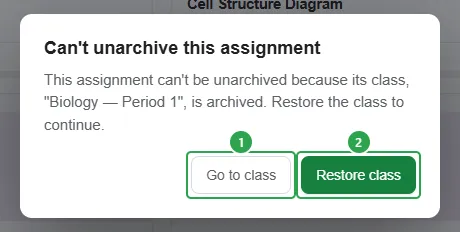
This assignment can’t be unarchived because its class, “Biology: Period 1”, is archived. Restore the class to continue. Go to class (1) takes you to the class so you can look at it first; Restore class (2) does it from here, and the assignments that went down with the class come back with it.
Where to go next
Section titled “Where to go next”- Adding students to a class: the join code, invites, generated PIN accounts, CSV and Google Classroom imports.
- Joining a class: the same thing from the student’s side.
- Create an assignment: giving work to the class you have just built.
- Reviewing & grading: following what the class does with it.
- Assignments: how assignments and classes fit together.
- School administration: the school roster a class can draw students from.