

Group and collaborative assignments
Work collaboratively on a shared diagram is the student work type where students build one diagram together, live, instead of each ending up with a diagram of their own. It is submitted once and graded once, whether the class works on it together or splits into small groups the students form themselves.
This page follows one collaborative assignment all the way through: how you set it up, what your students see when they open it, and what changes on your side once the roster is made of groups instead of names.
Choosing how students work together
Section titled “Choosing how students work together”The work type is step 2 of the assignment setup, Student work. Pick Work collaboratively on a shared diagram and the card asks one more question: How should students work together?
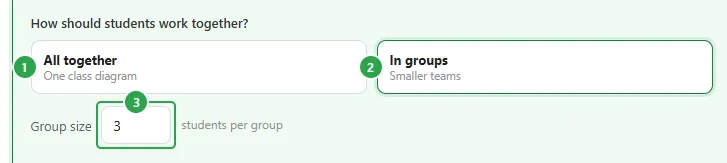
- All together (1): One class diagram. Everyone in the class edits the same diagram, and there is nothing for students to choose when they open the assignment.
- In groups (2): Smaller teams. One diagram per group, and a Group size (3) in students per group, three by default. All together has no size field, because the group is the class.
The card’s Starting template stays (optional) here: leave it blank and every group starts from an empty diagram, or add one and each group gets its own copy of it to work in. Create an assignment covers the rest of the setup: the instructions, the due date, the grading scale and the class.
How groups form
Section titled “How groups form”You do not assign the groups. On an In groups assignment the students do it themselves, in whatever order they open the assignment, and the side of their page that would normally hold a start button holds Join a group instead.
The first student to arrive has nothing to join.
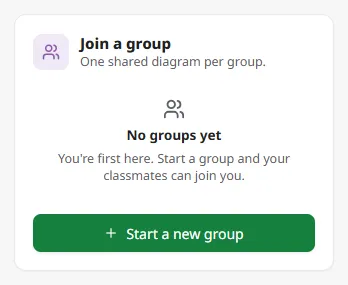
No groups yet: You’re first here. Start a group and your classmates can join you. Start a new group creates the group and drops them straight into its diagram; there is no naming step and no invitation to send. Groups are simply Group 1, Group 2 and so on, and each student sees those names in their own language.
Everyone after that gets the list.
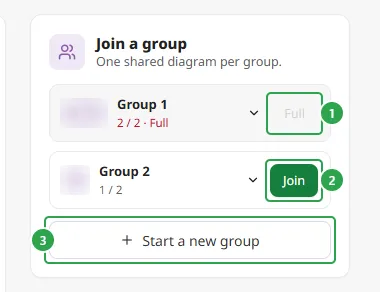
Each row is a group, with the avatars of its members and how full it is. Clicking a row expands it to show who is in it by name.
- A group that has reached the size you set reads 2 / 2 · Full and its button is Full (1): it cannot be joined.
- Any group with room has a Join button (2), which puts the student into that group’s diagram.
- Start a new group (3) is always there, so a class can end up with more groups than you expected, or fewer.
On an All together assignment none of this appears. There is one diagram for the class, so students get the plain Start assignment button, and their group is called Whole class.
Switching or leaving a group
Section titled “Switching or leaving a group”A student who joined the wrong group, or started one by mistake, can fix it themselves. Moving students between groups is up to them: teachers can’t do it from their side. Once they are in a group, a Switch group link sits at the right of their Your group strip, and it opens a panel in place of the action card.
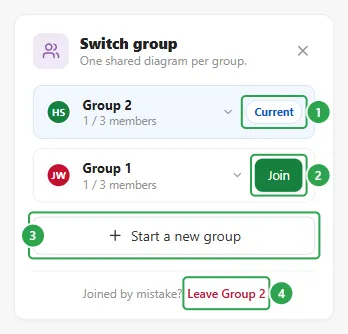
- Their own group comes first, tagged Current (1).
- Every other group is listed with its members’ avatars and how full it is, with a Join button (2) while it has room.
- Start a new group (3) moves them into a brand-new group of their own.
- Leave Group 2 (4), shown under Joined by mistake?, removes the student from their current group without assigning them to another one.
Each choice asks for confirmation inside the panel first, and the message depends on whether anybody stays behind:
- Other members stay. You’ll lose access to Group 1’s shared diagram and group chat. The group, its diagram and its discussion carry on for the rest.
- They are the last member. You’re the last member of Group 2, so the group will be removed.
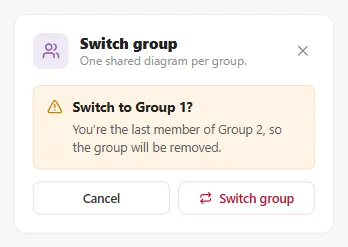
A student who joins an existing group picks up its diagram as it stands, including everything its members have already built. A student who leaves returns to the Join a group screen.
Group numbers are reused: once a group is removed, a new one can take its number, so two Group 1 entries in the activity feed are not necessarily the same group.
Working on the shared diagram
Section titled “Working on the shared diagram”Once a student is in a group, the summary chips and the strip under them say so.
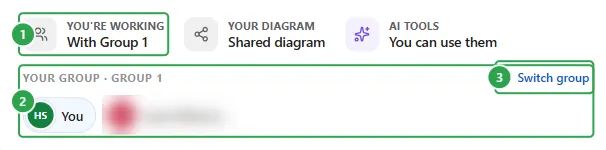
You’re working (1) reads With Group 1 instead of On your own, and Your diagram reads Shared diagram. Your group · Group 1 (2) lists the members, with the student themselves shown as You, and Switch group (3) is where they change or leave their group.
The action card is the group’s, not theirs.
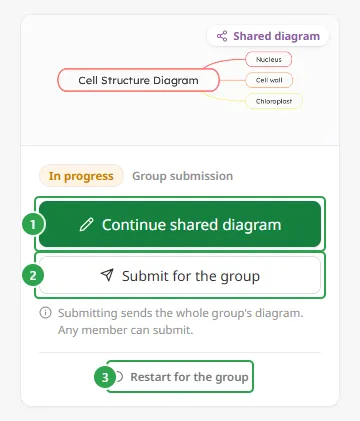
The thumbnail is the group’s shared diagram, so everyone in the group sees the same picture of the work so far, and the label beside the status pill says Group submission.
- Continue shared diagram opens the diagram (the same one, for every member, at the same time). Collaborating on mind maps covers what that looks like while two people are typing.
- Submit for the group hands the whole group’s work in: Submitting sends the whole group’s diagram. Any member can submit.
- Restart for the group replaces the diagram with a fresh one.
Discussion with your teacher carries a Group tag on a collaborative assignment, and the box students type into says Message your teacher & group…, one thread per group, so a reply you write reaches every member of it.
Handing the group’s work in
Section titled “Handing the group’s work in”Any member can submit, and it happens straight away.
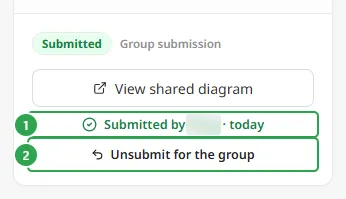
The card then names who did it and when, Submitted by … · today (1), and everybody in the group sees that same line. Unsubmit for the group (2) reopens the work for all of them, and View shared diagram still opens the diagram.
What you see while they work
Section titled “What you see while they work”The assignment page you know from an individual assignment changes shape: the roster stops being a list of students and becomes a list of groups.
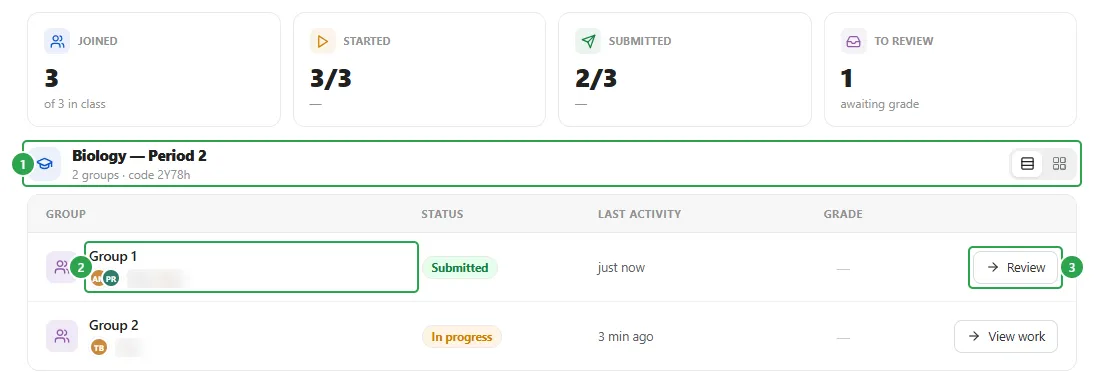
- The bar over the roster counts groups now: 2 groups · code 2Y78h. The four counters above it still count students, which is why Submitted can read 2/3 while both groups are accounted for.
- A row is a group: its name, the avatars of its members and their first names, then the group’s status and last activity.
- Review at the end of the row opens the group’s shared diagram (View work while they are still going).
Groups appear in the roster as students create them, and disappear from it when their last member leaves. The Recent activity feed logs the joining too, one entry per student, and it records group changes: … switched to another group when a student joins a different group or starts a new one, and … left their group when they leave without joining another. On an All together assignment the roster shows a single Whole class row for the students who have started, and keeps a row of their own for anybody who has not opened the assignment yet.
Reviewing and grading a group
Section titled “Reviewing and grading a group”A group’s review page is the same page as a student’s (the diagram on the left with its change player, the rail on the right), with one block added and one grade to give.
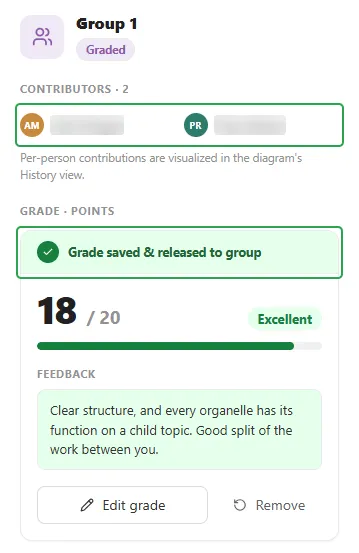
Contributors counts the members who have actually worked on the diagram and lists them, and points out where the detail is: Per-person contributions are visualized in the diagram’s History view. Stepping through the change player is how you tell who built what, since every topic is tagged with the initials of whoever added it.
There is one grade for the group. Fill in the score and the feedback exactly as you would for one student, and the banner confirms who it went to: Grade saved & released to group. Edit grade and Remove work the same as anywhere else, and the grade shows against the group’s row in the roster. Reviewing and grading student work covers the grade box, the scales and the discussion thread in full.
The students get it the moment you save it.
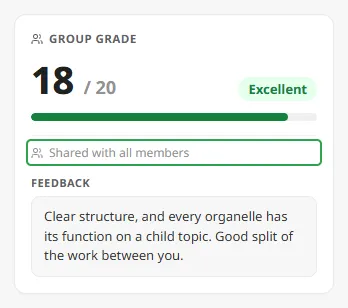
Their Teacher feedback block is headed Group grade and spells out that it is not just theirs, Shared with all members, with your feedback underneath. Assignments for students is the whole assignment page from their side.
Downloading a group’s work as PDF
Section titled “Downloading a group’s work as PDF”Download PDF, at the top right of the group’s review page, saves the group’s shared diagram as a single landscape page.
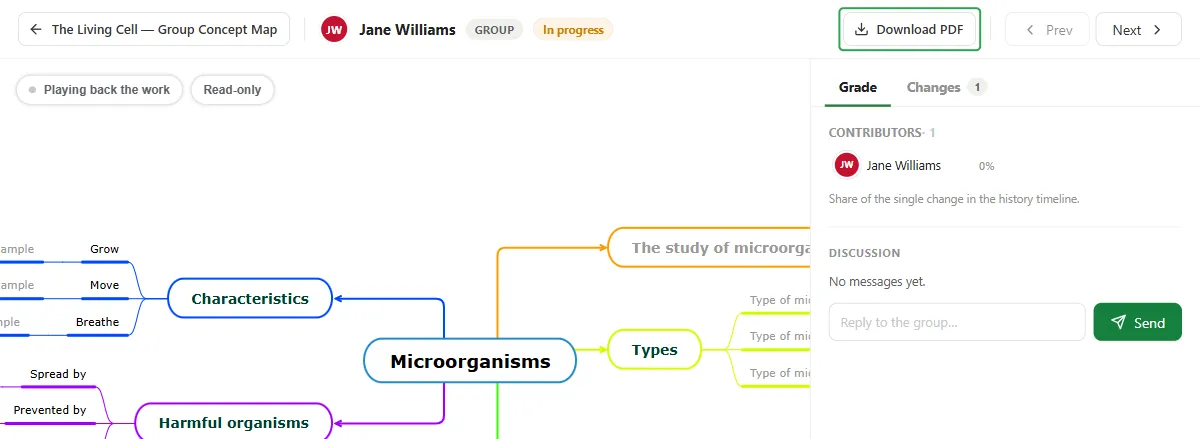
It is the same PDF you get for one student, described in Reviewing & grading, with two differences: the header carries a GROUP WORK tag, and the footer lists every student in the group.
Seeing it their way first
Section titled “Seeing it their way first”Group formation is the part of a collaborative assignment you cannot rehearse with a class, so the assignment’s ⋯ (three dots) menu has View as student. It opens the student page in a read-only preview (Previewing as a student · Read-only · actions are inert) and steps through the five states with the arrows in its bar: First in and Choose a group for the two group-formation screens, then In progress, Submitted and Graded. Esc or Back to teacher view returns you.
Where to go next
Section titled “Where to go next”- Create an assignment: the three steps around the work type.
- Reviewing & grading: the review page, the grading scales and exporting the class’s grades.
- Assignments for students: the same assignment from a student’s point of view.
- Collaborating on mind maps: several people editing one diagram at once.