

Joining a class
Everything your teacher gives your class (the assignments, the diagrams you build, the feedback you get back) lives inside their class in Mindomo. You join it once. It takes half a minute, and you do not need an email address or a Mindomo account: your name and a four-digit PIN are enough.
Three ways in
Section titled “Three ways in”Your teacher will have handed out one of these. All three end up in the same place.
- The join link: open it and the code is already filled in, so you only add your name.
- The access code: a short code your teacher reads out or projects. Open mindomo.com/join and type it in.
- The QR code: projected on the board or printed on a sheet. Scan it with a phone or tablet camera and it opens the join link.
Joining with your name and a PIN
Section titled “Joining with your name and a PIN”This is the way in if you have no Mindomo account and no school email. Nothing is asked of you beyond a name and a PIN you choose yourself, and if you forget the PIN later, your teacher can reset it.
Type the access code
Section titled “Type the access code”Join a class asks for one thing.
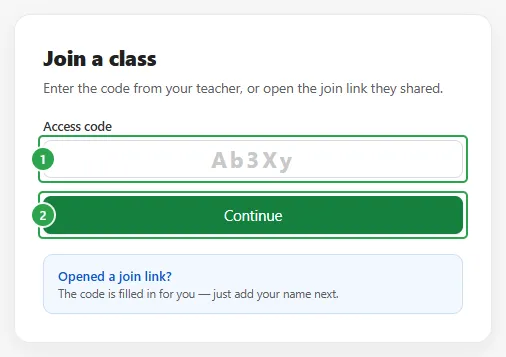
Type the code your teacher gave you into Access code (1) and click Continue (2). If you opened a join link instead, you will not see this screen at all. The link carries the code and takes you straight to the next one.
Check the class, then give your name
Section titled “Check the class, then give your name”Before Mindomo asks for anything, it shows you which class the code belongs to.
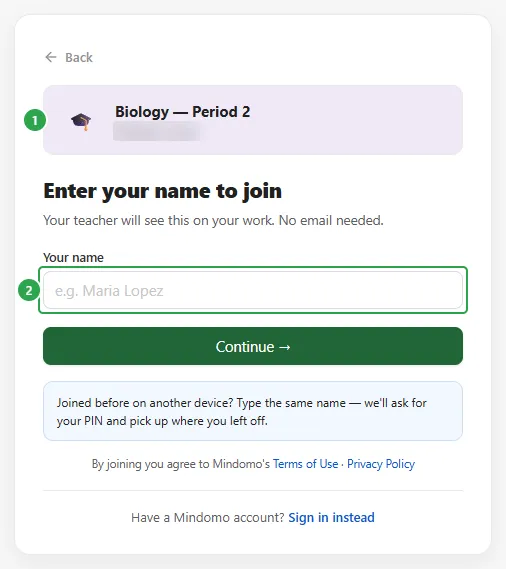
The class name and your teacher’s name are at the top (1): read them, because a mistyped code that happens to match another class would put you in the wrong room. Then type your name under Your name (2) and click Continue.
Under the button, Mindomo tells you that by joining you agree to its Terms of Use and Privacy Policy.
Pick a PIN, the first time
Section titled “Pick a PIN, the first time”If nobody in the class has used that name yet, you are new here.
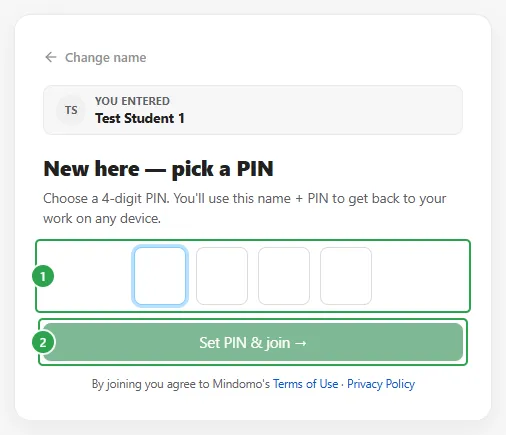
Type any four digits you can remember into the boxes (1) and click Set PIN & join (2). That is your account: no email, no password, just this name and this PIN. Together they get you back to your work: on this computer tomorrow, or on a different one in another room.
Type your PIN, if you have joined before
Section titled “Type your PIN, if you have joined before”If work is already saved under that name, Mindomo checks that it is you.
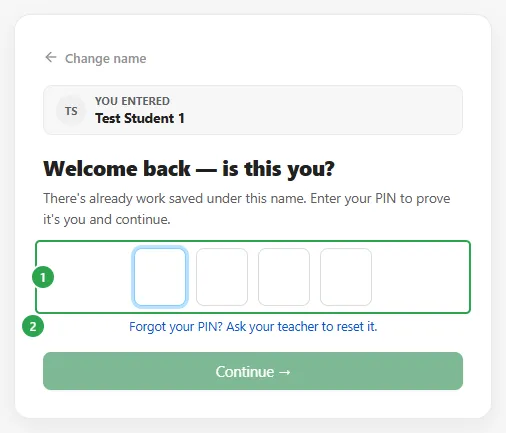
Type your PIN into the boxes (1) and click Continue. Get it wrong and it says That PIN doesn’t match. Try again. The line above the button (2) is there for the other case, when it has gone completely: Forgot your PIN? Ask your teacher to reset it.
Either way, Mindomo puts you in the class and opens My assignments, where everything your teacher has given the class is waiting. Assignments for students picks the story up from there.
Joining with a Mindomo account
Section titled “Joining with a Mindomo account”If you already have a Mindomo account, use it. At the bottom of the name screen, click Have a Mindomo account? Sign in instead.
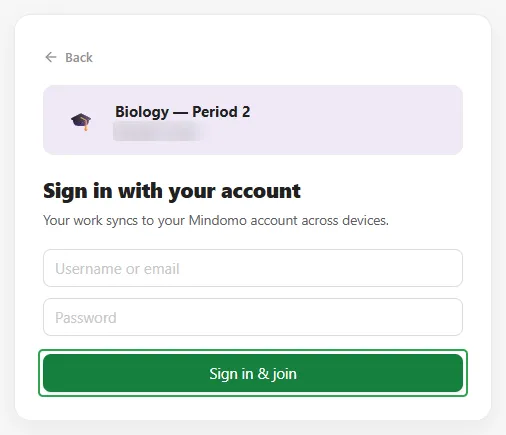
Type your username or email and your password, then Sign in & join. Mindomo’s own note on this screen says it plainly: your work syncs to your Mindomo account across devices. There is no name to type and no PIN to pick: you are signing in with an account you already have, and the class is simply added to it.
Coming back on the same device
Section titled “Coming back on the same device”Once you have joined on a computer, Mindomo remembers you on it, unless your teacher has Students join from shared classroom devices turned on, in which case your session ends at the end of the school day instead. Opening the join page again does not ask for the code a second time.
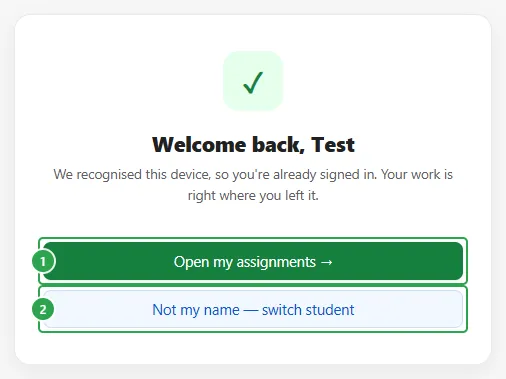
Open my assignments (1) drops you back into your work. Not my name, switch student (2) is for the next person at that computer: it signs you out and brings back the code screen, so they can join with their own name.
That second button matters on a shared classroom device, and it is worth knowing which way round it works. As long as somebody is signed in, the join page shows their welcome-back screen, even when the link you opened is for a different class. So if the name on the screen is not yours, use Not my name, switch student first, and then type the code.
When it does not work
Section titled “When it does not work”The join page says what went wrong, and the wording tells you who can fix it.
- That code doesn’t match a class. Check it and try again. A wrong character somewhere. The codes mix digits with upper and lower case letters, so copy it exactly as your teacher wrote it.
- This class is no longer active: your teacher archived or deleted it. Joining is closed; ask your teacher for help. Nothing you can do from your side. The class is finished with, or your teacher has put it away.
- That PIN doesn’t match. Try again. The name was recognised but the PIN was not. If you cannot remember it, ask your teacher to reset it rather than guessing.
- Please solve the captcha to continue. Several failed tries in a row, and Mindomo wants proof you are a person before it lets you carry on.
For teachers
Section titled “For teachers”Everything a student needs to join is on the class page, under How students join: the Class access code to read out, the Join link to paste into your usual channel, and Scan to join, the QR code (with Project fullscreen for the board, and Download and Print for a handout). All three belong to the same class, so it makes no difference which one a student uses.
When a student forgets their PIN, you are the only one who can reset it: open the class, find them on the Students tab, and choose Reset PIN from the menu at the end of their row.
Where to go next
Section titled “Where to go next”- Assignments for students: what to do once you are in the class.
- Assignments, the teacher’s side: creating a class, giving it work and following along.