

Reviewing and grading student work
Every student on an assignment has a review page of their own: their diagram on one side, everything you need to grade it on the other. This page follows one review from opening the work to releasing the grade, and shows how to get through a whole class without going back to the roster in between.
Opening a student’s work
Section titled “Opening a student’s work”Three routes lead to the same page:
- the button at the end of the student’s row in the assignment roster: Review once they have submitted, View work while they are still working, Message if they have not started
- any event in the assignment’s Recent activity feed, which opens the student it is about, at the comment or the submission it mentions
- Prev and Next at the top of a review page, which walk the roster in order
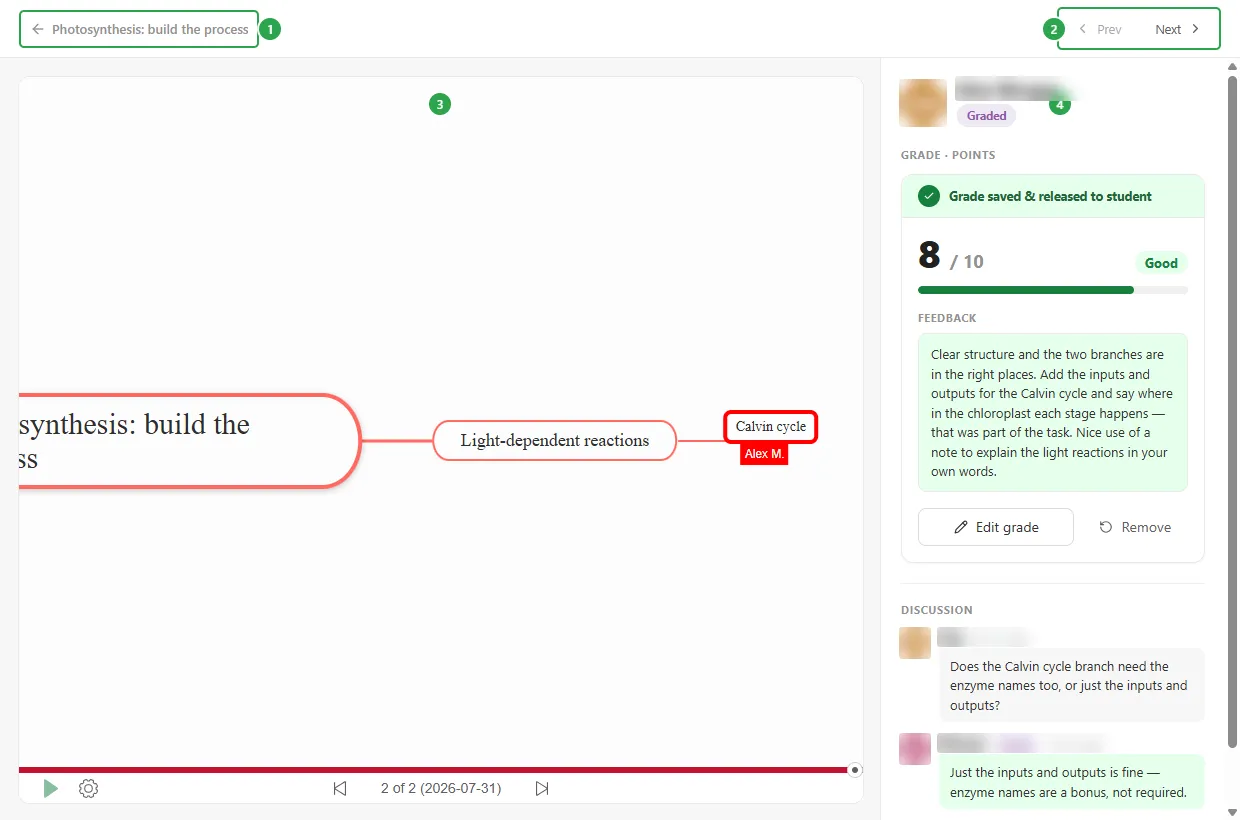
- The back link carries the assignment’s title and returns you to its overview.
- Prev and Next move to the student above or below in the roster; they grey out at the two ends of the class.
- The student’s diagram.
- The review rail: who this is, the Grade box and Discussion.
The rail opens with the student’s avatar and name and a pill repeating their status from the roster: Not started, In progress, Submitted or Graded.
Replaying how the diagram was built
Section titled “Replaying how the diagram was built”The left pane is not the plain diagram viewer: it is the change player, stepping through the diagram’s change history so you can watch the work appear rather than only judge its finished shape. Along the bottom:
- A play button animates the history, with a speed setting (x1, x2, and so on) next to it.
- Two icons jump to the first and last change.
- A counter between them says which change you are on and what day it was made.
- Drag the bar itself to move through the history by hand.
The topic that changed is tagged with the initials of whoever made it, and nothing you do here changes the student’s diagram.
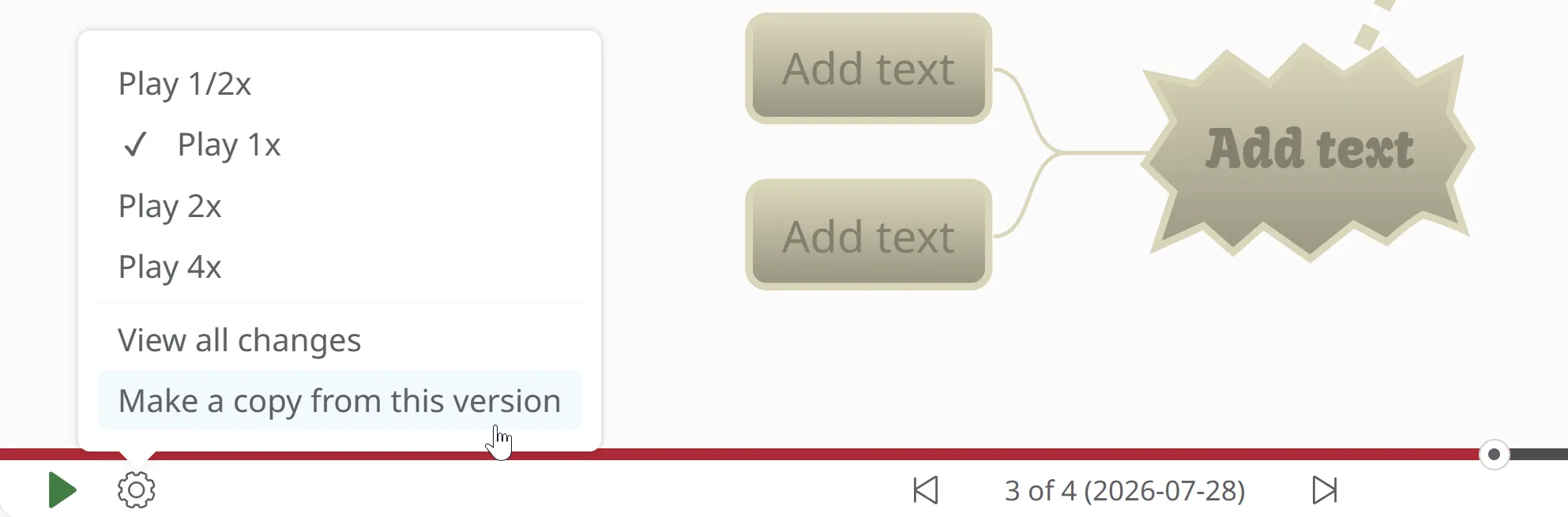
A gear icon on the left opens a small menu: Create a copy of this diagram version keeps a copy of the diagram exactly as it stood at that point, and View all changes lists every change with its exact date and hour, for when the counter’s day is not precise enough.
Grading the work
Section titled “Grading the work”The Grade box is the top half of the rail, labelled with the scale the assignment uses: Grade · Points here.
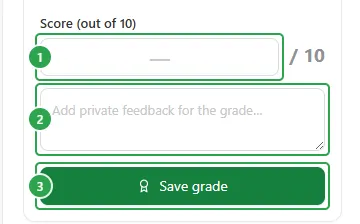
- The score. On a Points assignment the field is labelled Score (out of N) and the maximum is printed beside it.
- Feedback is a private note that reaches the student together with the grade.
- Save grade.
Save with the score empty and Mindomo answers Enter a score before saving.; save a score the scale cannot hold and it answers Score must be between 0 and 10. (with your own maximum in place of the 10).
Once saved, the box turns into the released grade.
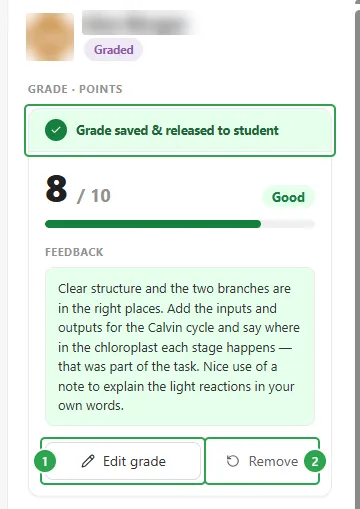
The banner reads Grade saved & released to student: there is no separate step for publishing a grade, and the student sees it as soon as it is saved. Underneath, the grade is drawn on its own scale, with your feedback below it.
- Edit grade (1) opens the same fields again, prefilled, with Update grade and Cancel in place of Save grade.
- Remove (2) takes the grade back off the work.
The grading scales
Section titled “The grading scales”Which controls the grade box gives you depends on the scale chosen for the assignment, in the assignment setup’s Grade this assignment section. There are four:
- Points: a score out of a Max points you set.
- Percentage: scored 0–100%, against a Pass mark you set.
- Letter (A–F): A, B, C, D or F.
- Complete / Incomplete: marked complete or incomplete, with no numeric score.
An assignment with grading switched off has no grade box on its review pages at all. The rail is the student’s identity and the discussion.
Grading work that has not been submitted
Section titled “Grading work that has not been submitted”You can grade at any time, but doing it before the student has submitted has a consequence, and the box says so plainly.
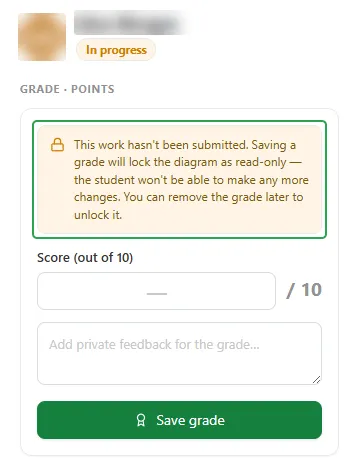
Talking to the student about the work
Section titled “Talking to the student about the work”Discussion is the same private thread the student sees on their own assignment page, so anything either of you writes stays with this one assignment.
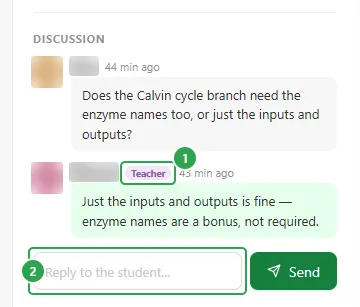
Your own replies are marked Teacher (1). To write, type in Reply to the student… (2) and press Enter, or click Send. While the thread is empty, Mindomo says so and reminds you that whatever you write goes straight to that student.
When there is no work yet
Section titled “When there is no work yet”A student who has not started has no diagram to show, so the left pane explains itself instead.
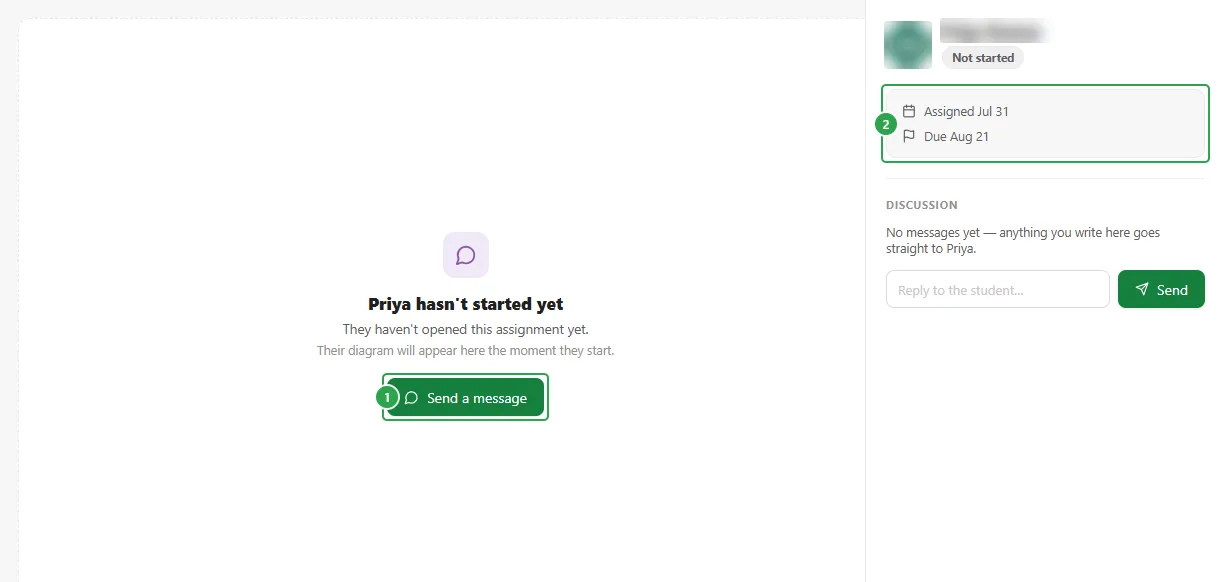
The heading is the student’s first name followed by hasn’t started yet, and the line under it separates the two cases: They haven’t opened this assignment yet. or They opened it on Jul 31 but haven’t started working. Either way, their diagram appears here the moment they start.
- Send a message is the action that makes sense at this point; it puts the cursor straight into the reply box in the rail. This is also where the roster’s Message button lands.
- The rail has no grade box (nothing to grade yet), so the assignment’s timeline takes its place: Assigned and Due.
Downloading the work as PDF
Section titled “Downloading the work as PDF”To keep a copy of a student’s diagram, print it, or mark it on paper, click Download PDF at the top of their review page, next to Prev and Next.

You get a single landscape page, named after the student and the assignment. The header at the top shows:
- the class and the assignment title
- the student’s name and status
- when the diagram was last edited
- the teacher
The diagram fills the rest of the page, as it stands right now, whether or not it has been submitted.
Exporting the class’s grades
Section titled “Exporting the class’s grades”The whole class’s grades come off the assignment’s own page rather than the review pages.
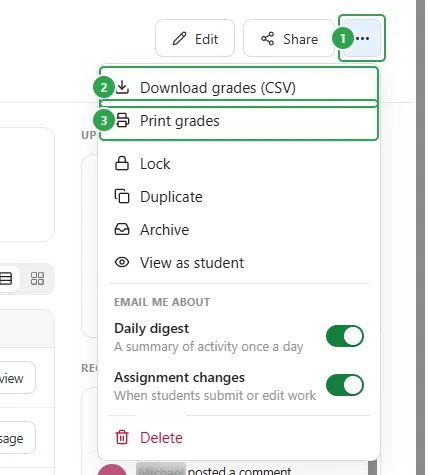
Open the ⋯ (three dots) menu (1) next to Edit and Share:
- Download grades (CSV) (2) saves the list as a spreadsheet file.
- Print grades (3) hands it to your browser’s print dialog, where Save as PDF turns it into a document.
Both items only appear on an assignment you are grading; on one with grading switched off the menu starts at Lock.
What the student sees of all this
Section titled “What the student sees of all this”The grade and the feedback you wrote turn up on the student’s own assignment page, and the discussion thread is the same one on both sides. Assignments for students shows the whole thing from their point of view.
Where to go next
Section titled “Where to go next”- Assignments: how an assignment is put together in the first place.
- Assignments for students: the student’s side of a grade, feedback and the discussion thread.
- Collaborating on mind maps: what it looks like when several people build one diagram.