

Getting started with Mindomo
Getting started with Mindomo is quick and intuitive, whether you’re creating your first mind map or exploring more advanced features. This guide will walk you through the basics of building, customizing, navigating, saving, and sharing your mind maps to help you make the most of your Mindomo experience.
Creating mind maps
Section titled “Creating mind maps”Click the Create button (1) at the top of the Dashboard’s left panel. The Create new panel opens, where you can choose to create a Mind map, Concept map, Organigram, Timeline, Fishbone, Outline, Gantt chart, or Folder, or start from one of your Templates. Click Mind map (2) to create a mind map from scratch.
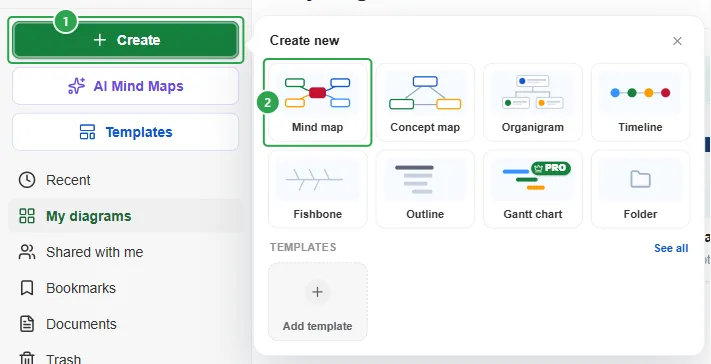
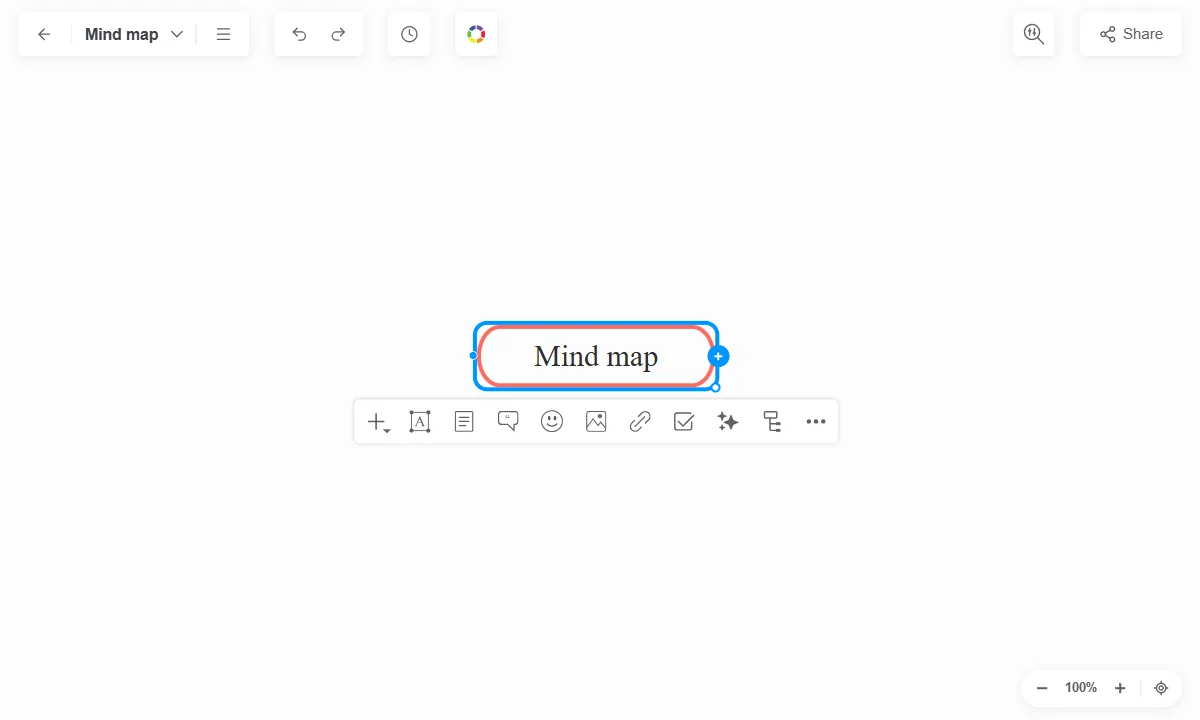
The mind map is created right away and opens in the editor. To change its look, use the Themes button in the editor (see Editing mind maps).
The two buttons below Create offer other ways to start: AI Mind Maps generates a mind map for you (see Mindomo AI), and Templates lets you start from a ready-made structure (see Using templates).
After creating the mind map, you’ll be presented with Mindomo’s tidy and easy-to-use interface.
Topic types
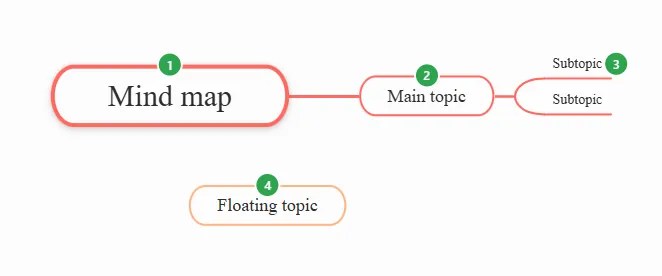
There are four topic types:
-
Central topic
-
Main topic
-
Subtopic
-
Floating topic
Editing topics
-
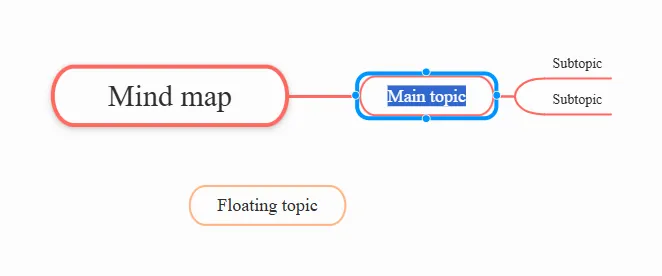
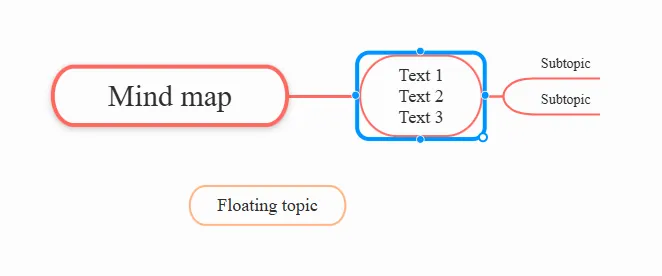
To edit a topic, click the topic to select it. The topic shape will turn blue. Click again to highlight the text, then type your text.
-
To insert a new text line into a topic, place the cursor at the end of the line, hold SHIFT, and press ENTER.
-
Press ENTER to finish editing the text.
Creating a topic or subtopic
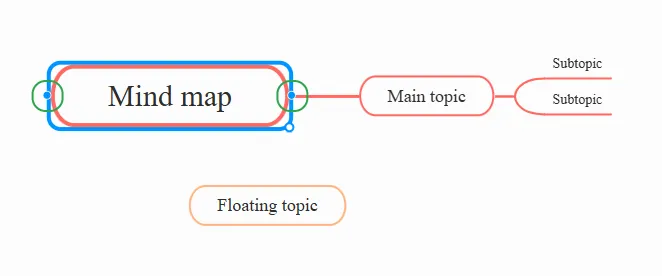
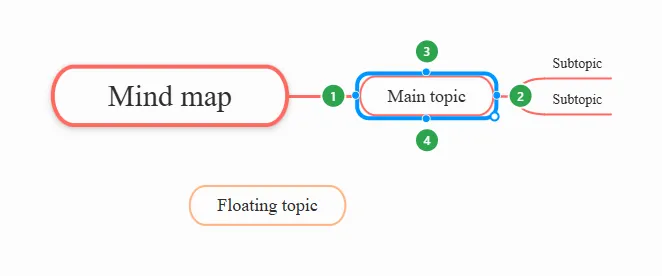
1. Select an existing topic. When a topic is selected, small connection points appear around its border. You can use these points to quickly add new topics.
-
Central topic - depending on the diagram layout, one or two connection points will appear. Click a point to create a new topic on the corresponding side of the central topic.
-
Subtopic - four connection points appear around the selected topic: left (1) adds a parent topic, right (2) adds a subtopic, top (3) adds a sibling topic before the selected topic, and bottom (4) adds a sibling topic after it.
2. Use the keyboard shortcuts for a quicker topic creation: press the TAB key to insert subtopic and ENTER to insert a sibling topic.
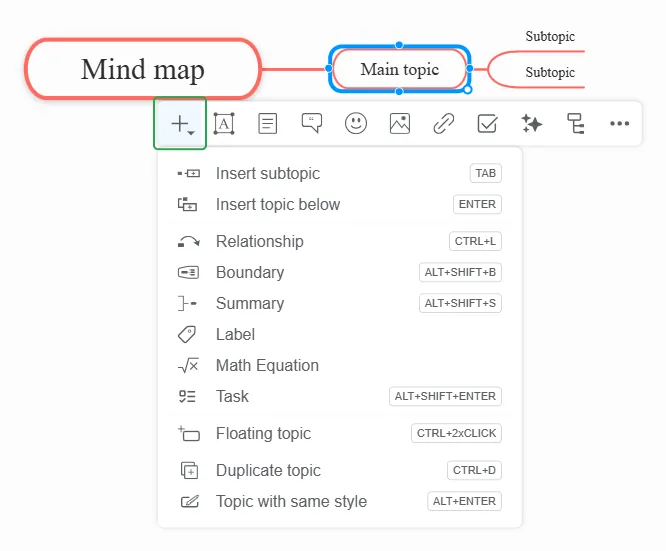
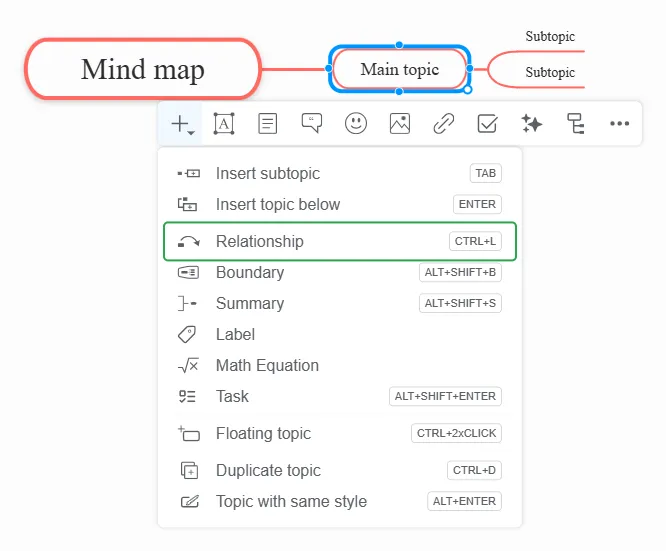
3. Select a topic and click the Insert button on the toolbar. From this menu you can insert a subtopic, a Relationship, a Boundary, a Summary, a Label, a Math Equation, a Task, a Floating topic, duplicate the topic (Duplicate topic), or add a Topic with same style.
To delete a topic, select it, click the More button on the toolbar, and choose Delete. Alternatively, you can press the Delete key on your keyboard.
Repositioning a topic
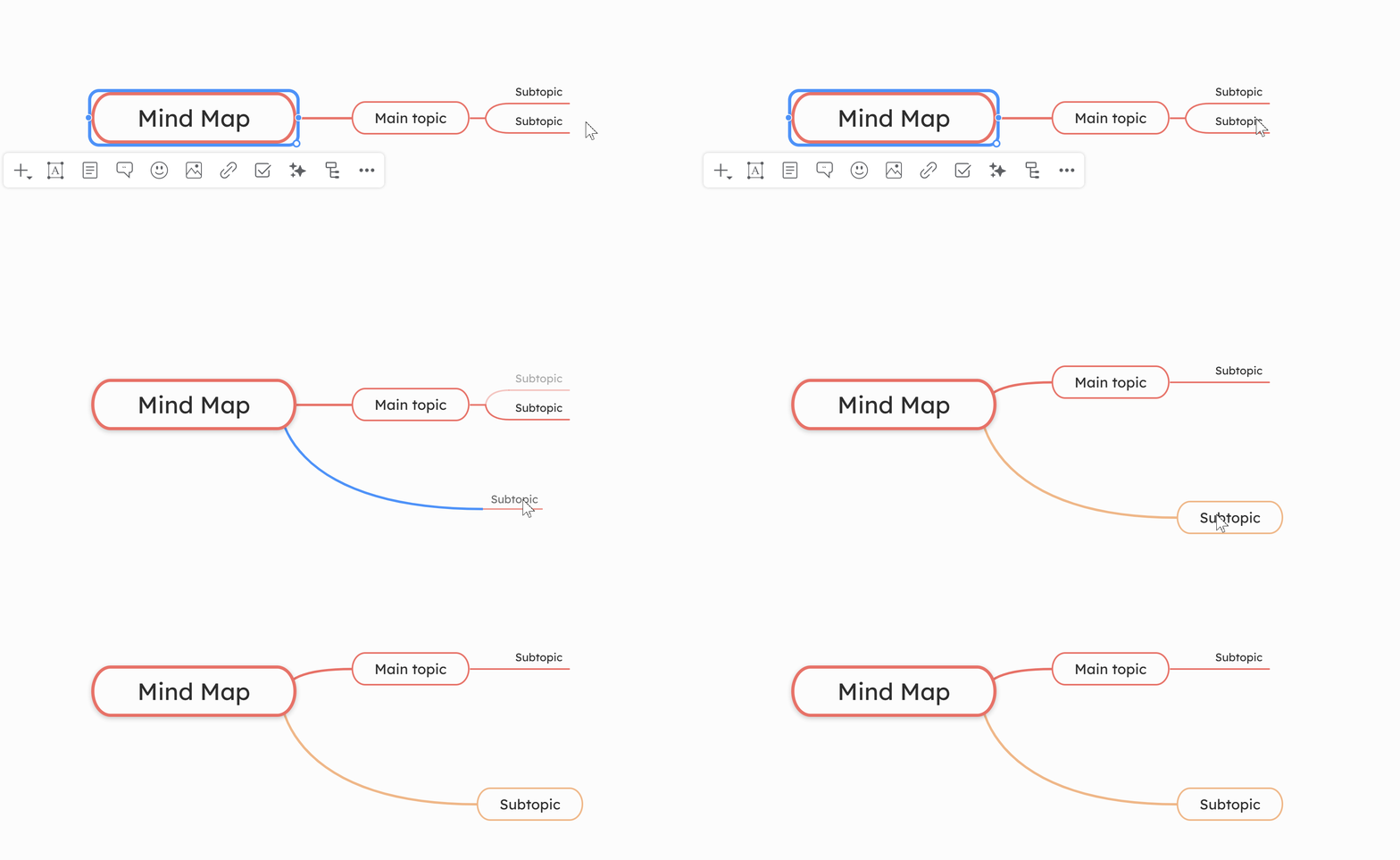
Drag and drop topics to reposition them or move them under other topics.
Now that you’ve created your first map, learn how to save and share your mind map, or open one of the many maps created by other Mindomo users.
Navigating
Section titled “Navigating”Zoom
-
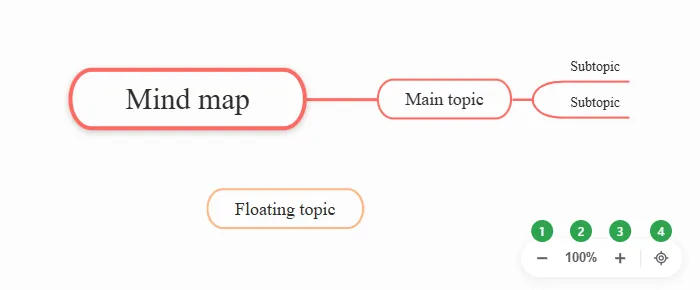
Use the controls in the bottom right corner of the map: Zoom out (1), the current zoom level (2), Zoom in (3), and Center diagram (4), which brings the map back to the middle of the screen.
-
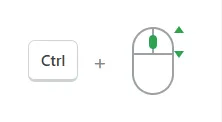
To zoom with the mouse, hold CTRL and scroll the mouse wheel.
-
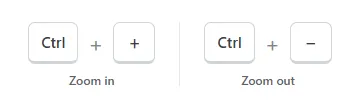
To zoom with the keyboard, press CTRL + + to zoom in and CTRL + - to zoom out.
Pan
To pan with the mouse, click and drag the mind map canvas.
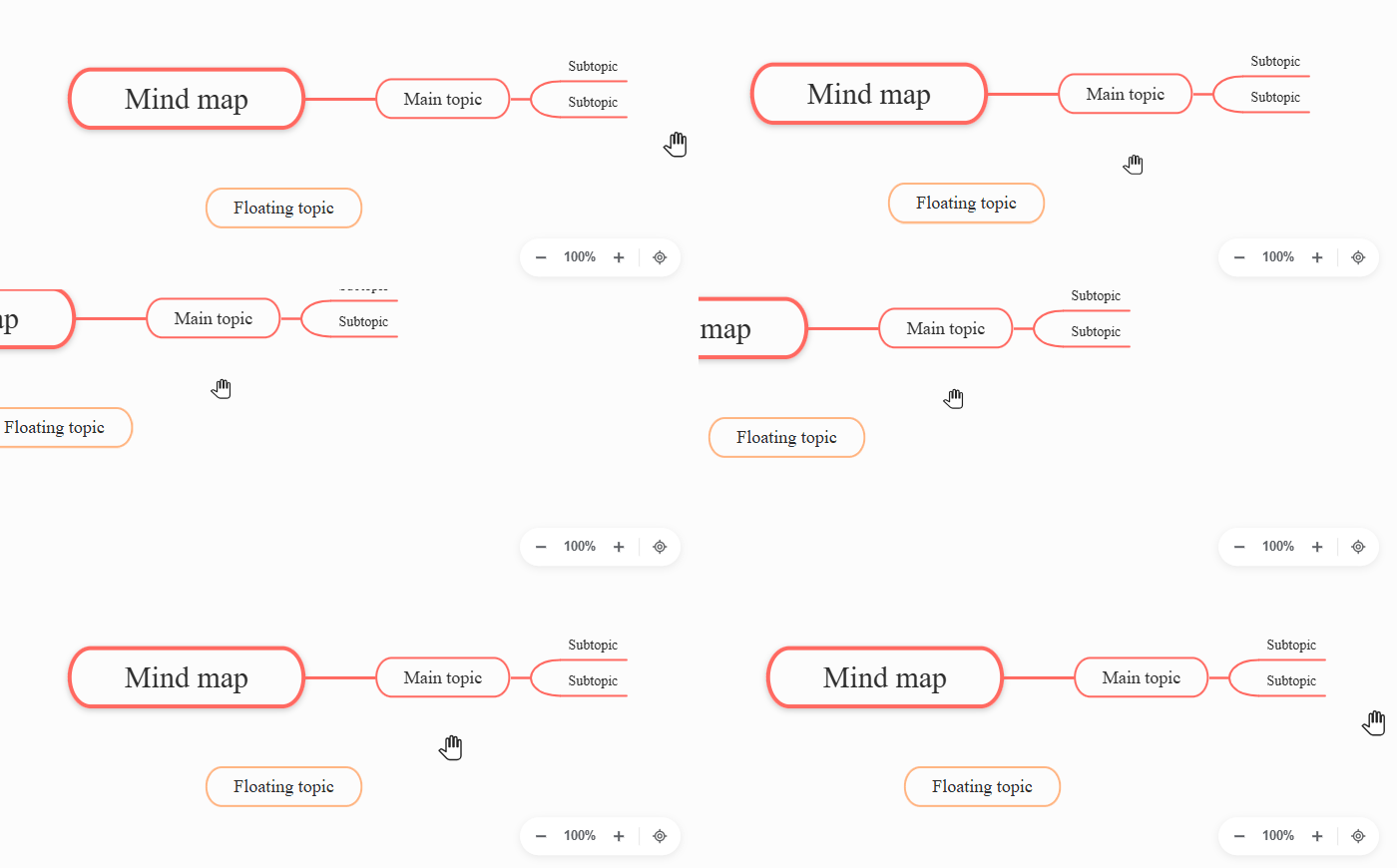
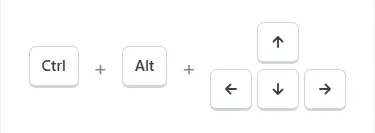
To pan using the keyboard, hold CTRL + ALT and press the arrow keys.
Opening mind maps
Section titled “Opening mind maps”The Dashboard opens on My diagrams and gives you access to all your maps and folders. Use the left panel to switch between Recent, My diagrams, Shared with me, Bookmarks, Documents, and Trash. Just click on a map (1) to open it.
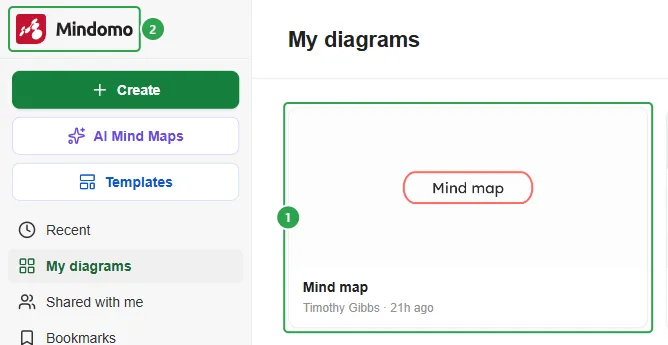
If you’ve opened a folder, use the My diagrams link at the top of the page to go back, or click the Mindomo logo (2) to return to the Dashboard. From the editor, click the back arrow in the top left corner.
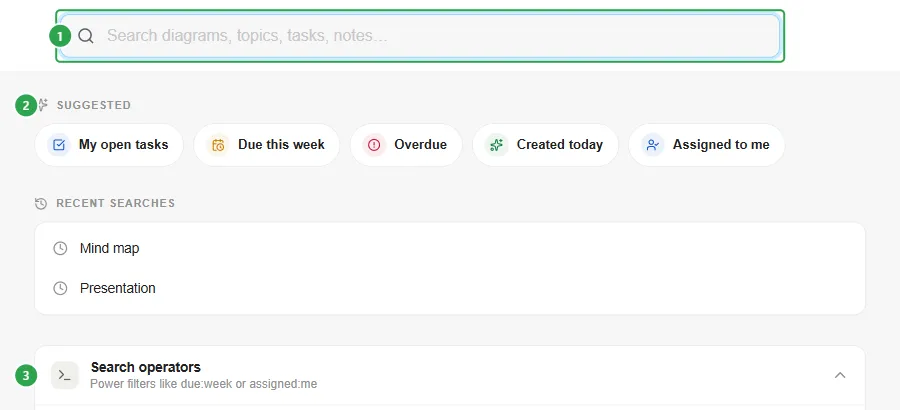
Use the search bar at the top of the Dashboard to find a map by its title, topics, tasks, or notes. Type in the search field (1), pick one of the Suggested searches (2), or open Search operators (3) for power filters such as due:week or assigned:me. For more details, see Searching.
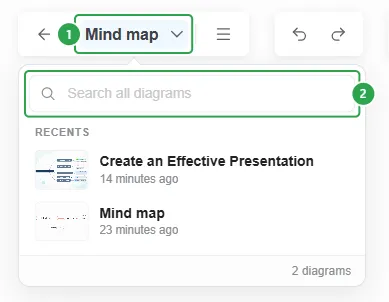
To switch to another map without leaving the editor, click the map title (1) next to the back arrow. It lists your Recents and has a Search all diagrams box (2). For more details, see Recent maps.
Saving mind maps
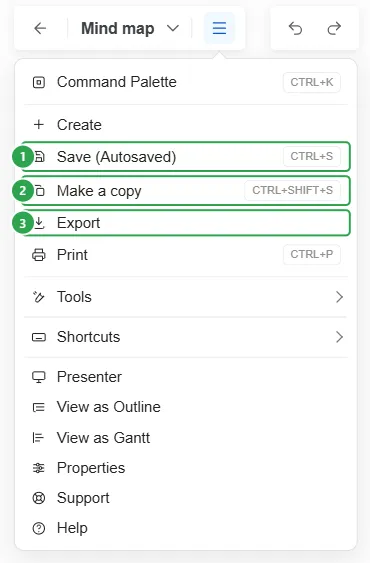
Section titled “Saving mind maps”Click the More button (the menu icon next to the map title) in the top left corner of the editor to find these options:
-
Save (Autosaved) - autosave is enabled, so you don’t have to save every time you want to back up your work. You can also press CTRL+S.
-
Make a copy - creates a copy of the map. You can also press CTRL+SHIFT+S.
-
Export - export the map to your computer/Dropbox/OneDrive/Google Drive in a variety of formats: PDF, RTF, PNG, mind map formats, Microsoft Excel formats, and other types of formats. See Exporting Mind Maps.
Make a copy
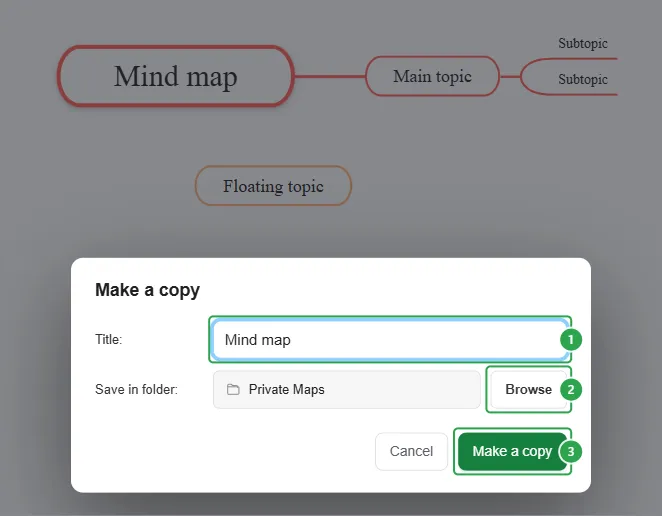
This dialog appears when you choose to make a copy of a map. To save the copy:
-
Fill in the copy’s Title.
-
Click Browse to choose the folder the copy is saved in.
-
Click Make a copy.
Sharing mind maps
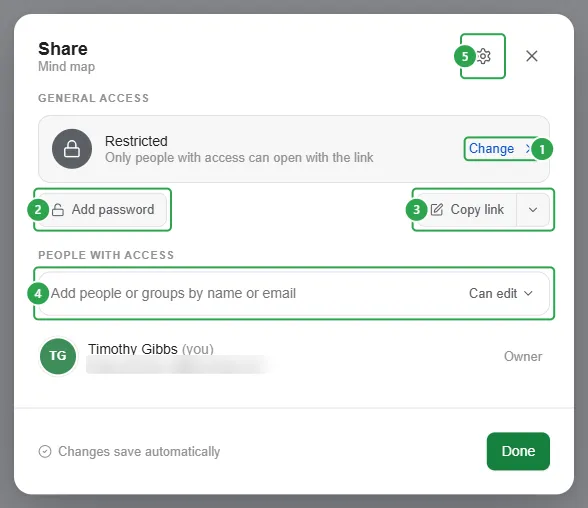
Section titled “Sharing mind maps”To share a map, click Share in the top right corner of the editor. In the Share dialog you can:
- choose who can open the map under General access (1),
- protect the map with a password (2), if you are a premium user,
- copy the map’s link (3) - the arrow next to Copy link also offers a view-only link, an embed code, and an RSS feed,
- invite people or groups by name or email, and choose whether they can edit or only view (4),
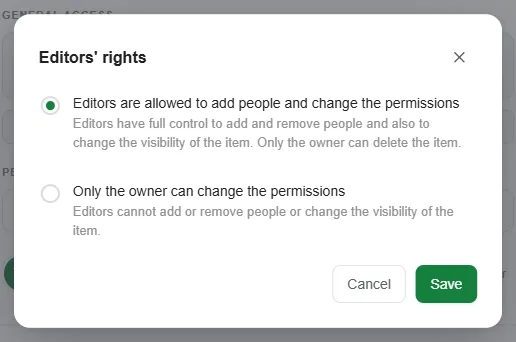
- set what editors are allowed to do (5).
Changes are saved automatically. Click Done to close the dialog. You can also share a map from the Dashboard: right-click it and choose Share this diagram.
Publishing
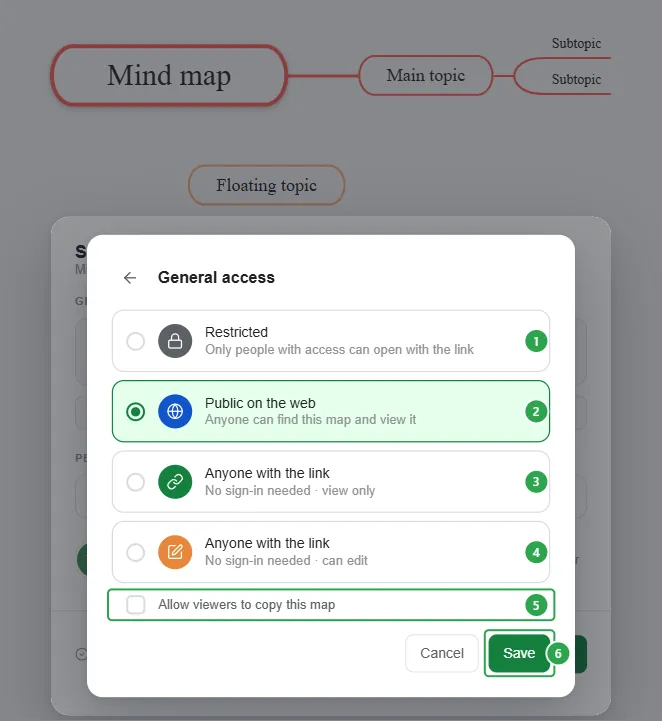
To publish a map, click Change under General access and choose who can open it: keep it Restricted (1), make it Public on the web (2) so anyone can find and view it, or share it with Anyone with the link, either view only (3) or with editing (4), with no sign-in needed. A public map can also Allow viewers to copy this map (5). Click Save (6).
Editors’ rights
Click the settings button (5) in the Share dialog to choose whether editors can add people and change the map’s permissions, or whether only the owner can. Only the owner can delete the map.
For private, team, group, class, and guest sharing, viewer privacy, links and embedding, and password protection, see Sharing Mind Maps.
Editing mind maps
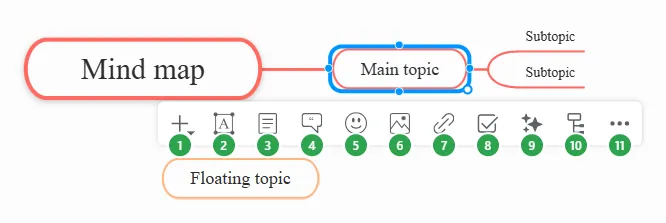
Section titled “Editing mind maps”To add details and customize a topic, select it and use the toolbar to access different features:
- Insert - add subtopics, relationships, boundaries, summaries, and more
- Style - topic style
- Notes - add notes
- Comments - add comments
- Icons - add icons
- Multimedia - add multimedia
- Links / Attachments - add links and attachments
- Task - set the topic as a task
- Smart Tools - use smart tools
- Layout - customize the layout
- More - cut, copy, paste, delete, and other options
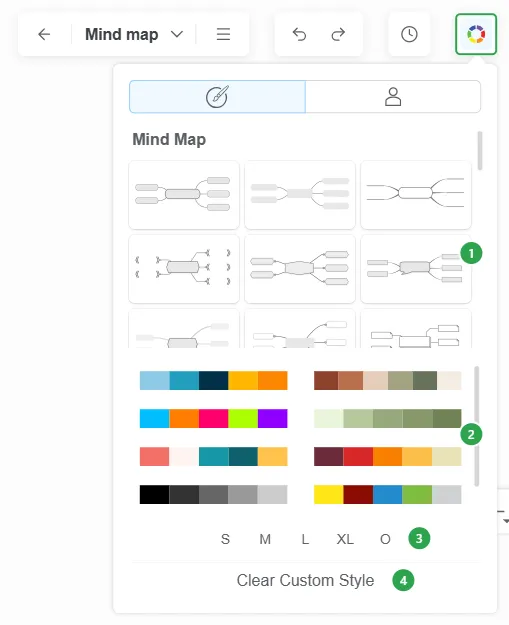
Map Styles Click the Themes button (the color wheel) in the top bar of the editor.
-
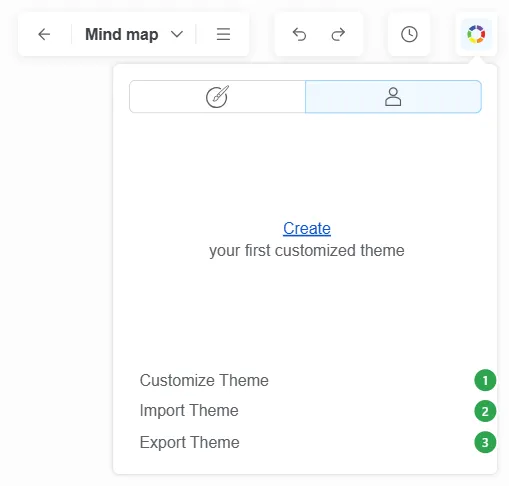
Predefined themes - on the first tab, choose the appearance of your current mind map from the predefined layouts (1), color palettes (2), and sizes (3). Clear Custom Style (4) removes the custom styling you applied to topics.
-
On the second tab, Create your first customized theme, or use:
- Customize Theme - create your own personalized theme (1).
- Import Theme - import previously saved themes (2).
- Export Theme - export your themes (3).
-
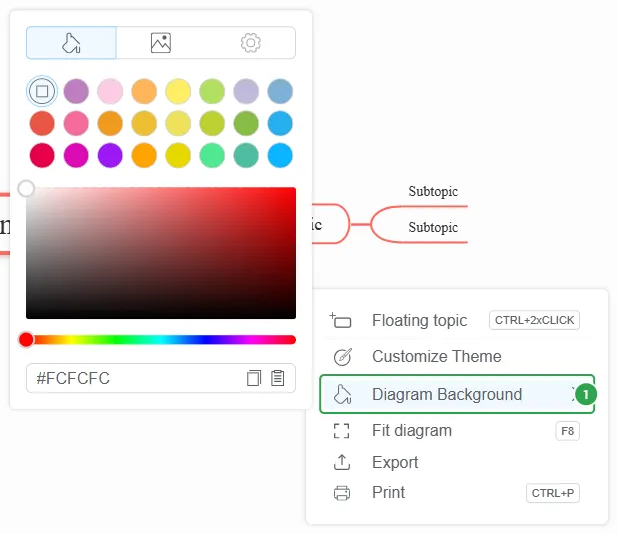
Diagram Background - right-click on the canvas, then hover over Diagram Background (1) and choose a color, a picture, or other background settings from the tabs.
For more details, see Themes.
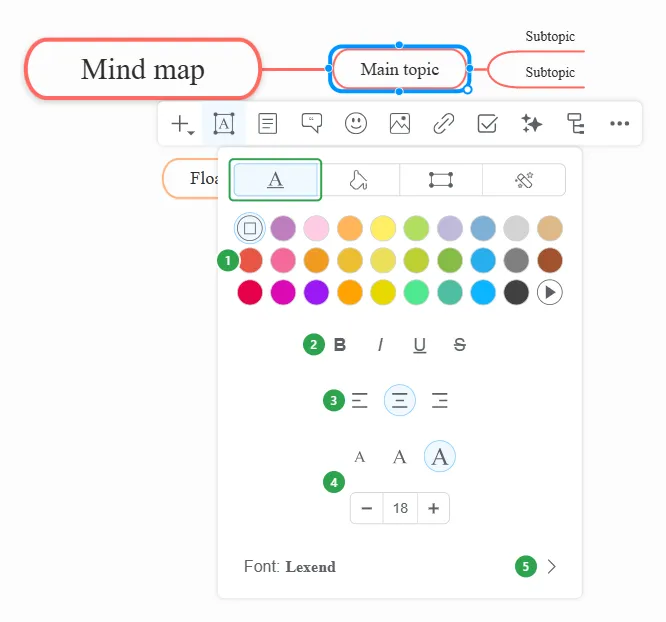
Text Style On the Text Style tab, customize the topic text: its color (1), formatting (2), alignment (3), size (4), and font (5).
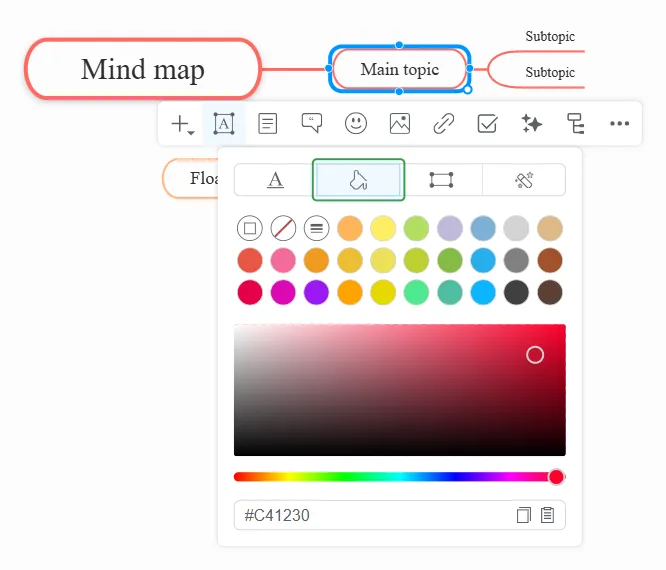
Topic Background The Background tab allows for the customization of the topic’s color.
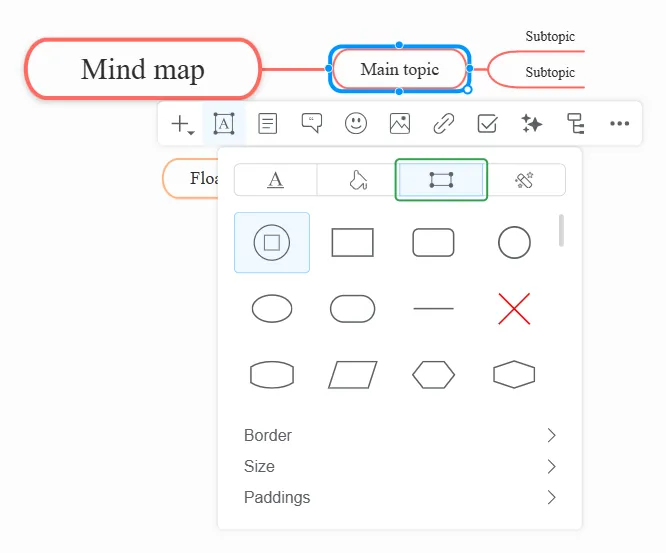
Topic Shape The Shape tab lets you choose the shape of the topic and customize its Border, Size, and Paddings.
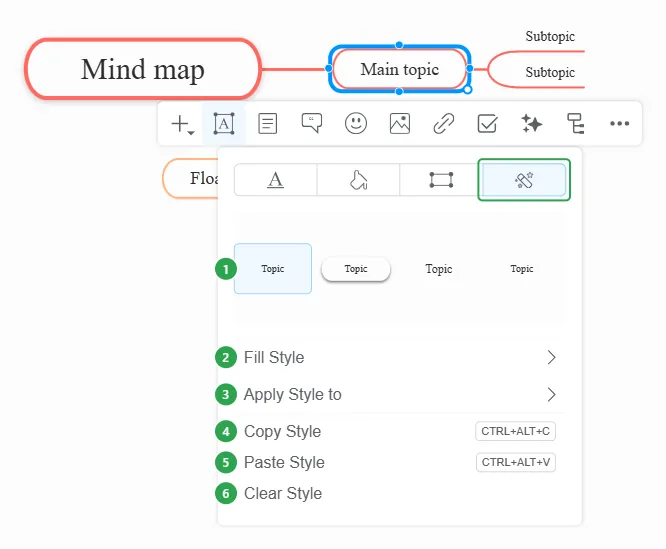
Topic Style On the Style tab, you can choose from a variety of styles (1), with or without gradients or borders, set the Fill Style (2), and apply the style to other topics with Apply Style to (3). You can also Copy Style (4), Paste Style (5), or Clear Style (6).
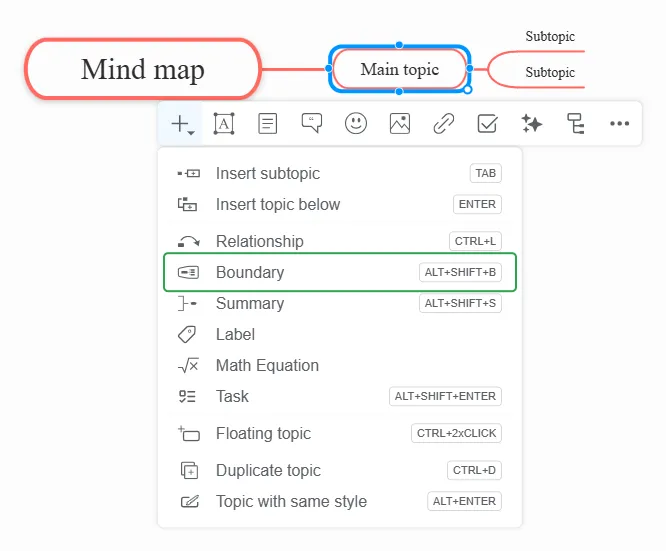
Boundaries The Boundary functionality will help you mark and determine the limits of an area on your map. You can apply boundaries to any topic but the central one.
To insert a boundary, select a topic, click the Insert button on the toolbar, and then choose Boundary.
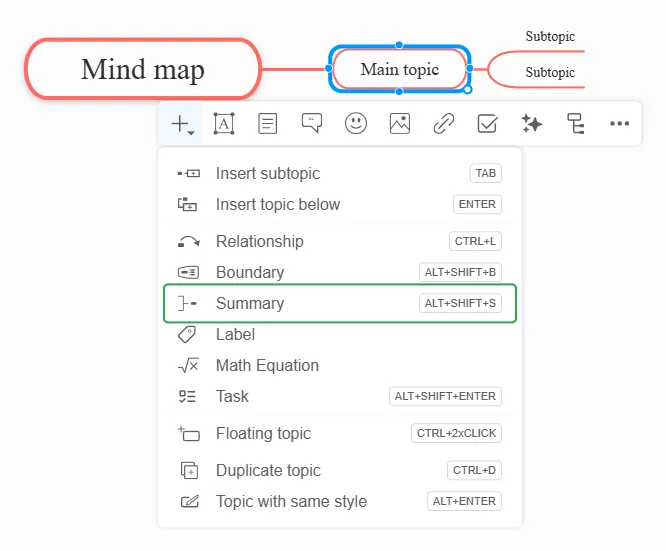
Summaries To insert a summary, select a topic, click the Insert button on the toolbar, and then choose Summary from the menu. You can add a summary to any topic but the central one.
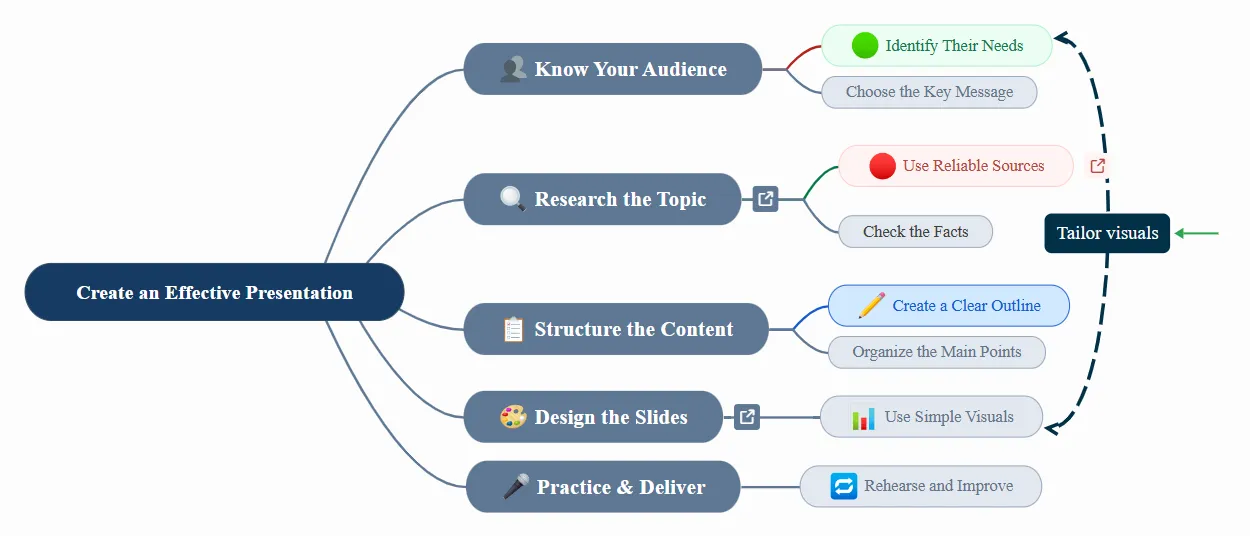
Relationships The option to add a relationship between topics will be available when you select a topic and click the Insert button on the toolbar, then Relationship (or press CTRL+L).
To change the color, shape, weight, pattern, line endings, or label of a relationship, see Relationships.
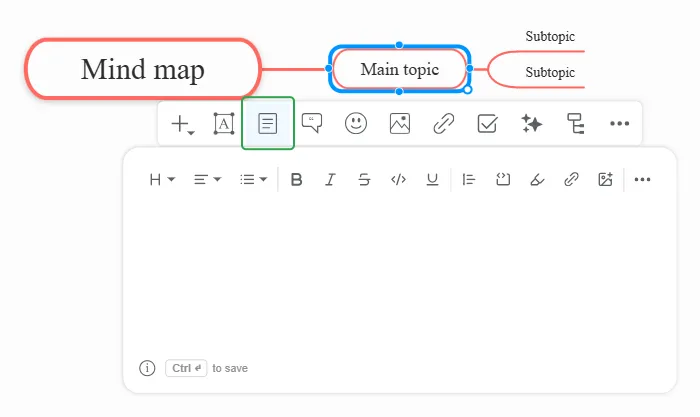
Notes To add longer text to a topic, select it and click Notes on the toolbar. Type your notes in the editor that opens, and use its toolbar to format them with headings, lists, bold, links, images, and more. Press CTRL+ENTER to save. For more details, see Notes.
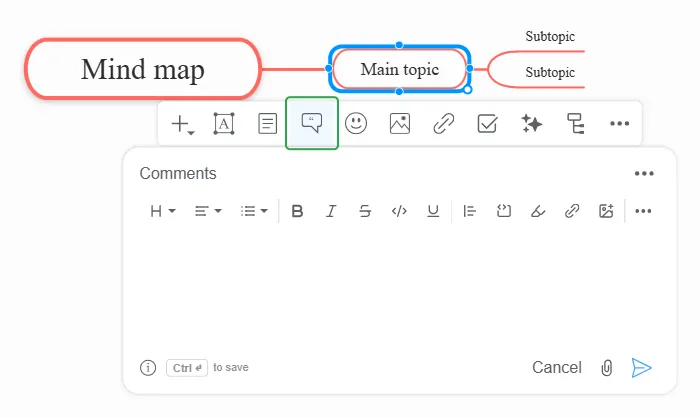
Comments To discuss a topic with your collaborators, select it and click Comments on the toolbar. Write your comment, attach a file if needed, and press CTRL+ENTER or click the send arrow to post it. For more details, see Comments.
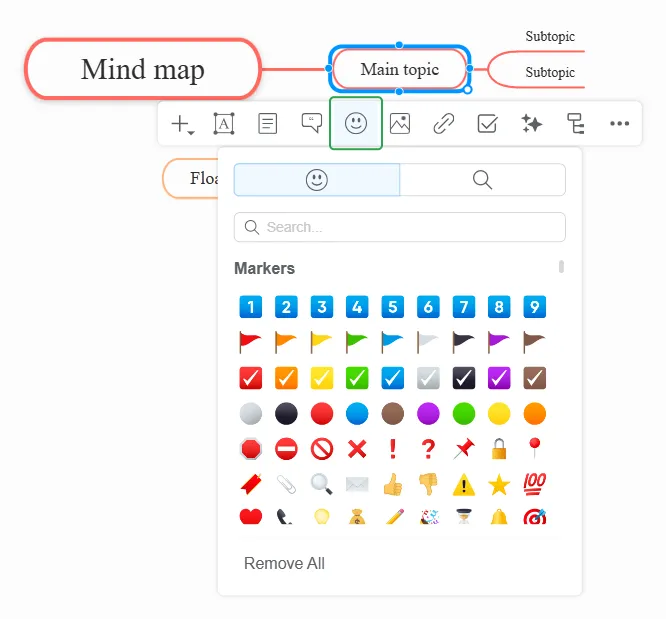
Icons Click Icons on the toolbar to add markers to the selected topic, such as numbers, flags, checkmarks, and emojis. Use the search tab to find an icon by name, and Remove All to clear the topic’s icons. For more details, see Icons and Emojis.
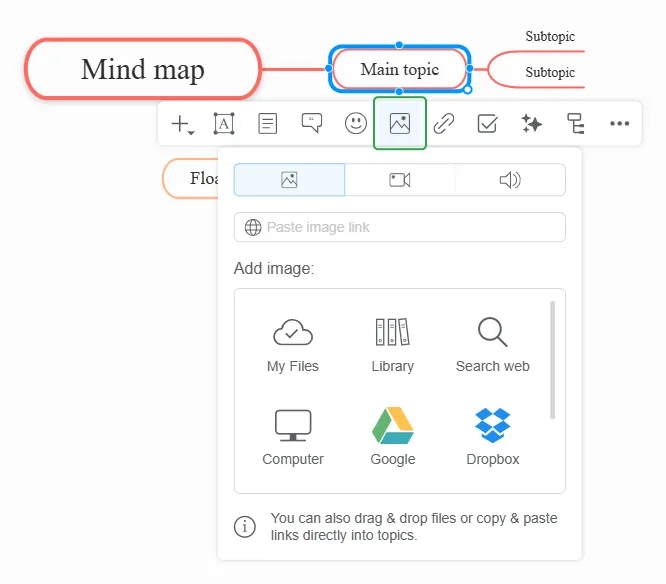
Multimedia Click Multimedia on the toolbar to add an image, a video, or an audio file to the selected topic. Paste a link, or add a file from My Files, the Library, a web search, your Computer, Google Drive, or Dropbox. For more details, see Multimedia.
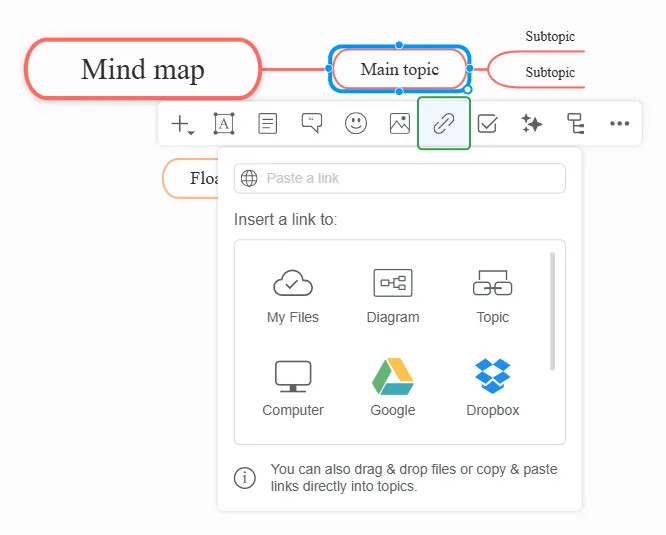
Links / Attachments Click Links / Attachments on the toolbar to paste a web link, or to link the topic to one of My Files, another Diagram, another Topic in the map, or a file from your Computer, Google Drive, or Dropbox. For more details, see Links and Attachments and Multiple Hyperlinks.
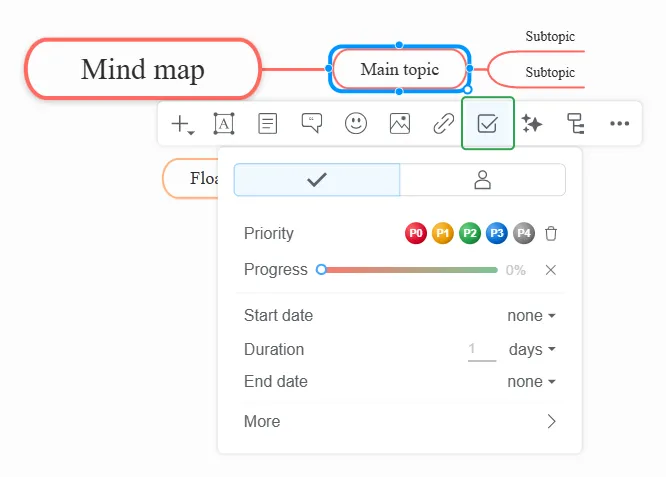
Topic Tasks Click Task on the toolbar to manage the selected topic as a task. Set its Priority, Progress, Start date, Duration, and End date, and use the second tab to assign it to someone. For more details, see Task Management.
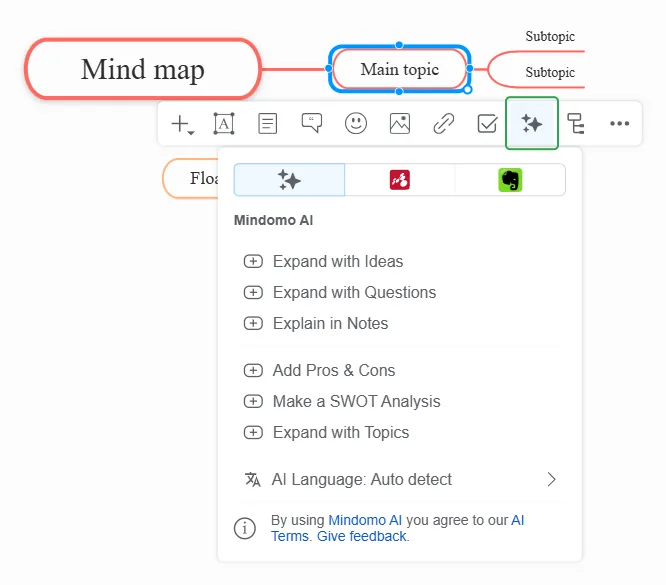
Smart Tools Click Smart Tools on the toolbar to let Mindomo AI expand the selected topic with ideas, questions, or topics, explain it in the notes, add pros and cons, or make a SWOT analysis. For more details, see Smart tools and Mindomo AI.
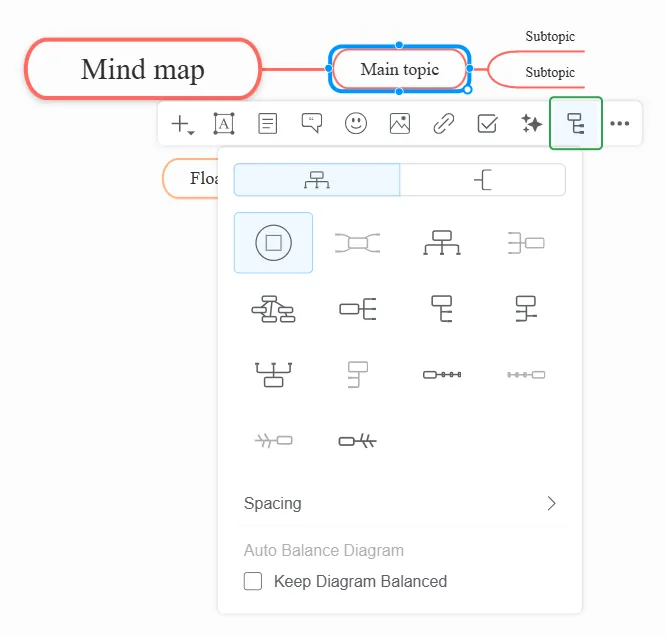
Layout Click Layout on the toolbar to choose how the selected topic’s subtopics are arranged, adjust their Spacing, or keep the diagram balanced. For more details, see Layouts.
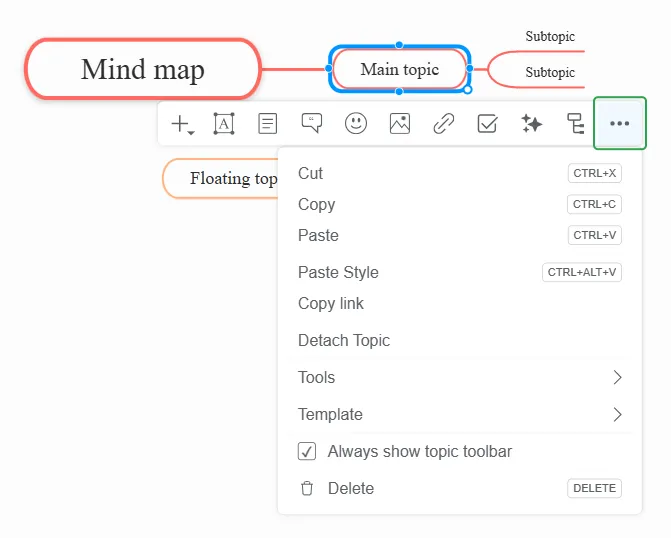
More Options Click More (…) on the toolbar to Cut, Copy, or Paste topics, paste a style, copy a link to the topic, detach it, open Tools and Template, or Delete the topic. For more details, see Tools and Copy-Paste Branches.
Organizing mind maps
Section titled “Organizing mind maps”Create a private folder – On the Dashboard, click Create and choose Folder. Enter a Folder name and click Create. The folder appears at the top of My diagrams.
Move maps into a folder – Drag a map onto the folder, or right-click the map (or click its ⋮ button), choose Move to…, select the folder, and click Move here.
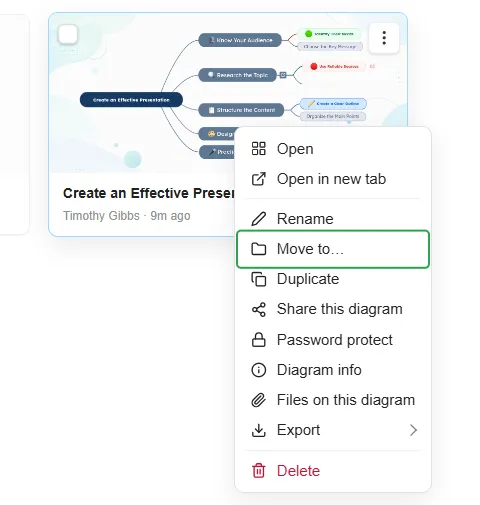
The same menu lets you Open a map or Open in new tab, Rename, Duplicate, Share this diagram, Password protect it, see its Diagram info and Files on this diagram, Export it, or Delete it.